> ## Documentation Index
> Fetch the complete documentation index at: https://docs.unstructured.io/llms.txt
> Use this file to discover all available pages before exploring further.
# Process an individual file by making a direct POST request
The following information applies to the legacy Unstructured Partition Endpoint.
Unstructured recommends that you use the
[on-demand jobs](/api-reference/api/job/create-job) functionality in the
[Unstructured API](/api-reference/overview) instead. Unstructured's on-demand jobs provide
many benefits over the legacy Unstructured Partition Endpoint, including support for:
* Production-level usage.
* Multiple local input files in batches.
* The latest and highest-performing models.
* Post-transform enrichments.
* All of Unstructured's chunking strategies.
* The generation of vector embeddings.
The Unstructured API also provides support for processing files and data in remote locations.
Watch the following 4-minute video to learn how to make POST requests to the Unstructured Partition Endpoint to process individual files:
Open the related [notebook](https://colab.research.google.com/github/Unstructured-IO/notebooks/blob/main/notebooks/Unstructured_API_Partition_endpoint.ipynb) that is shown in the preceding video.
To make POST requests to the Unstructured Partition Endpoint, you will need:
These environment variables:
* `UNSTRUCTURED_API_KEY` - Your Unstructured API key value.
* `UNSTRUCTURED_API_URL` - Your Unstructured API URL.
To get your API key, do the following:
1. If you do not already have an Unstructured account, [sign up for free](https://unstructured.io/?modal=try-for-free).
After you sign up, you are automatically signed in to your new Unstructured **Let's Go** account, at [https://platform.unstructured.io](https://platform.unstructured.io).
To sign up for a **Business** account instead, [contact Unstructured Sales](https://unstructured.io/?modal=contact-sales), or [learn more](/api-reference/overview#pricing).
2. If you have an Unstructured **Let's Go**, **Pay-As-You-Go**, or **Business SaaS** account and are not already signed in, sign in to your account at [https://platform.unstructured.io](https://platform.unstructured.io).
For other types of **Business** accounts, see your Unstructured account administrator for sign-in instructions,
or email Unstructured Support at [support@unstructured.io](mailto:support@unstructured.io).
3. Get your Unstructured API key:
a. After you sign in to your Unstructured **Let's Go**, **Pay-As-You-Go**, or **Business** account, click **API Keys** on the sidebar.
For a **Business** account, before you click **API Keys**, make sure you have selected the organizational workspace you want to create an API key
for. Each API key works with one and only one organizational workspace. [Learn more](/pipelines/account/workspaces#create-an-api-key-for-a-workspace).
b. Click **Generate API Key**.
c. Follow the on-screen instructions to finish generating the key.
d. Click the **Copy** icon next to your new key to add the key to your system's clipboard. If you lose this key, simply return and click the **Copy** icon again.
The API URL was provided to you when your Unstructured account was created.
If you do not have this URL, email Unstructured Support at [support@unstructured.io](mailto:support@unstructured.io).
The default URL for the Unstructured Partition Endpoint is `https://api.unstructuredapp.io/general/v0/general`.
However, you should always use the API URL that was provided to you when your Unstructured account was created.
Let's start with a simple example in which you use [curl](https://curl.se/) to send a local PDF file (`*.pdf`) to partition via the Unstructured Partition Endpoint.
In this command, be sure to replace `` with the path to your local PDF file.
```bash theme={null}
curl --request 'POST' \
"$UNSTRUCTURED_API_URL" \
--header 'accept: application/json' \
--header "unstructured-api-key: $UNSTRUCTURED_API_KEY" \
--header 'content-Type: multipart/form-data' \
--form 'content_type=string' \
--form 'strategy=vlm' \
--form 'vlm_model_provider=openai' \
--form 'vlm_model=gpt-4o' \
--form 'output_format=application/json' \
--form 'files=@;type=application/pdf'
```
In the example above we're representing the API endpoint with the environment variable `UNSTRUCTURED_API_URL`. Note, however, that you also need to authenticate yourself with
your individual API Key, represented by the environment variable `UNSTRUCTURED_API_KEY`. Learn how to obtain an API URL and API key in the [Unstructured Partition Endpoint guide](/api-reference/legacy-api/partition/overview).
## Parameters & examples
The API parameters are the same across all methods of accessing the Unstructured Partition Endpoint.
* Refer to the [API parameters](/api-reference/legacy-api/partition/api-parameters) page for the full list of available parameters.
* Refer to the [Examples](/api-reference/legacy-api/partition/examples) page for some inspiration on using the parameters.
[//]: # "TODO: when we have the concepts page shared across products, link it from here for the users to learn about partition strategies, chunking strategies and other important shared concepts"
## Postman collection
Unstructured offers a [Postman collection](https://learning.postman.com/docs/collections/collections-overview/) that you can import into Postman to make POST requests through a graphical user interface.
1. [Install Postman](https://learning.postman.com/docs/getting-started/installation/installation-and-updates/).
2. [Sign in to Postman](https://learning.postman.com/docs/getting-started/installation/postman-account/#signing-in-to-postman).
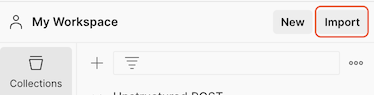
3. In your workspace, click **Import**.
4. In the **Paste cURL, Raw text or URL** box, enter the following URL, and then press `Enter`:
```
https://raw.githubusercontent.com/Unstructured-IO/docs-samples/main/postman/Unstructured-POST.postman_collection.json
```
5. On the sidebar, click **Collections**.
6. Expand **Unstructured POST**.
7. Click **(Partition Endpoint) Basic Request**.
8. On the **Headers** tab, next to `unstructured-api-key`, enter your Unstructured API key in the **Value** column.
9. On the **Body** tab, next to `files`, click the **Select files** box in the **Value** column.
10. Click **New file from local machine**.
11. Browse to and select the file that you want Unstructured to process.
12. Click **Send**. Processing could take several minutes.
To download the processed data to your local machine, in the response area, click the ellipses, and then click **Save response to file**.
 4. In the **Paste cURL, Raw text or URL** box, enter the following URL, and then press `Enter`:
```
https://raw.githubusercontent.com/Unstructured-IO/docs-samples/main/postman/Unstructured-POST.postman_collection.json
```
5. On the sidebar, click **Collections**.
6. Expand **Unstructured POST**.
7. Click **(Partition Endpoint) Basic Request**.
8. On the **Headers** tab, next to `unstructured-api-key`, enter your Unstructured API key in the **Value** column.
9. On the **Body** tab, next to `files`, click the **Select files** box in the **Value** column.
10. Click **New file from local machine**.
11. Browse to and select the file that you want Unstructured to process.
12. Click **Send**. Processing could take several minutes.
To download the processed data to your local machine, in the response area, click the ellipses, and then click **Save response to file**.
4. In the **Paste cURL, Raw text or URL** box, enter the following URL, and then press `Enter`:
```
https://raw.githubusercontent.com/Unstructured-IO/docs-samples/main/postman/Unstructured-POST.postman_collection.json
```
5. On the sidebar, click **Collections**.
6. Expand **Unstructured POST**.
7. Click **(Partition Endpoint) Basic Request**.
8. On the **Headers** tab, next to `unstructured-api-key`, enter your Unstructured API key in the **Value** column.
9. On the **Body** tab, next to `files`, click the **Select files** box in the **Value** column.
10. Click **New file from local machine**.
11. Browse to and select the file that you want Unstructured to process.
12. Click **Send**. Processing could take several minutes.
To download the processed data to your local machine, in the response area, click the ellipses, and then click **Save response to file**.