> ## Documentation Index
> Fetch the complete documentation index at: https://docs.unstructured.io/llms.txt
> Use this file to discover all available pages before exploring further.

# Overview

<Tip>
  To start using the Unstructured API's workflow operations right away, skip ahead to the [quickstart](#quickstart) or
  [walkthrough](#walkthrough),
  which uses the Unstructured Python SDK from remotely hosted Google Colab notebooks. These notebooks require no local setup.
</Tip>

The [Unstructured UI](/ui/overview) features a no-code user interface for transforming your unstructured data into data that is ready
for retrieval-augmented generation (RAG).

The workflow operations in the [Unstructured API](/api-reference/overview) enable a full range of partitioning, chunking, embedding, and
enrichment options for your files and data. They are designed to batch-process files and data in remote locations; send processed results to
various storage, databases, and vector stores; and use the latest and highest-performing models. These workflow operations have built-in logic
to deliver the highest quality results at the lowest cost.

This page provides an overview of the Unstructured API's workflow operations. These operations enable Unstructured UI automation usage
scenarios as well as for documentation, reporting, and recovery needs.

## Getting started

Choose one of the following options to get started with the Unstructured API's workflow operations:

* Follow the [quickstart](#quickstart) or [walkthrough](#walkthrough), which use the Unstructured Python SDK from remotely hosted Google Colab notebooks. These notebooks require no local setup.
* Start using the [Unstructred Python SDK](#unstructured-python-sdk). This option requires you to set up a local Python virtual environment.
* Start using a local [REST](#rest-endpoints) client, such as `curl` or Postman.

## Quickstart

The following quickstart shows how to use the [Unstructured Python SDK](/api-reference/workflow/overview#unstructured-python-sdk)
to have Unstructured process local files by using the Unstructured API's *on-demand jobs* functionality. This functionality
is part of the Unstructured API's collection of [workflow operations](https://docs.unstructured.io/api-reference/workflow/overview).

This quickstart is available in two options:

* [Use a remote notebook](https://colab.research.google.com/github/Unstructured-IO/notebooks/blob/main/notebooks/Unstructured_API_On_Demand_Jobs_Quickstart.ipynb) - This option uses a remotely hosted Google Colab notebook. There are no additional setup steps required.
* [Use your local machine](/api-reference/quickstart) - This option requires you to install the Unstructured Python SDK on your local machine.

<Note>
  The on-demand jobs functionality is designed to work *only by processing local files*.

  To process files (and data) in remote file and blob storage, databases, and vector stores, you must use other
  workflow operations in the Unstructured API. To learn how, see for example the notebook
  [Dropbox-To-Pinecone Connector API Quickstart for Unstructured](https://colab.research.google.com/github/Unstructured-IO/notebooks/blob/main/notebooks/Dropbox_To_Pinecone_Connector_Quickstart.ipynb).
</Note>

## Walkthrough

[This walkthrough](https://colab.research.google.com/github/Unstructured-IO/notebooks/blob/main/notebooks/Unstructured_API_On_Demand_Jobs_Walkthrough.ipynb) builds upon the [quickstart](#quickstart).
Like the quickstart, this walkthrough shows how to use the [Unstructured Python SDK](/api-reference/workflow/overview#unstructured-python-sdk)
to have Unstructured process local files by using the Unstructured API's *on-demand jobs* functionality. This walkthrough goes further by
also showing in depth how to use Unstructured's [chunking](/ui/chunking), [enriching](/ui/enriching/overview), and [embedding](/ui/embedding) features.
This walkthrough is available as a remotely hosted Google Colab notebook. This notebook requires no local setup.

<Note>
  The on-demand jobs functionality is designed to work *only by processing local files*.

  To process files (and data) in remote file and blob storage, databases, and vector stores, you must use other
  workflow operations in the Unstructured API. To learn how, see for example the notebook
  [Dropbox-To-Pinecone Connector API Quickstart for Unstructured](https://colab.research.google.com/github/Unstructured-IO/notebooks/blob/main/notebooks/Dropbox_To_Pinecone_Connector_Quickstart.ipynb).
</Note>

## Unstructured Python SDK

Watch the following 4-minute video to learn how to use the Python SDK to call the Unstructured API's workflow operations to
create [connectors](#connectors) in the Unstructured UI.

<iframe width="560" height="315" src="https://www.youtube.com/embed/bTdCSkWzecQ" title="YouTube video player" frameborder="0" allow="accelerometer; autoplay; clipboard-write; encrypted-media; gyroscope; picture-in-picture" allowfullscreen />

Watch the following 4-minute video to learn how to use the Python SDK to call the Unstructured API's workflow operations to
create [workflows](#workflows) and [jobs](#jobs) in the Unstructured UI.

<iframe width="560" height="315" src="https://www.youtube.com/embed/oeXUrfqffeM" title="YouTube video player" frameborder="0" allow="accelerometer; autoplay; clipboard-write; encrypted-media; gyroscope; picture-in-picture" allowfullscreen />

Open a related [notebook](https://colab.research.google.com/github/Unstructured-IO/notebooks/blob/main/notebooks/Dropbox_To_Pinecone_Connector_Quickstart.ipynb) that covers many of
the concepts that are shown in the preceding videos.

The [Unstructured Python SDK](https://github.com/Unstructured-IO/unstructured-python-client), beginning with version 0.30.6,
allows you to call the Unstructured API's workflow operations through standard Python code.

To install the Unstructured Python SDK, run the following command from within your Python virtual environment:

```bash  theme={null}
pip install "unstructured-client>=0.30.6"
```

If you already have the Unstructured Python SDK installed, upgrade to at least version 0.30.6 by running the following command instead:

```bash  theme={null}
pip install --upgrade "unstructured-client>=0.30.6"
```

The Unstructured Python SDK code examples, shown later on this page and on related pages, use the following environment variable, which you can set as follows:

```bash  theme={null}
export UNSTRUCTURED_API_KEY="<your-unstructured-api-key>"
```

This environment variable enables you to more easily run the following Unstructured Python SDK examples and help prevent
you from storing scripts that contain sensitive API keys in public source code repositories.

To get your Unstructured API key, do the following:

1. If you do not already have an Unstructured account, [sign up for free](https://unstructured.io/?modal=try-for-free).
   After you sign up, you are automatically signed in to your new Unstructured **Let's Go** account, at [https://platform.unstructured.io](https://platform.unstructured.io).

   <Note>
     To sign up for a **Business** account instead, [contact Unstructured Sales](https://unstructured.io/?modal=contact-sales), or [learn more](/api-reference/overview#pricing).
   </Note>

2. If you have an Unstructured **Let's Go**, **Pay-As-You-Go**, or **Business SaaS** account and are not already signed in, sign in to your account at [https://platform.unstructured.io](https://platform.unstructured.io).

   <Note>
     For other types of **Business** accounts, see your Unstructured account administrator for sign-in instructions,
     or email Unstructured Support at [support@unstructured.io](mailto:support@unstructured.io).
   </Note>

3. Get your Unstructured API key:<br />

   a. After you sign in to your Unstructured **Let's Go**, **Pay-As-You-Go**, or **Business** account, click **API Keys** on the sidebar.<br />

   <Note>
     For a **Business** account, before you click **API Keys**, make sure you have selected the organizational workspace you want to create an API key
     for. Each API key works with one and only one organizational workspace. [Learn more](/ui/account/workspaces#create-an-api-key-for-a-workspace).
   </Note>

   b. Click **Generate API Key**.<br />
   c. Follow the on-screen instructions to finish generating the key.<br />
   d. Click the **Copy** icon next to your new key to add the key to your system's clipboard. If you lose this key, simply return and click the **Copy** icon again.<br />

Calls made by the Unstructured Python SDK's `unstructured_client` functions for creating, listing, updating,
and deleting connectors, workflows, and jobs in the Unstructured UI all use the Unstructured API's workflow operations URL.
This URL was provided to you when your Unstructured account was created.
If you do not have this URL, email Unstructured Support at [support@unstructured.io](mailto:support@unstructured.io).

<Note>
  The default URL for the Unstructured API's workflow operations is `https://platform.unstructuredapp.io/api/v1`.
  However, you should always use the URL that was provided to you when your Unstructured account was created.
</Note>

To specify an API URL in your code, set the `server_url` parameter in the `UnstructuredClient` constructor to the target API URL.

The Unstructured API's workflow operations enable you to work with [connectors](#connectors),
[workflows](#workflows), and [jobs](#jobs) in the Unstructured UI.

* A *source connector* ingests files or data into Unstructured from a source location.
* A *destination connector* sends the processed data from Unstructured to a destination location.
* A *workflow* defines how Unstructured will process the data.
* A *job* runs a workflow at a specific point in time.

For general information about these objects, see:

* [Connectors](/ui/connectors)
* [Workflows](/ui/workflows)
* [Jobs](/ui/jobs)

Skip ahead to start learning about how to use the Unstructured Python SDK to work with
[connectors](#connectors),
[workflows](#workflows), and [jobs](#jobs) programmatically.

## REST endpoints

The Unstructured API's workflow operations are callable from a set of Representational State Transfer (REST) endpoints, which you can call through standard REST-enabled
utilities, tools, programming languages, packages, and libraries. The examples, shown later on this page and on related pages, describe how to call the Unstructured API's workflow operations with
`curl` and Postman. You can adapt this information as needed for your preferred programming languages and libraries, for example by using the
`requests` library with Python.

<Tip>
  You can also use the [Unstructured API's workflow operations - Swagger UI](https://platform.unstructuredapp.io/docs) to call the REST endpoints
  that are available through the default Unstructured API's workflow operations URL: `https://platform.unstructuredapp.io`. To use the Swagger UI, you must provide your Unstructured API key with each call. To
  get this API key, see the [quickstart](#quickstart), earlier on this page.

  Note that you should always use the URL that was provided to you when your Unstructured account was created.
  If you do not have this URL, email Unstructured Support at [support@unstructured.io](mailto:support@unstructured.io).
</Tip>

### curl and Postman

The following `curl` examples use the following environment variables, which you can set as follows:

```bash  theme={null}
export UNSTRUCTURED_API_URL="https://platform.unstructuredapp.io/api/v1"
export UNSTRUCTURED_API_KEY="<your-unstructured-api-key>"
```

For the API URL, this URL was provided to you when your Unstructured account was created.
If you do not have this URL, email Unstructured Support at [support@unstructured.io](mailto:support@unstructured.io).

<Note>
  The default URL for the Unstructured API's workflow operations is `https://platform.unstructuredapp.io/api/v1`.
  However, you should always use the URL that was provided to you when your Unstructured account was created.
</Note>

These environment variables enable you to more easily run the following `curl` examples and help prevent
you from storing scripts that contain sensitive URLs and API keys in public source code repositories.

To get your Unstructured API key, do the following:

1. If you do not already have an Unstructured account, [sign up for free](https://unstructured.io/?modal=try-for-free).
   After you sign up, you are automatically signed in to your new Unstructured **Let's Go** account, at [https://platform.unstructured.io](https://platform.unstructured.io).

   <Note>
     To sign up for a **Business** account instead, [contact Unstructured Sales](https://unstructured.io/?modal=contact-sales), or [learn more](/api-reference/overview#pricing).
   </Note>

2. If you have an Unstructured **Let's Go**, **Pay-As-You-Go**, or **Business SaaS** account and are not already signed in, sign in to your account at [https://platform.unstructured.io](https://platform.unstructured.io).

   <Note>
     For other types of **Business** accounts, see your Unstructured account administrator for sign-in instructions,
     or email Unstructured Support at [support@unstructured.io](mailto:support@unstructured.io).
   </Note>

3. Get your Unstructured API key:<br />

   a. After you sign in to your Unstructured **Let's Go**, **Pay-As-You-Go**, or **Business** account, click **API Keys** on the sidebar.<br />

   <Note>
     For a **Business** account, before you click **API Keys**, make sure you have selected the organizational workspace you want to create an API key
     for. Each API key works with one and only one organizational workspace. [Learn more](/ui/account/workspaces#create-an-api-key-for-a-workspace).
   </Note>

   b. Click **Generate API Key**.<br />
   c. Follow the on-screen instructions to finish generating the key.<br />
   d. Click the **Copy** icon next to your new key to add the key to your system's clipboard. If you lose this key, simply return and click the **Copy** icon again.<br />

The following Postman examples use variables, which you can set as follows:

1. In Postman, on your workspace's sidebar, click **Environments**.

2. Click **Globals**.

3. Create two global variables with the following settings:

   * **Variable**: `UNSTRUCTURED_API_URL`
   * **Type**: `default`
   * **Initial value**: The Unstructured API's workflow operations URL that was provided to you when your Unstructured account was created.
   * **Current value**: The Unstructured API's workflow operations URL that was provided to you when your Unstructured account was created.

   <br />

   * **Variable**: `UNSTRUCTURED_API_KEY`
   * **Type**: `secret`
   * **Initial value**: `<your-unstructured-api-key>`
   * **Current value**: `<your-unstructured-api-key>`

4. Click **Save**.

These variables enable you to more easily run the following examples in Postman and help prevent you from storing
Postman collections that contain sensitive URLs and API keys in public source code repositories.

Unstructured offers a [Postman collection](https://learning.postman.com/docs/collections/collections-overview/) that you can import into Postman to make Unstructured API's workflow operations requests through a graphical user interface.

1. [Install Postman](https://learning.postman.com/docs/getting-started/installation/installation-and-updates/).

2. [Sign in to Postman](https://learning.postman.com/docs/getting-started/installation/postman-account/#signing-in-to-postman).

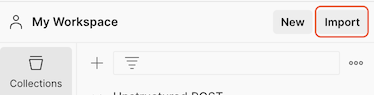
3. In your workspace, click **Import**.

   <img src="https://mintcdn.com/unstructured-53/vKFDfUfAWhz_siB3/img/api/post/import.png?fit=max&auto=format&n=vKFDfUfAWhz_siB3&q=85&s=75b5e5c9bedfc173f80852e45bc2086a" alt="Import a Postman collection" data-og-width="374" width="374" data-og-height="95" height="95" data-path="img/api/post/import.png" data-optimize="true" data-opv="3" srcset="https://mintcdn.com/unstructured-53/vKFDfUfAWhz_siB3/img/api/post/import.png?w=280&fit=max&auto=format&n=vKFDfUfAWhz_siB3&q=85&s=04bb0bcbdfe8e173423a8694cb2fd9de 280w, https://mintcdn.com/unstructured-53/vKFDfUfAWhz_siB3/img/api/post/import.png?w=560&fit=max&auto=format&n=vKFDfUfAWhz_siB3&q=85&s=712a18b8d6843fc0a57961facd927478 560w, https://mintcdn.com/unstructured-53/vKFDfUfAWhz_siB3/img/api/post/import.png?w=840&fit=max&auto=format&n=vKFDfUfAWhz_siB3&q=85&s=03191eebb7f94b687e91053793a3a789 840w, https://mintcdn.com/unstructured-53/vKFDfUfAWhz_siB3/img/api/post/import.png?w=1100&fit=max&auto=format&n=vKFDfUfAWhz_siB3&q=85&s=9dee61ef12f6045a745eb1b9c85104b5 1100w, https://mintcdn.com/unstructured-53/vKFDfUfAWhz_siB3/img/api/post/import.png?w=1650&fit=max&auto=format&n=vKFDfUfAWhz_siB3&q=85&s=dd0124c64017d4e2363fb730e6788d4e 1650w, https://mintcdn.com/unstructured-53/vKFDfUfAWhz_siB3/img/api/post/import.png?w=2500&fit=max&auto=format&n=vKFDfUfAWhz_siB3&q=85&s=fe3c5fd1741ff86d7248dc66c96145a7 2500w" />

4. In the **Paste cURL, Raw text or URL** box, enter the following URL, and then press `Enter`:

   For all workflow operations:

   ```text  theme={null}
   https://raw.githubusercontent.com/Unstructured-IO/docs/main/examplecode/codesamples/api/Unstructured-REST-API-Workflow-Endpoint.postman_collection.json
   ```

   For [on-demand job](#run-an-on-demand-job) related operations only:

   ```text  theme={null}
   https://raw.githubusercontent.com/Unstructured-IO/docs/main/examplecode/codesamples/api/Unstructured-REST-API-On-Demand-Jobs.postman_collection.json
   ```

   <Note>
     Each on-demand job is limited to 10 files, and each file is limited to 10 MB in size.

     If you need to launch a series of on-demand jobs in rapid succession, you must wait at least one second between launch
     requests. Otherwise, you will receive a rate limit error.

     A maximum of 5 on-demand jobs can be running in your Unstructured account. If you launch a new on-demand job
     but 5 existing on-demand jobs are still running, the new on-demand job will remain in a scheduled state until one of the 5
     existing on-demand jobs is done running.
   </Note>

5. On the sidebar, click **Collections**.

6. Expand **Unstructured REST API - Workflow Operations**.

7. Select the request that you want to use.

8. As applicable, modify the URL as needed to specify any required resource IDs for the request.

9. On the **Headers** tab, next to `unstructured-api-key`, enter your Unstructured API key in the **Value** column.
   As applicable, add, remove, or modify any other required headers for the request.

10. As applicable, on the **Params** tab, add, remove, or modify any required parameters for the request.

11. As applicable, on the **Body** tab, add, remove, or modify the required request body for the request.

12. Click **Send**.

13. To save the response, in the response area, click the ellipses, and then click **Save response to file**.

To get your Unstructured API key, do the following:

1. If you do not already have an Unstructured account, [sign up for free](https://unstructured.io/?modal=try-for-free).
   After you sign up, you are automatically signed in to your new Unstructured **Let's Go** account, at [https://platform.unstructured.io](https://platform.unstructured.io).

   <Note>
     To sign up for a **Business** account instead, [contact Unstructured Sales](https://unstructured.io/?modal=contact-sales), or [learn more](/api-reference/overview#pricing).
   </Note>

2. If you have an Unstructured **Let's Go**, **Pay-As-You-Go**, or **Business SaaS** account and are not already signed in, sign in to your account at [https://platform.unstructured.io](https://platform.unstructured.io).

   <Note>
     For other types of **Business** accounts, see your Unstructured account administrator for sign-in instructions,
     or email Unstructured Support at [support@unstructured.io](mailto:support@unstructured.io).
   </Note>

3. Get your Unstructured API key:<br />

   a. After you sign in to your Unstructured **Let's Go**, **Pay-As-You-Go**, or **Business** account, click **API Keys** on the sidebar.<br />

   <Note>
     For a **Business** account, before you click **API Keys**, make sure you have selected the organizational workspace you want to create an API key
     for. Each API key works with one and only one organizational workspace. [Learn more](/ui/account/workspaces#create-an-api-key-for-a-workspace).
   </Note>

   b. Click **Generate API Key**.<br />
   c. Follow the on-screen instructions to finish generating the key.<br />
   d. Click the **Copy** icon next to your new key to add the key to your system's clipboard. If you lose this key, simply return and click the **Copy** icon again.<br />

The Unstructured API's workflow operations enable you to work with [connectors](#connectors),
[workflows](#workflows), and [jobs](#jobs) in the Unstructured UI.

* A *source connector* ingests files or data into Unstructured from a source location.
* A *destination connector* sends the processed data from Unstructured to a destination location.
* A *workflow* defines how Unstructured will process the data.
* A *job* runs a workflow at a specific point in time.

For general information about these objects, see:

* [Connectors](/ui/connectors)
* [Workflows](/ui/workflows)
* [Jobs](/ui/jobs)

Skip ahead to start learning about how to use the REST endpoints to work with
[connectors](#connectors),
[workflows](#workflows), and [jobs](#jobs) programmatically.

## Restrictions

The following Unstructured SDKs, tools, and libraries do *not* work with the Unstructured API's workflow operations:

* The [Unstructured JavaScript/TypeScript SDK](/api-reference/legacy-api/partition/sdk-jsts)
* [Local single-file POST requests](/api-reference/legacy-api/partition/sdk-jsts) to the legacy Unstructured Partition Endpoint
* The [Unstructured open source Python library](/open-source/introduction/overview)
* The [Unstructured Ingest CLI](/open-source/ingestion/ingest-cli)
* The [Unstructured Ingest Python library](/open-source/ingestion/python-ingest)

The following Unstructured API URL is also *not* supported: `https://api.unstructuredapp.io/general/v0/general` (the default legacy Unstructured Partition Endpoint URL).
## Connectors

You can [list](#list-source-connectors),
[get](#get-a-source-connector),
[create](#create-a-source-connector),
[update](#update-a-source-connector),
[delete](#delete-a-source-connector), and
[test](#test-a-source-connector) source connectors.
You can also [list](#list-destination-connectors),
[get](#get-a-destination-connector),
[create](#create-a-destination-connector),
[update](#update-a-destination-connector),
[delete](#delete-a-destination-connector), and
[test](#test-a-destination-connector) destination connectors.

For general information, see [Connectors](/ui/connectors).

### List source connectors

To list source connectors, use the `UnstructuredClient` object's `sources.list_sources` function (for the Python SDK) or
the `GET` method to call the `/sources` endpoint (for `curl` or Postman).

To filter the list of source connectors, use the `ListSourcesRequest` object's `source_type` parameter (for the Python SDK)
or the query parameter `source_type=<type>` (for `curl` or Postman),
replacing `<type>` with the source connector type's unique ID
(for example, for the Amazon S3 source connector type, `S3` for the Python SDK or `s3` for `curl` or Postman).
To get this ID, see [Sources](/api-reference/workflow/sources/overview).

<AccordionGroup>
  <Accordion title="Python SDK">
    ```python  theme={null}
    import os

    from unstructured_client import UnstructuredClient
    from unstructured_client.models.operations import ListSourcesRequest

    client = UnstructuredClient(
        api_key_auth=os.getenv("UNSTRUCTURED_API_KEY")
    )

    response = client.sources.list_sources(
        request=ListSourcesRequest(
            source_type="<type>" # Optional, list only for this source type.
        )
    )

    # Print the list in alphabetical order by connector name.
    sorted_sources = sorted(
        response.response_list_sources, 
        key=lambda source: source.name.lower()
    )

    for source in sorted_sources:
        print(f"{source.name} ({source.id})")
    ```
  </Accordion>

  <Accordion title="Python SDK (async)">
    ```python  theme={null}
    import os
    import asyncio

    from unstructured_client import UnstructuredClient
    from unstructured_client.models.operations import ListSourcesRequest

    async def list_sources():
        client = UnstructuredClient(
            api_key_auth=os.getenv("UNSTRUCTURED_API_KEY")
        )

        response = await client.sources.list_sources_async(
            request=ListSourcesRequest(
                source_type="<type>" # Optional, list only for this source type. 
            )
        )

        # Print the list in alphabetical order by connector name.
        sorted_sources = sorted(
            response.response_list_sources, 
            key=lambda source: source.name.lower()
        )

        for source in sorted_sources:
            print(f"{source.name} ({source.id})")

    asyncio.run(list_sources())
    ```
  </Accordion>

  <Accordion title="curl">
    ```bash  theme={null}
    curl --request 'GET' --location \
    "$UNSTRUCTURED_API_URL/sources" \
    --header 'accept: application/json' \
    --header "unstructured-api-key: $UNSTRUCTURED_API_KEY"
    ```

    To filter the list of source connectors:

    ```bash  theme={null}
    curl --request 'GET' --location \
    "$UNSTRUCTURED_API_URL/sources?source_type=<type>" \
    --header 'accept: application/json' \
    --header "unstructured-api-key: $UNSTRUCTURED_API_KEY"
    ```
  </Accordion>

  <Accordion title="Postman">
    1. In the method drop-down list, select **GET**.

    2. In the address box, enter the following URL:

       ```text  theme={null}
       {{UNSTRUCTURED_API_URL}}/sources
       ```

    3. On the **Headers** tab, enter the following headers:

       * **Key**: `unstructured-api-key`, **Value**: `{{UNSTRUCTURED_API_KEY}}`
       * **Key**: `accept`, **Value**: `application/json`

    4. To filter the list of source connectors, on the **Params** tab, enter the following query parameter:

       * **Key**: `source_type`, **Value**: `<type>`

    5. Click **Send**.
  </Accordion>
</AccordionGroup>

### Get a source connector

To get information about a source connector, use the `UnstructuredClient` object's `sources.get_source` function (for the Python SDK) or
the `GET` method to call the `/sources/<connector-id>` endpoint (for `curl` or Postman), replacing
`<connector-id>` with the source connector's unique ID. To get this ID, see [List source connectors](#list-source-connectors).

<AccordionGroup>
  <Accordion title="Python SDK">
    ```python  theme={null}
    import os

    from unstructured_client import UnstructuredClient
    from unstructured_client.models.operations import GetSourceRequest

    client = UnstructuredClient(
        api_key_auth=os.getenv("UNSTRUCTURED_API_KEY")
    )

    response = client.sources.get_source(
        request=GetSourceRequest(
            source_id="<connector-id>"
        )
    )

    info = response.source_connector_information

    print(f"name: {info.name}")
        
    for key, value in info.config:
        print(f"{key}: {value}")

    ```
  </Accordion>

  <Accordion title="Python SDK (async)">
    ```python  theme={null}
    import os
    import asyncio

    from unstructured_client import UnstructuredClient
    from unstructured_client.models.operations import GetSourceRequest

    async def get_source():
        client = UnstructuredClient(
            api_key_auth=os.getenv("UNSTRUCTURED_API_KEY")
        )

        response = await client.sources.get_source_async(
            request=GetSourceRequest(
                source_id="<connector-id>"
            )
        )

        info = response.source_connector_information

        print(f"name: {info.name}")
            
        for key, value in info.config:
            print(f"{key}: {value}")

    asyncio.run(get_source())
    ```
  </Accordion>

  <Accordion title="curl">
    ```bash  theme={null}
    curl --request 'GET' --location \
    "$UNSTRUCTURED_API_URL/sources/<connector-id>" \
    --header 'accept: application/json' \
    --header "unstructured-api-key: $UNSTRUCTURED_API_KEY"
    ```
  </Accordion>

  <Accordion title="Postman">
    1. In the method drop-down list, select **GET**.

    2. In the address box, enter the following URL:

       ```text  theme={null}
       {{UNSTRUCTURED_API_URL}}/sources/<connector-id>
       ```

    3. On the **Headers** tab, enter the following headers:

       * **Key**: `unstructured-api-key`, **Value**: `{{UNSTRUCTURED_API_KEY}}`
       * **Key**: `accept`, **Value**: `application/json`

    4. Click **Send**.
  </Accordion>
</AccordionGroup>

### Create a source connector

To create a source connector, use the `UnstructuredClient` object's `sources.create_source` function (for the Python SDK) or
the `POST` method to call the `/sources` endpoint (for `curl` or Postman).

In the `CreateSourceConnector` object (for the Python SDK) or
the request body (for `curl` or Postman),
specify the settings for the connector. For the specific settings to include, which differ by connector, see
[Sources](/api-reference/workflow/sources/overview).

For the Python SDK, replace `<type>` with the source connector type's unique ID (for example, for the Amazon S3 source connector type, `S3`).
To get this ID, see [Sources](/api-reference/workflow/sources/overview).

<AccordionGroup>
  <Accordion title="Python SDK">
    ```python  theme={null}
    import os

    from unstructured_client import UnstructuredClient
    from unstructured_client.models.operations import CreateSourceRequest
    from unstructured_client.models.shared import CreateSourceConnector

    client = UnstructuredClient(
        api_key_auth=os.getenv("UNSTRUCTURED_API_KEY")
    )

    source_connector = CreateSourceConnector(
        name="<name>",
        type="<type>",
        config={
            # Specify the settings for the connector here.
        }
    )

    response = client.sources.create_source(
        request=CreateSourceRequest(
            create_source_connector=source_connector
        )
    )

    info = response.source_connector_information

    print(f"name: {info.name}")
    print(f"id: {info.id}")
        
    for key, value in info.config:
        print(f"{key}: {value}")

    ```
  </Accordion>

  <Accordion title="Python SDK (async)">
    ```python  theme={null}
    import os
    import asyncio

    from unstructured_client import UnstructuredClient
    from unstructured_client.models.operations import CreateSourceRequest
    from unstructured_client.models.shared import CreateSourceConnector

    async def create_source():
        client = UnstructuredClient(
            api_key_auth=os.getenv("UNSTRUCTURED_API_KEY")
        )

        source_connector = CreateSourceConnector(
            name="<name>",
            type="<type>",
            config={
                # Specify the settings for the connector here.
            }
        )

        response = await client.sources.create_source_async(
            request=CreateSourceRequest(
                create_source_connector=source_connector
            )
        )

        info = response.source_connector_information

        print(f"name: {info.name}")
        print(f"id: {info.id}")
            
        for key, value in info.config:
            print(f"{key}: {value}")

    asyncio.run(create_source())
    ```
  </Accordion>

  <Accordion title="curl">
    ```bash  theme={null}
    curl --request 'POST' --location \
    "$UNSTRUCTURED_API_URL/sources" \
    --header 'accept: application/json' \
    --header "unstructured-api-key: $UNSTRUCTURED_API_KEY" \
    --header 'content-type: application/json' \
    --data \
    '{
        # Specify the settings for the connector here.
    }'
    ```
  </Accordion>

  <Accordion title="Postman">
    1. In the method drop-down list, select **POST**.

    2. In the address box, enter the following URL:

       ```text  theme={null}
       {{UNSTRUCTURED_API_URL}}/sources
       ```

    3. On the **Headers** tab, enter the following headers:

       * **Key**: `unstructured-api-key`, **Value**: `{{UNSTRUCTURED_API_KEY}}`
       * **Key**: `accept`, **Value**: `application/json`
       * **Key**: `content-type`, **Value**, `application/json`

    4. On the **Body** tab, select **raw** and **JSON**, and specify the settings for the connector.

    5. Click **Send**.
  </Accordion>
</AccordionGroup>

### Update a source connector

To update information about a source connector, use the `UnstructuredClient` object's `sources.update_source` function (for the Python SDK) or
the `PUT` method to call the `/sources/<connector-id>` endpoint (for `curl` or Postman), replacing
`<connector-id>` with the source connector's unique ID. To get this ID, see [List source connectors](#list-source-connectors).

In the `UpdateSourceConnector` object (for the Python SDK) or
the request body (for `curl` or Postman), specify the settings for the connector. For the specific settings to include, which differ by connector, see
[Sources](/api-reference/workflow/sources/overview).

For the Python SDK, replace `<type>` with the source connector type's unique ID (for example, for the Amazon S3 source connector type, `S3`).
To get this ID, see [Sources](/api-reference/workflow/sources/overview).

You must specify all of the settings for the connector, even for settings that are not changing.

You can change any of the connector's settings except for its `name` and `type`.

<AccordionGroup>
  <Accordion title="Python SDK">
    ```python  theme={null}
    import os

    from unstructured_client import UnstructuredClient
    from unstructured_client.models.operations import UpdateSourceRequest
    from unstructured_client.models.shared import UpdateSourceConnector

    client = UnstructuredClient(
        api_key_auth=os.getenv("UNSTRUCTURED_API_KEY")
    )

    source_connector = UpdateSourceConnector(
        config={
            # Specify the settings for the connector here.
        }
    )

    response = client.sources.update_source(
        request=UpdateSourceRequest(
            source_id="<connector-id>",
            update_source_connector=source_connector
        )
    )

    info = response.source_connector_information

    print(f"name: {info.name}")
    print(f"id: {info.id}")
        
    for key, value in info.config:
        print(f"{key}: {value}")

    ```
  </Accordion>

  <Accordion title="Python SDK (async)">
    ```python  theme={null}
    import os
    import asyncio

    from unstructured_client import UnstructuredClient
    from unstructured_client.models.operations import UpdateSourceRequest
    from unstructured_client.models.shared import UpdateSourceConnector

    async def update_source():
        client = UnstructuredClient(
            api_key_auth=os.getenv("UNSTRUCTURED_API_KEY")
        )

        source_connector = UpdateSourceConnector(
            config={
                # Specify the settings for the connector here.
            }
        )

        response = await client.sources.update_source_async(
            request=UpdateSourceRequest(
                source_id="<connector-id>",
                update_source_connector=source_connector
            )
        )

        info = response.source_connector_information

        print(f"name: {info.name}")
        print(f"id: {info.id}")
            
        for key, value in info.config:
            print(f"{key}: {value}")

    asyncio.run(update_source())
    ```
  </Accordion>

  <Accordion title="curl">
    ```bash  theme={null}
    curl --request 'PUT' --location \
    "$UNSTRUCTURED_API_URL/sources/<connector-id>" \
    --header 'accept: application/json' \
    --header "unstructured-api-key: $UNSTRUCTURED_API_KEY" \
    --header 'content-type: application/json' \
    --data \
    '{
        # Specify the settings for the connector here.
    }'
    ```
  </Accordion>

  <Accordion title="Postman">
    1. In the method drop-down list, select **PUT**.

    2. In the address box, enter the following URL:

       ```text  theme={null}
       {{UNSTRUCTURED_API_URL}}/sources/<connector-id>
       ```

    3. On the **Headers** tab, enter the following headers:

       * **Key**: `unstructured-api-key`, **Value**: `{{UNSTRUCTURED_API_KEY}}`
       * **Key**: `accept`, **Value**: `application/json`
       * **Key**: `content-type`, **Value**, `application/json`

    4. On the **Body** tab, select **raw** and **JSON**, and specify the settings for the connector.

    5. Click **Send**.
  </Accordion>
</AccordionGroup>

### Delete a source connector

To delete a source connector, use the `UnstructuredClient` object's `sources.delete_source` function (for the Python SDK) or
the `DELETE` method to call the `/sources/<connector-id>` endpoint (for `curl` or Postman), replacing
`<connector-id>` with the source connector's unique ID. To get this ID, see [List source connectors](#list-source-connectors).

<AccordionGroup>
  <Accordion title="Python SDK">
    ```python  theme={null}
    import os

    from unstructured_client import UnstructuredClient
    from unstructured_client.models.operations import DeleteSourceRequest

    client = UnstructuredClient(
        api_key_auth=os.getenv("UNSTRUCTURED_API_KEY")
    )

    response = client.sources.delete_source(
        request=DeleteSourceRequest(
            source_id="<connector-id>"
        )
    )

    print(response.raw_response)
    ```
  </Accordion>

  <Accordion title="Python SDK (async)">
    ```python  theme={null}
    import os
    import asyncio

    from unstructured_client import UnstructuredClient
    from unstructured_client.models.operations import DeleteSourceRequest

    async def delete_source():
        client = UnstructuredClient(
            api_key_auth=os.getenv("UNSTRUCTURED_API_KEY")
        )

        response = await client.sources.delete_source_async(
            request=DeleteSourceRequest(
                source_id="<connector-id>"
            )
        )

        print(response.raw_response)

    asyncio.run(delete_source())
    ```
  </Accordion>

  <Accordion title="curl">
    ```bash  theme={null}
    curl --request 'DELETE' --location \
    "$UNSTRUCTURED_API_URL/sources/<connector-id>" \
    --header 'accept: application/json' \
    --header "unstructured-api-key: $UNSTRUCTURED_API_KEY"
    ```
  </Accordion>

  <Accordion title="Postman">
    1. In the method drop-down list, select **DELETE**.

    2. In the address box, enter the following URL:

       ```text  theme={null}
       {{UNSTRUCTURED_API_URL}}/sources/<connector-id>
       ```

    3. On the **Headers** tab, enter the following headers:

       * **Key**: `unstructured-api-key`, **Value**: `{{UNSTRUCTURED_API_KEY}}`
       * **Key**: `accept`, **Value**: `application/json`

    4. Click **Send**.
  </Accordion>
</AccordionGroup>

### Test a source connector

To test a source connector, use the `POST` method to call the `/sources/<connector-id>/connection-check` endpoint (for `curl` or Postman), replacing
`<connector-id>` with the connector's unique ID. To get this ID, see [List source connectors](#list-source-connectors).

The Python SDK does not support testing source connectors.

<AccordionGroup>
  <Accordion title="curl">
    ```bash  theme={null}
    curl --request 'POST' --location \
    "$UNSTRUCTURED_API_URL/sources/<connector-id>/connection-check" \
    --header 'accept: application/json' \
    --header "unstructured-api-key: $UNSTRUCTURED_API_KEY"
    ```
  </Accordion>

  <Accordion title="Postman">
    1. In the method drop-down list, select **POST**.

    2. In the address box, enter the following URL:

       ```text  theme={null}
       {{UNSTRUCTURED_API_URL}}/sources/<connector-id>/connection-check
       ```

    3. On the **Headers** tab, enter the following headers:

       * **Key**: `unstructured-api-key`, **Value**: `{{UNSTRUCTURED_API_KEY}}`
       * **Key**: `accept`, **Value**: `application/json`

    4. Click **Send**.
  </Accordion>
</AccordionGroup>

To get information about the most recent connector check for a source connector, use the `GET` method to call the `/sources/<connector-id>/connection-check` endpoint (for `curl` or Postman), replacing
`<connector-id>` with the connector's unique ID. To get this ID, see [List source connectors](#list-source-connectors).

The Python SDK does not support getting information about the most recent connector check for a source connector.

<AccordionGroup>
  <Accordion title="curl">
    ```bash  theme={null}
    curl --request 'GET' --location \
    "$UNSTRUCTURED_API_URL/sources/<connector-id>/connection-check" \
    --header 'accept: application/json' \
    --header "unstructured-api-key: $UNSTRUCTURED_API_KEY"
    ```
  </Accordion>

  <Accordion title="Postman">
    1. In the method drop-down list, select **GET**.

    2. In the address box, enter the following URL:

       ```text  theme={null}
       {{UNSTRUCTURED_API_URL}}/sources/<connector-id>/connection-check
       ```

    3. On the **Headers** tab, enter the following headers:

       * **Key**: `unstructured-api-key`, **Value**: `{{UNSTRUCTURED_API_KEY}}`
       * **Key**: `accept`, **Value**: `application/json`

    4. Click **Send**.
  </Accordion>
</AccordionGroup>

### List destination connectors

To list destination connectors, use the `UnstructuredClient` object's `destinations.list_destinations` function (for the Python SDK) or
the `GET` method to call the `/destinations` endpoint (for `curl` or Postman).

To filter the list of destination connectors, use the `ListDestinationsRequest` object's `destination_type` parameter (for the Python SDK) or
the query parameter `destination_type=<type>` (for `curl` or Postman),
replacing `<type>` with the destination connector type's unique ID
(for example, for the Amazon S3 source connector type, `S3` for the Python SDK or `s3` for `curl` or Postman).
To get this ID, see [Destinations](/api-reference/workflow/destinations/overview).

<AccordionGroup>
  <Accordion title="Python SDK">
    ```python  theme={null}
    import os

    from unstructured_client import UnstructuredClient
    from unstructured_client.models.operations import ListDestinationsRequest

    client = UnstructuredClient(
        api_key_auth=os.getenv("UNSTRUCTURED_API_KEY")
    )

    response = client.destinations.list_destinations(
        request=ListDestinationsRequest(
            destination_type="<type>" # Optional, list only for this destination type.
        )
    )

    # Print the list in alphabetical order by connector name.
    sorted_destinations = sorted(
        response.response_list_destinations, 
        key=lambda destination: destination.name.lower()
    )

    for destination in sorted_destinations:
        print(f"{destination.name} ({destination.id})")
    ```
  </Accordion>

  <Accordion title="Python SDK (async)">
    ```python  theme={null}
    import os
    import asyncio

    from unstructured_client import UnstructuredClient
    from unstructured_client.models.operations import ListDestinationsRequest

    async def list_destinations():
        client = UnstructuredClient(
            api_key_auth=os.getenv("UNSTRUCTURED_API_KEY")
        )

        response = await client.destinations.list_destinations_async(
            request=ListDestinationsRequest(
                destination_type="<type>" # Optional, list only for this destination type.
            )
        )

        # Print the list in alphabetical order by connector name.
        sorted_destinations = sorted(
            response.response_list_destinations, 
            key=lambda destination: destination.name.lower()
        )

        for destination in sorted_destinations:
            print(f"{destination.name} ({destination.id})")

    asyncio.run(list_destinations())
    ```
  </Accordion>

  <Accordion title="curl">
    ```bash  theme={null}
    curl --request 'GET' --location \
    "$UNSTRUCTURED_API_URL/destinations" \
    --header 'accept: application/json' \
    --header "unstructured-api-key: $UNSTRUCTURED_API_KEY"
    ```

    To filter the list of destination connectors:

    ```bash  theme={null}
    curl --request 'GET' --location \
    "$UNSTRUCTURED_API_URL/destinations?destination_type=<type>" \
    --header 'accept: application/json' \
    --header "unstructured-api-key: $UNSTRUCTURED_API_KEY"
    ```
  </Accordion>

  <Accordion title="Postman">
    1. In the method drop-down list, select **GET**.

    2. In the address box, enter the following URL:

       ```text  theme={null}
       {{UNSTRUCTURED_API_URL}}/destinations
       ```

    3. On the **Headers** tab, enter the following headers:

       * **Key**: `unstructured-api-key`, **Value**: `{{UNSTRUCTURED_API_KEY}}`
       * **Key**: `accept`, **Value**: `application/json`

    4. To filter the list of destination connectors, on the **Params** tab, enter the following query parameter:

       * **Key**: `destination_type`, **Value**: `<type>`

    5. Click **Send**.
  </Accordion>
</AccordionGroup>

### Get a destination connector

To get information about a destination connector, use the `UnstructuredClient` object's `destinations.get_destination` function (for the Python SDK) or
the `GET` method to call the `/destinations/<connector-id>` endpoint (for `curl` or Postman), replacing
`<connector-id>` with the destination connector's unique ID. To get this ID, see [List destination connectors](#list-destination-connectors).

<AccordionGroup>
  <Accordion title="Python SDK">
    ```python  theme={null}
    import os

    from unstructured_client import UnstructuredClient
    from unstructured_client.models.operations import GetDestinationRequest

    client = UnstructuredClient(
        api_key_auth=os.getenv("UNSTRUCTURED_API_KEY")
    )

    response = client.destinations.get_destination(
        request=GetDestinationRequest(
            destination_id="<connector-id>"
        )
    )

    info = response.destination_connector_information

    print(f"name: {info.name}")
        
    for key, value in info.config:
        print(f"{key}: {value}")
    ```
  </Accordion>

  <Accordion title="Python SDK (async)">
    ```python  theme={null}
    import os
    import asyncio

    from unstructured_client import UnstructuredClient
    from unstructured_client.models.operations import GetDestinationRequest

    async def get_destination():
        client = UnstructuredClient(
            api_key_auth=os.getenv("UNSTRUCTURED_API_KEY")
        )

        response = await client.destinations.get_destination_async(
            request=GetDestinationRequest(
                destination_id="<connector-id>"
            )
        )

        info = response.destination_connector_information

        print(f"name: {info.name}")
            
        for key, value in info.config:
            print(f"{key}: {value}")

    asyncio.run(get_destination())
    ```
  </Accordion>

  <Accordion title="curl">
    ```bash  theme={null}
    curl --request 'GET' --location \
    "$UNSTRUCTURED_API_URL/destinations/<connector-id>" \
    --header 'accept: application/json' \
    --header "unstructured-api-key: $UNSTRUCTURED_API_KEY"
    ```
  </Accordion>

  <Accordion title="Postman">
    1. In the method drop-down list, select **GET**.

    2. In the address box, enter the following URL:

       ```text  theme={null}
       {{UNSTRUCTURED_API_URL}}/destinations/<connector-id>
       ```

    3. On the **Headers** tab, enter the following headers:

       * **Key**: `unstructured-api-key`, **Value**: `{{UNSTRUCTURED_API_KEY}}`
       * **Key**: `accept`, **Value**: `application/json`

    4. Click **Send**.
  </Accordion>
</AccordionGroup>

### Create a destination connector

To create a destination connectors, use the `UnstructuredClient` object's `destinations.create_destination` function (for the Python SDK) or
the `POST` method to call the `/destinations` endpoint (for `curl` or Postman).

In the `CreateDestinationConnector` object (for the Python SDK) or
the request body (for `curl` or Postman),
specify the settings for the connector. For the specific settings to include, which differ by connector, see
[Destinations](/api-reference/workflow/destinations/overview).

For the Python SDK, replace `<type>` with the destination connector type's unique ID (for example, for the Amazon S3 source connector type, `S3`).
To get this ID, see [Destinations](/api-reference/workflow/destinations/overview).

<AccordionGroup>
  <Accordion title="Python SDK">
    ```python  theme={null}
    import os

    from unstructured_client import UnstructuredClient
    from unstructured_client.models.operations import CreateDestinationRequest
    from unstructured_client.models.shared import CreateDestinationConnector

    client = UnstructuredClient(
        api_key_auth=os.getenv("UNSTRUCTURED_API_KEY")
    )

    destination_connector = CreateDestinationConnector(
        name="<name>",
        type="<type>",
        config={
            # Specify the settings for the connector here.
        }
    )

    response = client.destinations.create_destination(
        request=CreateDestinationRequest(
            create_destination_connector=destination_connector
        )
    )

    info = response.destination_connector_information

    print(f"name: {info.name}")
    print(f"id: {info.id}")
        
    for key, value in info.config:
        print(f"{key}: {value}")
    ```
  </Accordion>

  <Accordion title="Python SDK (async)">
    ```python  theme={null}
    import os
    import asyncio

    from unstructured_client import UnstructuredClient
    from unstructured_client.models.operations import CreateDestinationRequest
    from unstructured_client.models.shared import CreateDestinationConnector

    async def create_destination():
        client = UnstructuredClient(
            api_key_auth=os.getenv("UNSTRUCTURED_API_KEY")
        )

        destination_connector = CreateDestinationConnector(
            name="<name>",
            type="<type>",
            config={
                # Specify the settings for the connector here.
            }
        )

        response = await client.destinations.create_destination_async(
            request=CreateDestinationRequest(
                create_destination_connector=destination_connector
            )
        )

        info = response.destination_connector_information

        print(f"name: {info.name}")
        print(f"id: {info.id}")
            
        for key, value in info.config:
            print(f"{key}: {value}")

    asyncio.run(create_destination())
    ```
  </Accordion>

  <Accordion title="curl">
    ```bash  theme={null}
    curl --request 'POST' --location \
    "$UNSTRUCTURED_API_URL/destinations" \
    --header 'accept: application/json' \
    --header "unstructured-api-key: $UNSTRUCTURED_API_KEY" \
    --header 'content-type: application/json' \
    --data \
    '{
        # Specify the settings for the connector here.
    }'
    ```
  </Accordion>

  <Accordion title="Postman">
    1. In the method drop-down list, select **POST**.

    2. In the address box, enter the following URL:

       ```text  theme={null}
       {{UNSTRUCTURED_API_URL}}/destinations
       ```

    3. On the **Headers** tab, enter the following headers:

       * **Key**: `unstructured-api-key`, **Value**: `{{UNSTRUCTURED_API_KEY}}`
       * **Key**: `accept`, **Value**: `application/json`
       * **Key**: `content-type`, **Value**, `application/json`

    4. On the **Body** tab, select **raw** and **JSON**, and specify the settings for the connector.

    5. Click **Send**.
  </Accordion>
</AccordionGroup>

### Update a destination connector

To update information about a destination connector, use the `UnstructuredClient` object's `destinations.update_destination` function (for the Python SDK) or
the `PUT` method to call the `/destinations/<connector-id>` endpoint (for `curl` or Postman), replacing
`<connector-id>` with the destination connector's unique ID. To get this ID, see [List destination connectors](#list-destination-connectors).

In the `UpdateDestinationConnector` object (for the Python SDK) or
the request body (for `curl` or Postman), specify the settings for the connector. For the specific settings to include, which differ by connector, see
[Destinations](/api-reference/workflow/destinations/overview).

You must specify all of the settings for the connector, even for settings that are not changing.

You can change any of the connector's settings except for its `name` and `type`.

<AccordionGroup>
  <Accordion title="Python SDK">
    ```python  theme={null}
    import os

    from unstructured_client import UnstructuredClient
    from unstructured_client.models.operations import UpdateDestinationRequest
    from unstructured_client.models.shared import UpdateDestinationConnector

    client = UnstructuredClient(
        api_key_auth=os.getenv("UNSTRUCTURED_API_KEY")
    )

    destination_connector = UpdateDestinationConnector(
        config={
            # Specify the settings for the connector here.
        }
    )

    response = client.destinations.update_destination(
        request=UpdateDestinationRequest(
            destination_id="<connector-id>",
            update_destination_connector=destination_connector
        )
    )

    info = response.destination_connector_information

    print(f"name: {info.name}")
    print(f"id: {info.id}")
        
    for key, value in info.config:
        print(f"{key}: {value}")
    ```
  </Accordion>

  <Accordion title="Python SDK (async)">
    ```python  theme={null}
    import os
    import asyncio

    from unstructured_client import UnstructuredClient
    from unstructured_client.models.operations import UpdateDestinationRequest
    from unstructured_client.models.shared import UpdateDestinationConnector

    async def update_destination():
        client = UnstructuredClient(
            api_key_auth=os.getenv("UNSTRUCTURED_API_KEY")
        )

        destination_connector = UpdateDestinationConnector(
            config={
                # Specify the settings for the connector here.
            }
        )

        response = await client.destinations.update_destination_async(
            request=UpdateDestinationRequest(
                destination_id="<connector-id>",
                update_destination_connector=destination_connector
            )
        )

        info = response.destination_connector_information

        print(f"name: {info.name}")
        print(f"id: {info.id}")
            
        for key, value in info.config:
            print(f"{key}: {value}")

    asyncio.run(update_destination())
    ```
  </Accordion>

  <Accordion title="curl">
    ```bash  theme={null}
    curl --request 'PUT' --location \
    "$UNSTRUCTURED_API_URL/destinations/<connector-id>" \
    --header 'accept: application/json' \
    --header "unstructured-api-key: $UNSTRUCTURED_API_KEY" \
    --header 'content-type: application/json' \
    --data \
    '{
        # Specify the settings for the connector here.
    }'
    ```
  </Accordion>

  <Accordion title="Postman">
    1. In the method drop-down list, select **PUT**.

    2. In the address box, enter the following URL:

       ```text  theme={null}
       {{UNSTRUCTURED_API_URL}}/destinations/<connector-id>
       ```

    3. On the **Headers** tab, enter the following headers:

       * **Key**: `unstructured-api-key`, **Value**: `{{UNSTRUCTURED_API_KEY}}`
       * **Key**: `accept`, **Value**: `application/json`
       * **Key**: `content-type`, **Value**, `application/json`

    4. On the **Body** tab, select **raw** and **JSON**, and specify the settings for the connector.

    5. Click **Send**.
  </Accordion>
</AccordionGroup>

### Delete a destination connector

To delete a destination connector, use the `UnstructuredClient` object's `destinations.delete_destination` function (for the Python SDK) or
the `DELETE` method to call the `/destinations/<connector-id>` endpoint (for `curl` or Postman), replacing
`<connector-id>` with the destination connector's unique ID. To get this ID, see [List destination connectors](#list-destination-connectors).

<AccordionGroup>
  <Accordion title="Python SDK">
    ```python  theme={null}
    import os

    from unstructured_client import UnstructuredClient
    from unstructured_client.models.operations import DeleteDestinationRequest

    client = UnstructuredClient(
        api_key_auth=os.getenv("UNSTRUCTURED_API_KEY")
    )

    response = client.destinations.delete_destination(
        request=DeleteDestinationRequest(
            destination_id="<connector-id>"
        )
    )

    print(response.raw_response)
    ```
  </Accordion>

  <Accordion title="Python SDK (async)">
    ```python  theme={null}
    import os
    import asyncio

    from unstructured_client import UnstructuredClient
    from unstructured_client.models.operations import DeleteDestinationRequest

    async def delete_destination():
        client = UnstructuredClient(
            api_key_auth=os.getenv("UNSTRUCTURED_API_KEY")
        )

        response = await client.destinations.delete_destination_async(
            request=DeleteDestinationRequest(
                destination_id="<connector-id>"
            )
        )

        print(response.raw_response)

    asyncio.run(delete_destination())
    ```
  </Accordion>

  <Accordion title="curl">
    ```bash  theme={null}
    curl --request 'DELETE' --location \
    "$UNSTRUCTURED_API_URL/destinations/<connector-id>" \
    --header 'accept: application/json' \
    --header "unstructured-api-key: $UNSTRUCTURED_API_KEY"
    ```
  </Accordion>

  <Accordion title="Postman">
    1. In the method drop-down list, select **DELETE**.

    2. In the address box, enter the following URL:

       ```text  theme={null}
       {{UNSTRUCTURED_API_URL}}/destinations/<connector-id>
       ```

    3. On the **Headers** tab, enter the following headers:

       * **Key**: `unstructured-api-key`, **Value**: `{{UNSTRUCTURED_API_KEY}}`
       * **Key**: `accept`, **Value**: `application/json`

    4. Click **Send**.
  </Accordion>
</AccordionGroup>

### Test a destination connector

To test a destination connector, use the `POST` method to call the `/destinations/<connector-id>/connection-check` endpoint (for `curl` or Postman), replacing
`<connector-id>` with the connector's unique ID. To get this ID, see
[List destination connectors](#list-destination-connectors).

The Python SDK does not support testing destination connectors.

<AccordionGroup>
  <Accordion title="curl">
    ```bash  theme={null}
    curl --request 'POST' --location \
    "$UNSTRUCTURED_API_URL/destinations/<connector-id>/connection-check" \
    --header 'accept: application/json' \
    --header "unstructured-api-key: $UNSTRUCTURED_API_KEY"
    ```
  </Accordion>

  <Accordion title="Postman">
    1. In the method drop-down list, select **POST**.

    2. In the address box, enter the following URL:

       ```text  theme={null}
       {{UNSTRUCTURED_API_URL}}/destinations/<connector-id>/connection-check
       ```

    3. On the **Headers** tab, enter the following headers:

       * **Key**: `unstructured-api-key`, **Value**: `{{UNSTRUCTURED_API_KEY}}`
       * **Key**: `accept`, **Value**: `application/json`

    4. Click **Send**.
  </Accordion>
</AccordionGroup>

To get information about the most recent connector check for a destination connector, use the `GET` method to call the `/destinations/<connector-id>/connection-check` endpoint (for `curl` or Postman), replacing
`<connector-id>` with the connector's unique ID. To get this ID, see
[List destination connectors](#list-destination-connectors).

The Python SDK does not support getting information about the most recent connector check for a destination connector.

<AccordionGroup>
  <Accordion title="curl">
    ```bash  theme={null}
    curl --request 'GET' --location \
    "$UNSTRUCTURED_API_URL/destinations/<connector-id>/connection-check" \
    --header 'accept: application/json' \
    --header "unstructured-api-key: $UNSTRUCTURED_API_KEY"
    ```
  </Accordion>

  <Accordion title="Postman">
    1. In the method drop-down list, select **GET**.

    2. In the address box, enter the following URL:

       ```text  theme={null}
       {{UNSTRUCTURED_API_URL}}/destinations/<connector-id>/connection-check
       ```

    3. On the **Headers** tab, enter the following headers:

       * **Key**: `unstructured-api-key`, **Value**: `{{UNSTRUCTURED_API_KEY}}`
       * **Key**: `accept`, **Value**: `application/json`

    4. Click **Send**.
  </Accordion>
</AccordionGroup>

## Workflows

You can [list](#list-workflows),
[get](#get-a-workflow),
[create](#create-a-workflow),
[run](#run-a-workflow),
[update](#update-a-workflow),
and [delete](#delete-a-workflow) workflows.

For general information, see [Workflows](/ui/workflows).

### List workflows

To list workflows, use the `UnstructuredClient` object's `workflows.list_workflows` function (for the Python SDK) or
the `GET` method to call the `/workflows` endpoint (for `curl` or Postman).

To filter the list of workflows, use one or more of the following `ListWorkflowsRequest` parameters (for the Python SDK) or
query parameters (for `curl` or Postman):

* `source_id=<connector-id>`, replacing `<connector-id>` with the source connector's unique ID.
  To get this ID, see [List source connectors](#list-source-connectors).
* `destination_id=<connector-id>`, replacing `<connector-id>` with the destination connector's unique ID.
  To get this ID, see [List destination connectors](#list-destination-connectors).
* `status=WorkflowState.<status>` (for the Python SDK) or `status=<status>` (for `curl` or Postman), replacing `<status>` with one of the following workflow statuses: `ACTIVE` or `INACTIVE` (for the Python SDK) or `active` or `inactive` (for `curl` or Postman).

You can specify multiple query parameters, for example `?source_id=<connector-id>&status=<status>`.

<AccordionGroup>
  <Accordion title="Python SDK">
    ```python  theme={null}
    import os

    from unstructured_client import UnstructuredClient
    from unstructured_client.models.operations import ListWorkflowsRequest
    from unstructured_client.models.shared import WorkflowState

    client = UnstructuredClient(
        api_key_auth=os.getenv("UNSTRUCTURED_API_KEY")
    )

    response = client.workflows.list_workflows(
        request=ListWorkflowsRequest(
            destination_id="<connector-id>", # Optional, list only for this destination connector ID.
            source_id="<connector-id>", # Optional, list only for this source connector ID.
            status=WorkflowState.<status> # Optional, list only for this workflow status.
        )
    )

    # Print the list in alphabetical order by workflow name.
    sorted_workflows = sorted(
        response.response_list_workflows, 
        key=lambda workflow: workflow.name.lower()
    )

    for workflow in sorted_workflows:
        print(f"{workflow.name} ({workflow.id})")
    ```
  </Accordion>

  <Accordion title="Python SDK (async)">
    ```python  theme={null}
    import os
    import asyncio 

    from unstructured_client import UnstructuredClient
    from unstructured_client.models.operations import ListWorkflowsRequest
    from unstructured_client.models.shared import WorkflowState

    async def list_workflows():
        client = UnstructuredClient(
            api_key_auth=os.getenv("UNSTRUCTURED_API_KEY")
        )

        response = await client.workflows.list_workflows_async(
            request=ListWorkflowsRequest(
                destination_id="<connector-id>", # Optional, list only for this destination connector ID.
                source_id="<connector-id>", # Optional, list only for this source connector ID.
                status=WorkflowState.<status> # Optional, list only for this workflow status.
            )
        )

        # Print the list in alphabetical order by workflow name.
        sorted_workflows = sorted(
            response.response_list_workflows, 
            key=lambda workflow: workflow.name.lower()
        )

        for workflow in sorted_workflows:
            print(f"{workflow.name} ({workflow.id})")

    asyncio.run(list_workflows())
    ```
  </Accordion>

  <Accordion title="curl">
    ```bash  theme={null}
    curl --request 'GET' --location \
    "$UNSTRUCTURED_API_URL/workflows" \
    --header 'accept: application/json' \
    --header "unstructured-api-key: $UNSTRUCTURED_API_KEY"
    ```

    To filter the list by source connector ID:

    ```bash  theme={null}
    curl --request 'GET' --location \
    "$UNSTRUCTURED_API_URL/workflows?source_id=<connector-id>" \
    --header 'accept: application/json' \
    --header "unstructured-api-key: $UNSTRUCTURED_API_KEY"
    ```

    To filter the list by destination connector ID:

    ```bash  theme={null}
    curl --request 'GET' --location \
    "$UNSTRUCTURED_API_URL/workflows?destination_id=<connector-id>" \
    --header 'accept: application/json' \
    --header "unstructured-api-key: $UNSTRUCTURED_API_KEY"
    ```

    To filter the list by workflow status:

    ```bash  theme={null}
    curl --request 'GET' --location \
    "$UNSTRUCTURED_API_URL/workflows?status=<status>" \
    --header 'accept: application/json' \
    --header "unstructured-api-key: $UNSTRUCTURED_API_KEY"
    ```
  </Accordion>

  <Accordion title="Postman">
    1. In the method drop-down list, select **GET**.

    2. In the address box, enter the following URL:

       ```text  theme={null}
       {{UNSTRUCTURED_API_URL}}/workflows
       ```

    3. On the **Headers** tab, enter the following headers:

       * **Key**: `unstructured-api-key`, **Value**: `{{UNSTRUCTURED_API_KEY}}`
       * **Key**: `accept`, **Value**: `application/json`

    4. To filter the list of workflows, on the **Params** tab, enter one or more of the following query parameter:

       * By source connector ID: **Key**: `source_id`, **Value**: `<connector-id>`
       * By destination connector ID: **Key**: `destination_id`, **Value**: `<connector-id>`
       * By workflow status: **Key**: `status`, **Value**: `<status>`

    5. Click **Send**.
  </Accordion>
</AccordionGroup>

### Get a workflow

To get information about a workflow, use the `UnstructuredClient` object's `workflows.get_workflow` function (for the Python SDK) or
the `GET` method to call the `/workflows/<workflow-id>` endpoint (for `curl` or Postman), replacing
`<workflow-id>` with the workflow's unique ID. To get this ID, see [List workflows](#list-workflows).

<AccordionGroup>
  <Accordion title="Python SDK">
    ```python  theme={null}
    import os

    from unstructured_client import UnstructuredClient
    from unstructured_client.models.operations import GetWorkflowRequest

    client = UnstructuredClient(
        api_key_auth=os.getenv("UNSTRUCTURED_API_KEY")
    )

    response = client.workflows.get_workflow(
        request=GetWorkflowRequest(
            workflow_id="<workflow-id>"
        )
    )

    info = response.workflow_information

    print(f"name:           {info.name}")
    print(f"id:             {info.id}")
    print(f"status:         {info.status}")
    print(f"type:           {info.workflow_type}")
    print("source(s):")

    for source in info.sources:
        print(f"            {source}")

    print("destination(s):")

    for destination in info.destinations:
        print(f"            {destination}")

    print("schedule(s):")

    for crontab_entry in info.schedule.crontab_entries:
        print(f"            {crontab_entry.cron_expression}")
    ```
  </Accordion>

  <Accordion title="Python SDK (async)">
    ```python  theme={null}
    import os
    import asyncio

    from unstructured_client import UnstructuredClient
    from unstructured_client.models.operations import GetWorkflowRequest

    async def get_workflow():
        client = UnstructuredClient(
            api_key_auth=os.getenv("UNSTRUCTURED_API_KEY")
        )

        response = await client.workflows.get_workflow_async(
            request=GetWorkflowRequest(
                workflow_id="<workflow-id>"
            )
        )

        info = response.workflow_information

        print(f"name: {info.name}")
        print(f"id: {info.id}")
        print(f"status: {info.status}")
        print(f"type: {info.workflow_type}")
        print("source(s):")

        for source in info.sources:
            print(f"    {source}")

        print("destination(s):")

        for destination in info.destinations:
            print(f"    {destination}")

        print("schedule(s):")

        for crontab_entry in info.schedule.crontab_entries:
            print(f"    {crontab_entry.cron_expression}")

    asyncio.run(get_workflow())
    ```
  </Accordion>

  <Accordion title="curl">
    ```bash  theme={null}
    curl --request 'GET' --location \
    "$UNSTRUCTURED_API_URL/workflows/<workflow-id>" \
    --header 'accept: application/json' \
    --header "unstructured-api-key: $UNSTRUCTURED_API_KEY"
    ```
  </Accordion>

  <Accordion title="Postman">
    1. In the method drop-down list, select **GET**.

    2. In the address box, enter the following URL:

       ```text  theme={null}
       {{UNSTRUCTURED_API_URL}}/workflows/<workflow-id>
       ```

    3. On the **Headers** tab, enter the following headers:

       * **Key**: `unstructured-api-key`, **Value**: `{{UNSTRUCTURED_API_KEY}}`
       * **Key**: `accept`, **Value**: `application/json`

    4. Click **Send**.
  </Accordion>
</AccordionGroup>

### Create a workflow

To create a workflow, use the `UnstructuredClient` object's `workflows.create_workflow` function (for the Python SDK) or
the `POST` method to call the `/workflows` endpoint (for `curl` or Postman).

<Note>
  The following instructions create a workflow that exists until it is explicitly deleted (also known as a *long-lived workflow*).
  To create a workflow that exists only for the duration of
  that workflow's associated job run, and that job run's temporary workflow takes one or more local files only as input, see [Run an on-demand job](#run-an-on-demand-job).
</Note>

In the `CreateWorkflow` object (for the Python SDK) or
the request body (for `curl` or Postman),
specify the settings for the workflow. For the specific settings to include, see
[Create a workflow](/api-reference/workflow/workflows#create-a-workflow).

<AccordionGroup>
  <Accordion title="Python SDK">
    ```python  theme={null}
    import os

    from unstructured_client import UnstructuredClient
    from unstructured_client.models.operations import CreateWorkflowRequest
    from unstructured_client.models.shared import (
        WorkflowNode,
        CreateWorkflow,
        WorkflowType,
        Schedule
    )

    client = UnstructuredClient(
        api_key_auth=os.getenv("UNSTRUCTURED_API_KEY")
    )

    workflow = CreateWorkflow(
        # Specify the settings for the workflow here.
    )

    response = client.workflows.create_workflow(
        request=CreateWorkflowRequest(
            create_workflow=workflow
        )
    )

    info = response.workflow_information

    print(f"name:           {info.name}")
    print(f"id:             {info.id}")
    print(f"status:         {info.status}")
    print(f"type:           {info.workflow_type}")
    print("source(s):")

    for source in info.sources:
        print(f"            {source}")

    print("destination(s):")

    for destination in info.destinations:
        print(f"            {destination}")

    print("schedule(s):")

    for crontab_entry in info.schedule.crontab_entries:
        print(f"            {crontab_entry.cron_expression}")
    ```
  </Accordion>

  <Accordion title="Python SDK (async)">
    ```python  theme={null}
    import os
    import asyncio

    from unstructured_client import UnstructuredClient
    from unstructured_client.models.operations import CreateWorkflowRequest
    from unstructured_client.models.shared import (
        WorkflowNode,
        CreateWorkflow,
        WorkflowType,
        Schedule
    )

    async def create_workflow():
        client = UnstructuredClient(
            api_key_auth=os.getenv("UNSTRUCTURED_API_KEY")
        )

        workflow = CreateWorkflow(
            # Specify the settings for the workflow here.
        )

        response = await client.workflows.create_workflow_async(
            request=CreateWorkflowRequest(
                create_workflow=workflow
            )
        )

        info = response.workflow_information

        print(f"name:           {info.name}")
        print(f"id:             {info.id}")
        print(f"status:         {info.status}")
        print(f"type:           {info.workflow_type}")
        print("source(s):")

        for source in info.sources:
            print(f"            {source}")

        print("destination(s):")

        for destination in info.destinations:
            print(f"            {destination}")

        print("schedule(s):")

        for crontab_entry in info.schedule.crontab_entries:
            print(f"            {crontab_entry.cron_expression}")

    asyncio.run(create_workflow())
    ```
  </Accordion>

  <Accordion title="curl">
    ```bash  theme={null}
    curl --request 'POST' --location \
    "$UNSTRUCTURED_API_URL/workflows" \
    --header 'accept: application/json' \
    --header "unstructured-api-key: $UNSTRUCTURED_API_KEY" \
    --header 'content-type: application/json' \
    --data \
    '{
        # Specify the settings for the workflow here.
    }'
    ```
  </Accordion>

  <Accordion title="Postman">
    1. In the method drop-down list, select **POST**.

    2. In the address box, enter the following URL:

       ```text  theme={null}
       {{UNSTRUCTURED_API_URL}}/workflows
       ```

    3. On the **Headers** tab, enter the following headers:

       * **Key**: `unstructured-api-key`, **Value**: `{{UNSTRUCTURED_API_KEY}}`
       * **Key**: `accept`, **Value**: `application/json`
       * **Key**: `content-type`, **Value**, `application/json`

    4. On the **Body** tab, select **raw** and **JSON**, and specify the settings for the workflow.

    5. Click **Send**.
  </Accordion>
</AccordionGroup>

### Run a workflow

To run a workflow manually, use the `UnstructuredClient` object's `workflows.run_workflow` function (for the Python SDK) or
the `POST` method to call the `/workflows/<workflow-id>/run` endpoint (for `curl` or Postman), replacing
`<workflow-id>` with the workflow's unique ID. To get this ID, see [List workflows](#list-workflows).

<Note>
  The following instructions run a workflow that was already created at some point in the past and still exists (also known as
  a *long-lived workflow*). To run a workflow that exists only for the duration of a single job run, and the job's temporary workflow
  takes one or more local files only as input (known as an *on-demand job*), see [Run an on-demand job](#run-an-on-demand-job).
</Note>

<AccordionGroup>
  <Accordion title="Python SDK (remote source and remote destination)">
    ```python  theme={null}
    import os

    from unstructured_client import UnstructuredClient
    from unstructured_client.models.operations import RunWorkflowRequest

    client = UnstructuredClient(
        api_key_auth=os.getenv("UNSTRUCTURED_API_KEY")
    )

    response = client.workflows.run_workflow(
        request=RunWorkflowRequest(
            workflow_id="<workflow-id>"
        )
    )

    print(response.raw_response)
    ```
  </Accordion>

  <Accordion title="Python SDK (async) (remote source and remote destination)">
    ```python  theme={null}
    import os
    import asyncio

    from unstructured_client import UnstructuredClient
    from unstructured_client.models.operations import RunWorkflowRequest

    async def run_workflow():
        client = UnstructuredClient(
            api_key_auth=os.getenv("UNSTRUCTURED_API_KEY")
        )

        response = await client.workflows.run_workflow_async(
            request=RunWorkflowRequest(
                workflow_id="<workflow-id>"
            )
        )

        print(response.raw_response)

    asyncio.run(run_workflow())
    ```
  </Accordion>

  <Accordion title="Python SDK (local source and local or remote destination)">
    In the following code, replace `</path/to/input/file>` with a relative or absolute path to a local input file for Unstructured to process. You can add multiple files, with one entry per file.

    ```python  theme={null}
    import os

    from unstructured_client import UnstructuredClient
    from unstructured_client.models.operations import RunWorkflowRequest
    from unstructured_client.models.shared import InputFiles

    input_files = []

    for filename in [
        "<path/to/input/file>",
        "<path/to/input/file>"
    ]:
        with open(filename, "rb") as f:
            input_files.append(
                InputFiles(
                    content=f.read(),
                    file_name=filename
                )
            )

    with UnstructuredClient(api_key_auth=os.getenv("UNSTRUCTURED_API_KEY")) as client:
        response = client.workflows.run_workflow(
            request={
                "workflow_id": "<workflow-id>"
                "body_run_workflow": {
                    "input_files": input_files
                }
            }
        )

        print(response.raw_response)
    ```

    For a local destination, to access the processed files' data, [download a processed local file](#download-a-processed-local-file-from-a-job) from the workflow's job run.
  </Accordion>

  <Accordion title="Python SDK (async) (local source and local or remote destination)">
    In the following code, replace `</path/to/input/file>` with a relative or absolute path to a local input file for Unstructured to process. You can add multiple files, with one entry per file.

    ```python  theme={null}
    import os
    import asyncio

    from unstructured_client import UnstructuredClient
    from unstructured_client.models.operations import RunWorkflowRequest
    from unstructured_client.models.shared import InputFiles

    async def run_workflow():
        input_files = []

        for filename in [
            "<path/to/input/file>",
            "<path/to/input/file>"
        ]:
            with open(filename, "rb") as f:
                input_files.append(
                    InputFiles(
                        content=f.read(),
                        file_name=filename
                    )
                )

        with UnstructuredClient(api_key_auth=os.getenv("UNSTRUCTURED_API_KEY")) as client:
            response = client.workflows.run_workflow_async(
                request={
                    "workflow_id": "<workflow-id>"
                    "body_run_workflow": {
                        "input_files": input_files
                    }
                }
            )

        print(response.raw_response)

    asyncio.run(run_workflow())
    ```

    For a local destination, to access the processed files' data, [download a processed local file](#download-a-processed-local-file-from-a-job) from the workflow's job run.
  </Accordion>

  <Accordion title="curl (remote source and remote destination)">
    ```bash  theme={null}
    curl --request 'POST' --location \
    "$UNSTRUCTURED_API_URL/workflows/<workflow-id>/run" \
    --header 'accept: application/json' \
    --header "unstructured-api-key: $UNSTRUCTURED_API_KEY"
    ```
  </Accordion>

  <Accordion title="curl (local source and local or remote destination)">
    In the following command, replace:

    * `</full/path/to/local/filename.extension>` with the full path to the local file to upload.
    * `<filename.extension>` with the filename of the local file to upload.
    * `<local-file-media-type>` with the local file's media type. For a list of available media types, such as `application/pdf`, see [Media Types](https://www.iana.org/assignments/media-types/media-types.xhtml).

    To upload multiple files, add additional `--form` entries, one per file.

    ```bash  theme={null}
    curl --request 'POST' --location \
    "$UNSTRUCTURED_API_URL/workflows/<workflow-id>/run" \
    --header 'accept: application/json' \
    --header "unstructured-api-key: $UNSTRUCTURED_API_KEY" \
    --form "input_files=@</full/path/to/local/filename.extension>;filename=<filename.extension>;type=<local-file-media-type>" \
    --form "input_files=@</full/path/to/local/filename.extension>;filename=<filename.extension>;type=<local-file-media-type>" # For each additional file to be uploaded.
    ```

    For a local destination, to access the processed files' data, [download a processed local file](#download-a-processed-local-file-from-a-job) from the workflow's job run.
  </Accordion>

  <Accordion title="Postman (remote source and remote destination)">
    1. In the method drop-down list, select **POST**.

    2. In the address box, enter the following URL:

       ```text  theme={null}
       {{UNSTRUCTURED_API_URL}}/workflows/<workflow-id>/run
       ```

    3. On the **Headers** tab, enter the following headers:

       * **Key**: `unstructured-api-key`, **Value**: `{{UNSTRUCTURED_API_KEY}}`
       * **Key**: `accept`, **Value**: `application/json`

    4. Click **Send**.
  </Accordion>

  <Accordion title="Postman (local source and local or remote destination)">
    1. In the method drop-down list, select **POST**.

    2. In the address box, enter the following URL:

       ```text  theme={null}
       {{UNSTRUCTURED_API_URL}}/workflows/<workflow-id>/run
       ```

    3. On the **Headers** tab, enter the following headers:

       * **Key**: `unstructured-api-key`, **Value**: `{{UNSTRUCTURED_API_KEY}}`
       * **Key**: `accept`, **Value**: `application/json`

    4. On the **Body** tab, select **form-data**, and specify the settings for the workflow run:

       * **Key**: `input_files`, **File**, **Value**: Click the **Value** box, then click **New file from local machine**, and select the file to upload.

         To upload multiple files, add additional `input_files` entries after this one, one entry per additional file to upload.

         For a list of available media types, such as `application/pdf`, see [Media Types](https://www.iana.org/assignments/media-types/media-types.xhtml).

    5. Click **Send**.

    For a local destination, to access the processed files' data, [download a processed local file](#download-a-processed-local-file-from-a-job) from the workflow's job run.
  </Accordion>
</AccordionGroup>

To run a workflow on a schedule instead, specify the `schedule` setting in the request body when you create or update a
workflow. See [Create a workflow](/api-reference/workflow/workflows#create-a-workflow) or [Update a workflow](/api-reference/workflow/workflows#update-a-workflow).

### Update a workflow

To update information about a workflow, use the `UnstructuredClient` object's `workflows.update_workflow` function (for the Python SDK) or
the `PUT` method to call the `/workflows/<workflow-id>` endpoint (for `curl` or Postman), replacing
`<workflow-id>` with the workflow's unique ID. To get this ID, see [List workflows](#list-workflows).

<Note>
  The following instructions can be used only to update a long-lived workflow (a workflow that exists until it is explicitly deleted).
  A workflow that exists only for the duration of a running [on-demand job](#run-an-on-demand-job)
  cannot be updated.
</Note>

In `UpdateWorkflow` object (for the Python SDK) or
the request body (for `curl` or Postman), specify the settings for the workflow. For the specific settings to include, see
[Update a workflow](/api-reference/workflow/workflows#update-a-workflow).

<AccordionGroup>
  <Accordion title="Python SDK">
    ```python  theme={null}
    import os

    from unstructured_client import UnstructuredClient
    from unstructured_client.models.operations import UpdateWorkflowRequest
    from unstructured_client.models.shared import (
        WorkflowNode,
        UpdateWorkflow,
        WorkflowType,
        Schedule
    )

    client = UnstructuredClient(
        api_key_auth=os.getenv("UNSTRUCTURED_API_KEY")
    )

    workflow = UpdateWorkflow(
        # Specify the settings for the workflow here.
    )

    response = client.workflows.update_workflow(
        request=UpdateWorkflowRequest(
            workflow_id="<workflow-id>",
            update_workflow=workflow
        )
    )

    info = response.workflow_information

    print(f"name:           {info.name}")
    print(f"id:             {info.id}")
    print(f"status:         {info.status}")
    print(f"type:           {info.workflow_type}")
    print("source(s):")

    for source in info.sources:
        print(f"            {source}")

    print("destination(s):")

    for destination in info.destinations:
        print(f"            {destination}")

    print("schedule(s):")

    for crontab_entry in info.schedule.crontab_entries:
        print(f"            {crontab_entry.cron_expression}")
    ```
  </Accordion>

  <Accordion title="Python SDK (async)">
    ```python  theme={null}
    import os
    import asyncio

    from unstructured_client import UnstructuredClient
    from unstructured_client.models.operations import UpdateWorkflowRequest
    from unstructured_client.models.shared import (
        WorkflowNode,
        UpdateWorkflow,
        WorkflowType,
        Schedule
    )

    async def update_workflow():
        client = UnstructuredClient(
            api_key_auth=os.getenv("UNSTRUCTURED_API_KEY")
        )

        workflow = UpdateWorkflow(
            # Specify the settings for the workflow here.
        )

        response = await client.workflows.update_workflow_async(
            request=UpdateWorkflowRequest(
                workflow_id="<workflow-id>",
                update_workflow=workflow
            )
        )

        info = response.workflow_information

        print(f"name:           {info.name}")
        print(f"id:             {info.id}")
        print(f"status:         {info.status}")
        print(f"type:           {info.workflow_type}")
        print("source(s):")

        for source in info.sources:
            print(f"            {source}")

        print("destination(s):")

        for destination in info.destinations:
            print(f"            {destination}")

        print("schedule(s):")

        for crontab_entry in info.schedule.crontab_entries:
            print(f"            {crontab_entry.cron_expression}")

    asyncio.run(update_workflow())
    ```
  </Accordion>

  <Accordion title="curl">
    ```bash  theme={null}
    curl --request 'PUT' --location \
    "$UNSTRUCTURED_API_URL/workflows/<workflow-id>" \
    --header 'accept: application/json' \
    --header "unstructured-api-key: $UNSTRUCTURED_API_KEY" \
    --header 'content-type: application/json' \
    --data \
    '{
        # Specify the settings for the workflow here.
    }'
    ```
  </Accordion>

  <Accordion title="Postman">
    1. In the method drop-down list, select **PUT**.

    2. In the address box, enter the following URL:

       ```text  theme={null}
       {{UNSTRUCTURED_API_URL}}/workflows/<workflow-id>
       ```

    3. On the **Headers** tab, enter the following headers:

       * **Key**: `unstructured-api-key`, **Value**: `{{UNSTRUCTURED_API_KEY}}`
       * **Key**: `accept`, **Value**: `application/json`
       * **Key**: `content-type`, **Value**, `application/json`

    4. On the **Body** tab, select **raw** and **JSON**, and specify the settings for the workflow.

    5. Click **Send**.
  </Accordion>
</AccordionGroup>

### Delete a workflow

To delete a workflow, use the `UnstructuredClient` object's `workflows.delete_workflow` function (for the Python SDK) or
the `DELETE` method to call the `/workflows/<workflow-id>` endpoint (for `curl` or Postman), replacing
`<workflow-id>` with the workflow's unique ID. To get this ID, see [List workflows](#list-workflows).

<Note>
  The following instructions can be used only to delete a long-lived workflow (a workflow that exists until it is explicitly deleted).
  A workflow that exists only for the duration of a running [on-demand job](/api-reference/workflow/overview#run-an-on-demand-job)
  is automatically deleted after the job run completes.
</Note>

<AccordionGroup>
  <Accordion title="Python SDK">
    ```python  theme={null}
    import os

    from unstructured_client import UnstructuredClient
    from unstructured_client.models.operations import DeleteWorkflowRequest

    client = UnstructuredClient(
        api_key_auth=os.getenv("UNSTRUCTURED_API_KEY")
    )

    response = client.workflows.delete_workflow(
        request=DeleteWorkflowRequest(
            workflow_id="<workflow-id>"
        )
    )

    print(response.raw_response)
    ```
  </Accordion>

  <Accordion title="Python SDK (async)">
    ```python  theme={null}
    import os
    import asyncio

    from unstructured_client import UnstructuredClient
    from unstructured_client.models.operations import DeleteWorkflowRequest

    async def delete_workflow():
        client = UnstructuredClient(
            api_key_auth=os.getenv("UNSTRUCTURED_API_KEY")
        )

        response = await client.workflows.delete_workflow_async(
            request=DeleteWorkflowRequest(
                workflow_id="<workflow-id>"
            )
        )

        print(response.raw_response)

    asyncio.run(delete_workflow())
    ```
  </Accordion>

  <Accordion title="curl">
    ```bash  theme={null}
    curl --request 'DELETE' --location \
    "$UNSTRUCTURED_API_URL/workflows/<workflow-id>" \
    --header 'accept: application/json' \
    --header "unstructured-api-key: $UNSTRUCTURED_API_KEY"
    ```
  </Accordion>

  <Accordion title="Postman">
    1. In the method drop-down list, select **DELETE**.

    2. In the address box, enter the following URL:

       ```text  theme={null}
       {{UNSTRUCTURED_API_URL}}/workflows/<workflow-id>
       ```

    3. On the **Headers** tab, enter the following headers:

       * **Key**: `unstructured-api-key`, **Value**: `{{UNSTRUCTURED_API_KEY}}`
       * **Key**: `accept`, **Value**: `application/json`

    4. Click **Send**.
  </Accordion>
</AccordionGroup>

## Jobs

You can [run on-demand](#run-an-on-demand-job), [list](#list-jobs),
[get](#get-a-job),
and [cancel](#cancel-a-job) jobs.

A job is created automatically whenever a workflow runs on a schedule; see [Create a workflow](#create-a-workflow).
A job is also created automatically whenever you run a workflow; see [Run a workflow](#run-a-workflow).

For general information, see [Jobs](/ui/jobs).

### Run an on-demand job

To run a job whose workflow takes one or more local files only as input, and the job's temporary workflow exists only for the duration of
the corresponding job's run (known as an *on-demand job*), use the `UnstructuredClient` object's `jobs.create_job` function (for the Python SDK) or the `POST` method to call the `/jobs/` endpoint (for `curl` or Postman).

<Note>
  To run a workflow that was already created at some point in the past and still exists (also known as a
  *long-lived workflow*), see [Run a workflow](#run-a-workflow) instead.

  To run a workflow that takes files and data from remote locations as input (instead of local files), do the following instead:

  1. [Create a source connector](#create-a-source-connector) to the remote source locations.
  2. [Create a destination connector](#create-a-destination-connector) to the remote destination location.
  3. [Create a long-lived workflow](#create-a-workflow) that uses this specific source connector and destination connector.
  4. [Run this long-lived workflow](#run-a-workflow) manually, if you have not already created the workflow to run on a schedule.
</Note>

<Note>
  If you're new to the Unstructured API, read this note first.

  Before you can run an on-demand job, you must first do the following:

  * If you want to use Python, [install and set up the Unstructured Python SDK](/api-reference/workflow/overview#unstructured-python-sdk).
  * If you want to use a REST client such as `curl` or Postman, [set up to use the Unstructured REST endpoints](/api-reference/workflow/overview#rest-endpoints).
</Note>

<AccordionGroup>
  <Accordion title="Python SDK">
    In the following command, replace:

    * `</full/path/to/local/filename.extension>` with the full path to the local file to upload.

    * `<filename.extension>` with the filename of the local file to upload.

    * `<local-file-media-type>` with the local file's media type. For a list of available media types, such as `application/pdf`, see [Media Types](https://www.iana.org/assignments/media-types/media-types.xhtml).

    * To upload multiple files, add additional `InputFile` objects, one per file.

      <Note>
        Each on-demand job is limited to 10 files, and each file is limited to 10 MB in size.

        If you need to launch a series of on-demand jobs in rapid succession, you must wait at least one second between launch
        requests. Otherwise, you will receive a rate limit error.

        A maximum of 5 on-demand jobs can be running in your Unstructured account. If you launch a new on-demand job
        but 5 existing on-demand jobs are still running, the new on-demand job will remain in a scheduled state until one of the 5
        existing on-demand jobs is done running.
      </Note>

    * For additional replacements, see the end of this section.

    ```python  theme={null}
    import os
    import json

    from unstructured_client import UnstructuredClient
    from unstructured_client.models.operations import CreateJobRequest
    from unstructured_client.models.shared import BodyCreateJob, InputFiles

    client = UnstructuredClient(
        api_key_auth=os.getenv("UNSTRUCTURED_API_KEY")
    )

    response = client.jobs.create_job(
        request=CreateJobRequest(
            body_create_job=BodyCreateJob(
                request_data=json.dumps({
                    "template_id": "<workflow-template-id>",
                    "job_nodes": [<job-node-settings>]
                }),
                input_files=[
                    InputFiles(
                        content=open("<full/path/to/local/filename.extension>", "rb"),
                        file_name="<filename.extension>",
                        content_type="<local-file-media-type>"
                    )
                ]
            )
        )
    )

    print(response.raw_response)
    ```

    To access the processed files' data, use each of the values in the response's `input_file_ids` list or `output_node_files` array to [download a processed local file](#download-a-processed-local-file-from-a-job) from the job's run.
  </Accordion>

  <Accordion title="Python SDK (async)">
    In the following command, replace:

    * `</full/path/to/local/filename.extension>` with the full path to the local file to upload.
    * `<filename.extension>` with the filename of the local file to upload.
    * `<local-file-media-type>` with the local file's media type. For a list of available media types, such as `application/pdf`, see [Media Types](https://www.iana.org/assignments/media-types/media-types.xhtml).
    * To upload multiple files, add additional `InputFiles` objects, one per file.
    * For additional replacements, see the end of this section.

    <Note>
      Each on-demand job is limited to 10 files, and each file is limited to 10 MB in size.

      If you need to launch a series of on-demand jobs in rapid succession, you must wait at least one second between launch
      requests. Otherwise, you will receive a rate limit error.

      A maximum of 5 on-demand jobs can be running in your Unstructured account. If you launch a new on-demand job
      but 5 existing on-demand jobs are still running, the new on-demand job will remain in a scheduled state until one of the 5
      existing on-demand jobs is done running.
    </Note>

    ```python  theme={null}
    import os
    import json
    import asyncio

    from unstructured_client import UnstructuredClient
    from unstructured_client.models.operations import CreateJobRequest
    from unstructured_client.models.shared import BodyCreateJob, InputFiles

    async def run_on_demand_job():
        client = UnstructuredClient(
            api_key_auth=os.getenv("UNSTRUCTURED_API_KEY")
        )

        response = client.jobs.create_job(
            request=CreateJobRequest(
                body_create_job=BodyCreateJob(
                    request_data=json.dumps({
                        "template_id": "<workflow-template-id>",
                        "job_nodes": [<job-node-settings>]
                    }),
                    input_files=[
                        InputFiles(
                            content=open("<full/path/to/local/filename.extension>", "rb"),
                            file_name="<filename.extension>",
                            content_type="<local-file-media-type>"
                        )
                    ]
                )
            )
        )

        print(response.raw_response)

    asyncio.run(run_on_demand_job())
    ```

    To access the processed files' data, use each of the values in the response's `input_file_ids` list or `output_node_files` array to [download a processed local file](#download-a-processed-local-file-from-a-job) from the job's run.
  </Accordion>

  <Accordion title="curl">
    In the following command, replace:

    * `</full/path/to/local/filename.extension>` with the full path to the local file to upload.
    * `<filename.extension>` with the filename of the local file to upload.
    * `<local-file-media-type>` with the local file's media type. For a list of available media types, such as `application/pdf`, see [Media Types](https://www.iana.org/assignments/media-types/media-types.xhtml).
    * To upload multiple files, add additional `--form` entries, one per file.
    * For additional replacements, see the end of this section.

    <Note>
      Each on-demand job is limited to 10 files, and each file is limited to 10 MB in size.

      If you need to launch a series of on-demand jobs in rapid succession, you must wait at least one second between launch
      requests. Otherwise, you will receive a rate limit error.

      A maximum of 5 on-demand jobs can be running in your Unstructured account. If you launch a new on-demand job
      but 5 existing on-demand jobs are still running, the new on-demand job will remain in a scheduled state until one of the 5
      existing on-demand jobs is done running.
    </Note>

    ```bash  theme={null}
    curl --request 'POST' --location \
    "$UNSTRUCTURED_API_URL/jobs/" \
    --header 'accept: application/json' \
    --header "unstructured-api-key: $UNSTRUCTURED_API_KEY" \
    --form "request_data={\"template_id\":\"<workflow-template-id>\",\"job_nodes\":[<job-node-settings>]}" \
    --form "input_files=@</full/path/to/local/filename.extension>;filename=<filename.extension>;type=<local-file-media-type>" \
    --form "input_files=@</full/path/to/local/filename.extension>;filename=<filename.extension>;type=<local-file-media-type>" # For each additional file to be uploaded.

    ```

    To access the processed files' data, use each of the values in the response's `input_file_ids` list or `output_node_files` array to [download a processed local file](#download-a-processed-local-file-from-a-job) from the job's run.
  </Accordion>

  <Accordion title="Postman">
    1. In the method drop-down list, select **POST**.

    2. In the address box, enter the following URL:

       ```text  theme={null}
       {{UNSTRUCTURED_API_URL}}/jobs/
       ```

    3. On the **Headers** tab, enter the following headers:

       * **Key**: `unstructured-api-key`, **Value**: `{{UNSTRUCTURED_API_KEY}}`
       * **Key**: `accept`, **Value**: `application/json`

    4. On the **Body** tab, select **form-data**, and specify the settings for the on-demand job, as follows:

       * **Key**: `input_files`, **File**, **Value**: Click the **Value** box, then click **New file from local machine**, and select the file to upload.

         To upload multiple files, add additional `input_files` entries after this one, one entry per additional file to upload.

       * **Key**: `request_data`, **Text**, **Value**: Specify the settings for the on-demand job, as follows:

         ```json  theme={null}
         {"template_id":"<workflow-template-id>","job_nodes":[<job-node-settings>]}
         ```

    5. Click **Send**.

    <Note>
      Each on-demand job is limited to 10 files, and each file is limited to 10 MB in size.

      If you need to launch a series of on-demand jobs in rapid succession, you must wait at least one second between launch
      requests. Otherwise, you will receive a rate limit error.

      A maximum of 5 on-demand jobs can be running in your Unstructured account. If you launch a new on-demand job
      but 5 existing on-demand jobs are still running, the new on-demand job will remain in a scheduled state until one of the 5
      existing on-demand jobs is done running.
    </Note>

    To access the processed files' data, use each of the values in the response's `input_file_ids` list or `output_node_files` array to [download a processed local file](#download-a-processed-local-file-from-a-job) from the job's run.
  </Accordion>
</AccordionGroup>

Replace the preceding placeholders as follows:

* `<workflow-template-id>` - If the job is to use a workflow template, the unique ID of the workflow template to use for this job's workflow nodes. For instructions, see [List templates](/api-reference/workflow/workflows#list-templates) and [Get a template](/api-reference/workflow/workflows#get-a-template).
* `<job-node-settings>` - If the job is to use a custom workflow definition, the settings for the job's workflow nodes. For instructions, see [Custom workflow DAG nodes](/api-reference/workflow/workflows#custom-workflow-dag-nodes).

### List jobs

To list jobs, use the `UnstructuredClient` object's `jobs.list_jobs` function (for the Python SDK) or
the `GET` method to call the `/jobs` endpoint (for `curl` or Postman).

To filter the list of jobs, use one or both of the following `ListJobsRequest` parameters (for the Python SDK) or
query parameters (for `curl` or Postman):

* `workflow_id=<workflow-id>`, replacing `<workflow-id>` with the workflow's unique ID.
  To get this ID, see [List workflows](#list-workflows).
* `status=<status>`, replacing `<status>` with one of the following job statuses: `completed`, `failed`, `im progress`, `scheduled`, and `stopped`.

For `curl` or Postman, you can specify multiple query parameters as `?workflow_id=<workflow-id>&status=<status>`.

<AccordionGroup>
  <Accordion title="Python SDK">
    ```python  theme={null}
    import os

    from unstructured_client import UnstructuredClient
    from unstructured_client.models.operations import ListJobsRequest

    client = UnstructuredClient(
        api_key_auth=os.getenv("UNSTRUCTURED_API_KEY")
    )

    response = client.jobs.list_jobs(
        request=ListJobsRequest(
            workflow_id="<workflow-id>", # Optional, list only for this workflow ID.
            status="<status>", # Optional, list only for this job status.
        )
    )

    # Print the list in alphabetical order by workflow name.
    sorted_jobs = sorted(
        response.response_list_jobs, 
        key=lambda job: job.workflow_name.lower()
    )

    for job in sorted_jobs:
        print(f"{job.id} (workflow name: {job.workflow_name}, id: {job.workflow_id})")
    ```
  </Accordion>

  <Accordion title="Python SDK (async)">
    ```python  theme={null}
    import os
    import asyncio

    from unstructured_client import UnstructuredClient
    from unstructured_client.models.operations import ListJobsRequest

    async def list_jobs():
        client = UnstructuredClient(
            api_key_auth=os.getenv("UNSTRUCTURED_API_KEY")
        )

        response = await client.jobs.list_jobs_async(
            request=ListJobsRequest(
            workflow_id="<workflow-id>", # Optional, list only for this workflow ID.
            status="<status>", # Optional, list only for this job status.
            )
        )

        # Print the list in alphabetical order by workflow name.
        sorted_jobs = sorted(
            response.response_list_jobs, 
            key=lambda job: job.workflow_name.lower()
        )

        for job in sorted_jobs:
            print(f"{job.id} (workflow name: {job.workflow_name}, id: {job.workflow_id})")

    asyncio.run(list_jobs())
    ```
  </Accordion>

  <Accordion title="curl">
    ```bash  theme={null}
    curl --request 'GET' --location \
    "$UNSTRUCTURED_API_URL/jobs" \
    --header 'accept: application/json' \
    --header "unstructured-api-key: $UNSTRUCTURED_API_KEY"
    ```

    To filter the list by workflow ID:

    ```bash  theme={null}
    curl --request 'GET' --location \
    "$UNSTRUCTURED_API_URL/jobs?workflow_id=<workflow-id>" \
    --header 'accept: application/json' \
    --header "unstructured-api-key: $UNSTRUCTURED_API_KEY"
    ```

    To filter the list by job status:

    ```bash  theme={null}
    curl --request 'GET' --location \
    "$UNSTRUCTURED_API_URL/job?status=<status>" \
    --header 'accept: application/json' \
    --header "unstructured-api-key: $UNSTRUCTURED_API_KEY"
    ```
  </Accordion>

  <Accordion title="Postman">
    1. In the method drop-down list, select **GET**.

    2. In the address box, enter the following URL:

       ```text  theme={null}
       {{UNSTRUCTURED_API_URL}}/jobs
       ```

    3. On the **Headers** tab, enter the following headers:

       * **Key**: `unstructured-api-key`, **Value**: `{{UNSTRUCTURED_API_KEY}}`
       * **Key**: `accept`, **Value**: `application/json`

    4. To filter the list of jobs, on the **Params** tab, enter one or more of the following query parameter:

       * By workflow ID: **Key**: `workflow_id`, **Value**: `<workflow-id>`
       * By job status: **Key**: `status`, **Value**: `<status>`

    5. Click **Send**.
  </Accordion>
</AccordionGroup>

### Get a job

To get basic information about a job, use the `UnstructuredClient` object's `jobs.get_job` function (for the Python SDK) or
the `GET` method to call the `/jobs/<job-id>` endpoint (for `curl` or Postman), replacing
`<job-id>` with the job's unique ID. To get this ID, see [List jobs](#list-jobs).

This function/endpoint returns basic information about the job, such as:

* The job's unique ID.
* The unique ID and name of the workflow that created the job.
* The job's current status.
* When the job was created.

To get details about a job's current processing status, see [Get processing details for a job](#get-processing-details-for-a-job).

<AccordionGroup>
  <Accordion title="Python SDK">
    ```python  theme={null}
    import os

    from unstructured_client import UnstructuredClient
    from unstructured_client.models.operations import GetJobRequest

    client = UnstructuredClient(
        api_key_auth=os.getenv("UNSTRUCTURED_API_KEY")
    )

    response = client.jobs.get_job(
        request=GetJobRequest(
            job_id="<job-id>"
        )
    )

    info = response.job_information

    print(f"id:            {info.id}")
    print(f"status:        {info.status}")
    print(f"workflow name: {info.workflow_name}")
    print(f"workflow id:   {info.workflow_id}")
    ```
  </Accordion>

  <Accordion title="Python SDK (async)">
    ```python  theme={null}
    import os
    import asyncio

    from unstructured_client import UnstructuredClient
    from unstructured_client.models.operations import GetJobRequest

    async def get_job():
        client = UnstructuredClient(
            api_key_auth=os.getenv("UNSTRUCTURED_API_KEY")
        )

        response = await client.jobs.get_job_async(
            request=GetJobRequest(
                job_id="<job-id>"
            )
        )

        info = response.job_information

        print(f"id: {info.id}")
        print(f"status: {info.status}")
        print(f"workflow name: {info.workflow_name}")
        print(f"workflow id: {info.workflow_id}")

    asyncio.run(get_job())
    ```
  </Accordion>

  <Accordion title="curl">
    ```bash  theme={null}
    curl --request 'GET' --location \
    "$UNSTRUCTURED_API_URL/jobs/<job-id>" \
    --header 'accept: application/json' \
    --header "unstructured-api-key: $UNSTRUCTURED_API_KEY"
    ```
  </Accordion>

  <Accordion title="Postman">
    1. In the method drop-down list, select **GET**.

    2. In the address box, enter the following URL:

       ```text  theme={null}
       {{UNSTRUCTURED_API_URL}}/jobs/<job-id>
       ```

    3. On the **Headers** tab, enter the following headers:

       * **Key**: `unstructured-api-key`, **Value**: `{{UNSTRUCTURED_API_KEY}}`
       * **Key**: `accept`, **Value**: `application/json`

    4. Click **Send**.
  </Accordion>
</AccordionGroup>

### Get processing details for a job

To get current processing information about a job, use the `UnstructuredClient` object's `jobs.get_job_details` function (for the Python SDK) or
the `GET` method to call the `/jobs/<job-id>/details` endpoint (for `curl` or Postman), replacing
`<job-id>` with the job's unique ID. To get this ID, see [List jobs](#list-jobs).

To get basic information about a job, see [Get a job](#get-a-job).

<AccordionGroup>
  <Accordion title="Python SDK">
    ```python  theme={null}
    import os

    from unstructured_client import UnstructuredClient
    from unstructured_client.models.operations import GetJobDetailsRequest

    client = UnstructuredClient(
        api_key_auth=os.getenv("UNSTRUCTURED_API_KEY")
    )

    response = client.jobs.get_job_details(
        request=GetJobDetailsRequest(
            job_id="<job-id>"
        )
    )

    info = response.job_details

    print(f"job id:            {info.id}")
    print(f"processing status: {info.processing_status}")
    print(f"message:           {info.message}")
    print(f"node stats:")

    for node_stat in info.node_stats:
        print(f"---")
        print(f"name:        {node_stat.node_name}")
        print(f"type:        {node_stat.node_type}")
        print(f"subtype:     {node_stat.node_subtype}")
        print(f"ready:       {node_stat.ready}")
        print(f"in progress: {node_stat.in_progress}")
        print(f"success:     {node_stat.success}")
        print(f"failure:     {node_stat.failure}")
    ```
  </Accordion>

  <Accordion title="Python SDK (async)">
    ```python  theme={null}
    import os
    import asyncio

    from unstructured_client import UnstructuredClient
    from unstructured_client.models.operations import GetJobDetailsRequest

    async def get_job_details():
        client = UnstructuredClient(
            api_key_auth=os.getenv("UNSTRUCTURED_API_KEY")
        )

        response = client.jobs.get_job_details(
            request=GetJobDetailsRequest(
                job_id="<job-id>"
            )
        )

        info = response.job_details

        print(f"job id:            {info.id}")
        print(f"processing status: {info.processing_status}")
        print(f"message:           {info.message}")
        print(f"node stats:")

        for node_stat in info.node_stats:
            print(f"---")
            print(f"name:        {node_stat.node_name}")
            print(f"type:        {node_stat.node_type}")
            print(f"subtype:     {node_stat.node_subtype}")
            print(f"ready:       {node_stat.ready}")
            print(f"in progress: {node_stat.in_progress}")
            print(f"success:     {node_stat.success}")
            print(f"failure:     {node_stat.failure}")

    asyncio.run(get_job_details())
    ```
  </Accordion>

  <Accordion title="curl">
    ```bash  theme={null}
    curl --request 'GET' --location \
    "$UNSTRUCTURED_API_URL/jobs/<job-id>/details" \
    --header 'accept: application/json' \
    --header "unstructured-api-key: $UNSTRUCTURED_API_KEY"
    ```
  </Accordion>

  <Accordion title="Postman">
    1. In the method drop-down list, select **GET**.

    2. In the address box, enter the following URL:

       ```text  theme={null}
       {{UNSTRUCTURED_API_URL}}/jobs/<job-id>/details
       ```

    3. On the **Headers** tab, enter the following headers:

       * **Key**: `unstructured-api-key`, **Value**: `{{UNSTRUCTURED_API_KEY}}`
       * **Key**: `accept`, **Value**: `application/json`

    4. Click **Send**.
  </Accordion>
</AccordionGroup>

### Get failed file details for a job

To get the list of any failed files for a job and why those files failed, use the `UnstructuredClient` object's `jobs.get_job_failed_files` function (for the Python SDK) or
the `GET` method to call the `/jobs/<job-id>/failed-files` endpoint (for `curl` or Postman), replacing
`<job-id>` with the job's unique ID. To get this ID, see [List jobs](#list-jobs).

<AccordionGroup>
  <Accordion title="Python SDK">
    ```python  theme={null}
    import os

    from unstructured_client import UnstructuredClient
    from unstructured_client.models.operations import GetJobFailedFilesRequest

    client = UnstructuredClient(
        api_key_auth=os.getenv("UNSTRUCTURED_API_KEY")
    )

    response = client.jobs.get_job_failed_files(
        request=GetJobFailedFilesRequest(
            job_id="<job-id>"
        )
    )

    info = response.job_failed_files

    if info.failed_files.__len__() > 0:
        print(f"{info.failed_files.__len__()} failed file(s):")

        for failed_file in info.failed_files:
            print(f"---")
            print(f"document: {failed_file.document}")
            print(f"error:    {failed_file.error}")
    else:
        print(f"No failed files.")
    ```
  </Accordion>

  <Accordion title="Python SDK (async)">
    ```python  theme={null}
    import os
    import asyncio

    from unstructured_client import UnstructuredClient
    from unstructured_client.models.operations import GetJobFailedFilesRequest

    async def get_job_failed_files():
        client = UnstructuredClient(
            api_key_auth=os.getenv("UNSTRUCTURED_API_KEY")
        )

        response = client.jobs.get_job_failed_files(
            request=GetJobFailedFilesRequest(
                job_id="<job-id>"
            )
        )

        info = response.job_failed_files

        if info.failed_files.__len__() > 0:
            print(f"{info.failed_files.__len__()} failed file(s):")

            for failed_file in info.failed_files:
                print(f"---")
                print(f"document: {failed_file.document}")
                print(f"error:    {failed_file.error}")
        else:
            print(f"No failed files.")

    asyncio.run(get_job_failed_files())
    ```
  </Accordion>

  <Accordion title="curl">
    ```bash  theme={null}
    curl --request 'GET' --location \
    "$UNSTRUCTURED_API_URL/jobs/<job-id>/failed-files" \
    --header 'accept: application/json' \
    --header "unstructured-api-key: $UNSTRUCTURED_API_KEY"
    ```
  </Accordion>

  <Accordion title="Postman">
    1. In the method drop-down list, select **GET**.

    2. In the address box, enter the following URL:

       ```text  theme={null}
       {{UNSTRUCTURED_API_URL}}/jobs/<job-id>/failed-files
       ```

    3. On the **Headers** tab, enter the following headers:

       * **Key**: `unstructured-api-key`, **Value**: `{{UNSTRUCTURED_API_KEY}}`
       * **Key**: `accept`, **Value**: `application/json`

    4. Click **Send**.
  </Accordion>
</AccordionGroup>

### Cancel a job

To cancel a running job, use the `UnstructuredClient` object's `jobs.cancel_job` function (for the Python SDK) or
the `POST` method to call the `/jobs/<job-id>/cancel` endpoint (for `curl` or Postman), replacing
`<job-id>` with the job's unique ID. To get this ID, see [List jobs](#list-jobs).

<AccordionGroup>
  <Accordion title="Python SDK">
    ```python  theme={null}
    import os

    from unstructured_client import UnstructuredClient
    from unstructured_client.models.operations import CancelJobRequest

    client = UnstructuredClient(
        api_key_auth=os.getenv("UNSTRUCTURED_API_KEY")
    )

    response = client.jobs.cancel_job(
        request=CancelJobRequest(
            job_id="<job-id>"
        )
    )

    print(response.raw_response)
    ```
  </Accordion>

  <Accordion title="Python SDK (async)">
    ```python  theme={null}
    import os
    import asyncio

    from unstructured_client import UnstructuredClient
    from unstructured_client.models.operations import CancelJobRequest

    async def cancel_job():
        client = UnstructuredClient(
            api_key_auth=os.getenv("UNSTRUCTURED_API_KEY")
        )

        response = await client.jobs.cancel_job_async(
            request=CancelJobRequest(
                job_id="<job-id>"
            )
        )

        print(response.raw_response)

    asyncio.run(cancel_job())
    ```
  </Accordion>

  <Accordion title="curl">
    ```bash curl theme={null}
    curl --request 'POST' --location \
    "$UNSTRUCTURED_API_URL/jobs/<job-id>/cancel" \
    --header 'accept: application/json' \
    --header "unstructured-api-key: $UNSTRUCTURED_API_KEY"
    ```
  </Accordion>

  <Accordion title="Postman">
    1. In the method drop-down list, select **POST**.

    2. In the address box, enter the following URL:

       ```text  theme={null}
       {{UNSTRUCTURED_API_URL}}/jobs/<job-id>/cancel
       ```

    3. On the **Headers** tab, enter the following headers:

       * **Key**: `unstructured-api-key`, **Value**: `{{UNSTRUCTURED_API_KEY}}`
       * **Key**: `accept`, **Value**: `application/json`

    4. Click **Send**.
  </Accordion>
</AccordionGroup>

### Download a processed local file from a job

This applies only to jobs that use a workflow with a local source and a local destination.

To download a processed local file from a completed job, use `GET` to call the `/jobs/<job-id>/download` endpoint, replacing
`<job-id>` with the job's unique ID. To get this ID, see [List jobs](#list-jobs).

You must also provide Unstructured's IDs for the file to download, and optionally a specific workflow node. To get these IDs, see [Get a job](#get-a-job). In the
response:

Option 1: To download a file's output from the last workflow node in a job run, you need the following from the response:

* Unstructured's ID for the file to download, which is in the `input_file_ids` array.
* Do not specify a `node_id` argument. The last workflow node will be used by default.

Option 2: To download a file's output from a specific workflow node in a job run, you need the following from the response:

* Unstructured's ID for the file to download, which is in the `output_node_files` array's `file_id` field.
* Unstructured's ID for the specific workflow node, which is in the `output_node_files` array's `node_id` field.

Currently, you cannot use the Unstructured user interface (UI) to download a file from a job that uses a
workflow with a local source and a local destination.

<AccordionGroup>
  <Accordion title="Python SDK">
    ```python  theme={null}
    import os
    import json

    from unstructured_client import UnstructuredClient
    from unstructured_client.models.operations import DownloadJobOutputRequest

    client = UnstructuredClient(
        api_key_auth=os.getenv("UNSTRUCTURED_API_KEY")
    )

    response = client.jobs.download_job_output(
        request=DownloadJobOutputRequest(
            job_id="<job-id>",
            file_id="<file-id>",
            node_id="<node-id>"
        )
    )

    output_path = "</path/to/save/json/output/file>"

    with open(output_path, "w") as f:
        json.dump(response.any, f, indent=4)
    ```
  </Accordion>

  <Accordion title="Python SDK (async)">
    ```python  theme={null}
    import os
    import json
    import asyncio

    from unstructured_client import UnstructuredClient
    from unstructured_client.models.operations import DownloadJobOutputRequest

    async def download_job_output():
        client = UnstructuredClient(
            api_key_auth=os.getenv("UNSTRUCTURED_API_KEY")
        )

        response = client.jobs.download_job_output_async(
            request=DownloadJobOutputRequest(
                job_id="<job-id>",
                file_id="<file-id>",
                node_id="<node-id>"
            )
        )

        output_path = "</path/to/save/json/output/file>"

        with open(output_path, "w") as f:
            json.dump(response.any, f, indent=4)

    asyncio.run(download_job_output())
    ```
  </Accordion>

  <Accordion title="curl">
    ```bash  theme={null}
    curl --request 'GET' --location \
    "$UNSTRUCTURED_API_URL/jobs/<job-id>/download?file_id=<file-id>&node_id=<node-id>" \
    --header 'accept: application/json' \
    --header "unstructured-api-key: $UNSTRUCTURED_API_KEY"
    ```
  </Accordion>

  <Accordion title="Postman">
    1. In the method drop-down list, select **GET**.

    2. In the address box, enter the following URL:

       ```text  theme={null}
       {{UNSTRUCTURED_API_URL}}/jobs/<job-id>/download
       ```

    3. On the **Headers** tab, enter the following headers:

       * **Key**: `unstructured-api-key`, **Value**: `{{UNSTRUCTURED_API_KEY}}`
       * **Key**: `accept`, **Value**: `application/json`

    4. On the **Params** tab, enter the following query parameters:

       * **Key**: `file_id`, **Value**: `<file-id>`
       * **Key**: `node_id`, **Value**: `<node-id>`

    5. Click **Send**.
  </Accordion>
</AccordionGroup>
