> ## Documentation Index
> Fetch the complete documentation index at: https://docs.unstructured.io/llms.txt
> Use this file to discover all available pages before exploring further.
# Dropbox
First time creating a connector? [Read this first](/api-reference/workflow/connector-first-time-reqs).
Ingest your files into Unstructured from Dropbox.
## Requirements
You will need:
1. A [Dropbox account](https://www.dropbox.com/try/teams).
2. A Dropbox app for your Dropbox account. To create a Dropbox app, do the following:
a) Sign in to the [Dropbox Developers](https://www.dropbox.com/developers) portal with the same credentials as your Dropbox account.
b) Open your [App Console](https://www.dropbox.com/developers/apps).
c) Click **Create app**.
d) For **Choose an API**, select **Scoped access**.
e) For **Choose the type of access you need**, select **App folder**.
f) Enter a name for your app, and then click **Create app**.
g) On the app's **Permissions** tab, under **Files and folders**, check the boxes labelled **files.content.read** or **files.content.write** or both,
depending on whether you want to read files, write files, or both. Then click **Submit**.
h) On the app's **Settings** tab, note the value of the **App folder name** field. This is the name of the app folder that Dropbox will create under the `Apps` top-level folder in your Dropbox
account that the Dropbox app will use for access. If you change the value of **App folder name** field here, Dropbox will create an app folder with that name under the `Apps` top-level folder instead.
i) Under **OAuth 2**, next to **Generated access token**, click **Generate**. Copy the value of this access token. You should only click **Generate** after you have completed all of the preceding steps first.
This is because the access token is scoped to the specific app folder and settings at the time the access token is generated. If you change the app folder name or any of the permissions later,
you should regenerate the access token.
Access tokens are valid for **only four hours** after they are created. After this four-hour period, you can no longer use the expired access token.
Dropbox does not allow the creation of access tokens that are valid for more than four hours.
To replace an expired access token, you must first generate a *refresh token* for the corresponding access token. To learn how to generate an access token and its corresponding refresh token,
see [Replace an expired access token](#replace-an-expired-access-token), later in this article.
If you do not already have the corresponding refresh token for an existing access token, or if you lose a refresh token after you generate it,
you must generate a new access token and its corresponding refresh token.
Instead of continualy replacing expired access tokens yourself, you can have Unstructured do it for you as needed; just supply Unstructured
with the refresh token along with the Dropbox app's **App key** and **App secret** values.
To learn how to supply these to Unstructured, look for mentions of "refresh token," "app key," and "app secret" in the connector settings later in this article.
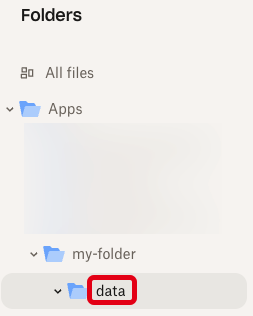
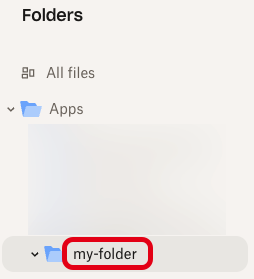
3. The app folder that your Dropbox app will use for access can be found in your Dropbox account under the `Apps` top-level folder. For example, if the value of the **App folder name**
field above is `my-folder`, then the app folder that your Dropbox app will use for access can be found under `https://dropbox.com/home/Apps/my-folder`
Your Dropbox app will *not* have access to upload or download files from the root of the app folder. Instead, you *must* create a subfolder inside of the app folder for your Dropbox
app to upload or download files from. You will use the name of that subfolder when specifying your remote URL in the next step. For example, if your Dropbox app uses an app folder named `my-folder`
for access within the `Apps` top-level folder, and you create a subfolder named `data` within the `my-folder` app folder, then the subfolder that your Dropbox app will upload and download files from
can be found under `https://dropbox.com/home/Apps/my-folder/data`
4. Note the remote URL to your subfolder inside of the app folder, which takes the format `dropbox://`. For example,
if your Dropbox app uses an app folder named `my-folder` for access within the `Apps` top-level folder, and you create a subfolder named `data` within the `my-folder` app folder, then
the remote URL is `dropbox://data`
## Replace an expired access token
Dropbox app access tokens are valid for **only four hours**. After this time, you can no longer use the expired access token.
To have Unstructured automatically replace expired access tokens on your behalf, do the following:
1. Get the app key and app secret values for your Dropbox app. To do this:
a) Sign in to the [Dropbox Developers](https://www.dropbox.com/developers) portal with the same credentials as your Dropbox account.
b) Open your [App Console](https://www.dropbox.com/developers/apps).
c) Click your Dropbox app's icon.
d) On the **Settings** tab, next to **App key**, copy the value of the app key.
e) Next to **App secret**, click **Show**, and then copy the value of the app secret.
2. Use your web browser to browse to the following URL, replacing `` with the app key for your Dropbox app:
```text theme={null}
https://www.dropbox.com/oauth2/authorize?client_id=&response_type=code&token_access_type=offline
```
3. Click **Continue**.
4. Click **Allow**.
5. In the **Access code generated** tile, copy the access code that is shown.
6. Use the [curl](https://curl.se/) utility in your Terminal or Command Prompt, or use a REST API client such as
[Postman](https://www.postman.com/product/api-client/), to make the following REST API call, replacing the following placeholders:
* Replace `` with the app key for your Dropbox app.
* Replace `` with the app secret for your Dropbox app.
* Replace `` with the access code that you just copied.
```text theme={null}
curl --location --request POST 'https://api.dropbox.com/oauth2/token' \
--user ':' \
--header 'Content-Type: application/x-www-form-urlencoded' \
--data-urlencode 'code=' \
--data-urlencode 'grant_type=authorization_code'
```
7. In the response, copy the following two values:
* The value of `access_token` (starting with the characters `sl`) is the new, valid access token.
* The value of `refresh_token` is the refresh token that can be used to replace this access token much faster and easier next time.
If you lose this refresh token, you must go back to Step 2.
For the [Unstructured Pipelines](/pipelines/overview), if you want Unstructured to use this refresh token to automatically replace the expired access token instead of replacing it yourself, then
add the following values to your connector settings, and then stop here:
* Add the `refresh_token` value to the connector settings **Refresh token** field.
* Add the `` value to the connector settings **App key** field.
* Add the `` value to the connector settings **App secret** field.
For the [Unstructured API](/api-reference/overview) and [Unstructured Ingest](/open-source/ingestion/overview), if you want Unstructured to use this refresh token to automatically replace the expired access token instead of replacing it yourself, then
add the following values to your connector settings, and then stop here:
* Add the `refresh_token` value to the `refresh_token` parameter.
* Add the `` value to the `app_key` parameter.
* Add the `` value to the connector settings `app_secret` parameter.
8. If for some reason you need to manually replace the expired access token yourself instead of having Unstructured do it for you, you can use the refresh token that you just copied to get a new access token:
* Replace `` with the refresh token.
* Replace `` with the app key for your Dropbox app.
* Replace `` with the app secret for your Dropbox app.
```text theme={null}
curl https://api.dropbox.com/oauth2/token \
--data refresh_token= \
--data grant_type=refresh_token \
--data client_id= \
--data client_secret=
```
9. In the response, copy the following two values:
* The value of `access_token` (starting with the characters `sl`) is the new, valid access token. In the connector, replace the old,
expired access token value with this new, valid access token value.
* The value of `refresh_token` is the new, valid refresh token. To replace the expired access token yourself, go back to Step 8.
## Examples
To create a Dropbox source connector, see the following examples.
For more information on working with source connectors using the Unstructured API, see [Source endpoints](/api-reference/api/source/source-apis).
```python Python SDK theme={null}
import os
from unstructured_client import UnstructuredClient
from unstructured_client.models.operations import CreateSourceRequest
from unstructured_client.models.shared import CreateSourceConnector
with UnstructuredClient(api_key_auth=os.getenv("UNSTRUCTURED_API_KEY")) as client:
response = client.sources.create_source(
request=CreateSourceRequest(
create_source_connector=CreateSourceConnector(
name="",
type="dropbox",
config={
"remote_url": "",
"recursive": ,
"refresh_token": "",
"app_key": "",
"app_secret": ""
}
)
)
)
print(response.source_connector_information)
```
```bash curl theme={null}
curl --request 'POST' --location \
"$UNSTRUCTURED_API_URL/sources" \
--header 'accept: application/json' \
--header "unstructured-api-key: $UNSTRUCTURED_API_KEY" \
--header 'content-type: application/json' \
--data \
'{
"name": "",
"type": "dropbox",
"config": {
"remote_url": "",
"recursive": ,
"refresh_token": "",
"app_key": "",
"app_secret": ""
}
}'
```
## Configuration settings
Replace the preceding placeholders as follows:
A unique name for this connector.
The remote URL to the target subfolder inside of the app folder for the Dropbox app.
Set to `true` to recursively process data from subfolders within the target subfolder.
The app key for your Dropbox app. This allows Unstructured to automatically replace expired access tokens.
The app secret for your Dropbox app. This allows Unstructured to automatically replace expired access tokens.
The refresh token for the Dropbox app. This allows Unstructured to automatically replace expired access tokens.