 ```json theme={null}
{
"type": "Image",
"element_id": "dd1fb72db7937725c9a781906098e6f8",
"text": "{\n
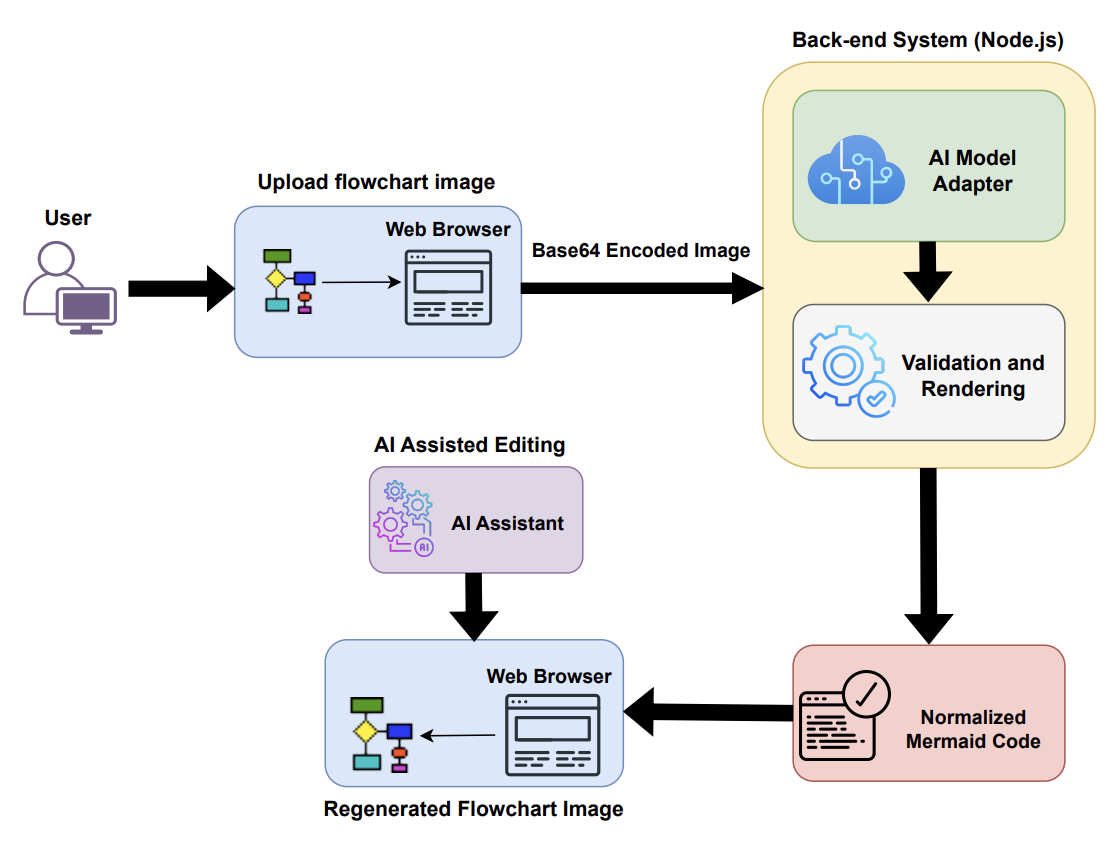
\"type\": \"diagram\",\n
\"description\": \"User uploads a flowchart image via a Web Browser, which is then
converted to a Base64 Encoded Image. This image is sent to the Back-end System
(Node.js) where it is processed by the AI Model Adapter. The output undergoes
Validation and Rendering, resulting in Normalized Mermaid Code. AI Assisted
Editing is available through an AI Assistant, which allows for the Regenerated
Flowchart Image to be viewed again in the Web Browser.\\n\\n
Text in the image:\\n
- User\\n
- Upload flowchart image\\n
- Web Browser\\n
- Base64 Encoded Image\\n
- Back-end System (Node.js)\\n
- AI Model Adapter\\n
- Validation and Rendering\\n
- Normalized Mermaid Code\\n
- AI Assisted Editing\\n
- AI Assistant\\n
- Regenerated Flowchart Image\"\n
}",
"metadata": {
"filetype": "application/pdf",
"languages": [
"eng"
],
"page_number": 1,
"image_base64": "/9j...
```json theme={null}
{
"type": "Image",
"element_id": "dd1fb72db7937725c9a781906098e6f8",
"text": "{\n
\"type\": \"diagram\",\n
\"description\": \"User uploads a flowchart image via a Web Browser, which is then
converted to a Base64 Encoded Image. This image is sent to the Back-end System
(Node.js) where it is processed by the AI Model Adapter. The output undergoes
Validation and Rendering, resulting in Normalized Mermaid Code. AI Assisted
Editing is available through an AI Assistant, which allows for the Regenerated
Flowchart Image to be viewed again in the Web Browser.\\n\\n
Text in the image:\\n
- User\\n
- Upload flowchart image\\n
- Web Browser\\n
- Base64 Encoded Image\\n
- Back-end System (Node.js)\\n
- AI Model Adapter\\n
- Validation and Rendering\\n
- Normalized Mermaid Code\\n
- AI Assisted Editing\\n
- AI Assistant\\n
- Regenerated Flowchart Image\"\n
}",
"metadata": {
"filetype": "application/pdf",
"languages": [
"eng"
],
"page_number": 1,
"image_base64": "/9j...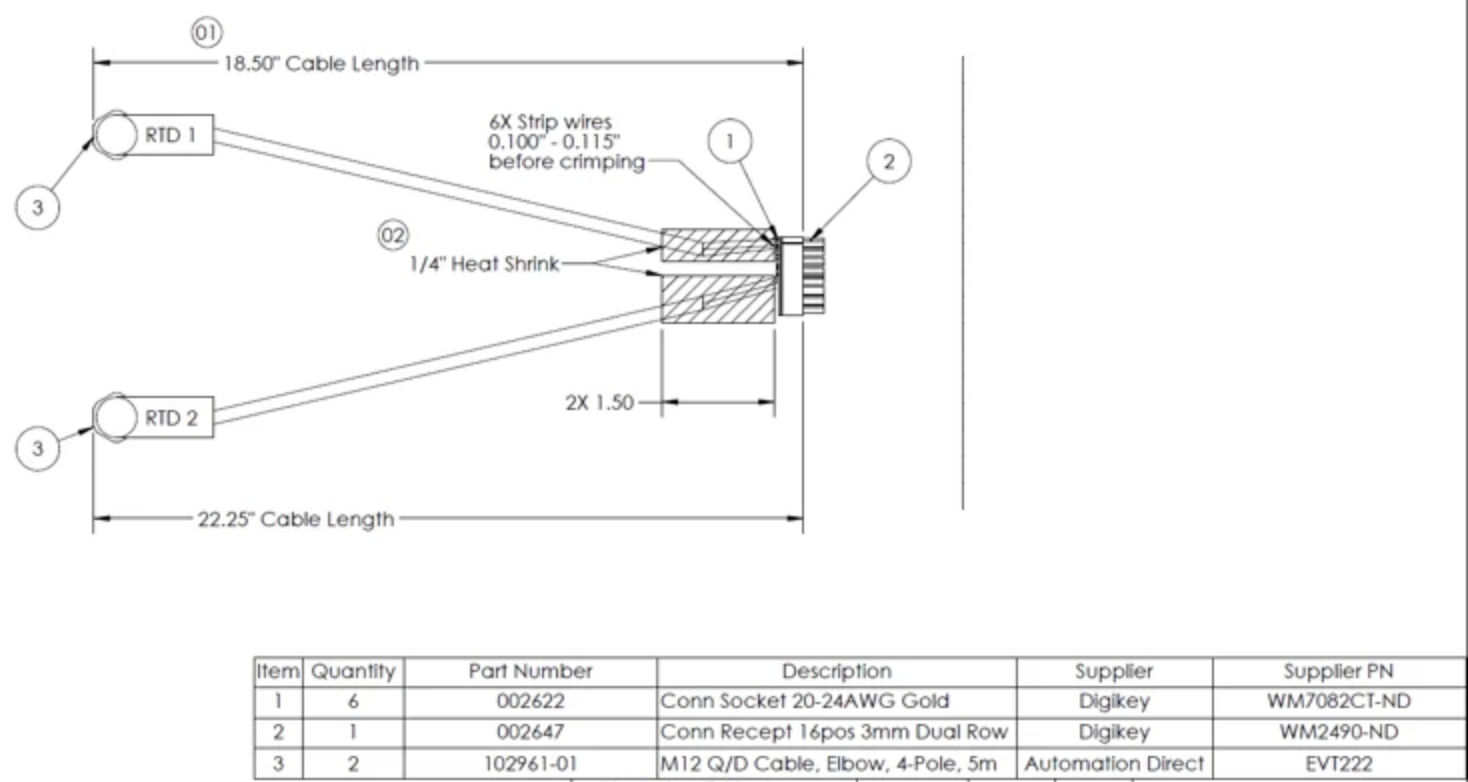 ```json theme={null}
{
"type": "Image",
"element_id": "7877acdd762f2afc65b193fa89d8ef46",
"text": "{\n
\"type\": \"technical drawing\",\n
\"description\": {\n
\"texts\": [\n
\"RTD 1\",\n
\"RTD 2\",\n
\"01\",\n
\"18.50\\\" Cable Length\",\n
\"02\",\n
\"1/4\\\" Heat Shrink\",\n
\"6X Strip wires 0.100\\\" - 0.115\\\" before crimping\",\n
\"2X 1.50\",\n
\"22.25\\\" Cable Length\"\n
],\n
\"tables\": "
```json theme={null}
{
"type": "Image",
"element_id": "7877acdd762f2afc65b193fa89d8ef46",
"text": "{\n
\"type\": \"technical drawing\",\n
\"description\": {\n
\"texts\": [\n
\"RTD 1\",\n
\"RTD 2\",\n
\"01\",\n
\"18.50\\\" Cable Length\",\n
\"02\",\n
\"1/4\\\" Heat Shrink\",\n
\"6X Strip wires 0.100\\\" - 0.115\\\" before crimping\",\n
\"2X 1.50\",\n
\"22.25\\\" Cable Length\"\n
],\n
\"tables\": "| Item | Quantity | Part Number | Description | Supplier | Supplier PN |
|---|---|---|---|---|---|
| 1 | 6 | 002622 | Conn Socket 20-24AWG Gold | Digikey | WM7082CT-ND |
| 2 | 1 | 002647 | Conn Recept 16pos 3mm Dual Row | Digikey | WM2490-ND |
| 3 | 2 | 102961-01 | M12 Q/D Cable, Elbow, 4-Pole, 5m | Automation Direct | EVT222 |
 ```json theme={null}
{
"type": "Image",
"element_id": "322b067931bc59555ae95dbb63ab9b78",
"text": "{
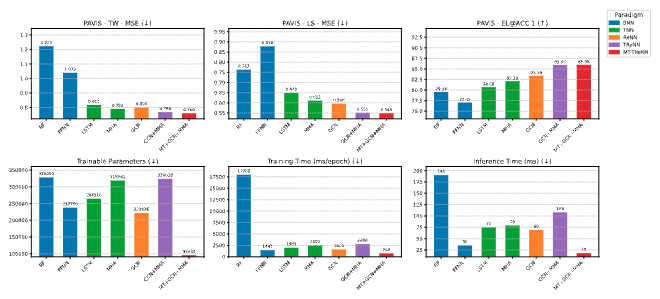
\"type\": \"graph\",
\"description\": \"This is a comprehensive comparison chart showing 6 different
metrics across 7 machine learning models (RF, FFNN, LSTM, MHA, GCN, GCN+MHA,
MT+GCN+MHA) represented by different colored bars. The metrics include
PAVIS-TW-MSE, PAVIS-LS-MSE, PAVIS-EL@ACC 1, Trainable Parameters, Training
Time, and Inference Time. The models are categorized into paradigms: SNN (blue),
TNN (green), ReNN (orange), TReNN (purple), and MT-TReNN (red). Key trends show
RF and FFNN having higher MSE values but faster inference times, while more
complex models like MT+GCN+MHA achieve better accuracy but require more parameters
and training time.\",
\"data\": {
\"PAVIS-TW-MSE\": {
\"RF\": 1.222, \"FFNN\": 1.039, \"LSTM\": 0.817, \"MHA\": 0.790, \"GCN\": 0.800,
\"GCN+MHA\": 0.768, \"MT+GCN+MHA\": 0.760
},
\"PAVIS-LS-MSE\": {
\"RF\": 0.763, \"FFNN\": 0.878, \"LSTM\": 0.649, \"MHA\": 0.611, \"GCN\": 0.596,
\"GCN+MHA\": 0.551, \"MT+GCN+MHA\": 0.549
},
\"PAVIS-EL@ACC 1\": {
\"RF\": 79.54, \"FFNN\": 77.05, \"LSTM\": 80.69, \"MHA\": 82.10, \"GCN\": 83.39,
\"GCN+MHA\": 85.95, \"MT+GCN+MHA\": 85.98
},
\"Trainable Parameters\": {
\"RF\": 328050, \"FFNN\": 237790, \"LSTM\": 264516, \"MHA\": 318941, \"GCN\": 221886,
\"GCN+MHA\": 324018, \"MT+GCN+MHA\": 99638
},
\"Training Time\": {
\"RF\": 17968, \"FFNN\": 1447, \"LSTM\": 1985, \"MHA\": 2502, \"GCN\": 1620,
\"GCN+MHA\": 2808, \"MT+GCN+MHA\": 748
},
\"Inference Time\": {
\"RF\": 190, \"FFNN\": 35, \"LSTM\": 75, \"MHA\": 79, \"GCN\": 69,
\"GCN+MHA\": 108, \"MT+GCN+MHA\": 18
}
},
\"texts\": \"PAVIS - TW - MSE (↓) PAVIS - LS - MSE (↓) PAVIS - EL@ACC 1 (↑) Paradigm
SNN TNN ReNN TReNN MT-TReNN 1.222 1.039 0.817 0.790 0.800 0.768 0.760 RF FFNN LSTM
MHA GCN GCN+MHA MT+GCN+MHA 0.763 0.878 0.649 0.611 0.596 0.551 0.549 RF FFNN LSTM
MHA GCN GCN+MHA MT+GCN+MHA 79.54 77.05 80.69 82.10 83.39 85.95 85.98 RF FFNN LSTM
MHA GCN GCN+MHA MT+GCN+MHA Trainable Parameters (↓) Training Time (ms/epoch) (↓)
Inference Time (ms) (↓) 328050 237790 264516 318941 221886 324018 99638 RF FFNN LSTM
MHA GCN GCN+MHA MT+GCN+MHA 17968 1447 1985 2502 1620 2808 748 RF FFNN LSTM
MHA GCN GCN+MHA MT+GCN+MHA 190 35 75 79 69 108 18 RF FFNN
LSTM MHA GCN GCN+MHA MT+GCN+MHA\"
}",
"metadata": {
"filetype": "application/pdf",
"languages": [
"eng"
],
"page_number": 17,
"image_base64": "/9j...
```json theme={null}
{
"type": "Image",
"element_id": "322b067931bc59555ae95dbb63ab9b78",
"text": "{
\"type\": \"graph\",
\"description\": \"This is a comprehensive comparison chart showing 6 different
metrics across 7 machine learning models (RF, FFNN, LSTM, MHA, GCN, GCN+MHA,
MT+GCN+MHA) represented by different colored bars. The metrics include
PAVIS-TW-MSE, PAVIS-LS-MSE, PAVIS-EL@ACC 1, Trainable Parameters, Training
Time, and Inference Time. The models are categorized into paradigms: SNN (blue),
TNN (green), ReNN (orange), TReNN (purple), and MT-TReNN (red). Key trends show
RF and FFNN having higher MSE values but faster inference times, while more
complex models like MT+GCN+MHA achieve better accuracy but require more parameters
and training time.\",
\"data\": {
\"PAVIS-TW-MSE\": {
\"RF\": 1.222, \"FFNN\": 1.039, \"LSTM\": 0.817, \"MHA\": 0.790, \"GCN\": 0.800,
\"GCN+MHA\": 0.768, \"MT+GCN+MHA\": 0.760
},
\"PAVIS-LS-MSE\": {
\"RF\": 0.763, \"FFNN\": 0.878, \"LSTM\": 0.649, \"MHA\": 0.611, \"GCN\": 0.596,
\"GCN+MHA\": 0.551, \"MT+GCN+MHA\": 0.549
},
\"PAVIS-EL@ACC 1\": {
\"RF\": 79.54, \"FFNN\": 77.05, \"LSTM\": 80.69, \"MHA\": 82.10, \"GCN\": 83.39,
\"GCN+MHA\": 85.95, \"MT+GCN+MHA\": 85.98
},
\"Trainable Parameters\": {
\"RF\": 328050, \"FFNN\": 237790, \"LSTM\": 264516, \"MHA\": 318941, \"GCN\": 221886,
\"GCN+MHA\": 324018, \"MT+GCN+MHA\": 99638
},
\"Training Time\": {
\"RF\": 17968, \"FFNN\": 1447, \"LSTM\": 1985, \"MHA\": 2502, \"GCN\": 1620,
\"GCN+MHA\": 2808, \"MT+GCN+MHA\": 748
},
\"Inference Time\": {
\"RF\": 190, \"FFNN\": 35, \"LSTM\": 75, \"MHA\": 79, \"GCN\": 69,
\"GCN+MHA\": 108, \"MT+GCN+MHA\": 18
}
},
\"texts\": \"PAVIS - TW - MSE (↓) PAVIS - LS - MSE (↓) PAVIS - EL@ACC 1 (↑) Paradigm
SNN TNN ReNN TReNN MT-TReNN 1.222 1.039 0.817 0.790 0.800 0.768 0.760 RF FFNN LSTM
MHA GCN GCN+MHA MT+GCN+MHA 0.763 0.878 0.649 0.611 0.596 0.551 0.549 RF FFNN LSTM
MHA GCN GCN+MHA MT+GCN+MHA 79.54 77.05 80.69 82.10 83.39 85.95 85.98 RF FFNN LSTM
MHA GCN GCN+MHA MT+GCN+MHA Trainable Parameters (↓) Training Time (ms/epoch) (↓)
Inference Time (ms) (↓) 328050 237790 264516 318941 221886 324018 99638 RF FFNN LSTM
MHA GCN GCN+MHA MT+GCN+MHA 17968 1447 1985 2502 1620 2808 748 RF FFNN LSTM
MHA GCN GCN+MHA MT+GCN+MHA 190 35 75 79 69 108 18 RF FFNN
LSTM MHA GCN GCN+MHA MT+GCN+MHA\"
}",
"metadata": {
"filetype": "application/pdf",
"languages": [
"eng"
],
"page_number": 17,
"image_base64": "/9j...

 Any embeddings that are produced after these summaries are generated will be based on the `text` field's contents.
## Generate image descriptions
To have Unstructured generate image descriptions, do the following:
* For **Unstructured Pipelines** users, add an [Enrichment node](/pipelines/workflows#custom-workflow-node-types) of type **NER**
to an Unstructured [custom workflow](/pipelines/workflows#create-a-custom-workflow).
* For **Unstructured API** users, add an [Image Description task](/api-reference/workflow/nodes/enrichment/enrichment-image-description). You add this task
as either as an object in a `workflow_nodes` array
(for curl) or as a `WorkflowNode` in a `WorkflowNodes` collection (for Python). This object or collection applies whenever you
[create a workflow](/api-reference/api/workflow/create-workflow),
[update a workflow](/api-reference/api/workflow/update-workflow), or
[create an on-demand workflow job](/api-reference/api/job/create-job).
Any embeddings that are produced after these summaries are generated will be based on the `text` field's contents.
## Generate image descriptions
To have Unstructured generate image descriptions, do the following:
* For **Unstructured Pipelines** users, add an [Enrichment node](/pipelines/workflows#custom-workflow-node-types) of type **NER**
to an Unstructured [custom workflow](/pipelines/workflows#create-a-custom-workflow).
* For **Unstructured API** users, add an [Image Description task](/api-reference/workflow/nodes/enrichment/enrichment-image-description). You add this task
as either as an object in a `workflow_nodes` array
(for curl) or as a `WorkflowNode` in a `WorkflowNodes` collection (for Python). This object or collection applies whenever you
[create a workflow](/api-reference/api/workflow/create-workflow),
[update a workflow](/api-reference/api/workflow/update-workflow), or
[create an on-demand workflow job](/api-reference/api/job/create-job).