> ## Documentation Index
> Fetch the complete documentation index at: https://docs.unstructured.io/llms.txt
> Use this file to discover all available pages before exploring further.
# Partitioning
For the Unstructured open source library version of this page, see [Partitioning strategies for open source](/open-source/concepts/partitioning-strategies).
*Partitioning* extracts content from raw unstructured files and outputs that content as structured [document elements](/concepts/document-elements).
For specific file types, such as image files and PDF files, Unstructured offers special strategies to partition them. Each of these
strategies has trade-offs for output speed, cost to output, and quality of output.
PDF files, for example, vary in quality and complexity. In simple cases, traditional natural language processing (NLP) extraction techniques might
be enough to extract all the text out of a document. In other cases, advanced image-to-text models are required
to process a PDF file. Some of these strategies implement rule-based workflows, which can be faster and cheaper, because they always
extract in the same way, but you might sometimes get lower-quality resolution. Other strategies implement
model-based workflows, which can be slower and costlier because they require a model that performs inference, but you can get higher-quality resolution.
When you choose a partitioning strategy for your files, you should be mindful of these speed, cost, and quality trade-offs.
For example, the **Fast** strategy can be about 100 times faster than leading image-to-text models.
To choose one of these strategies, select one of the following four **Partition Strategy** options for the **Partitioner** node of a workflow.
Unstructured recommends that you choose the **Auto** partitioning strategy in most cases. With **Auto**, Unstructured does all
the heavy lifting, optimizing at runtime for the highest quality at the lowest cost page-by-page.
You should consider the following additional strategies only if you are absolutely sure that your documents are of the same
type. Each of the following strategies are best suited for specific situations. Choosing one of these
strategies other than **Auto** for sets of documents of different types could produce undesirable results,
including reduction in transformation quality.
* **VLM**: For the highest-quality transformation of these file types: `.bmp`, `.gif`, `.heic`, `.jpeg`, `.jpg`, `.pdf`, `.png`, `.tiff`, and `.webp`.
* **High Res**: For all other [supported file types](/pipelines/supported-file-types), and for the generation of bounding box coordinates.
* **Fast**: For text-only documents.
The **Auto** partitioning strategy routes each file as a complete unit to the appropriate partitioning strategy (**VLM**, **High Res**, or **Fast**)
based on the preceding file types. Additionally, for `.pdf` files, the **Auto** partitioning strategy routes these files' pages
on a page-by-page basis, as follows:
* A page is routed to **Fast** when it contains only embedded text and no images or tables are detected.
* All other kinds of pages are routed to **VLM** or **High Res**, depending on the complexity of a page's
content. Unstructured constantly optimizes its proprietary algorithm for routing to **VLM** or **High Res** in these cases.
## Images and tables in PDF files
The differences between the various partitioning strategies can be more clearly demonstrated by the ways each of these strategies handle images and tables within PDF files.
For example, the **Fast** partitioning strategy skips processing images altogether in PDF files:
For tables, the **Fast** strategy interprets table cells in PDF files as a mixture of title, list, and uncategorized text elements:
The **High Res** strategy, by itself, processes images in PDF files sometimes with limited output:
However, when combined with the [image description](/concepts/enriching/image-descriptions) enrichment, the **High Res** strategy can process images in PDF files with better result output:
For tables, the **High Res** strategy processes tables in PDF files with the table's text and an HTML representation of the table as output:
When combined with the [table description](/concepts/enriching/table-descriptions) and [tables to HTML](/concepts/enriching/table-to-html) enrichments, the **High Res** strategy can process tables in PDF files with even richer result output:
The **VLM** strategy processes images in PDF files with image summaries and text as HTML elements as output. The following example shows GPT-4o by OpenAI being used. If
the **Auto** strategy is selected in this example, Unstructured will route to the **VLM** strategy for processing:
For tables, the **VLM** strategy processes tables in PDF files with the table's text and an HTML representation of the table as output, similar to the **High Res** strategy.
The following example shows GPT-4o by OpenAI being used. If the **Auto** strategy is selected in this example, Unstructured will route to the **VLM** strategy for processing:
## Handwriting and multilanguage characters in PDF files
The differences between the various partitioning strategies can be more clearly demonstrated by the ways each of these strategies handle handwriting and multilanguage characters within PDF files.
For example, the **Fast** partitioning strategy skips processing handwriting altogether in PDF files.
The **Fast** strategy processes multilanguage characters in PDF files with limited output, depending on the language. In the following
example, Japanese hiragana characters are processed as text, but the output can be very difficult to work with:
For handwriting, the **High Res** strategy typically produces unusable results, for example:
For multilanguage characters, the **High Res** strategy also typically produces unusable results, for example failing to recognize Japanese hiragana characters:
The **VLM** strategy can produce great results for handwriting, such as this example that uses GPT-4o by OpenAI:
The **VLM** strategy also has great support for recognizing multilanguage characters, such as this example that uses GPT-4o by OpenAI to recognize Japanese hiragana characters:
## Supported languages
**Fast** partitioning accepts any text inputs, though automatic language detection of those inputs is restricted to [langdetect](https://pypi.org/project/langdetect/).
**High Res** partitioning leverages Tesseract OCR. For the list of languages that Tesseract supports, see:
[Languages/Scripts supported in different versions of Tesseract](https://tesseract-ocr.github.io/tessdoc/Data-Files-in-different-versions.html).
Language support for **VLM** depends on the model used. For a full list of the models available in Unstructured, see [Available models](/api-reference/workflow/models). The list of supported languages for a particular model is maintained by
that model's provider. For the list of languages that each model supports, see the following, where provided:
* Anthropic:
* [Claude](https://docs.anthropic.com/en/docs/build-with-claude/multilingual-support)
* OpenAI
* [GPT](https://help.openai.com/en/articles/8357869-how-to-change-your-language-setting-in-chatgpt#h_513834920e)
* Amazon Bedrock
* [Claude](https://aws.amazon.com/bedrock/claude/)
* [Nova](https://aws.amazon.com/ai/generative-ai/nova/)
* [Llama](https://aws.amazon.com/bedrock/llama/)
* Vertex AI
* [Gemini](https://cloud.google.com/vertex-ai/generative-ai/docs/models#expandable-1)
## Apply a partitioning strategy
To have Unstructured use a specific partitioning strategy, do the following:
* For **Unstructured Pipelines** users, add a [Partitioner node](/pipelines/workflows#custom-workflow-node-types)
to an Unstructured [custom workflow](/pipelines/workflows#create-a-custom-workflow).
* For **Unstructured API** users, add a [Partitioner node](/api-reference/workflow/nodes/partitioner/partitioner)
as either as an object in a `workflow_nodes` array
(for curl) or as a `WorkflowNode` in a `WorkflowNodes` collection (for Python) whenever you
[create a workflow](/api-reference/api/workflow/create-workflow),
[update a workflow](/api-reference/api/workflow/update-workflow), or
[create an on-demand workflow job](/api-reference/api/job/create-job).
## Learn more
* [The Case for HTML as the Canonical Representation in Document AI](https://unstructured.io/blog/the-case-for-html-as-the-canonical-representation-in-document-ai)
* [How to Extract Data from Complex Tables](https://unstructured.io/events/how-to-extract-data-from-complex-tables)
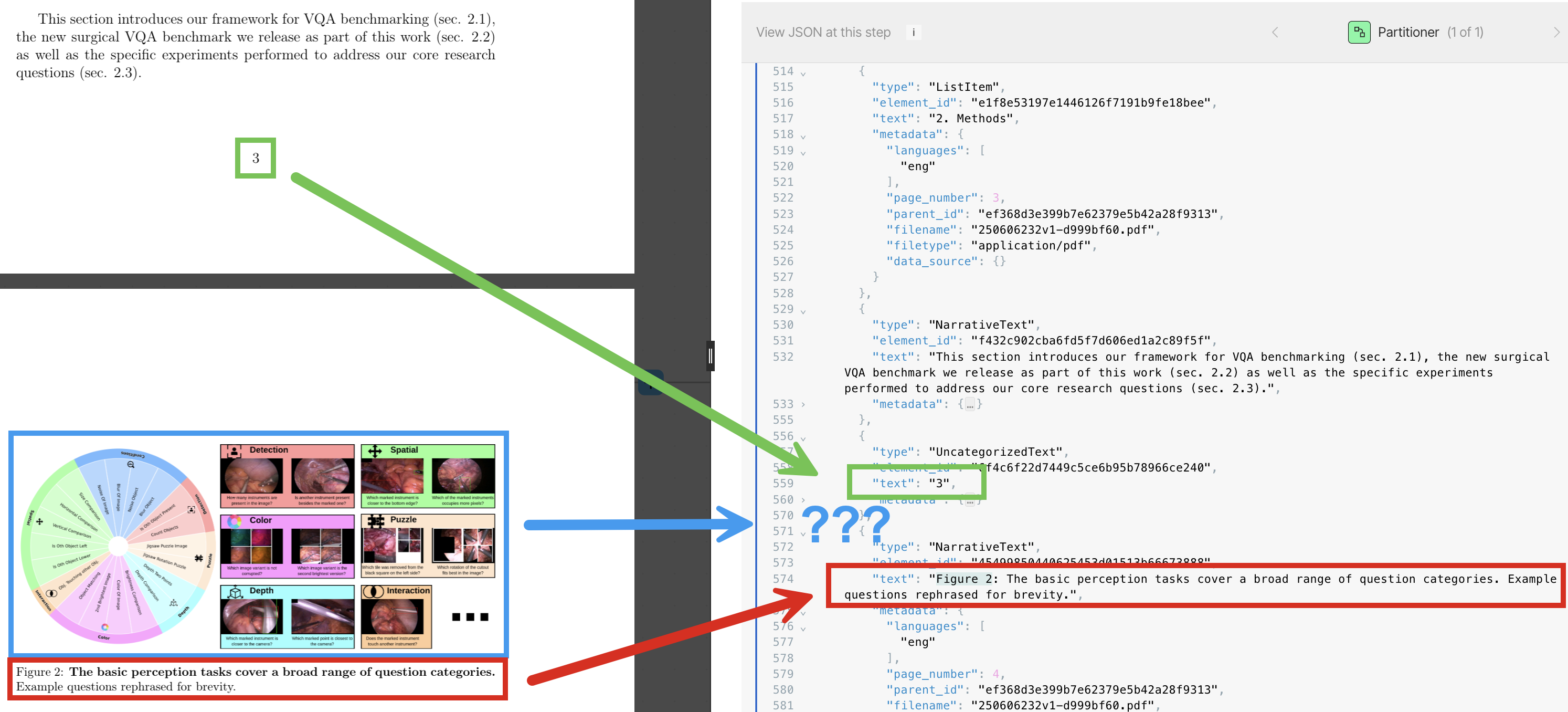 For tables, the **Fast** strategy interprets table cells in PDF files as a mixture of title, list, and uncategorized text elements:
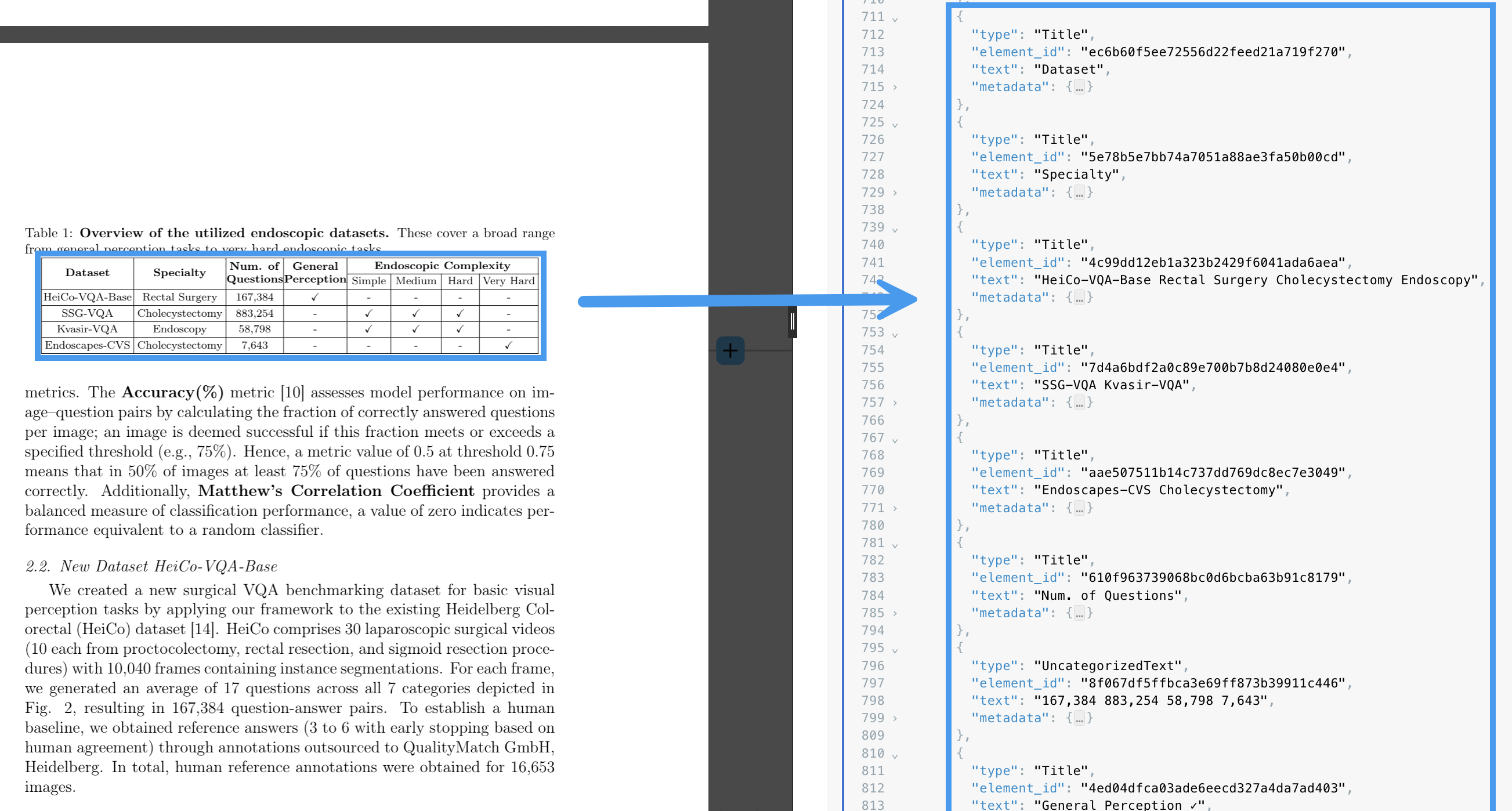 The **High Res** strategy, by itself, processes images in PDF files sometimes with limited output:
 However, when combined with the [image description](/concepts/enriching/image-descriptions) enrichment, the **High Res** strategy can process images in PDF files with better result output:
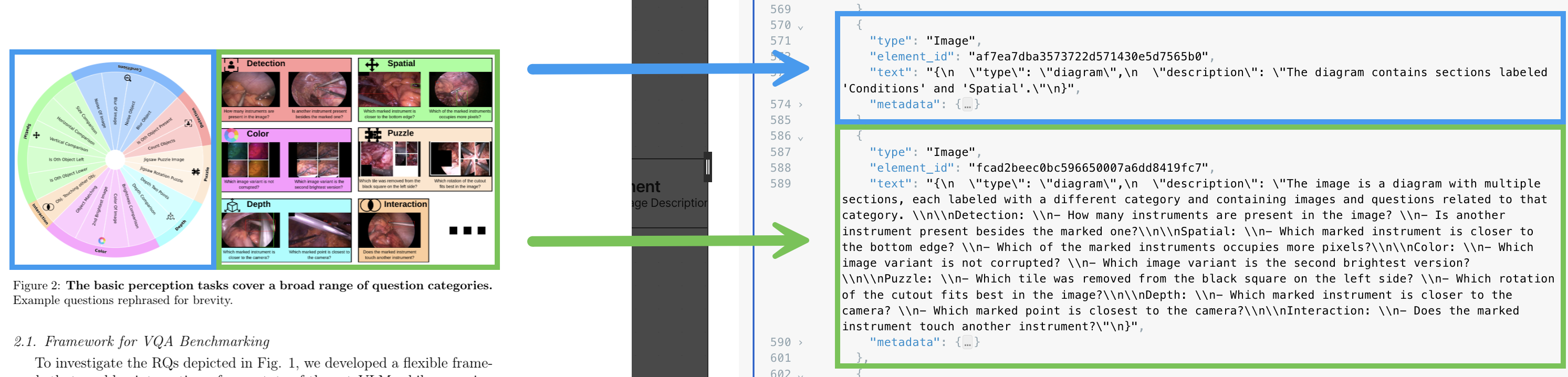 For tables, the **High Res** strategy processes tables in PDF files with the table's text and an HTML representation of the table as output:
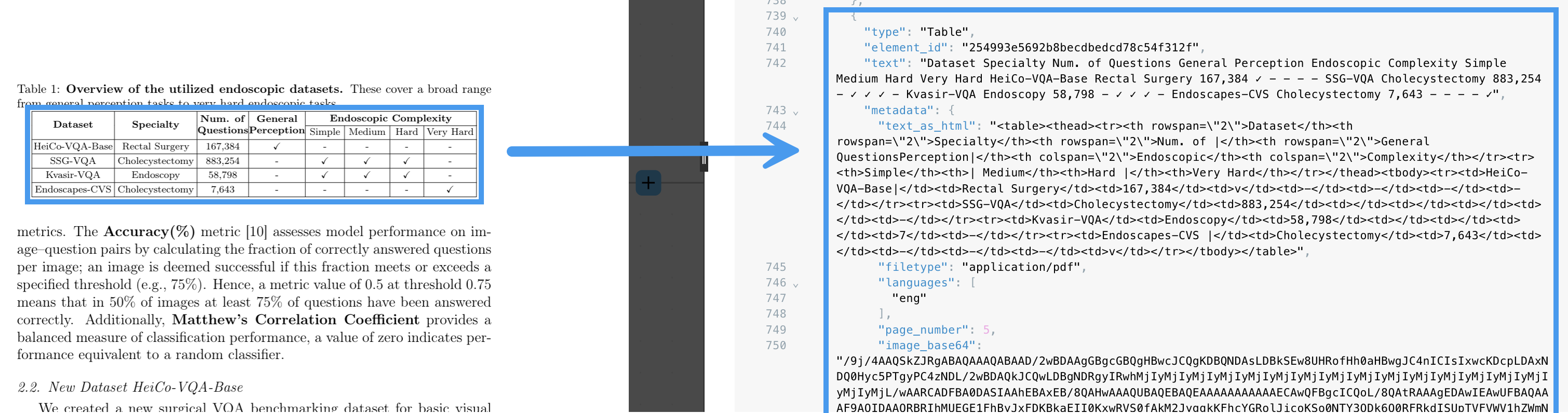 When combined with the [table description](/concepts/enriching/table-descriptions) and [tables to HTML](/concepts/enriching/table-to-html) enrichments, the **High Res** strategy can process tables in PDF files with even richer result output:
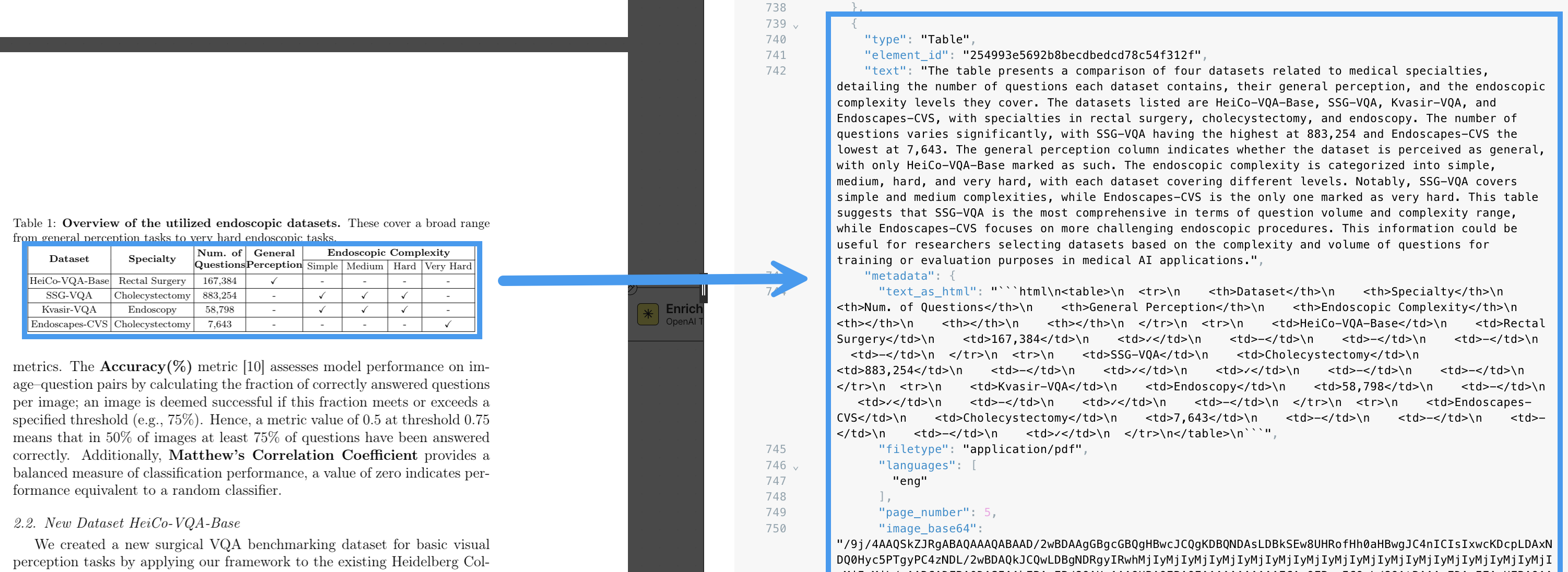 The **VLM** strategy processes images in PDF files with image summaries and text as HTML elements as output. The following example shows GPT-4o by OpenAI being used. If
the **Auto** strategy is selected in this example, Unstructured will route to the **VLM** strategy for processing:
The **VLM** strategy processes images in PDF files with image summaries and text as HTML elements as output. The following example shows GPT-4o by OpenAI being used. If
the **Auto** strategy is selected in this example, Unstructured will route to the **VLM** strategy for processing:
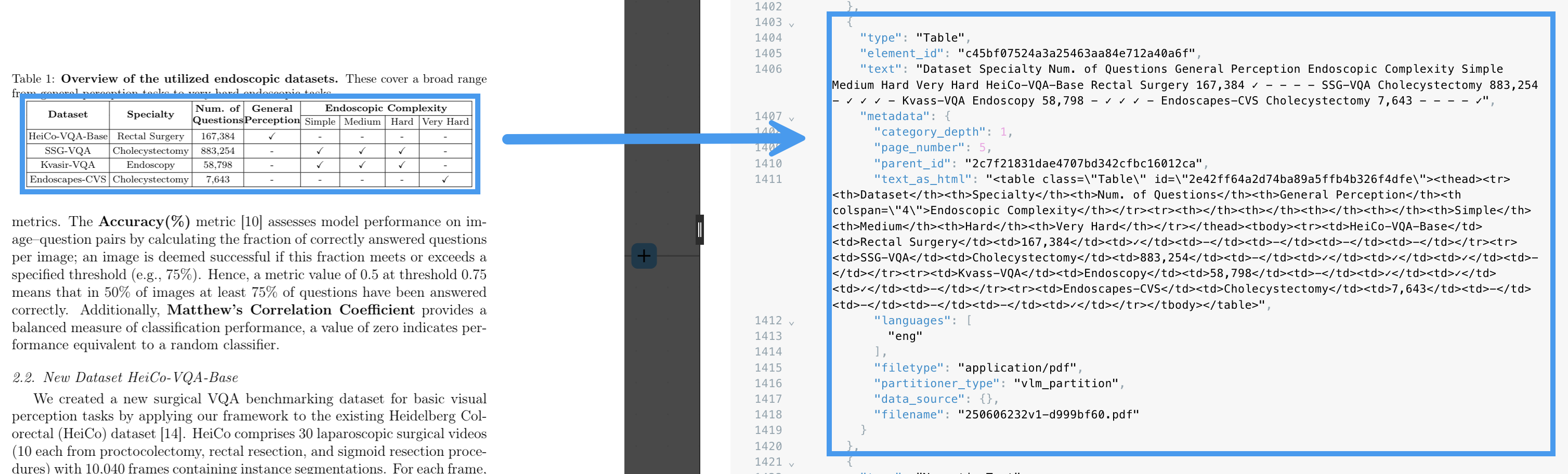
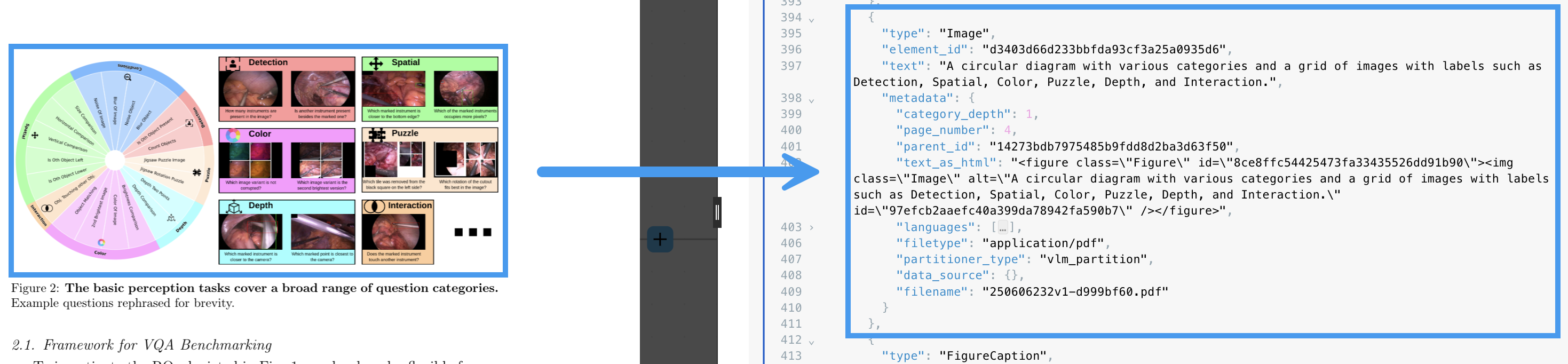 For tables, the **VLM** strategy processes tables in PDF files with the table's text and an HTML representation of the table as output, similar to the **High Res** strategy.
The following example shows GPT-4o by OpenAI being used. If the **Auto** strategy is selected in this example, Unstructured will route to the **VLM** strategy for processing:
For tables, the **VLM** strategy processes tables in PDF files with the table's text and an HTML representation of the table as output, similar to the **High Res** strategy.
The following example shows GPT-4o by OpenAI being used. If the **Auto** strategy is selected in this example, Unstructured will route to the **VLM** strategy for processing:
 ## Handwriting and multilanguage characters in PDF files
The differences between the various partitioning strategies can be more clearly demonstrated by the ways each of these strategies handle handwriting and multilanguage characters within PDF files.
For example, the **Fast** partitioning strategy skips processing handwriting altogether in PDF files.
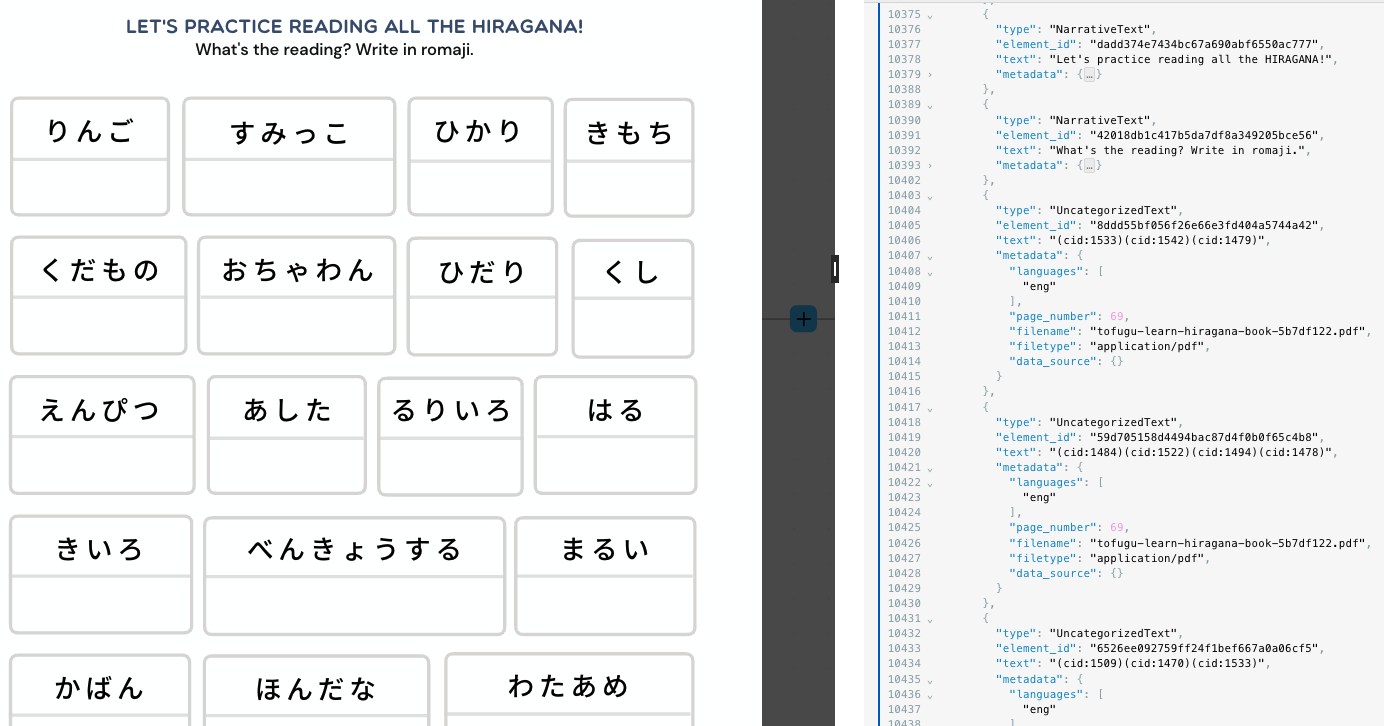
The **Fast** strategy processes multilanguage characters in PDF files with limited output, depending on the language. In the following
example, Japanese hiragana characters are processed as text, but the output can be very difficult to work with:
## Handwriting and multilanguage characters in PDF files
The differences between the various partitioning strategies can be more clearly demonstrated by the ways each of these strategies handle handwriting and multilanguage characters within PDF files.
For example, the **Fast** partitioning strategy skips processing handwriting altogether in PDF files.
The **Fast** strategy processes multilanguage characters in PDF files with limited output, depending on the language. In the following
example, Japanese hiragana characters are processed as text, but the output can be very difficult to work with:
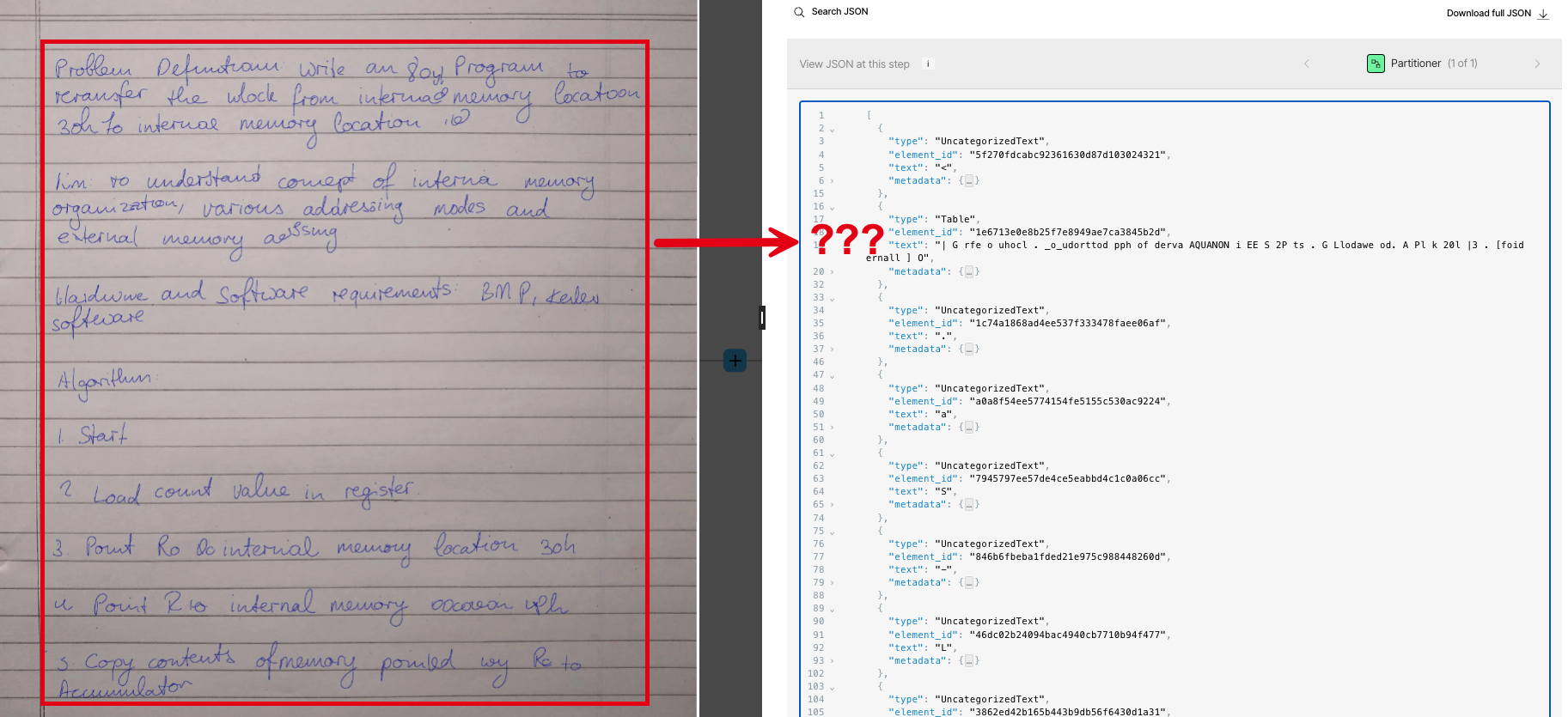
 For handwriting, the **High Res** strategy typically produces unusable results, for example:
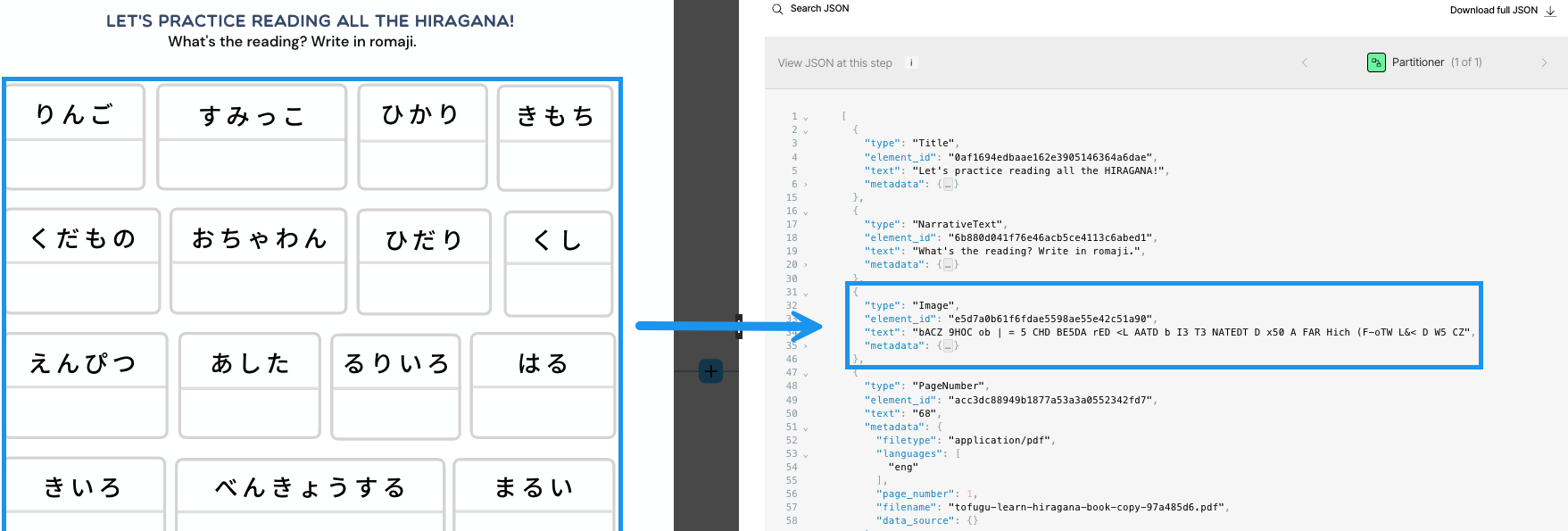
 For multilanguage characters, the **High Res** strategy also typically produces unusable results, for example failing to recognize Japanese hiragana characters:
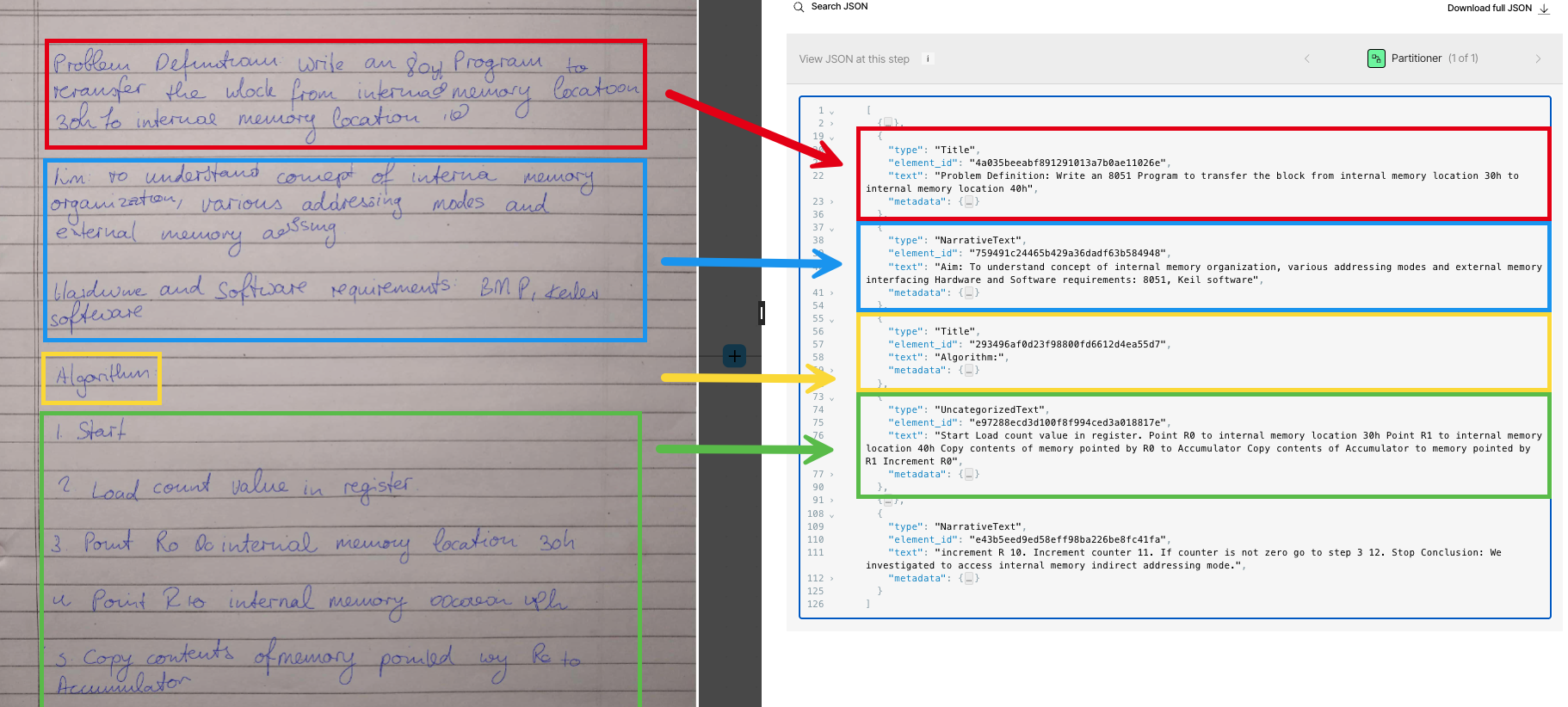
 The **VLM** strategy can produce great results for handwriting, such as this example that uses GPT-4o by OpenAI:
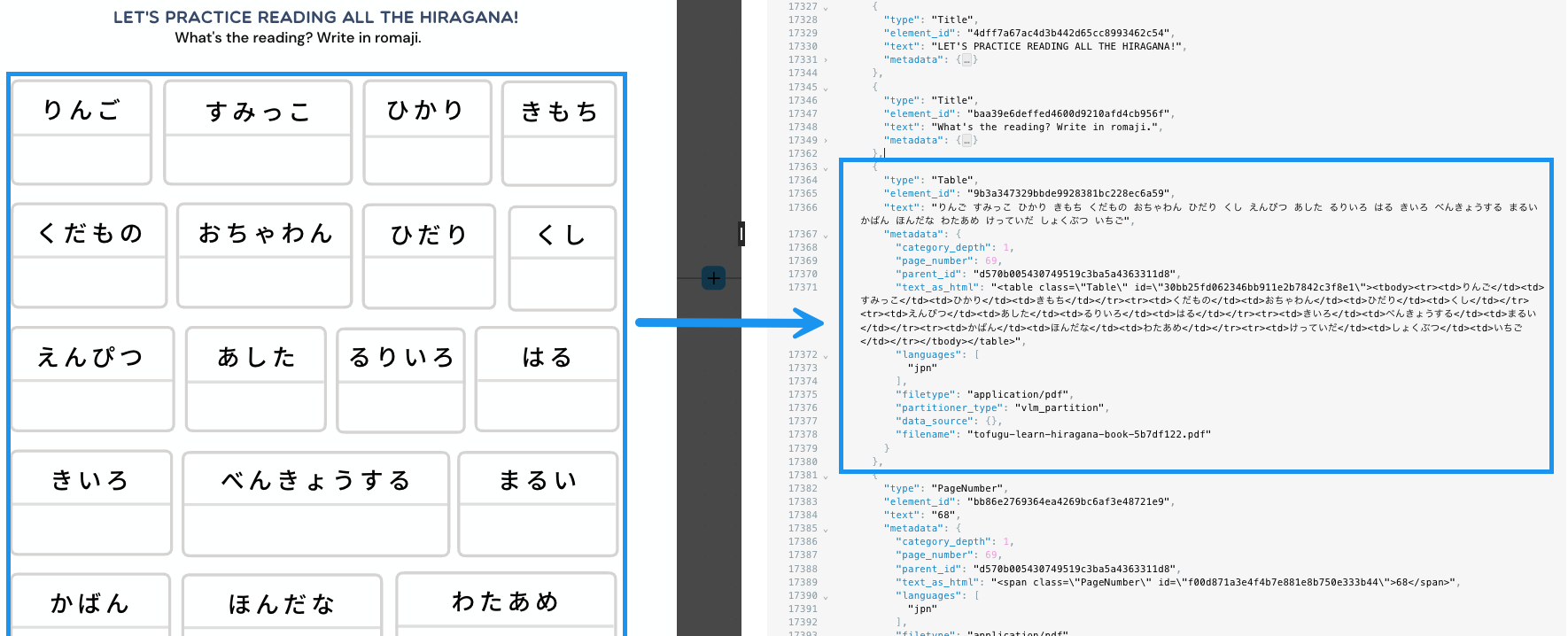
 The **VLM** strategy also has great support for recognizing multilanguage characters, such as this example that uses GPT-4o by OpenAI to recognize Japanese hiragana characters:
 ## Supported languages
**Fast** partitioning accepts any text inputs, though automatic language detection of those inputs is restricted to [langdetect](https://pypi.org/project/langdetect/).
**High Res** partitioning leverages Tesseract OCR. For the list of languages that Tesseract supports, see:
[Languages/Scripts supported in different versions of Tesseract](https://tesseract-ocr.github.io/tessdoc/Data-Files-in-different-versions.html).
Language support for **VLM** depends on the model used. For a full list of the models available in Unstructured, see [Available models](/api-reference/workflow/models). The list of supported languages for a particular model is maintained by
that model's provider. For the list of languages that each model supports, see the following, where provided:
* Anthropic:
* [Claude](https://docs.anthropic.com/en/docs/build-with-claude/multilingual-support)
* OpenAI
* [GPT](https://help.openai.com/en/articles/8357869-how-to-change-your-language-setting-in-chatgpt#h_513834920e)
* Amazon Bedrock
* [Claude](https://aws.amazon.com/bedrock/claude/)
* [Nova](https://aws.amazon.com/ai/generative-ai/nova/)
* [Llama](https://aws.amazon.com/bedrock/llama/)
* Vertex AI
* [Gemini](https://cloud.google.com/vertex-ai/generative-ai/docs/models#expandable-1)
## Apply a partitioning strategy
To have Unstructured use a specific partitioning strategy, do the following:
* For **Unstructured Pipelines** users, add a [Partitioner node](/pipelines/workflows#custom-workflow-node-types)
to an Unstructured [custom workflow](/pipelines/workflows#create-a-custom-workflow).
* For **Unstructured API** users, add a [Partitioner node](/api-reference/workflow/nodes/partitioner/partitioner)
as either as an object in a `workflow_nodes` array
(for curl) or as a `WorkflowNode` in a `WorkflowNodes` collection (for Python) whenever you
[create a workflow](/api-reference/api/workflow/create-workflow),
[update a workflow](/api-reference/api/workflow/update-workflow), or
[create an on-demand workflow job](/api-reference/api/job/create-job).
## Learn more
*
## Supported languages
**Fast** partitioning accepts any text inputs, though automatic language detection of those inputs is restricted to [langdetect](https://pypi.org/project/langdetect/).
**High Res** partitioning leverages Tesseract OCR. For the list of languages that Tesseract supports, see:
[Languages/Scripts supported in different versions of Tesseract](https://tesseract-ocr.github.io/tessdoc/Data-Files-in-different-versions.html).
Language support for **VLM** depends on the model used. For a full list of the models available in Unstructured, see [Available models](/api-reference/workflow/models). The list of supported languages for a particular model is maintained by
that model's provider. For the list of languages that each model supports, see the following, where provided:
* Anthropic:
* [Claude](https://docs.anthropic.com/en/docs/build-with-claude/multilingual-support)
* OpenAI
* [GPT](https://help.openai.com/en/articles/8357869-how-to-change-your-language-setting-in-chatgpt#h_513834920e)
* Amazon Bedrock
* [Claude](https://aws.amazon.com/bedrock/claude/)
* [Nova](https://aws.amazon.com/ai/generative-ai/nova/)
* [Llama](https://aws.amazon.com/bedrock/llama/)
* Vertex AI
* [Gemini](https://cloud.google.com/vertex-ai/generative-ai/docs/models#expandable-1)
## Apply a partitioning strategy
To have Unstructured use a specific partitioning strategy, do the following:
* For **Unstructured Pipelines** users, add a [Partitioner node](/pipelines/workflows#custom-workflow-node-types)
to an Unstructured [custom workflow](/pipelines/workflows#create-a-custom-workflow).
* For **Unstructured API** users, add a [Partitioner node](/api-reference/workflow/nodes/partitioner/partitioner)
as either as an object in a `workflow_nodes` array
(for curl) or as a `WorkflowNode` in a `WorkflowNodes` collection (for Python) whenever you
[create a workflow](/api-reference/api/workflow/create-workflow),
[update a workflow](/api-reference/api/workflow/update-workflow), or
[create an on-demand workflow job](/api-reference/api/job/create-job).
## Learn more
*