> ## Documentation Index
> Fetch the complete documentation index at: https://docs.unstructured.io/llms.txt
> Use this file to discover all available pages before exploring further.
# Structured Extraction with Regex
export const regex_flavor_1 = "ECMAScript JavaScript"
export const regex_flavor_0 = "ECMAScript JavaScript"
When the extraction method is **Regex**, the structured data extractor scans [partitioned text](/concepts/partitioning) for named patterns and returns an array of matched strings for each field you define. This page covers how to define your schema, understand validation behavior across environments, and interpret the extraction output. To compare Regex and LLM before choosing, see [Choose an extraction method](/concepts/structured-data-extractor/choose-extraction-method).
* For **Unstructured Pipelines** users, see [Unstructured Pipelines settings for structured extraction with Regex](#unstructured-pipelines-settings-for-structured-extraction-with-regex).
* For **Unstructured API** users, see [Unstructured API Settings for structured extraction with Regex](#unstructured-api-settings-for-structured-extraction-with-regex).
## Unstructured Pipelines settings for structured extraction with Regex
The following sections describe how to use the [Unstructured Pipelines](/pipelines/overview) to specify settings for
structured extraction with Regex.
Define your schema (Pipelines only)
In Unstructured Pipelines, you can build your extraction schema directly in the visual schema builder, or upload `name` / `pattern` pairs from an existing JSON file.
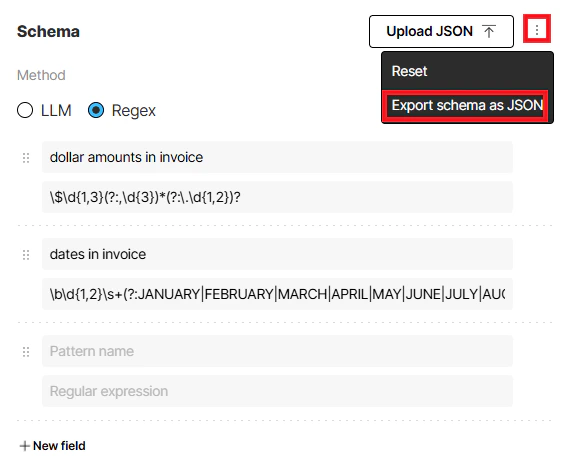
On the **Start** page or in the **workflow editor**, open the regex **Define Schema** view (**Pattern name** and **Regular expression** rows). From there you can:
* **Upload** a JSON file to load `name` / `pattern` pairs into the form.
* **Edit** `name` / `pattern` rows directly in the editor.
* **Export** the pairs you have defined to a JSON file for reuse.
The following shows an extraction schema for a sample invoice — first in the visual schema builder, then as a JSON file.
**The Regex visual schema builder:**
 **JSON file (`name` / `pattern` pairs):**
```json theme={null}
[
{
"name": "dollar amounts in invoice",
"pattern": "\\$\\d{1,3}(?:,\\d{3})*(?:\\.\\d{1,2})?"
},
{
"name": "dates in invoice",
"pattern": "\\b\\d{1,2}\\s+(?:JANUARY|FEBRUARY|MARCH|APRIL|MAY|JUNE|JULY|AUGUST|SEPTEMBER|OCTOBER|NOVEMBER|DECEMBER)\\s+\\d{4}\\b"
}
]
```
#### Escaped and raw formats (Pipelines only)
When you **upload** JSON, Unstructured fills each **Regular expression** field with the **literal** regex for that `pattern`—the same characters you would type by hand. The Pipelines does **not** show the doubled `\` characters that JSON requires inside string values. If you type a pattern by hand, do not enter JSON-style escapes (such as doubled `\`) in that field. Use the table below to compare a raw regex with the same value inside a JSON string.
**Raw regex vs JSON-escaped `pattern` string:**
| Context | Pattern |
| ----------- | ----------------------------------------- |
| Raw regex | `\$\d{1,3}(?:,\d{3})*(?:\.\d{1,2})?` |
| JSON string | `\\$\\d{1,3}(?:,\\d{3})*(?:\\.\\d{1,2})?` |
When you select **Export schema as JSON**, Unstructured serializes your `name` / `pattern` pairs as JSON and applies the escapes that JSON requires inside string values. For example, a single `\` in the raw pattern becomes `\\` in the saved file.
If you use **Upload JSON**, Unstructured reads that JSON and shows each **Regular expression** as the raw pattern (the same characters you would type by hand), not the JSON-escaped string from the file.
The visual schema builder validates the regex you enter before running the extraction. For more information, see [Regex validation](#regex-validation).
To learn more about regex patterns and see examples, see [Regex pattern examples](#regex-pattern-examples).
**JSON file (`name` / `pattern` pairs):**
```json theme={null}
[
{
"name": "dollar amounts in invoice",
"pattern": "\\$\\d{1,3}(?:,\\d{3})*(?:\\.\\d{1,2})?"
},
{
"name": "dates in invoice",
"pattern": "\\b\\d{1,2}\\s+(?:JANUARY|FEBRUARY|MARCH|APRIL|MAY|JUNE|JULY|AUGUST|SEPTEMBER|OCTOBER|NOVEMBER|DECEMBER)\\s+\\d{4}\\b"
}
]
```
#### Escaped and raw formats (Pipelines only)
When you **upload** JSON, Unstructured fills each **Regular expression** field with the **literal** regex for that `pattern`—the same characters you would type by hand. The Pipelines does **not** show the doubled `\` characters that JSON requires inside string values. If you type a pattern by hand, do not enter JSON-style escapes (such as doubled `\`) in that field. Use the table below to compare a raw regex with the same value inside a JSON string.
**Raw regex vs JSON-escaped `pattern` string:**
| Context | Pattern |
| ----------- | ----------------------------------------- |
| Raw regex | `\$\d{1,3}(?:,\d{3})*(?:\.\d{1,2})?` |
| JSON string | `\\$\\d{1,3}(?:,\\d{3})*(?:\\.\\d{1,2})?` |
When you select **Export schema as JSON**, Unstructured serializes your `name` / `pattern` pairs as JSON and applies the escapes that JSON requires inside string values. For example, a single `\` in the raw pattern becomes `\\` in the saved file.
If you use **Upload JSON**, Unstructured reads that JSON and shows each **Regular expression** as the raw pattern (the same characters you would type by hand), not the JSON-escaped string from the file.
The visual schema builder validates the regex you enter before running the extraction. For more information, see [Regex validation](#regex-validation).
To learn more about regex patterns and see examples, see [Regex pattern examples](#regex-pattern-examples).
Schema-only output (Pipelines only)
In Unstructured Pipelines, the **Schema-Only Output** setting controls whether
Unstructured's document elements are stripped away and returns just the extracted fields.
The **Schema-Only Output** setting applies to both the LLM and Regex extraction methods. In the **workflow editor**, select the workflow’s **Extract** node. Under **Output settings**, you can set **Schema-Only Output** to ON or OFF whenever you edit the workflow.
* When **Schema-Only Output** is ON, the **Extract** node returns only the JSON produced for your explicitly defined fields.
In workflow JSON, that is the **extracted data only** layout from [Custom defined output](/concepts/structured-data-extractor/data-extractor#custom-defined-output) (no surrounding Unstructured element list).
* When **Schema-Only Output** is OFF (the default), Unstructured also emits the usual document elements and metadata alongside those extracted values.
In workflow JSON, that is the **elements with extracted data** layout from the same [Custom defined output](/concepts/structured-data-extractor/data-extractor#custom-defined-output) section (structured fields under `DocumentData` plus the rest of the element list).
 This option is only available from the **workflow editor**.
### Additional guidance for regex
#### Regex validation
Regex validation is not the same in the browser Pipelines as at runtime: the **Start** page and **workflow editor** validate patterns with *JavaScript (ECMA-262)* before extraction runs. At runtime, including for API-defined workflows, Unstructured matches partitioned text with *Python `re`*. The subsections below describe each path.
##### Runtime
At runtime, Unstructured matches patterns by using *Python `re`*. For supported constructs, see the [Python regular expression documentation](https://docs.python.org/3/library/re.html).
##### Start page and workflow editor
On the **Start** page and in the **workflow editor**, the form validates patterns using *JavaScript (ECMA-262)* rules so you get immediate feedback before extraction runs. If you enter an invalid pattern, Pipelines prompts you to fix it and does not run extraction until the pattern is valid.
Some constructs that are valid in Python may be rejected in Pipelines, including certain conditional patterns, named groups, and named backreferences. Most common patterns are valid in both *Python `re`* and *ECMA-262*. If Pipelines rejects a pattern you need, either submit it via the API's [Extract node](/api-reference/workflow/workflows#extract-node), or simplify it to *ECMA-262*-compatible syntax. For details, see [ECMA-262 RegExp](https://tc39.es/ecma262/#sec-regexp-regular-expression-objects) or the [MDN Regular expressions guide](https://developer.mozilla.org/en-US/docs/Web/JavaScript/Guide/Regular_expressions).
## Unstructured API settings for structured extraction with Regex
The following sections describe how to use the [Unstructured API](/api-reference/overview) to specify settings for
structured extraction with Regex.
### Define your schema (API only)
To specify an extraction schema with the Unstructured API, use the [Regex method of an Extract node](/api-reference/workflow/nodes/extract/extract-regex).
In this node, set the `regex_patterns` array in the `settings` object
as either as an object in a `workflow_nodes` array
(for curl) or as a `WorkflowNode` in a `WorkflowNodes` collection (for Python). This object or collection applies whenever you
[create a workflow](/api-reference/api/workflow/create-workflow),
[update a workflow](/api-reference/api/workflow/update-workflow), or
[create an on-demand workflow job](/api-reference/api/job/create-job).
### Schema-only output (API only)
You can use the `output_mode` setting with the Unstructured API to control whether
Unstructured's document elements are stripped away and returns just the extracted fields:
* Set `output_mode` to `extracted_data_only` to output only the extracted data as JSON, without any parent `DocumentData` element or any other built-in Unstructured document elements.
* Set `output_mode` to `elements_with_extracted_data` to output the extracted data as JSON, inside of a parent `DocumentData` element. This element is also
included with any other built-in Unstructured document elements.
To specify this setting, use the [Regex method of an Extract node](/api-reference/workflow/nodes/extract/extract-regex).
In this node, set the `output_mode` key in the `settings` object.
You set this object as either as an object in a `workflow_nodes` array
(for curl) or as a `WorkflowNode` in a `WorkflowNodes` collection (for Python). This object or collection applies whenever you
[create a workflow](/api-reference/api/workflow/create-workflow),
[update a workflow](/api-reference/api/workflow/update-workflow), or
[create an on-demand workflow job](/api-reference/api/job/create-job).
### Regex pattern validation for API-defined workflows (API only)
Patterns that you send through workflow API operations are not subject to the [browser-based validation step](#regex-validation). Runtime matching still uses *Python `re`*.
You can verify the list of matches for the regex `pattern` with a tool like [regex101](https://regex101.com/).
* To test patterns for the **Start** or **workflow editor** Pipelines, set the flavor in the tool to *ECMAScript JavaScript*.
* To test patterns for **API-defined** workflows and runtime behavior, set the flavor in the tool to *Python*.
### API limitations
The Unstructured API does not support the following option for structured extraction with regex. To use this option, you must use Unstructured Pipelines instead. To learn how, see the following link:
* [Visual schema builder and JSON upload/export (Pipelines only)](#define-your-schema)
## Regex output
Each of the `name` / `pattern` pairs in `regex_patterns` is extracted as an array of the matched values. The `name` field value is the name of the array in the extracted output.
See **Example settings** and **Example extracted output** below.
**Example settings:**
```json theme={null}
{
"name": "Regex Extractor",
"type": "structured_data_extractor",
"subtype": "regex",
"settings": {
"regex_patterns": [
{
"name": "Price in dollars",
"pattern": "\\$\\d{1,3}(?:,\\d{3})*(?:\\.\\d{1,2})?"
}
],
"output_mode": "extracted_data_only"
}
}
```
**Note:** The `output_mode` field appears in the example settings above so the `settings` object is shown in full. It does not affect the extracted values illustrated in this example of the `Price in dollars` matches.
The extracted output includes the array `Price in dollars`.
The resulting array contains the values in the input document that match the regex `pattern`.
**Example extracted output (partial):**
```json theme={null}
{
"Price in dollars": [
"$249",
"$498",
"$189",
"$567",
"$59",
"$118",
"$1,183",
"$224.77",
"$1,407.77",
"$25"
],
...
}
```
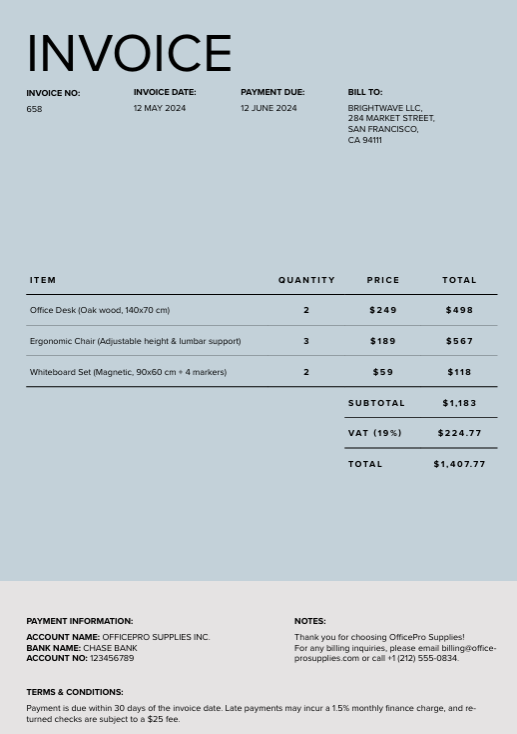
This example displays the output array for the following PDF file ([download this file](https://raw.githubusercontent.com/Unstructured-IO/docs-samples/main/pdf/invoice.pdf)).
The **example settings** above contain a JSON-escaped regex pattern.
| Context | Pattern |
| ----------- | ----------------------------------------- |
| Raw regex | `\$\d{1,3}(?:,\d{3})*(?:\.\d{1,2})?` |
| JSON string | `\\$\\d{1,3}(?:,\\d{3})*(?:\\.\\d{1,2})?` |
You can verify the list of matches for the regex `pattern` with a tool like [regex101](https://regex101.com/), with the flavor set to *{regex_flavor_0}*. Enter the raw regex string: `\$\d{1,3}(?:,\d{3})*(?:\.\d{1,2})?`
## Regex pattern examples
The following are raw regex examples, shown without JSON escaping (as you would type them in a regex tester, not inside a JSON string value).
* Dollar amounts: `\$\d{1,3}(?:,\d{3})*(?:\.\d{1,2})?`
* This pattern matches dollar amounts with a dollar sign immediately followed by digits (no space after `$`), comma-separated thousands, and an optional decimal part.
* Examples that match: `$2,345.99`, `$1,000,000`
* Examples that don't match: `$ 2,345.99` (space follows the `$`), `1,000,000` (no `$`)
* Another string format: `^[A-Z]{2}-\d{2}-\d{4}$` - This pattern matches a string with two capital letters followed by two digits and a four-digit number, separated by dashes (example: `XY-12-1234`).
* The `^` and `$` characters in this pattern are *anchors*. Use them to require that the entire string matches the pattern.
* Do not use anchors if you need to extract values inline in text (like `Invoice id XY-12-1234`, `Patient record AB-34-5678`, `ID: AA-00-0000`)
* Use anchors when the whole string must match the pattern exactly, with no extra text before or after (for example, `XY-12-1234` alone).
* Examples that match: `XY-12-1234`, `AA-00-0000`
* Examples that don't match: `Invoice XY-12-1234`, `XY-12-1234 ` (trailing space), `xy-12-1234`
You can test and refine patterns by using tools such as [regex101](https://regex101.com/) with the flavor set to {regex_flavor_1}.
This option is only available from the **workflow editor**.
### Additional guidance for regex
#### Regex validation
Regex validation is not the same in the browser Pipelines as at runtime: the **Start** page and **workflow editor** validate patterns with *JavaScript (ECMA-262)* before extraction runs. At runtime, including for API-defined workflows, Unstructured matches partitioned text with *Python `re`*. The subsections below describe each path.
##### Runtime
At runtime, Unstructured matches patterns by using *Python `re`*. For supported constructs, see the [Python regular expression documentation](https://docs.python.org/3/library/re.html).
##### Start page and workflow editor
On the **Start** page and in the **workflow editor**, the form validates patterns using *JavaScript (ECMA-262)* rules so you get immediate feedback before extraction runs. If you enter an invalid pattern, Pipelines prompts you to fix it and does not run extraction until the pattern is valid.
Some constructs that are valid in Python may be rejected in Pipelines, including certain conditional patterns, named groups, and named backreferences. Most common patterns are valid in both *Python `re`* and *ECMA-262*. If Pipelines rejects a pattern you need, either submit it via the API's [Extract node](/api-reference/workflow/workflows#extract-node), or simplify it to *ECMA-262*-compatible syntax. For details, see [ECMA-262 RegExp](https://tc39.es/ecma262/#sec-regexp-regular-expression-objects) or the [MDN Regular expressions guide](https://developer.mozilla.org/en-US/docs/Web/JavaScript/Guide/Regular_expressions).
## Unstructured API settings for structured extraction with Regex
The following sections describe how to use the [Unstructured API](/api-reference/overview) to specify settings for
structured extraction with Regex.
### Define your schema (API only)
To specify an extraction schema with the Unstructured API, use the [Regex method of an Extract node](/api-reference/workflow/nodes/extract/extract-regex).
In this node, set the `regex_patterns` array in the `settings` object
as either as an object in a `workflow_nodes` array
(for curl) or as a `WorkflowNode` in a `WorkflowNodes` collection (for Python). This object or collection applies whenever you
[create a workflow](/api-reference/api/workflow/create-workflow),
[update a workflow](/api-reference/api/workflow/update-workflow), or
[create an on-demand workflow job](/api-reference/api/job/create-job).
### Schema-only output (API only)
You can use the `output_mode` setting with the Unstructured API to control whether
Unstructured's document elements are stripped away and returns just the extracted fields:
* Set `output_mode` to `extracted_data_only` to output only the extracted data as JSON, without any parent `DocumentData` element or any other built-in Unstructured document elements.
* Set `output_mode` to `elements_with_extracted_data` to output the extracted data as JSON, inside of a parent `DocumentData` element. This element is also
included with any other built-in Unstructured document elements.
To specify this setting, use the [Regex method of an Extract node](/api-reference/workflow/nodes/extract/extract-regex).
In this node, set the `output_mode` key in the `settings` object.
You set this object as either as an object in a `workflow_nodes` array
(for curl) or as a `WorkflowNode` in a `WorkflowNodes` collection (for Python). This object or collection applies whenever you
[create a workflow](/api-reference/api/workflow/create-workflow),
[update a workflow](/api-reference/api/workflow/update-workflow), or
[create an on-demand workflow job](/api-reference/api/job/create-job).
### Regex pattern validation for API-defined workflows (API only)
Patterns that you send through workflow API operations are not subject to the [browser-based validation step](#regex-validation). Runtime matching still uses *Python `re`*.
You can verify the list of matches for the regex `pattern` with a tool like [regex101](https://regex101.com/).
* To test patterns for the **Start** or **workflow editor** Pipelines, set the flavor in the tool to *ECMAScript JavaScript*.
* To test patterns for **API-defined** workflows and runtime behavior, set the flavor in the tool to *Python*.
### API limitations
The Unstructured API does not support the following option for structured extraction with regex. To use this option, you must use Unstructured Pipelines instead. To learn how, see the following link:
* [Visual schema builder and JSON upload/export (Pipelines only)](#define-your-schema)
## Regex output
Each of the `name` / `pattern` pairs in `regex_patterns` is extracted as an array of the matched values. The `name` field value is the name of the array in the extracted output.
See **Example settings** and **Example extracted output** below.
**Example settings:**
```json theme={null}
{
"name": "Regex Extractor",
"type": "structured_data_extractor",
"subtype": "regex",
"settings": {
"regex_patterns": [
{
"name": "Price in dollars",
"pattern": "\\$\\d{1,3}(?:,\\d{3})*(?:\\.\\d{1,2})?"
}
],
"output_mode": "extracted_data_only"
}
}
```
**Note:** The `output_mode` field appears in the example settings above so the `settings` object is shown in full. It does not affect the extracted values illustrated in this example of the `Price in dollars` matches.
The extracted output includes the array `Price in dollars`.
The resulting array contains the values in the input document that match the regex `pattern`.
**Example extracted output (partial):**
```json theme={null}
{
"Price in dollars": [
"$249",
"$498",
"$189",
"$567",
"$59",
"$118",
"$1,183",
"$224.77",
"$1,407.77",
"$25"
],
...
}
```
This example displays the output array for the following PDF file ([download this file](https://raw.githubusercontent.com/Unstructured-IO/docs-samples/main/pdf/invoice.pdf)).
The **example settings** above contain a JSON-escaped regex pattern.
| Context | Pattern |
| ----------- | ----------------------------------------- |
| Raw regex | `\$\d{1,3}(?:,\d{3})*(?:\.\d{1,2})?` |
| JSON string | `\\$\\d{1,3}(?:,\\d{3})*(?:\\.\\d{1,2})?` |
You can verify the list of matches for the regex `pattern` with a tool like [regex101](https://regex101.com/), with the flavor set to *{regex_flavor_0}*. Enter the raw regex string: `\$\d{1,3}(?:,\d{3})*(?:\.\d{1,2})?`

## Regex pattern examples
The following are raw regex examples, shown without JSON escaping (as you would type them in a regex tester, not inside a JSON string value).
* Dollar amounts: `\$\d{1,3}(?:,\d{3})*(?:\.\d{1,2})?`
* This pattern matches dollar amounts with a dollar sign immediately followed by digits (no space after `$`), comma-separated thousands, and an optional decimal part.
* Examples that match: `$2,345.99`, `$1,000,000`
* Examples that don't match: `$ 2,345.99` (space follows the `$`), `1,000,000` (no `$`)
* Another string format: `^[A-Z]{2}-\d{2}-\d{4}$` - This pattern matches a string with two capital letters followed by two digits and a four-digit number, separated by dashes (example: `XY-12-1234`).
* The `^` and `$` characters in this pattern are *anchors*. Use them to require that the entire string matches the pattern.
* Do not use anchors if you need to extract values inline in text (like `Invoice id XY-12-1234`, `Patient record AB-34-5678`, `ID: AA-00-0000`)
* Use anchors when the whole string must match the pattern exactly, with no extra text before or after (for example, `XY-12-1234` alone).
* Examples that match: `XY-12-1234`, `AA-00-0000`
* Examples that don't match: `Invoice XY-12-1234`, `XY-12-1234 ` (trailing space), `xy-12-1234`
You can test and refine patterns by using tools such as [regex101](https://regex101.com/) with the flavor set to {regex_flavor_1}.