> ## Documentation Index
> Fetch the complete documentation index at: https://docs.unstructured.io/llms.txt
> Use this file to discover all available pages before exploring further.
# Azure Blob Storage event triggers
You can use Azure Blob Storage events, such as adding new files to—or updating existing files within—Azure Blob Storage containers, to automatically run Unstructured ETL+ workflows
that rely on those containers as sources. This enables a no-touch approach to having Unstructured automatically process new and updated files in Azure Blob Storage containers as they are added or updated.
This example shows how to automate this process by adding a custom [Azure Function](https://learn.microsoft.com/azure/azure-functions/functions-overview) app to your Azure account. This function app runs
a function whenever a new or updated file is detected in the specified Azure Blob Storage container. This function then calls the [Unstructured API's workflow operations](/api-reference/workflow/overview) to automatically run the
specified corresponding Unstructured ETL+ workflow within your Unstructured account.
This example uses a custom Azure function that you create and maintain.
Any issues with file detection, timing, or function invocation could be related to your custom function,
rather than with Unstructured. If you are getting unexpected or no results, be sure to check your custom
function's invocation traces first for any informational and error messages.
## Requirements
To use this example, you will need the following:
* An Unstructured account, and an Unstructured API key for your account, as follows:
1. If you do not already have an Unstructured account, [sign up for free](https://unstructured.io/?modal=try-for-free).
After you sign up, you are automatically signed in to your new Unstructured **Let's Go** account, at [https://platform.unstructured.io](https://platform.unstructured.io).
To sign up for a **Business** account instead, [contact Unstructured Sales](https://unstructured.io/?modal=contact-sales), or [learn more](/api-reference/overview#pricing).
2. If you have an Unstructured **Let's Go**, **Pay-As-You-Go**, or **Business SaaS** account and are not already signed in, sign in to your account at [https://platform.unstructured.io](https://platform.unstructured.io).
For other types of **Business** accounts, see your Unstructured account administrator for sign-in instructions,
or email Unstructured Support at [support@unstructured.io](mailto:support@unstructured.io).
3. Get your Unstructured API key:
a. After you sign in to your Unstructured **Let's Go**, **Pay-As-You-Go**, or **Business** account, click **API Keys** on the sidebar.
For a **Business** account, before you click **API Keys**, make sure you have selected the organizational workspace you want to create an API key
for. Each API key works with one and only one organizational workspace. [Learn more](/pipelines/account/workspaces#create-an-api-key-for-a-workspace).
b. Click **Generate API Key**.
c. Follow the on-screen instructions to finish generating the key.
d. Click the **Copy** icon next to your new key to add the key to your system's clipboard. If you lose this key, simply return and click the **Copy** icon again.
* The Unstructured API's workflow operations URL for your account, as follows:
1. In Unstructured Pipelines, click **API Keys** on the sidebar.
2. Note the value of the **Unstructured API's workflow operations** field.
## Step 1: Create an Azure Function App
1. Sign in to your [Azure portal](https://portal.azure.com).
2. Click **+ Create a resource**.
If **Function App** is not visible, in **Search services and marketplace** field, enter **Function App**.
3. Next to **Function App**, click **Create** or **Create > Function App**.
4. Under **Select a hosting option**, select the radio button next to **Consumption** to create an app that is most compatible with JavaScript.
5. Click **Select**.
6. On the **Basics** tab, set the following function app settings:
| Setting | Suggested value | Description |
| --------------------- | ------------------------- | ---------------------------------------------------------------------------------------------------------------------------------------------------------------------------------------------------------------------------------------------------------------------------------------------------------------------------------------------------------------------------------------------------------------------------- |
| **Subscription** | Your subscription | The Azure subscription within which to create your new function app. |
| **Resource Group** | **Create new** | After you click **Create new**, enter some name for the new resource group within which to create your new function app. You should create a new resource group because there are known limitations when creating new function apps in an existing resource group. [Learn more](https://learn.microsoft.com/azure/azure-functions/functions-scale#limitations-for-creating-new-function-apps-in-an-existing-resource-group). |
| **Function App name** | Some globally unique name | Some name that identifies your new function app. Valid characters are `a`-`z` (case insensitive), `0`-`9`, and `-`. |
| **Operating System** | **Windows** | Choose the operating system for your function app. This example uses Windows. |
| **Runtime stack** | **Node.js** | Choose a runtime that supports your favorite function programming language. This example uses JavaScript (Node.js). |
| **Version** | **20 LTS** | Choose the version of your selected runtime. This example uses Node.js 20 LTS. |
| **Region** | Your preferred region | Select a region that's near you or near other services that your function can access. |
7. Click **Review + create**.
8. Click **Create**, and wait for the deployment to complete.
9. After the deployment is complete, click **Go to resource**.
## Step 2: Create a function
1. With the function app open from the previous step, on the sidebar, click **Overview**.
2. On the **Functions** tab, under **Create in Azure portal**, click **Create function**.
3. For **Select a template**, select **Azure Blob Storage trigger**, and then click **Next**.
4. For **Template details**, review the following values:
| Setting | Suggested value | Description |
| ------------------------------ | -------------------------- | ---------------------------------------------------------------------------------------------------------- |
| **Function name** | `BlobTrigger1` | The name of the function to create. You can leave the default function name. |
| **Path** | `samples-workitems/{name}` | The path to the Azure Blob Storage account that the function will monitor. You can leave the default path. |
| **Storage account connection** | `AzureWebJobsStorage` | You can leave the default storage account connection name. |
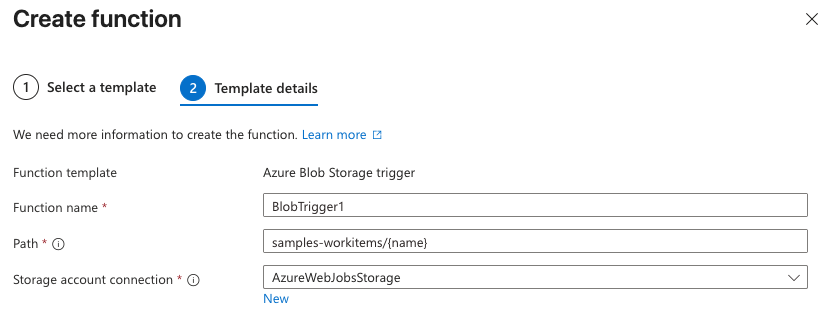 5. Click **Create**. The function is created, and the **Code + Test** page appears.
## Step 3: Customize the function for your workflow
1. With the **Code + Test** page open from the previous step, on the **Code + Test** tab, replace the content of the `index.js` file with the following code:
```javascript theme={null}
module.exports = async function (context, myBlob) {
context.log("JavaScript blob trigger function processed blob \n Blob:", context.bindingData.blobTrigger, "\n Blob Size:", myBlob.length, "Bytes");
const apiKey = process.env.UNSTRUCTURED_API_KEY;
const apiUrl = process.env.UNSTRUCTURED_API_URL;
const headers = {
"accept": "application/json",
"unstructured-api-key": apiKey
};
try {
const response = await fetch(apiUrl, {
method: "POST",
headers: headers
});
const data = await response.json();
context.log("POST response:", data);
} catch (error) {
context.log.error("Error calling external API:", error);
}
};
```
2. Click **Save**.
3. In the navigation breadcrumb toward the top of the page, click your function app's name. The function app's settings page appears.
4. In the sidebar, expand **Settings**, and then click **Environment variables**.
5. Click **+ Add**.
6. For **Name**, enter `UNSTRUCTURED_API_URL`.
7. For **Value**, enter your `/workflows//run`, and replace the following placeholders:
* Replace `` with your Unstructured API's workflow operations value.
* Replace `` with the ID of your Unstructured workflow. For now, because the workflow does not yet exist, enter some fictitious value, such as `1234567890`. You will
update this value later in Step 6 after you create the workflow.
The **Value** should now look similar to the following:
```text theme={null}
https://platform.unstructuredapp.io/api/v1/workflows/1234567890/run
```
8. Click **Apply**.
9. Click **+ Add** again.
10. For **Name**, enter `UNSTRUCTURED_API_KEY`.
11. For **Value**, enter your Unstructured API key value.
12. Click **Apply**.
13. Click **Apply** again, and then click **Confirm**.
## Step 4: Create the Azure Storage container
1. With the function app's settings page open from the previous step, in the sidebar, click **Overview**.
2. Expand **Essentials**.
3. Next to **Resource group**, click the resource group link. The resource group's settings page appears.
4. In the sidebar, click **Overview**.
5. On the **Resources** tab, click the link next to **Storage account**. The storage account's settings page appears.
6. In the sidebar, click **Overview**.
7. On the **Properties** tab, click **Blob service**.
8. Click **Add container**.
9. For **Name**, enter `samples-workitems`. This name must match the container name that you specified earlier in the **Path** field (not including `/{name}`) in Step 2.
10. Click **Create**.
## Step 5: Create the Unstructured workflow
1. Create an Azure Blob Storage source connector in your Unstructured account. [Learn how](/pipelines/sources/azure-blob-storage). This source connector must reference
the Azure Storage container that you created earlier in Step 4.
2. Create a new—or identify an existing—[destination connector](/pipelines/destinations/overview) in your Unstructured account.
3. Create a workflow that uses the preceding source and destination connectors. [Learn how](/pipelines/workflows).
## Step 6: Add the workflow's ID to the function's environment variables
1. Note the ID of the workflow that you created earlier in Step 5.
2. In the Azure portal, with the storage account's settings page open from Step 4, in the navigation breadcrumb toward the top of the page, click your resource group's name. The resource group's settings page appears.
3. On the **Resources** tab, click the link next to **Function App**. The function app's settings page appears.
4. In the sidebar, expand **Settings**, and then click **Environment variables**.
5. Click `UNSTRUCTURED_API_URL`.
6. Click the eyball (**Reveal password**) icon.
7. Replace the fictitious workflow ID from earlier in Step 3 with the ID of the workflow that you created earlier in Step 5.
8. Click **Apply**.
9. Click **Apply** again, and then click **Confirm**.
## Step 7: Trigger the function
1. With the function app’s settings page open from the previous step, in the navigation breadcrumb toward the top of the page, click your resource group's name. The resource group's settings page appears.
2. On the **Resources** tab, click the link next to **Storage account**. The storage account's settings page appears.
3. In the sidebar, click **Overview**.
4. On the **Properties** tab, click **Blob service**.
5. Click the **samples-workitems** link.
6. Click **Upload**, and follow the on-screen instructions to upload a file to the container.
If you are unable to upload a file to the container, click **Access Control (IAM)** in the sidebar and add an appropriate role assignment that
enables uploading files to the container, such as **Storage Blob Data Owner**. [Learn how](https://learn.microsoft.com/azure/storage/blobs/assign-azure-role-data-access?tabs=portal)
## Step 8: View trigger results
1. In Unstructured Pipelines for your account, click **Jobs** on the sidebar.
2. In the list of jobs, click the newly running job for your workflow.
3. After the job status shows **Finished**, go to your destination location to see the results.
## Step 9 (Optional): Delete the Azure resource group
If you are done with this example and do not want to keep the resource group in your account, you can permanently delete it as follows:
1. In the Azure portal, with the storage account's settings page open from Step 7, in the navigation breadcrumb toward the top of the page, click your resource group's name. The resource group's settings page appears.
2. Click **Delete resource group**.
3. Enter the resource group's name, and then click **Delete**. The resource group, along with the function app, storage account, and other related resources, are permanently deleted.
5. Click **Create**. The function is created, and the **Code + Test** page appears.
## Step 3: Customize the function for your workflow
1. With the **Code + Test** page open from the previous step, on the **Code + Test** tab, replace the content of the `index.js` file with the following code:
```javascript theme={null}
module.exports = async function (context, myBlob) {
context.log("JavaScript blob trigger function processed blob \n Blob:", context.bindingData.blobTrigger, "\n Blob Size:", myBlob.length, "Bytes");
const apiKey = process.env.UNSTRUCTURED_API_KEY;
const apiUrl = process.env.UNSTRUCTURED_API_URL;
const headers = {
"accept": "application/json",
"unstructured-api-key": apiKey
};
try {
const response = await fetch(apiUrl, {
method: "POST",
headers: headers
});
const data = await response.json();
context.log("POST response:", data);
} catch (error) {
context.log.error("Error calling external API:", error);
}
};
```
2. Click **Save**.
3. In the navigation breadcrumb toward the top of the page, click your function app's name. The function app's settings page appears.
4. In the sidebar, expand **Settings**, and then click **Environment variables**.
5. Click **+ Add**.
6. For **Name**, enter `UNSTRUCTURED_API_URL`.
7. For **Value**, enter your `/workflows//run`, and replace the following placeholders:
* Replace `` with your Unstructured API's workflow operations value.
* Replace `` with the ID of your Unstructured workflow. For now, because the workflow does not yet exist, enter some fictitious value, such as `1234567890`. You will
update this value later in Step 6 after you create the workflow.
The **Value** should now look similar to the following:
```text theme={null}
https://platform.unstructuredapp.io/api/v1/workflows/1234567890/run
```
8. Click **Apply**.
9. Click **+ Add** again.
10. For **Name**, enter `UNSTRUCTURED_API_KEY`.
11. For **Value**, enter your Unstructured API key value.
12. Click **Apply**.
13. Click **Apply** again, and then click **Confirm**.
## Step 4: Create the Azure Storage container
1. With the function app's settings page open from the previous step, in the sidebar, click **Overview**.
2. Expand **Essentials**.
3. Next to **Resource group**, click the resource group link. The resource group's settings page appears.
4. In the sidebar, click **Overview**.
5. On the **Resources** tab, click the link next to **Storage account**. The storage account's settings page appears.
6. In the sidebar, click **Overview**.
7. On the **Properties** tab, click **Blob service**.
8. Click **Add container**.
9. For **Name**, enter `samples-workitems`. This name must match the container name that you specified earlier in the **Path** field (not including `/{name}`) in Step 2.
10. Click **Create**.
## Step 5: Create the Unstructured workflow
1. Create an Azure Blob Storage source connector in your Unstructured account. [Learn how](/pipelines/sources/azure-blob-storage). This source connector must reference
the Azure Storage container that you created earlier in Step 4.
2. Create a new—or identify an existing—[destination connector](/pipelines/destinations/overview) in your Unstructured account.
3. Create a workflow that uses the preceding source and destination connectors. [Learn how](/pipelines/workflows).
## Step 6: Add the workflow's ID to the function's environment variables
1. Note the ID of the workflow that you created earlier in Step 5.
2. In the Azure portal, with the storage account's settings page open from Step 4, in the navigation breadcrumb toward the top of the page, click your resource group's name. The resource group's settings page appears.
3. On the **Resources** tab, click the link next to **Function App**. The function app's settings page appears.
4. In the sidebar, expand **Settings**, and then click **Environment variables**.
5. Click `UNSTRUCTURED_API_URL`.
6. Click the eyball (**Reveal password**) icon.
7. Replace the fictitious workflow ID from earlier in Step 3 with the ID of the workflow that you created earlier in Step 5.
8. Click **Apply**.
9. Click **Apply** again, and then click **Confirm**.
## Step 7: Trigger the function
1. With the function app’s settings page open from the previous step, in the navigation breadcrumb toward the top of the page, click your resource group's name. The resource group's settings page appears.
2. On the **Resources** tab, click the link next to **Storage account**. The storage account's settings page appears.
3. In the sidebar, click **Overview**.
4. On the **Properties** tab, click **Blob service**.
5. Click the **samples-workitems** link.
6. Click **Upload**, and follow the on-screen instructions to upload a file to the container.
If you are unable to upload a file to the container, click **Access Control (IAM)** in the sidebar and add an appropriate role assignment that
enables uploading files to the container, such as **Storage Blob Data Owner**. [Learn how](https://learn.microsoft.com/azure/storage/blobs/assign-azure-role-data-access?tabs=portal)
## Step 8: View trigger results
1. In Unstructured Pipelines for your account, click **Jobs** on the sidebar.
2. In the list of jobs, click the newly running job for your workflow.
3. After the job status shows **Finished**, go to your destination location to see the results.
## Step 9 (Optional): Delete the Azure resource group
If you are done with this example and do not want to keep the resource group in your account, you can permanently delete it as follows:
1. In the Azure portal, with the storage account's settings page open from Step 7, in the navigation breadcrumb toward the top of the page, click your resource group's name. The resource group's settings page appears.
2. Click **Delete resource group**.
3. Enter the resource group's name, and then click **Delete**. The resource group, along with the function app, storage account, and other related resources, are permanently deleted.