> ## Documentation Index
> Fetch the complete documentation index at: https://docs.unstructured.io/llms.txt
> Use this file to discover all available pages before exploring further.

# VectorShift

[VectorShift](https://vectorshift.ai/) is an integrated framework of no-code, low-code, and out of the box generative AI solutions
to build AI search engines, assistants, chatbots, and automations.

VectorShift's platform allows you to design, prototype, build, deploy,
and manage generative AI workflows and automation across two interfaces: no-code and code SDK.
This hands-on demonstration uses the no-code interface to walk you through creating a VectorShift pipeline project. This project
enables you to use GPT-4o-mini to chat in real time with a PDF document that is processed by Unstructured and has its processed data stored in a
[Pinecone](https://www.pinecone.io/) vector database.

## Prerequisites

<iframe width="560" height="315" src="https://www.youtube.com/embed/Ydj74uBnJyA" title="YouTube video player" frameborder="0" allow="accelerometer; autoplay; clipboard-write; encrypted-media; gyroscope; picture-in-picture" allowfullscreen />

* A Pinecone account. [Get an account](https://app.pinecone.io/).

* A Pinecone API key in your Pinecone account. To create an API key, do the following:

  1. [Sign in to your Pinecone account and open the API keys page](https://app.pinecone.io/organizations/-/projects/-/keys).
  2. Click **+ API key**.
  3. For **API key name**, enter some descriptive name for the API key.
  4. Click **Create key**.
  5. Copy the generated API key to some secure location. You will not be able to access this API key again after you close the dialog.

* A Pinecone serverless index in your Pinecone account.

  Creating a serverless index on your own is optional.
  An index is not required to exist in advance.

  When you set up the connector, at runtime, the index behavior is as follows:

  For the [Unstructured UI](/ui/overview) and [Unstructured API](/api-reference/overview):

  * Your workflow must contain an embedder node, and the embedder node must specify the embedding model that Unstructured will use to generate the embeedings.
  * If an existing index name is specified,
    and the number of dimensions that Unstructured generates does not match the number of dimensions that are specified in the existing index's embedding settings, the run will fail.
    You must change the number of dimensions in your workflow's embedder node or your existing index's embedding settings to match, and try the run again.
  * If an index name is not specified, Unstructured creates a new index in your Pinecone account. The
    new index's name will be `u<short-workflow-id>-<short-embedding-model-name>-<number-of-dimensions>`.

  For [Unstructured Ingest](/open-source/ingestion/overview):

  * If an existing index name is specified, and Unstructured generates embeddings,
    but the number of dimensions that are generated does not match the existing index's embedding settings, the run will fail.
    You must change your Unstructured embedding settings or your existing index's embedding settings to match, and try the run again.
  * If an index name is not specified, Unstructured creates a new index in your Pinecone account. The new index's name will be `unstructuredautocreated`.

  <Note>
    If you create a new index or use an existing one, Unstructured recommends that all records in the target index have a field
    named `record_id` with a string data type.
    Unstructured can use this field to do intelligent document overwrites. Without this field, duplicate documents
    might be written to the index or, in some cases, the operation could fail altogether.
  </Note>

  To create a serverless index on your own, do the following:

  1. [Sign in to your Pinecone account and open the Create a new index page](https://app.pinecone.io/organizations/-/projects/-/create-index/serverless).

  2. For **Enter index name**, enter some descriptive name for the index.

  3. For **Configuration**, select the check box labelled **Custom settings**, or click the tile labelled **Manual configuration**.

     <Warning>
       Do not click any of the other tiles, such as **text-embedding-3-large**. Clicking any of these other tiles will cause Pinecone to generate embeddings instead of
       having Unstructured generate them. If Pinecone generates embeddings instead of Unstructured, this could cause any related Unstructured workflows to fail.
     </Warning>

  4. For **Vector type**, select **Dense**.

  5. For **Dimension**, enter the number of dimensions for the embeddings that Unstructured will generate.

     <Warning>
       The number of dimensions that you enter here must match the number of dimensions for the embedding model that you use in any related Unstructured workflows or ingestion pipelines. If these numbers do not
       match in both places, this could cause any related Unstructured workflows or ingestion pipelines to fail.
     </Warning>

  6. For **Metric**, select **cosine**.

  7. Leave **Capacity mode** set to **Serverless**.

  8. You can leave **Cloud provider** and **Region** set to their default values, or you can select a cloud provider and region that is closest to you, if available.

  9. Click **Create index**.

* Within a Pinecone serverless index, custom [namespaces](https://docs.pinecone.io/guides/index-data/indexing-overview#namespaces) are supported but are not required.

Also:

* [Sign up for an OpenAI account](https://platform.openai.com/signup), and [get your OpenAI API key](https://help.openai.com/en/articles/4936850-where-do-i-find-my-openai-api-key).
* [Sign up for a VectorShift Starter account](https://app.vectorshift.ai/api/signup).
* If you do not already have an Unstructured account, sign up for one:

  1. If you do not already have an Unstructured account, [sign up for free](https://unstructured.io/?modal=try-for-free).
     After you sign up, you are automatically signed in to your new Unstructured **Let's Go** account, at [https://platform.unstructured.io](https://platform.unstructured.io).

     <Note>
       To sign up for a **Business** account instead, [contact Unstructured Sales](https://unstructured.io/?modal=contact-sales), or [learn more](/api-reference/overview#pricing).
     </Note>

  2. If you have an Unstructured **Let's Go**, **Pay-As-You-Go**, or **Business SaaS** account and are not already signed in, sign in to your account at [https://platform.unstructured.io](https://platform.unstructured.io).

     <Note>
       For other types of **Business** accounts, see your Unstructured account administrator for sign-in instructions,
       or email Unstructured Support at [support@unstructured.io](mailto:support@unstructured.io).
     </Note>

  3. Get your Unstructured API key:<br />

     a. After you sign in to your Unstructured **Let's Go**, **Pay-As-You-Go**, or **Business** account, click **API Keys** on the sidebar.<br />

     <Note>
       For a **Business** account, before you click **API Keys**, make sure you have selected the organizational workspace you want to create an API key
       for. Each API key works with one and only one organizational workspace. [Learn more](/ui/account/workspaces#create-an-api-key-for-a-workspace).
     </Note>

     b. Click **Generate API Key**.<br />
     c. Follow the on-screen instructions to finish generating the key.<br />
     d. Click the **Copy** icon next to your new key to add the key to your system's clipboard. If you lose this key, simply return and click the **Copy** icon again.<br />

## Create and run the demonstration project

<Steps>
  <Step title="Get source data into Pinecone">
    Although you can use any [supported file type](/ui/supported-file-types) or data in any
    [supported source type](/ui/sources/overview) for the input into Pinecone, this demonstration uses [the text of the United States Constitution in PDF format](https://constitutioncenter.org/media/files/constitution.pdf).

    1. If you are not already signed in, sign in to your Unstructured account.
    2. [Create a source connector](/ui/sources/overview), if you do not already have one, to connect Unstructured to the source location where the PDF file is stored.
    3. [Create a Pinecone destination connector](/ui/destinations/pinecone), if you do not already have one, to connect Unstructured to your Pinecone serverless index.
    4. [Create a workflow](/ui/workflows#create-a-workflow) that references this source connector and destination connector.
    5. [Run the workflow](/ui/workflows#edit-delete-or-run-a-workflow).
  </Step>

  <Step title="Create the VectorShift project">
    1. Sign in to your VectorShift account dashboard.
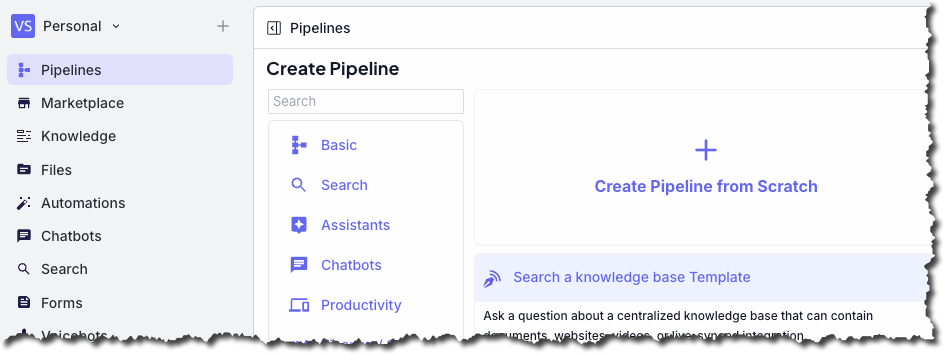
    2. On the sidebar, click **Pipelines**.
    3. Click **New**.
    4. Click **Create Pipeline from Scratch**.

        <img src="https://mintcdn.com/unstructured-53/0PpGBVwVpmOG7-W9/img/vectorshift/CreateProject.png?fit=max&auto=format&n=0PpGBVwVpmOG7-W9&q=85&s=fb659e9b23b278951c243a75296bd866" alt="Create the VectorShift project" data-og-width="946" width="946" data-og-height="354" height="354" data-path="img/vectorshift/CreateProject.png" data-optimize="true" data-opv="3" srcset="https://mintcdn.com/unstructured-53/0PpGBVwVpmOG7-W9/img/vectorshift/CreateProject.png?w=280&fit=max&auto=format&n=0PpGBVwVpmOG7-W9&q=85&s=f5de588b3b993ab1db3bca88c5e9da7c 280w, https://mintcdn.com/unstructured-53/0PpGBVwVpmOG7-W9/img/vectorshift/CreateProject.png?w=560&fit=max&auto=format&n=0PpGBVwVpmOG7-W9&q=85&s=f62b046985d3672159cf78077559e4a5 560w, https://mintcdn.com/unstructured-53/0PpGBVwVpmOG7-W9/img/vectorshift/CreateProject.png?w=840&fit=max&auto=format&n=0PpGBVwVpmOG7-W9&q=85&s=a847307e776933e2b955addd88b18a03 840w, https://mintcdn.com/unstructured-53/0PpGBVwVpmOG7-W9/img/vectorshift/CreateProject.png?w=1100&fit=max&auto=format&n=0PpGBVwVpmOG7-W9&q=85&s=07bb89bb6e19f29ac168081fdb5a2fd5 1100w, https://mintcdn.com/unstructured-53/0PpGBVwVpmOG7-W9/img/vectorshift/CreateProject.png?w=1650&fit=max&auto=format&n=0PpGBVwVpmOG7-W9&q=85&s=adbaa9add891ad15b865c62a35f09a3e 1650w, https://mintcdn.com/unstructured-53/0PpGBVwVpmOG7-W9/img/vectorshift/CreateProject.png?w=2500&fit=max&auto=format&n=0PpGBVwVpmOG7-W9&q=85&s=aca75d812664a08def5d652fc691170b 2500w" />
  </Step>

  <Step title="Add the Input node">
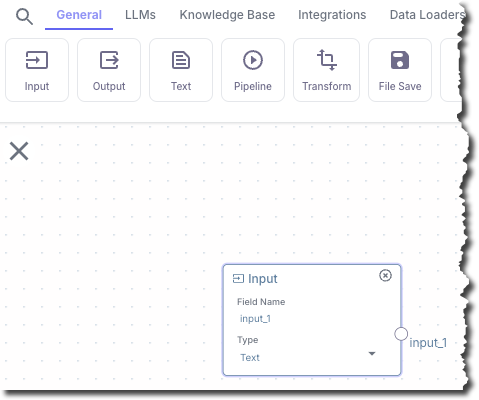
    In this step, you add a node to the pipeline. This node takes user-supplied chat messages and sends them as input to Pinecone, and as input to a text-based LLM, for contextual searching.

    In the top pipeline node chooser bar, on the **General** tab, click **Input**.

        <img src="https://mintcdn.com/unstructured-53/0PpGBVwVpmOG7-W9/img/vectorshift/InputComponent.png?fit=max&auto=format&n=0PpGBVwVpmOG7-W9&q=85&s=517d6688a1461c1d6bf4c233f5b0d1e1" alt="Adding the Input node" data-og-width="479" width="479" data-og-height="400" height="400" data-path="img/vectorshift/InputComponent.png" data-optimize="true" data-opv="3" srcset="https://mintcdn.com/unstructured-53/0PpGBVwVpmOG7-W9/img/vectorshift/InputComponent.png?w=280&fit=max&auto=format&n=0PpGBVwVpmOG7-W9&q=85&s=27f536e5365baad3cf67c77e6fcc9562 280w, https://mintcdn.com/unstructured-53/0PpGBVwVpmOG7-W9/img/vectorshift/InputComponent.png?w=560&fit=max&auto=format&n=0PpGBVwVpmOG7-W9&q=85&s=efd0f6533f2f9fed2c7d9f2b723dd065 560w, https://mintcdn.com/unstructured-53/0PpGBVwVpmOG7-W9/img/vectorshift/InputComponent.png?w=840&fit=max&auto=format&n=0PpGBVwVpmOG7-W9&q=85&s=cb2a32bafac75da802328cc762b5df4a 840w, https://mintcdn.com/unstructured-53/0PpGBVwVpmOG7-W9/img/vectorshift/InputComponent.png?w=1100&fit=max&auto=format&n=0PpGBVwVpmOG7-W9&q=85&s=73b259761ebb388e9d3cdb6d671254bc 1100w, https://mintcdn.com/unstructured-53/0PpGBVwVpmOG7-W9/img/vectorshift/InputComponent.png?w=1650&fit=max&auto=format&n=0PpGBVwVpmOG7-W9&q=85&s=660b9c112f9aee882de268ad6cc84732 1650w, https://mintcdn.com/unstructured-53/0PpGBVwVpmOG7-W9/img/vectorshift/InputComponent.png?w=2500&fit=max&auto=format&n=0PpGBVwVpmOG7-W9&q=85&s=0aee6e829a86ecbf30e7e0aab0414d48 2500w" />
  </Step>

  <Step title="Add the Pinecone node">
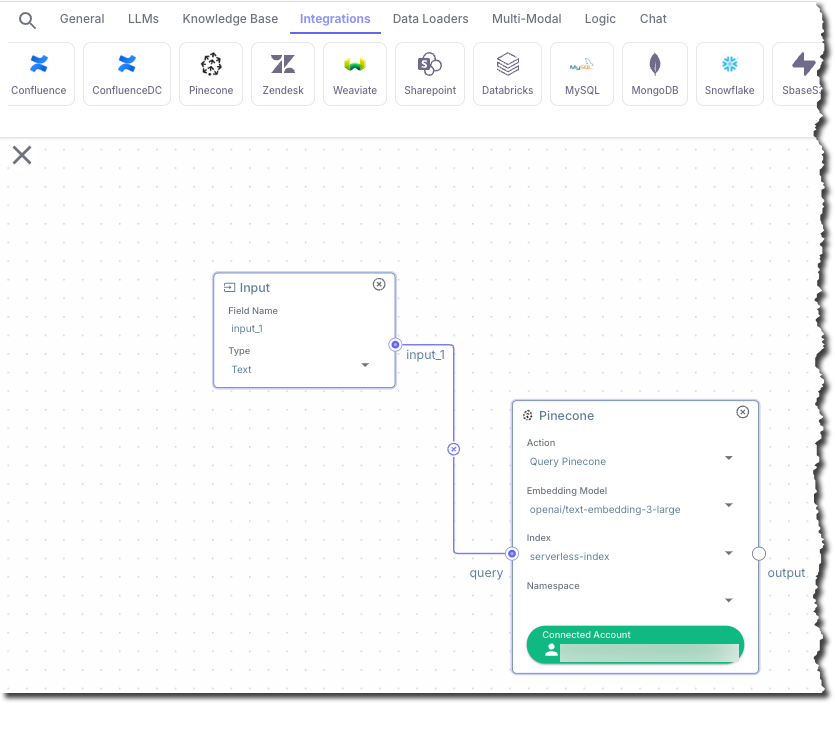
    In this step, you add a node that connects to the Pinecone serverless index.

    1. In the top pipeline node chooser bar, on the **Integrations** tab, click **Pinecone**.
    2. In the **Pinecone** node, for **Embedding Model**, select **openai/text-embedding-3-large**.
    3. Click **Connected Account**.
    4. In the **Select Pinecone Account** dialog, click **Connect New**.
    5. Enter the **API Key** and **Region** for your Pinecone serverless index, and then click **Save**.
    6. For **Index**, selet the name of your Pinecone serverless index.
    7. Connect the **input\_1** output from the **Input** node to the **query** input in the **Pinecone** node.

       To make the connection, click and hold your mouse pointer inside of the circle next to **input\_1** in the **Input** node.
       While holding your mouse pointer, drag it over into the circle next to **query** in the **Pinecone** node. Then
       release your mouse pointer. A line appears between these two circles.

        <img src="https://mintcdn.com/unstructured-53/0PpGBVwVpmOG7-W9/img/vectorshift/PineconeComponent.png?fit=max&auto=format&n=0PpGBVwVpmOG7-W9&q=85&s=29e12998812c98ad681925e298c68ea5" alt="Adding the Pinecone node" data-og-width="835" width="835" data-og-height="753" height="753" data-path="img/vectorshift/PineconeComponent.png" data-optimize="true" data-opv="3" srcset="https://mintcdn.com/unstructured-53/0PpGBVwVpmOG7-W9/img/vectorshift/PineconeComponent.png?w=280&fit=max&auto=format&n=0PpGBVwVpmOG7-W9&q=85&s=73fdf7e1a79fffb37e12d0c81dd5014c 280w, https://mintcdn.com/unstructured-53/0PpGBVwVpmOG7-W9/img/vectorshift/PineconeComponent.png?w=560&fit=max&auto=format&n=0PpGBVwVpmOG7-W9&q=85&s=1b49b2748f33e6bf499be7180a8aeca5 560w, https://mintcdn.com/unstructured-53/0PpGBVwVpmOG7-W9/img/vectorshift/PineconeComponent.png?w=840&fit=max&auto=format&n=0PpGBVwVpmOG7-W9&q=85&s=920d604ae366f44876492ca408df1154 840w, https://mintcdn.com/unstructured-53/0PpGBVwVpmOG7-W9/img/vectorshift/PineconeComponent.png?w=1100&fit=max&auto=format&n=0PpGBVwVpmOG7-W9&q=85&s=e44889a39d92350fc8ba3024c32282da 1100w, https://mintcdn.com/unstructured-53/0PpGBVwVpmOG7-W9/img/vectorshift/PineconeComponent.png?w=1650&fit=max&auto=format&n=0PpGBVwVpmOG7-W9&q=85&s=5f545bb936ffbec8ca3719896e7196ff 1650w, https://mintcdn.com/unstructured-53/0PpGBVwVpmOG7-W9/img/vectorshift/PineconeComponent.png?w=2500&fit=max&auto=format&n=0PpGBVwVpmOG7-W9&q=85&s=0d7bc51ac27b4e49c844f18011d89057 2500w" />
  </Step>

  <Step title="Add the OpenAI LLM node">
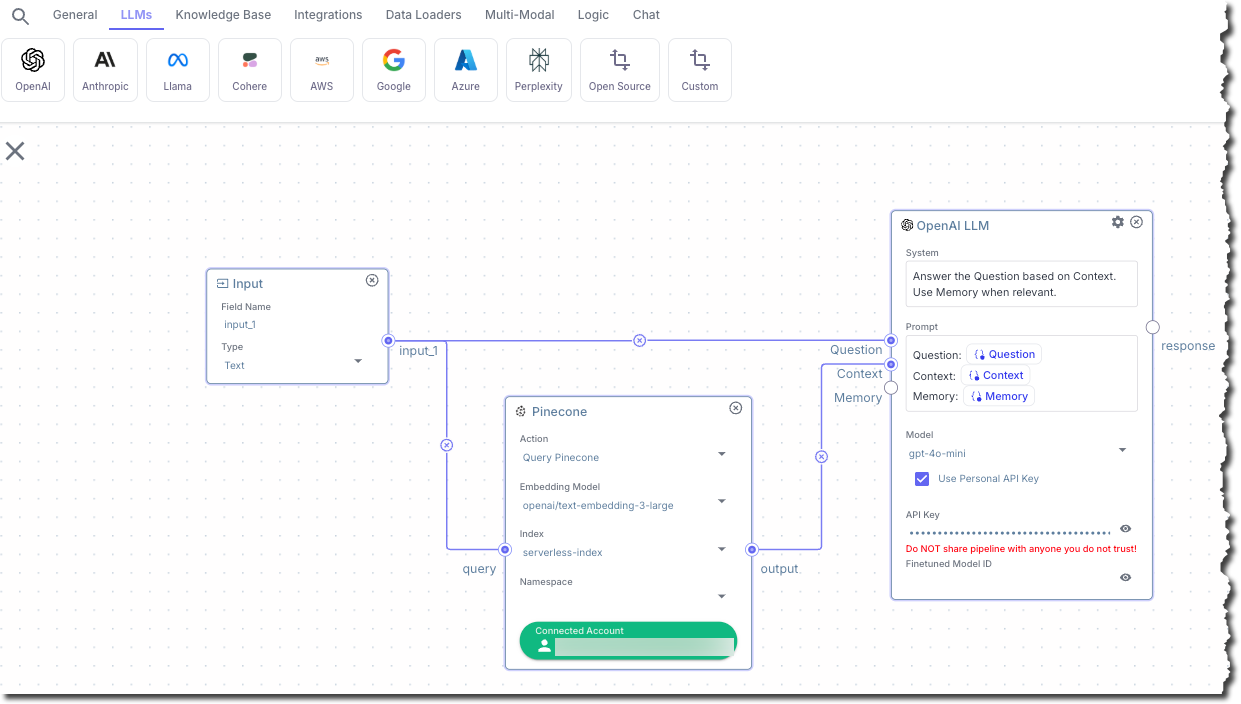
    In this step, you add a node that builds a prompt and then sends it to a text-based LLM.

    1. In the top pipeline node chooser bar, on the **LLMs** tab, click **OpenAI**.

    2. In the **OpenAI LLM** node, for **System**, enter the following text:

       ```
       Answer the Question based on Context. Use Memory when relevant.
       ```

       <Tip>
         To answer the question, the preceding prompt uses the context along with general information that the text-based LLM is
         trained on. To use only the context to answer the question, you can change the prompt, for example to something like this:

         ```text  theme={null}
         Answer the Question based only on the Context. Do not use any other sources of
         information. If the context does not provide enough information to answer the 
         question, reply with 'I do not have enough context to answer the question.' 
         Use Memory when relevant.
         ```
       </Tip>

    3. For **Prompt**, enter the following text:

       ```
       Question: {{Question}}
       Context: {{Context}}
       Memory: {{Memory}}
       ```

    4. For **Model**, select **gpt-4o-mini**.

    5. Check the box titled **Use Personal API Key**.

    6. For **API Key**, enter your OpenAI API key.

    7. Connect the **input\_1** output from the **Input** node to the **Question** input in the **OpenAI LLM** node.

    8. Connect the **output** output from the **Pinecone** node to the **Context** input in the **OpenAI LLM** node.

        <img src="https://mintcdn.com/unstructured-53/0PpGBVwVpmOG7-W9/img/vectorshift/OpenAILLMComponent.png?fit=max&auto=format&n=0PpGBVwVpmOG7-W9&q=85&s=e4eabf6917590c36dd1893e30523cca5" alt="Adding the OpenAI LLM node" data-og-width="1241" width="1241" data-og-height="704" height="704" data-path="img/vectorshift/OpenAILLMComponent.png" data-optimize="true" data-opv="3" srcset="https://mintcdn.com/unstructured-53/0PpGBVwVpmOG7-W9/img/vectorshift/OpenAILLMComponent.png?w=280&fit=max&auto=format&n=0PpGBVwVpmOG7-W9&q=85&s=ed6ad8e59b2b29c534478aa5798a7a51 280w, https://mintcdn.com/unstructured-53/0PpGBVwVpmOG7-W9/img/vectorshift/OpenAILLMComponent.png?w=560&fit=max&auto=format&n=0PpGBVwVpmOG7-W9&q=85&s=2a7384c6d59e6460cce38ae96b2cd85a 560w, https://mintcdn.com/unstructured-53/0PpGBVwVpmOG7-W9/img/vectorshift/OpenAILLMComponent.png?w=840&fit=max&auto=format&n=0PpGBVwVpmOG7-W9&q=85&s=7592c05c094df06c17599c4bef0259b6 840w, https://mintcdn.com/unstructured-53/0PpGBVwVpmOG7-W9/img/vectorshift/OpenAILLMComponent.png?w=1100&fit=max&auto=format&n=0PpGBVwVpmOG7-W9&q=85&s=4bb0d061c57655fac478f761b3bf2ac7 1100w, https://mintcdn.com/unstructured-53/0PpGBVwVpmOG7-W9/img/vectorshift/OpenAILLMComponent.png?w=1650&fit=max&auto=format&n=0PpGBVwVpmOG7-W9&q=85&s=6a207d360d72060640da04d3a146a6c4 1650w, https://mintcdn.com/unstructured-53/0PpGBVwVpmOG7-W9/img/vectorshift/OpenAILLMComponent.png?w=2500&fit=max&auto=format&n=0PpGBVwVpmOG7-W9&q=85&s=d7c91b24271647926e3cc44d208176e4 2500w" />
  </Step>

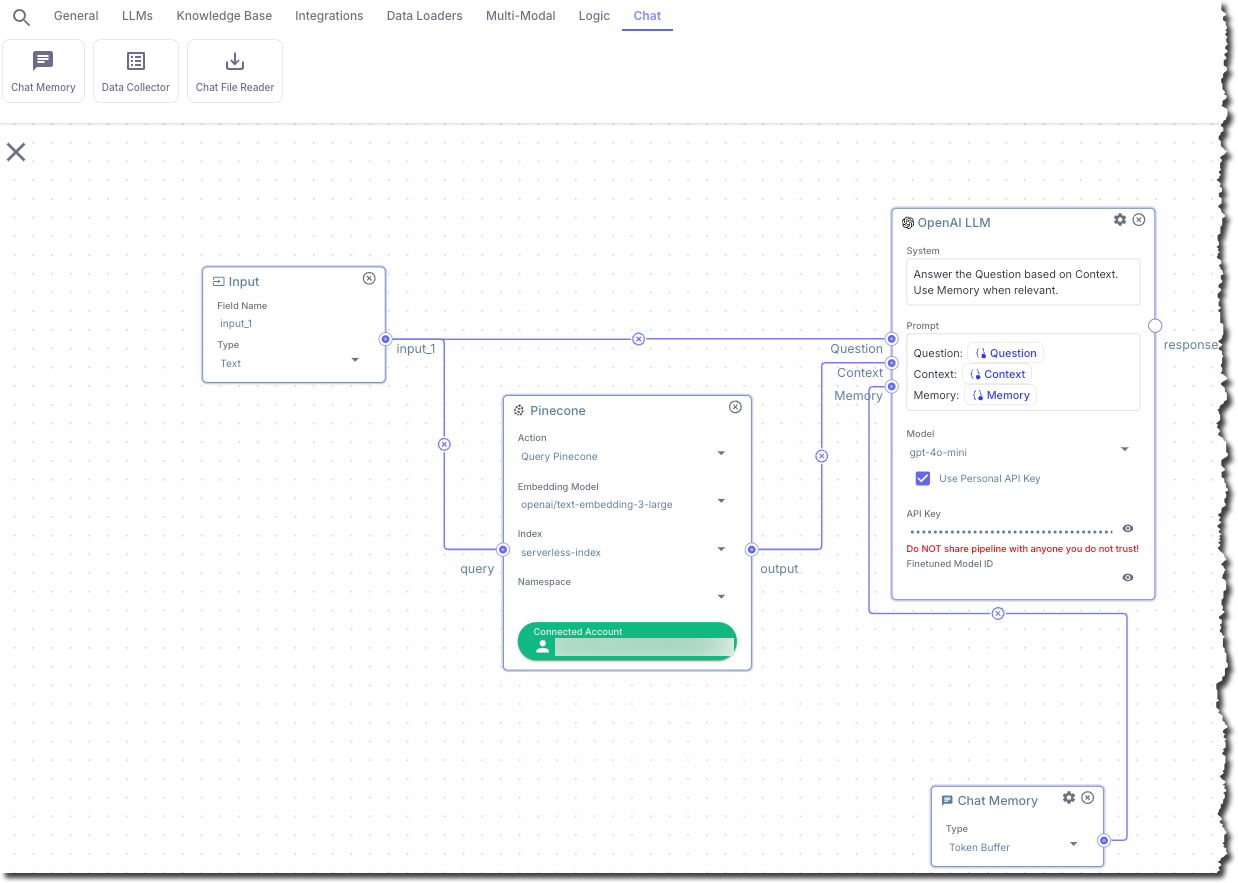
  <Step title="Add the Chat Memory node">
    In this step, you add a node that adds chat memory to the session.

    1. In the top pipeline node chooser bar, on the **Chat** tab, click **Chat Memory**.
    2. Connect the output from the **Chat Memory** node to the **Memory** input in the **OpenAI LLM** node.

        <img src="https://mintcdn.com/unstructured-53/0PpGBVwVpmOG7-W9/img/vectorshift/ChatMemoryComponent.png?fit=max&auto=format&n=0PpGBVwVpmOG7-W9&q=85&s=6dc89762089c5a015a38d2c41e344539" alt="Adding the Chat Memory node" data-og-width="1238" width="1238" data-og-height="883" height="883" data-path="img/vectorshift/ChatMemoryComponent.png" data-optimize="true" data-opv="3" srcset="https://mintcdn.com/unstructured-53/0PpGBVwVpmOG7-W9/img/vectorshift/ChatMemoryComponent.png?w=280&fit=max&auto=format&n=0PpGBVwVpmOG7-W9&q=85&s=75cfa425cf7e88800cc19e0408dc0e43 280w, https://mintcdn.com/unstructured-53/0PpGBVwVpmOG7-W9/img/vectorshift/ChatMemoryComponent.png?w=560&fit=max&auto=format&n=0PpGBVwVpmOG7-W9&q=85&s=8c01ce60da10c9e067631896be37522d 560w, https://mintcdn.com/unstructured-53/0PpGBVwVpmOG7-W9/img/vectorshift/ChatMemoryComponent.png?w=840&fit=max&auto=format&n=0PpGBVwVpmOG7-W9&q=85&s=ed2ff8b7204f8c435eb53df69d8b350f 840w, https://mintcdn.com/unstructured-53/0PpGBVwVpmOG7-W9/img/vectorshift/ChatMemoryComponent.png?w=1100&fit=max&auto=format&n=0PpGBVwVpmOG7-W9&q=85&s=348ba098bd97cd9c8a0c19341bb6c5bd 1100w, https://mintcdn.com/unstructured-53/0PpGBVwVpmOG7-W9/img/vectorshift/ChatMemoryComponent.png?w=1650&fit=max&auto=format&n=0PpGBVwVpmOG7-W9&q=85&s=15ad719bba59f9bfcd128cafc92b8e30 1650w, https://mintcdn.com/unstructured-53/0PpGBVwVpmOG7-W9/img/vectorshift/ChatMemoryComponent.png?w=2500&fit=max&auto=format&n=0PpGBVwVpmOG7-W9&q=85&s=555bb263c3bffa3f1f75581a93e0a18f 2500w" />
  </Step>

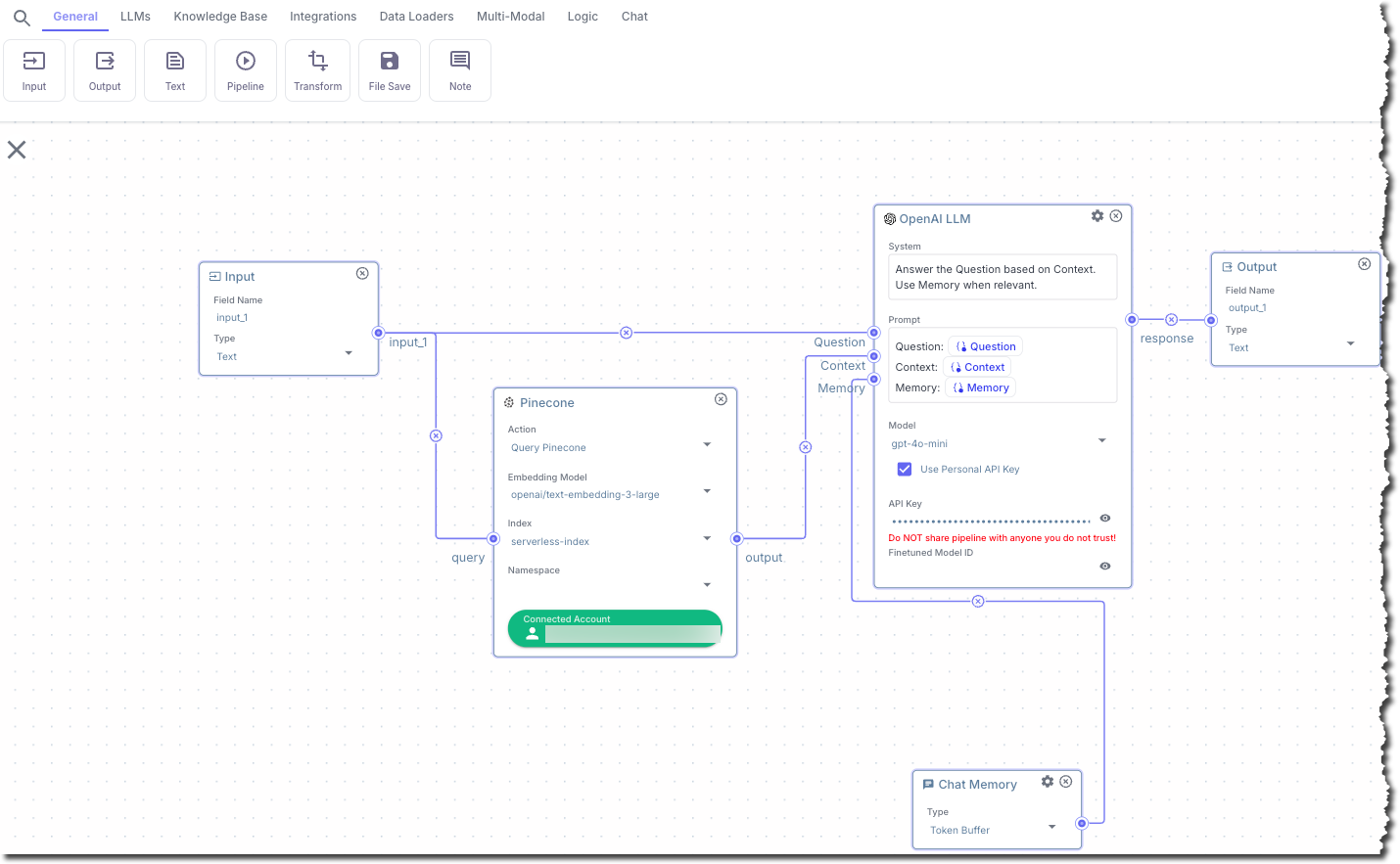
  <Step title="Add the Output node">
    In this step, you add a node that displays the chat output.

    1. In the top pipeline node chooser bar, on the **General** tab, click **Output**.
    2. Connect the **response** output from the **OpenAI LLM** node to the input in the **Output** node.

        <img src="https://mintcdn.com/unstructured-53/0PpGBVwVpmOG7-W9/img/vectorshift/OutputComponent.png?fit=max&auto=format&n=0PpGBVwVpmOG7-W9&q=85&s=c83ae5e3e849aef33dcbc47b1d148904" alt="Adding the Output node" data-og-width="1430" width="1430" data-og-height="883" height="883" data-path="img/vectorshift/OutputComponent.png" data-optimize="true" data-opv="3" srcset="https://mintcdn.com/unstructured-53/0PpGBVwVpmOG7-W9/img/vectorshift/OutputComponent.png?w=280&fit=max&auto=format&n=0PpGBVwVpmOG7-W9&q=85&s=a0f10cf66b18ec6e184256ff568105d7 280w, https://mintcdn.com/unstructured-53/0PpGBVwVpmOG7-W9/img/vectorshift/OutputComponent.png?w=560&fit=max&auto=format&n=0PpGBVwVpmOG7-W9&q=85&s=d30a962f0fcc513c709826de87b3a165 560w, https://mintcdn.com/unstructured-53/0PpGBVwVpmOG7-W9/img/vectorshift/OutputComponent.png?w=840&fit=max&auto=format&n=0PpGBVwVpmOG7-W9&q=85&s=1f8155f1458d07ce956166d9f14b6649 840w, https://mintcdn.com/unstructured-53/0PpGBVwVpmOG7-W9/img/vectorshift/OutputComponent.png?w=1100&fit=max&auto=format&n=0PpGBVwVpmOG7-W9&q=85&s=ea277d1c9f98ef72a0c0751029c7fe4b 1100w, https://mintcdn.com/unstructured-53/0PpGBVwVpmOG7-W9/img/vectorshift/OutputComponent.png?w=1650&fit=max&auto=format&n=0PpGBVwVpmOG7-W9&q=85&s=bcf3af3b2129ac78caafeb086d9fce4e 1650w, https://mintcdn.com/unstructured-53/0PpGBVwVpmOG7-W9/img/vectorshift/OutputComponent.png?w=2500&fit=max&auto=format&n=0PpGBVwVpmOG7-W9&q=85&s=cee99c915b0cf35c7ce73063b262f233 2500w" />
  </Step>

  <Step title="Run the project">
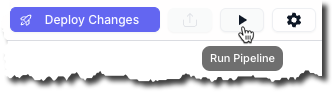
    1. In the upper corner of the pipeline designer, click the play (**Run Pipeline**) button.

       <img src="https://mintcdn.com/unstructured-53/0PpGBVwVpmOG7-W9/img/vectorshift/RunPipeline.png?fit=max&auto=format&n=0PpGBVwVpmOG7-W9&q=85&s=df3c2eb545c6d0d05907f6c9f4341f6a" alt="Running the pipeline" data-og-width="332" width="332" data-og-height="92" height="92" data-path="img/vectorshift/RunPipeline.png" data-optimize="true" data-opv="3" srcset="https://mintcdn.com/unstructured-53/0PpGBVwVpmOG7-W9/img/vectorshift/RunPipeline.png?w=280&fit=max&auto=format&n=0PpGBVwVpmOG7-W9&q=85&s=825a204ebc7e0b3b87c1660679657907 280w, https://mintcdn.com/unstructured-53/0PpGBVwVpmOG7-W9/img/vectorshift/RunPipeline.png?w=560&fit=max&auto=format&n=0PpGBVwVpmOG7-W9&q=85&s=a06caa2911c4b8e7f4ee31543087f544 560w, https://mintcdn.com/unstructured-53/0PpGBVwVpmOG7-W9/img/vectorshift/RunPipeline.png?w=840&fit=max&auto=format&n=0PpGBVwVpmOG7-W9&q=85&s=59e4f00f7f63e4f751428ca8fb9d21f1 840w, https://mintcdn.com/unstructured-53/0PpGBVwVpmOG7-W9/img/vectorshift/RunPipeline.png?w=1100&fit=max&auto=format&n=0PpGBVwVpmOG7-W9&q=85&s=0b93ba2f2c277bb826fbad86621de043 1100w, https://mintcdn.com/unstructured-53/0PpGBVwVpmOG7-W9/img/vectorshift/RunPipeline.png?w=1650&fit=max&auto=format&n=0PpGBVwVpmOG7-W9&q=85&s=462935eab7e714d4776be08d3202b22a 1650w, https://mintcdn.com/unstructured-53/0PpGBVwVpmOG7-W9/img/vectorshift/RunPipeline.png?w=2500&fit=max&auto=format&n=0PpGBVwVpmOG7-W9&q=85&s=48a2b11d344281329bde5380f742bd37 2500w" />

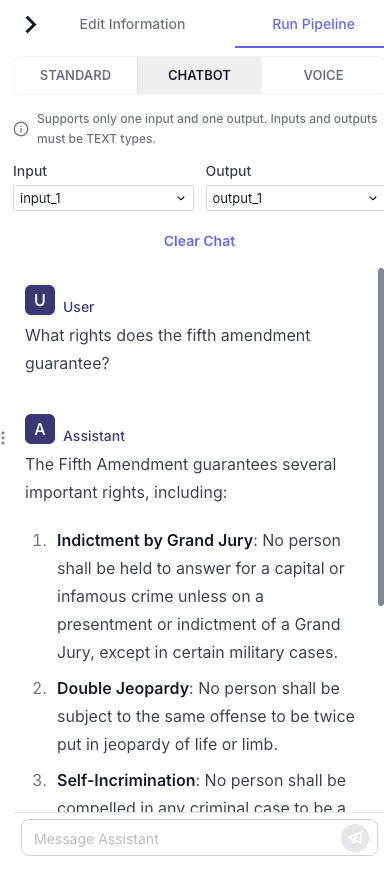
    2. In the chat pane, on the **Chatbot** tab, enter a question into the **Message Assistant** box, for example, `What rights does the fifth amendment guarantee?` Then press the send button.

       <img src="https://mintcdn.com/unstructured-53/0PpGBVwVpmOG7-W9/img/vectorshift/ChatbotResults.png?fit=max&auto=format&n=0PpGBVwVpmOG7-W9&q=85&s=e0fdae5780a58d1478b63ad748799fd5" alt="Chatbot results" data-og-width="384" width="384" data-og-height="873" height="873" data-path="img/vectorshift/ChatbotResults.png" data-optimize="true" data-opv="3" srcset="https://mintcdn.com/unstructured-53/0PpGBVwVpmOG7-W9/img/vectorshift/ChatbotResults.png?w=280&fit=max&auto=format&n=0PpGBVwVpmOG7-W9&q=85&s=18e614cf26892a3a21da47f9e46252f7 280w, https://mintcdn.com/unstructured-53/0PpGBVwVpmOG7-W9/img/vectorshift/ChatbotResults.png?w=560&fit=max&auto=format&n=0PpGBVwVpmOG7-W9&q=85&s=92a8e84ef90eb605097a1b22cf4effa4 560w, https://mintcdn.com/unstructured-53/0PpGBVwVpmOG7-W9/img/vectorshift/ChatbotResults.png?w=840&fit=max&auto=format&n=0PpGBVwVpmOG7-W9&q=85&s=521f29e237dfece49b59d271dea3cdf2 840w, https://mintcdn.com/unstructured-53/0PpGBVwVpmOG7-W9/img/vectorshift/ChatbotResults.png?w=1100&fit=max&auto=format&n=0PpGBVwVpmOG7-W9&q=85&s=078bbec0532b6069e2066865afc74f19 1100w, https://mintcdn.com/unstructured-53/0PpGBVwVpmOG7-W9/img/vectorshift/ChatbotResults.png?w=1650&fit=max&auto=format&n=0PpGBVwVpmOG7-W9&q=85&s=823ee6c2b38e5ae72dd94e1ab537bb59 1650w, https://mintcdn.com/unstructured-53/0PpGBVwVpmOG7-W9/img/vectorshift/ChatbotResults.png?w=2500&fit=max&auto=format&n=0PpGBVwVpmOG7-W9&q=85&s=ed37bf605e8a88044c2a9bf378d2b937 2500w" />

    3. Wait until the answer appears.

    4. Ask as many additional questions as you want to.
  </Step>
</Steps>

## Learn more

See the [VectorShift documentation](https://docs.vectorshift.ai/).