> ## Documentation Index
> Fetch the complete documentation index at: https://docs.unstructured.io/llms.txt
> Use this file to discover all available pages before exploring further.
# S3
Batch process all your records to store structured outputs in an S3 bucket.
The requirements are as follows.
The following video shows how to fulfill the minimum set of Amazon S3 requirements:
If you are experiencing S3 connector or workflow failures after adding a new S3 bucket or updating an existing S3 bucket,
it could be due to S3 latency issues. You might need to wait up to a few hours before any related S3 connectors
and workflows begin working without failures.
Various Amazon S3 operations such as propagating DNS records for new buckets, updating bucket access policies and
permissions, reusing bucket names after deletion, and using AWS Regions that are not geographically closer
to your users or applications, can take a few minutes to hours to fully propagate across the Amazon network.
The preceding video does not show how to create an AWS account; enable anonymous access to the bucket (which is supported but
not recommended); or generate AWS STS temporary access credentials if required by your organization's security
requirements. For more information about requirements, see the following:
* An AWS account. [Create an AWS account](https://aws.amazon.com/free).
* An S3 bucket. You can create an S3 bucket by using the S3 console, following the steps [in the S3 documentation](https://docs.aws.amazon.com/AmazonS3/latest/userguide/creating-bucket.html) or in the following video.
Additional approaches that use AWS CloudFormation or the AWS CLI are in the how-to sections later on this page.
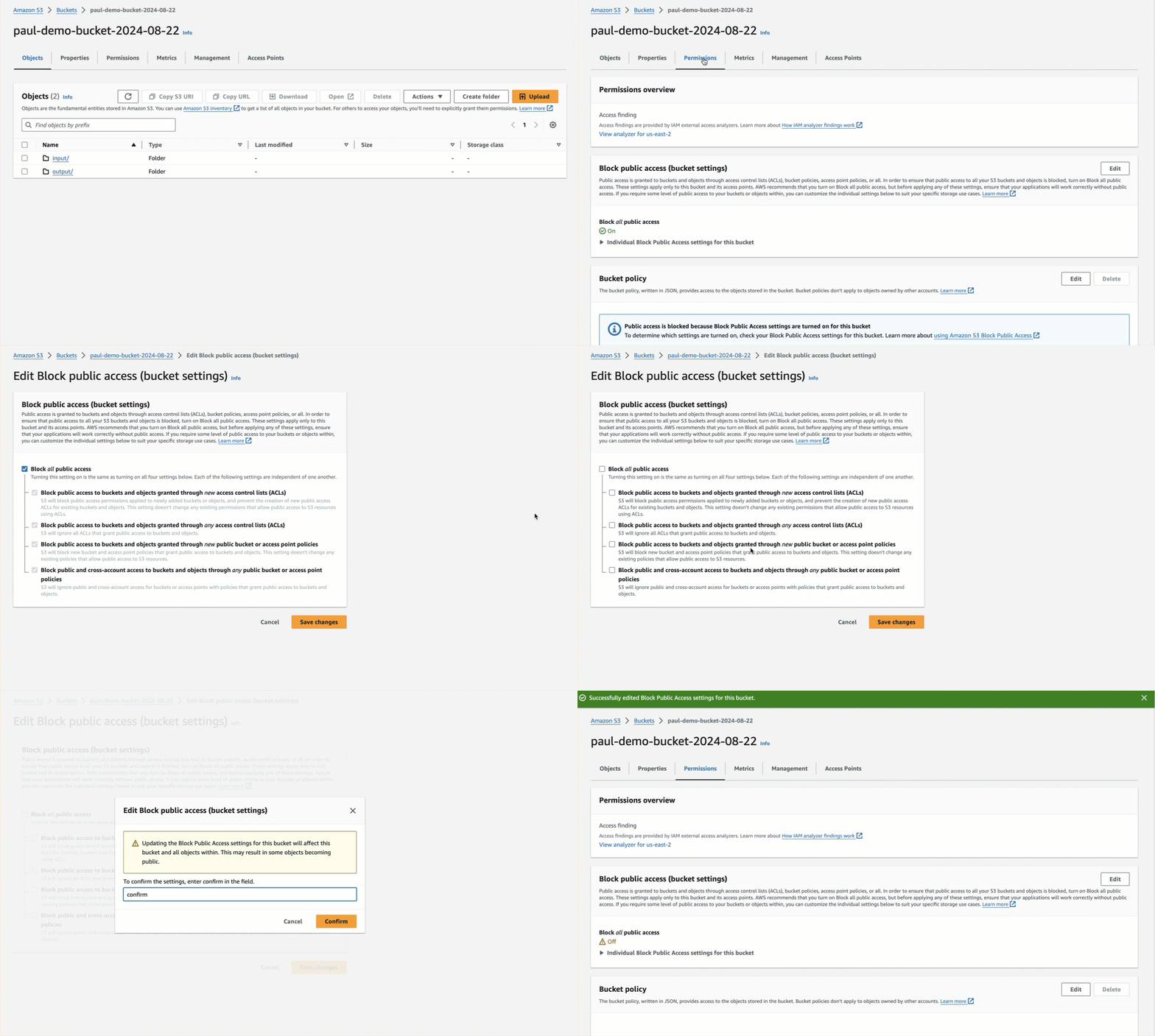
* Anonymous access to the bucket is supported but not recommended. (Use authenticated bucket read or write access or both instead.) To enable anonymous access, follow the steps
[in the S3 documentation](https://docs.aws.amazon.com/AmazonS3/latest/userguide/example-bucket-policies.html#example-bucket-policies-anonymous-user) or in the following animation.
* For authenticated bucket read or write access or both, which is recommended over anonymous access, you should first
[block all public access to the bucket](https://docs.aws.amazon.com/AmazonS3/latest/userguide/configuring-block-public-access-bucket.html).
After blocking all public access to the bucket, for read access, the authenticated AWS IAM user must have at minimum the permissions of `s3:ListBucket` and `s3:GetObject` for that bucket.
For write access, the authenticated AWS IAM user must have at minimum the permission of `s3:PutObject` for that bucket. Permissions
can be granted in one of the following ways:
* Attach the appropriate bucket policy to the bucket. See the policy examples later on this page, and [learn about bucket policies for S3](https://docs.aws.amazon.com/AmazonS3/latest/userguide/access-policy-language-overview.html). These permissions remain in effect until the bucket policy is removed from the bucket.
To apply a bucket policy by using the S3 console, follow the steps [in the S3 documentation](https://docs.aws.amazon.com/AmazonS3/latest/userguide/add-bucket-policy.html) or in the following video.
Additional approaches that use AWS CloudFormation or the AWS CLI are in the how-to sections later on this page.
* Have the IAM user temporarily assume an IAM role that contains the appropriate user policy. See the policy examples later on this page, and [learn about user policies for S3](https://docs.aws.amazon.com/AmazonS3/latest/userguide/access-policy-language-overview.html). These permission remain in effect until the assumed role's time period expires.
Learn how to use the IAM console to [create a policy](https://docs.aws.amazon.com/IAM/latest/UserGuide/access_policies_create-console.html),
[create a role](https://docs.aws.amazon.com/IAM/latest/UserGuide/id_roles_create_for-user.html) that references this policy, and then
[have the user temporarily assume the role by using the AWS CLI or an AWS SDK](https://docs.aws.amazon.com/code-library/latest/ug/sts_example_sts_AssumeRole_section.html), which produces
a temporary AWS access key (`AccessKeyId`), AWS secret access key (`SecretAccessKey`), and AWS STS session token (`SessionToken`).
AWS STS credentials (consisting of an AWS access key, AWS secret access key, and AWS STS session token) can be valid for as little as 15 minutes or as long as 36 hours, depending on how the credentials were initially
generated. After the expiry time, the credentials are no longer valid and will no longer work with the corresponding S3 connector.
You must get a new set of credentials to replace the expired ones by [having the user temporarily assume the role again by using the AWS CLI or an AWS SDK](https://docs.aws.amazon.com/code-library/latest/ug/sts_example_sts_AssumeRole_section.html), which produces
a new, refreshed temporary AWS access key, AWS secret access key, and AWS STS session token.
To overwrite the expired credentials with the new set:
* For Unstructured Pipelines, manually update the AWS Key, AWS Secret Key, and STS Token fields in Unstructured Pipelines
for the corresponding S3 [source](/pipelines/sources/s3) or [destination](/pipelines/destinations/s3) connector.
* For the Unstructured API, use the Unstructured API's workflow operations to call the
[update source](/api-reference/api/source/update-source) or
[update destination](/api-reference/api/destination/update-destination) connector operation
for the corresponding S3 [source](/api-reference/workflow/sources/s3) or
[destination](/api-reference/workflow/destinations/s3) connector.
* For Unstructured Ingest, change the values of `--key`, `--secret`, and `--token` (CLI) or `key`, `secret`, and `token` (Python) in your command or code for the
corresponding S3 [source](/open-source/ingestion/source-connectors/s3) or [destination](/open-source/ingestion/destination-connectors/s3) connector.
* If you used a bucket policy intead of having the IAM user temporarily assume an IAM role for authenticated bucket access, you must provide a long-term AWS access key and secret access key for the authenticated AWS IAM user in the account.
Create an AWS access key and secret access key by following the steps [in the IAM documentation](https://docs.aws.amazon.com/IAM/latest/UserGuide/id_credentials_access-keys.html#Using_CreateAccessKey) or in the following video.
* If the target files are in the root of the bucket, you will need the path to the bucket, formatted as `protocol://bucket/` (for example, `s3://my-bucket/`).
If the target files are in a folder, the path to the target folder in the S3 bucket, formatted as `protocol://bucket/path/to/folder/` (for example, `s3://my-bucket/my-folder/`).
* If the target files are in a folder, and authenticated bucket access is enabled, make sure the authenticated AWS IAM user has
authenticated access to the folder as well. [See examples of authenticated folder access](https://docs.aws.amazon.com/AmazonS3/latest/userguide/example-bucket-policies.html#example-bucket-policies-folders).
The S3 connector dependencies:
```bash CLI, Python theme={null}
pip install "unstructured-ingest[s3]"
```
You might also need to install additional dependencies, depending on your needs. [Learn more](/open-source/ingestion/ingest-dependencies).
The following environment variables:
* `AWS_S3_URL` - The path to the S3 bucket or folder, formatted as `s3://my-bucket/` (if the files are in the bucket's root) or `s3://my-bucket/my-folder/`.
* If the bucket does not have anonymous access enabled, provide the AWS credentials:
* `AWS_ACCESS_KEY_ID` - The AWS access key ID for the authenticated AWS IAM user, represented by `--key` (CLI) or `key` (Python).
* `AWS_SECRET_ACCESS_KEY` - The corresponding AWS secret access key, represented by `--secret` (CLI) or `secret` (Python).
* `AWS_STS_TOKEN` - If required, the AWS STS session token for temporary access, represented by `--token` (CLI) or `token` (Python).
* If the bucket has anonymous access enabled for reading from the bucket, set `--anonymous` (CLI) or `anonymous=True` (Python) instead.
## Add an access policy to an existing bucket
To use the Amazon S3 console to add an access policy that allows all authenticated AWS IAM users in the
corresponding AWS account to read and write to an existing S3 bucket, do the following.
Your organization might have stricter bucket policy requirements. Check with your AWS account
administrator if you are unsure.
1. Sign in to the [AWS Management Console](https://console.aws.amazon.com/).
2. Open the [Amazon S3 Console](https://console.aws.amazon.com/s3/home).
3. Browse to the existing bucket and open it.
4. Click the **Permissions** tab.
5. In the **Bucket policy** area, click **Edit**.
6. In the **Policy** text area, copy the following JSON-formatted policy.
To change the following policy to restrict it to a specific user in the AWS account, change `root` to that
specific username.
In this policy, replace the following:
* Replace `` with your AWS account ID.
* Replace `` in two places with the name of your bucket.
```json theme={null}
{
"Version": "2012-10-17",
"Statement": [
{
"Sid": "AllowAuthenticatedUsersInAccountReadWrite",
"Effect": "Allow",
"Principal": {
"AWS": "arn:aws:iam:::root"
},
"Action": [
"s3:GetObject",
"s3:PutObject",
"s3:ListBucket",
"s3:DeleteObject"
],
"Resource": [
"arn:aws:s3:::",
"arn:aws:s3:::/*"
],
"Condition": {
"StringEquals": {
"aws:PrincipalType": "IAMUser"
}
}
}
]
}
```
7. Click **Save changes**.
## Create a bucket with the AWS CLI
To use the AWS CLI to create an Amazon S3 bucket that allows all authenticated AWS IAM users in the
corresponding AWS account to read and write to the bucket, do the following.
Your organization might have stricter bucket policy requirements. Check with your AWS account
administrator if you are unsure.
1. [Install the AWS CLI](https://docs.aws.amazon.com/cli/latest/userguide/getting-started-install.html).
2. [Set up the AWS CLI](https://docs.aws.amazon.com/cli/latest/userguide/getting-started-quickstart.html).
3. Copy the following script to a file on your local machine, for example a file named `create-s3-bucket.sh`.
To change the following bucket policy to restrict it to a specific user in the AWS account, change `root` to that
specific username.
In this script, replace the following:
* Replace `` with your AWS account ID.
* Replace `` with the name of your bucket.
* Replace `` with your AWS Region.
```bash theme={null}
#!/bin/bash
# Set variables for the AWS account ID, Amazon S3 bucket name, and AWS Region.
ACCOUNT_ID=""
BUCKET_NAME=""
REGION=""
# Temporary filename for the bucket policy.
# Do not change this variable.
POLICY_FILE="bucket_policy.json"
# Create the bucket.
aws s3api create-bucket --bucket $BUCKET_NAME --region $REGION
# Wait for the bucket to exist.
echo "Waiting for bucket '$BUCKET_NAME' to be fully created..."
aws s3api wait bucket-exists --bucket $BUCKET_NAME
# Check if the wait command was successful.
if [ $? -eq 0 ]; then
echo "The bucket '$BUCKET_NAME' has been fully created."
else
echo "Error: Timed out waiting for bucket '$BUCKET_NAME' to be created."
exit 1
fi
# Remove the "block public policy" bucket access setting.
aws s3api put-public-access-block \
--bucket $BUCKET_NAME \
--public-access-block-configuration \
'{"BlockPublicPolicy": false, "IgnorePublicAcls": false, "BlockPublicAcls": false, "RestrictPublicBuckets": false}'
# Check if the operation was successful.
if [ $? -eq 0 ]; then
echo "The block public policy access setting was removed from '$BUCKET_NAME'."
else
echo "Error: Failed to remove the block public policy access setting from '$BUCKET_NAME'."
exit 1
fi
# Create the bucket policy.
cat << EOF > $POLICY_FILE
{
"Version": "2012-10-17",
"Statement": [
{
"Sid": "AllowAuthenticatedUsersInAccountReadWrite",
"Effect": "Allow",
"Principal": {
"AWS": "arn:aws:iam::$ACCOUNT_ID:root"
},
"Action": [
"s3:GetObject",
"s3:PutObject",
"s3:ListBucket",
"s3:DeleteObject"
],
"Resource": [
"arn:aws:s3:::$BUCKET_NAME",
"arn:aws:s3:::$BUCKET_NAME/*"
],
"Condition": {
"StringEquals": {
"aws:PrincipalType": "IAMUser"
}
}
}
]
}
EOF
# Apply the bucket policy.
aws s3api put-bucket-policy --bucket $BUCKET_NAME --policy file://$POLICY_FILE
# Check if the policy application was successful.
if [ $? -eq 0 ]; then
echo "The bucket policy was applied to '$BUCKET_NAME'."
else
echo "Error: Failed to apply the bucket policy to '$BUCKET_NAME'."
exit 1
fi
# Verify the applied policy.
echo "Verifying the applied policy:"
aws s3api get-bucket-policy --bucket $BUCKET_NAME --query Policy --output text
# Remove the temporary bucket policy file.
rm $POLICY_FILE
```
4. Run the script, for example:
```bash theme={null}
sh create-s3-bucket.sh
```
5. After the bucket is created, you can delete the script file, if you want.
## Create a bucket with AWS CloudFormation
To use the AWS CloudFormation console to create an Amazon S3 bucket that allows all authenticated AWS IAM users
in the corresponding AWS account to read and write to the bucket, do the following.
Your organization might have stricter bucket policy requirements. Check with your AWS account
administrator if you are unsure.
1. Save the following YAML to a file on your local machine, for example `create-s3-bucket.yaml`. To change
the following bucket policy to restrict it to a specific user in the AWS account, change `root` to that
specific username.
```yaml theme={null}
AWSTemplateFormatVersion: '2010-09-09'
Description: 'CloudFormation template to create an S3 bucket with specific permissions for account users.'
Parameters:
BucketName:
Type: String
Description: 'Name of the S3 bucket to create'
Resources:
MyS3Bucket:
Type: 'AWS::S3::Bucket'
Properties:
BucketName: !Ref BucketName
PublicAccessBlockConfiguration:
BlockPublicAcls: true
BlockPublicPolicy: false
IgnorePublicAcls: true
RestrictPublicBuckets: true
BucketPolicy:
Type: 'AWS::S3::BucketPolicy'
Properties:
Bucket: !Ref MyS3Bucket
PolicyDocument:
Version: '2012-10-17'
Statement:
- Sid: AllowAllAuthenticatedUsersInAccount
Effect: Allow
Principal:
AWS: !Sub 'arn:aws:iam::${AWS::AccountId}:root'
Action:
- 's3:GetObject'
- 's3:PutObject'
- 's3:ListBucket'
- 's3:DeleteObject'
Resource:
- !Sub 'arn:aws:s3:::${BucketName}'
- !Sub 'arn:aws:s3:::${BucketName}/*'
Outputs:
BucketName:
Description: 'Name of the created S3 bucket'
Value: !Ref MyS3Bucket
```
2. Sign in to the [AWS Management Console](https://console.aws.amazon.com/).
3. Open the [AWS CloudFormation Console](https://console.aws.amazon.com/cloudformation/home).
4. Click **Create stack > With new resources (standard)**.
5. On the **Create stack** page, with **Choose an existing template** already selected, select **Upload a template file**.
6. Click **Choose file**, and browse to and select the YAML file from your local machine.
7. Click **Next**.
8. Enter a unique **Stack name** and **BucketName**.
9. Click **Next** two times.
10. Click **Submit**.
11. Wait until the **Status** changes to **CREATE\_COMPLETE**.
12. After the bucket is created, you can delete the YAML file, if you want.
## Create a pipeline that uses S3 as the destination
Now call the Unstructured Ingest CLI or the Unstructured Ingest Python library. The source connector can be any of the ones supported. This example uses the local source connector.
This example sends files to Unstructured for processing by default. To process files locally instead, see the instructions at the end of this page.
```bash CLI theme={null}
#!/usr/bin/env bash
# Chunking and embedding are optional.
unstructured-ingest \
local \
--input-path $LOCAL_FILE_INPUT_DIR \
--partition-by-api \
--api-key $UNSTRUCTURED_API_KEY \
--partition-endpoint $UNSTRUCTURED_API_URL \
--strategy hi_res \
--chunking-strategy by_title \
--embedding-provider huggingface \
--additional-partition-args="{\"split_pdf_page\":\"true\", \"split_pdf_allow_failed\":\"true\", \"split_pdf_concurrency_level\": 15}" \
s3 \
--remote-url $AWS_S3_URL \
--key $AWS_ACCESS_KEY_ID \
--secret $AWS_SECRET_ACCESS_KEY \
--token $AWS_STS_TOKEN # If using AWS STS token.
```
```python Python Ingest theme={null}
import os
from unstructured_ingest.pipeline.pipeline import Pipeline
from unstructured_ingest.interfaces import ProcessorConfig
from unstructured_ingest.processes.connectors.local import (
LocalIndexerConfig,
LocalDownloaderConfig,
LocalConnectionConfig
)
from unstructured_ingest.processes.partitioner import PartitionerConfig
from unstructured_ingest.processes.chunker import ChunkerConfig
from unstructured_ingest.processes.embedder import EmbedderConfig
from unstructured_ingest.processes.connectors.fsspec.s3 import (
S3ConnectionConfig,
S3AccessConfig,
S3UploaderConfig
)
# Chunking and embedding are optional.
if __name__ == "__main__":
Pipeline.from_configs(
context=ProcessorConfig(),
indexer_config=LocalIndexerConfig(input_path=os.getenv("LOCAL_FILE_INPUT_DIR")),
downloader_config=LocalDownloaderConfig(),
source_connection_config=LocalConnectionConfig(),
partitioner_config=PartitionerConfig(
partition_by_api=True,
api_key=os.getenv("UNSTRUCTURED_API_KEY"),
partition_endpoint=os.getenv("UNSTRUCTURED_API_URL"),
strategy="hi_res",
additional_partition_args={
"split_pdf_page": True,
"split_pdf_allow_failed": True,
"split_pdf_concurrency_level": 15
}
),
chunker_config=ChunkerConfig(chunking_strategy="by_title"),
embedder_config=EmbedderConfig(embedding_provider="huggingface"),
destination_connection_config=S3ConnectionConfig(
access_config=S3AccessConfig(
key=os.getenv("AWS_ACCESS_KEY_ID"),
secret=os.getenv("AWS_SECRET_ACCESS_KEY"),
token=os.getenv("AWS_STS_TOKEN", None), # If using AWS STS token.
)
),
uploader_config=S3UploaderConfig(remote_url=os.getenv("AWS_S3_URL"))
).run()
```
For the Unstructured Ingest CLI and the Unstructured Ingest Python library, you can use the `--partition-by-api` option (CLI) or `partition_by_api` (Python) parameter to specify where files are processed:
* To do local file processing, omit `--partition-by-api` (CLI) or `partition_by_api` (Python), or explicitly specify `partition_by_api=False` (Python).
Local file processing does not use an Unstructured API key or API URL, so you can also omit the following, if they appear:
* `--api-key $UNSTRUCTURED_API_KEY` (CLI) or `api_key=os.getenv("UNSTRUCTURED_API_KEY")` (Python)
* `--partition-endpoint $UNSTRUCTURED_API_URL` (CLI) or `partition_endpoint=os.getenv("UNSTRUCTURED_API_URL")` (Python)
* The environment variables `UNSTRUCTURED_API_KEY` and `UNSTRUCTURED_API_URL`
* To send files to the legacy [Unstructured Partition Endpoint](/api-reference/legacy-api/partition/overview) for processing, specify `--partition-by-api` (CLI) or `partition_by_api=True` (Python).
Unstructured also requires an Unstructured API key and API URL, by adding the following:
* `--api-key $UNSTRUCTURED_API_KEY` (CLI) or `api_key=os.getenv("UNSTRUCTURED_API_KEY")` (Python)
* `--partition-endpoint $UNSTRUCTURED_API_URL` (CLI) or `partition_endpoint=os.getenv("UNSTRUCTURED_API_URL")` (Python)
* The environment variables `UNSTRUCTURED_API_KEY` and `UNSTRUCTURED_API_URL`, representing your API key and API URL, respectively.
You must specify the API URL only if you are not using the default API URL for Unstructured Ingest, which applies to **Let's Go**, **Pay-As-You-Go**, and **Business SaaS** accounts.
The default API URL for Unstructured Ingest is `https://api.unstructuredapp.io/general/v0/general`, which is the API URL for the legacy [Unstructured Partition Endpoint](/api-reference/legacy-api/partition/overview). However, you should always use the URL that was provided to you when your Unstructured account was created. If you do not have this URL, email Unstructured Support at [support@unstructured.io](mailto:support@unstructured.io).
If you do not have an API key, [get one now](/api-reference/legacy-api/partition/overview).
If you are using a **Business** account, the process
for generating Unstructured API keys, and the Unstructured API URL that you use, are different.
For instructions, see your Unstructured account administrator, or email Unstructured Support at [support@unstructured.io](mailto:support@unstructured.io).
 * For authenticated bucket read or write access or both, which is recommended over anonymous access, you should first
[block all public access to the bucket](https://docs.aws.amazon.com/AmazonS3/latest/userguide/configuring-block-public-access-bucket.html).
After blocking all public access to the bucket, for read access, the authenticated AWS IAM user must have at minimum the permissions of `s3:ListBucket` and `s3:GetObject` for that bucket.
For write access, the authenticated AWS IAM user must have at minimum the permission of `s3:PutObject` for that bucket. Permissions
can be granted in one of the following ways:
* Attach the appropriate bucket policy to the bucket. See the policy examples later on this page, and [learn about bucket policies for S3](https://docs.aws.amazon.com/AmazonS3/latest/userguide/access-policy-language-overview.html). These permissions remain in effect until the bucket policy is removed from the bucket.
To apply a bucket policy by using the S3 console, follow the steps [in the S3 documentation](https://docs.aws.amazon.com/AmazonS3/latest/userguide/add-bucket-policy.html) or in the following video.
Additional approaches that use AWS CloudFormation or the AWS CLI are in the how-to sections later on this page.
* Have the IAM user temporarily assume an IAM role that contains the appropriate user policy. See the policy examples later on this page, and [learn about user policies for S3](https://docs.aws.amazon.com/AmazonS3/latest/userguide/access-policy-language-overview.html). These permission remain in effect until the assumed role's time period expires.
Learn how to use the IAM console to [create a policy](https://docs.aws.amazon.com/IAM/latest/UserGuide/access_policies_create-console.html),
[create a role](https://docs.aws.amazon.com/IAM/latest/UserGuide/id_roles_create_for-user.html) that references this policy, and then
[have the user temporarily assume the role by using the AWS CLI or an AWS SDK](https://docs.aws.amazon.com/code-library/latest/ug/sts_example_sts_AssumeRole_section.html), which produces
a temporary AWS access key (`AccessKeyId`), AWS secret access key (`SecretAccessKey`), and AWS STS session token (`SessionToken`).
* For authenticated bucket read or write access or both, which is recommended over anonymous access, you should first
[block all public access to the bucket](https://docs.aws.amazon.com/AmazonS3/latest/userguide/configuring-block-public-access-bucket.html).
After blocking all public access to the bucket, for read access, the authenticated AWS IAM user must have at minimum the permissions of `s3:ListBucket` and `s3:GetObject` for that bucket.
For write access, the authenticated AWS IAM user must have at minimum the permission of `s3:PutObject` for that bucket. Permissions
can be granted in one of the following ways:
* Attach the appropriate bucket policy to the bucket. See the policy examples later on this page, and [learn about bucket policies for S3](https://docs.aws.amazon.com/AmazonS3/latest/userguide/access-policy-language-overview.html). These permissions remain in effect until the bucket policy is removed from the bucket.
To apply a bucket policy by using the S3 console, follow the steps [in the S3 documentation](https://docs.aws.amazon.com/AmazonS3/latest/userguide/add-bucket-policy.html) or in the following video.
Additional approaches that use AWS CloudFormation or the AWS CLI are in the how-to sections later on this page.
* Have the IAM user temporarily assume an IAM role that contains the appropriate user policy. See the policy examples later on this page, and [learn about user policies for S3](https://docs.aws.amazon.com/AmazonS3/latest/userguide/access-policy-language-overview.html). These permission remain in effect until the assumed role's time period expires.
Learn how to use the IAM console to [create a policy](https://docs.aws.amazon.com/IAM/latest/UserGuide/access_policies_create-console.html),
[create a role](https://docs.aws.amazon.com/IAM/latest/UserGuide/id_roles_create_for-user.html) that references this policy, and then
[have the user temporarily assume the role by using the AWS CLI or an AWS SDK](https://docs.aws.amazon.com/code-library/latest/ug/sts_example_sts_AssumeRole_section.html), which produces
a temporary AWS access key (`AccessKeyId`), AWS secret access key (`SecretAccessKey`), and AWS STS session token (`SessionToken`).