> ## Documentation Index
> Fetch the complete documentation index at: https://docs.unstructured.io/llms.txt
> Use this file to discover all available pages before exploring further.
# Overview
If you do not have a destination location for Unstructured to send its processed data, skip over to the
[Pinecone destination connector quickstart](/pipelines/destinations/pinecone-destination-quickstart). This quickstart
guides you through the process of creating a free Pinecone account
and creating a destination connector to connect Unstructured to a Pinecone dense serverless index within your Pinecone account.
First time creating a connector? [Read this first](/pipelines/connector-first-time-reqs).
Destination connectors in Unstructured are designed to specify the endpoint for data processed within the platform. These connectors ensure that the transformed and analyzed data is securely and efficiently transferred to a storage system for future use, often to a vector database for tasks that involve high-speed retrieval and advanced data analytics operations.
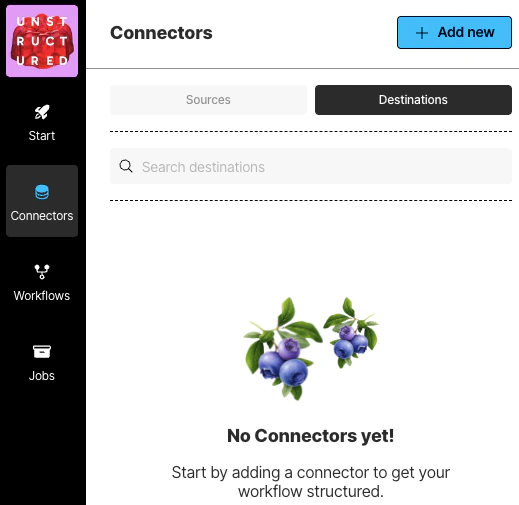 To see your existing destination connectors, on the sidebar, click **Connectors**, and then click **Destinations**.
To create a destination connector:
1. In the sidebar, click **Connectors**.
2. Click **Destinations**.
3. Click **New** or **Create Connector**.
4. For **Name**, enter some unique name for this connector.
5. In the **Provider** area, click the destination location type that matches yours.
6. Click **Continue**.
7. Fill in the fields according to your connector type. To learn how, click your connector type in the following list:
* [Astra DB](/pipelines/destinations/astradb)
* [Azure AI Search](/pipelines/destinations/azure-ai-search)
* [Azure Blob Storage](/pipelines/destinations/azure-blob-storage)
* [Couchbase](/pipelines/destinations/couchbase)
* [Databricks Volumes](/pipelines/destinations/databricks-volumes)
* [Delta Tables in Amazon S3](/pipelines/destinations/delta-table)
* [Delta Tables in Databricks](/pipelines/destinations/databricks-delta-table)
* [Elasticsearch](/pipelines/destinations/elasticsearch)
* [Google Cloud Storage](/pipelines/destinations/google-cloud)
* [IBM FileNet](/pipelines/destinations/filenet)
* [IBM watsonx.data](/pipelines/destinations/ibm-watsonxdata)
* [Kafka](/pipelines/destinations/kafka)
* [Milvus](/pipelines/destinations/milvus)
* [MongoDB](/pipelines/destinations/mongodb)
* [MotherDuck](/pipelines/destinations/motherduck)
* [Neo4j](/pipelines/destinations/neo4j)
* [OneDrive](/pipelines/destinations/onedrive)
* [OpenSearch](/pipelines/destinations/opensearch)
* [Pinecone](/pipelines/destinations/pinecone)
* [PostgreSQL](/pipelines/destinations/postgresql)
* [Qdrant](/pipelines/destinations/qdrant)
* [Redis](/pipelines/destinations/redis)
* [S3](/pipelines/destinations/s3)
* [Snowflake](/pipelines/destinations/snowflake)
* [Teradata](/pipelines/destinations/teradata-sql)
* [Weaviate](/pipelines/destinations/weaviate)
8. If a **Continue** button appears, click it, and fill in any additional settings fields.
9. Click **Save and Test**.
To see your existing destination connectors, on the sidebar, click **Connectors**, and then click **Destinations**.
To create a destination connector:
1. In the sidebar, click **Connectors**.
2. Click **Destinations**.
3. Click **New** or **Create Connector**.
4. For **Name**, enter some unique name for this connector.
5. In the **Provider** area, click the destination location type that matches yours.
6. Click **Continue**.
7. Fill in the fields according to your connector type. To learn how, click your connector type in the following list:
* [Astra DB](/pipelines/destinations/astradb)
* [Azure AI Search](/pipelines/destinations/azure-ai-search)
* [Azure Blob Storage](/pipelines/destinations/azure-blob-storage)
* [Couchbase](/pipelines/destinations/couchbase)
* [Databricks Volumes](/pipelines/destinations/databricks-volumes)
* [Delta Tables in Amazon S3](/pipelines/destinations/delta-table)
* [Delta Tables in Databricks](/pipelines/destinations/databricks-delta-table)
* [Elasticsearch](/pipelines/destinations/elasticsearch)
* [Google Cloud Storage](/pipelines/destinations/google-cloud)
* [IBM FileNet](/pipelines/destinations/filenet)
* [IBM watsonx.data](/pipelines/destinations/ibm-watsonxdata)
* [Kafka](/pipelines/destinations/kafka)
* [Milvus](/pipelines/destinations/milvus)
* [MongoDB](/pipelines/destinations/mongodb)
* [MotherDuck](/pipelines/destinations/motherduck)
* [Neo4j](/pipelines/destinations/neo4j)
* [OneDrive](/pipelines/destinations/onedrive)
* [OpenSearch](/pipelines/destinations/opensearch)
* [Pinecone](/pipelines/destinations/pinecone)
* [PostgreSQL](/pipelines/destinations/postgresql)
* [Qdrant](/pipelines/destinations/qdrant)
* [Redis](/pipelines/destinations/redis)
* [S3](/pipelines/destinations/s3)
* [Snowflake](/pipelines/destinations/snowflake)
* [Teradata](/pipelines/destinations/teradata-sql)
* [Weaviate](/pipelines/destinations/weaviate)
8. If a **Continue** button appears, click it, and fill in any additional settings fields.
9. Click **Save and Test**.