> ## Documentation Index
> Fetch the complete documentation index at: https://docs.unstructured.io/llms.txt
> Use this file to discover all available pages before exploring further.
# Jobs
## Jobs dashboard
 To view the jobs dashboard, on the sidebar, click **Jobs**.
The jobs dashboard provides a centralized view for managing and monitoring the execution of data processing tasks within your workflows.
The jobs dashboard lists each job and its associated **Status**, **Job ID**, **Created** date and time, **Workflow** name, and **Runtime** duration.
Each job's status, shown in the **Status** column, can be:
To view the jobs dashboard, on the sidebar, click **Jobs**.
The jobs dashboard provides a centralized view for managing and monitoring the execution of data processing tasks within your workflows.
The jobs dashboard lists each job and its associated **Status**, **Job ID**, **Created** date and time, **Workflow** name, and **Runtime** duration.
Each job's status, shown in the **Status** column, can be:
 **Pending**: The job's data is currently not attempting to be processed.
 **In Progress**: The job's data is attempting to be processed.
 **Finished**: 100% of the job's data has been successfully processed.
 **Finished**: 90% to 99% of the job's data has been sucessfully processed.
 **Failed**: Less than 90% of the job's data has been successfully processed.
## Run a job
You must first have an existing workflow to run a job against.
If you do not have an existing workflow, stop. [Create a workflow](/pipelines/workflows#create-a-workflow), and then return here.
To see your existing workflows, on the sidebar, click **Workflows**.
To run a job, on the sidebar, click **Workflows**, and then click **Run** in the row for the workflow that you want to run.
## Monitor a job
**Failed**: Less than 90% of the job's data has been successfully processed.
## Run a job
You must first have an existing workflow to run a job against.
If you do not have an existing workflow, stop. [Create a workflow](/pipelines/workflows#create-a-workflow), and then return here.
To see your existing workflows, on the sidebar, click **Workflows**.
To run a job, on the sidebar, click **Workflows**, and then click **Run** in the row for the workflow that you want to run.
## Monitor a job
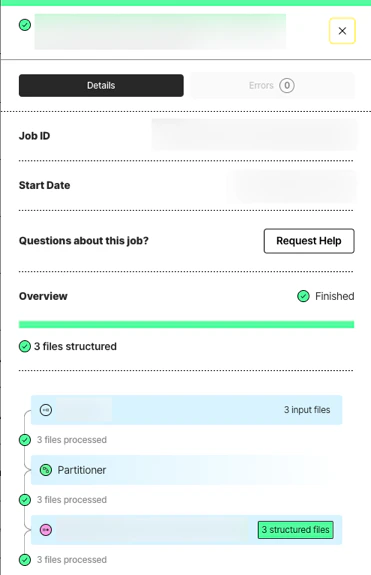 The job details pane is a comprehensive section for monitoring the specific details of jobs executed within a particular workflow. To access this pane, click the specific job on the jobs dashboard.
Clicking the **Details** button shows:
* The job's ID.
* The job's start date.
* Information about what happened in each of the job's stages.
Clicking the **Errors** button provides any available information about what might have gone wrong with the job or in any of its stages.
The job details pane is a comprehensive section for monitoring the specific details of jobs executed within a particular workflow. To access this pane, click the specific job on the jobs dashboard.
Clicking the **Details** button shows:
* The job's ID.
* The job's start date.
* Information about what happened in each of the job's stages.
Clicking the **Errors** button provides any available information about what might have gone wrong with the job or in any of its stages.