> ## Documentation Index
> Fetch the complete documentation index at: https://docs.unstructured.io/llms.txt
> Use this file to discover all available pages before exploring further.
# Unstructured Pipelines quickstarts
## Local file quickstart
This quickstart shows how, in just a few minutes, you can use Unstructured Pipelines to quickly and easily see Unstructured's
best-in-class transformation results for a single file that is stored on your local computer.
This quickstart focuses on a single, local file for ease-of-use demonstration purposes.
To use Unstructured later to do
large-scale batch processing of multiple files and semi-structured data that are stored in remote locations,
[skip over](/pipelines/quickstart#remote-quickstart) to the remote quickstart after you finish this one.
If you do not already have an Unstructured account, [sign up for free](https://unstructured.io/?modal=try-for-free).
After you sign up, you are automatically signed in to your new Unstructured **Let's Go** account, at [https://platform.unstructured.io](https://platform.unstructured.io).
If you already have an Unstructured **Pay-As-You-Go** or **Business SaaS** account, you are already signed up for Unstructured.
Sign in to your existing Unstructured **Pay-As-You-Go** or **Business SaaS** account, at [https://platform.unstructured.io](https://platform.unstructured.io).
If you already have an Unstructured **dedicated instance** or **in-VPC** deployment, your sign-in link will be unique to your deployment.
If you're not sure what your unique sign-in link is, see your Unstructured account administrator, or email Unstructured Support at
[support@unstructured.io](mailto:support@unstructured.io).
Do the following:
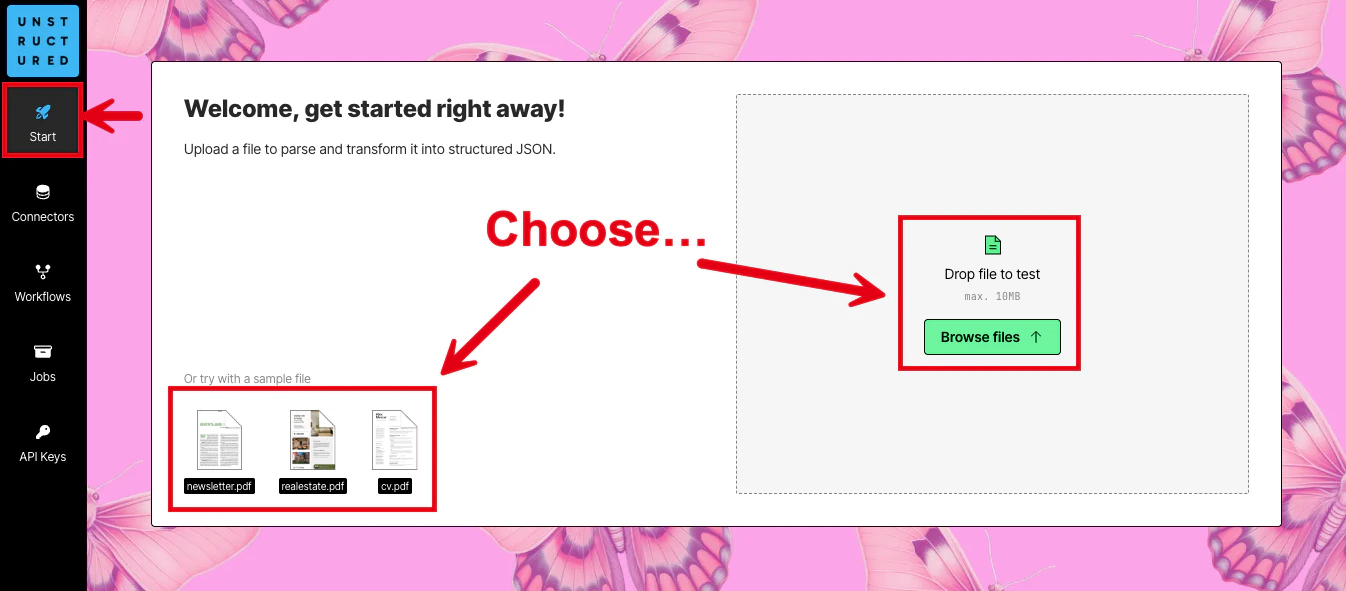
1. After you are signed in, the **Start** page appears.
2. In the **Welcome** area, do one of the following:
* Click one of the sample files, such as **realestate.pdf**, to have Unstructured parse and transform that sample file.
* Click **Browse files**, or drag and drop a file onto **Drop file to test**, to have Unstructured parse and transform your own file.
If you choose to use your own file, the file must be 50 MB or less in size. Also, the file must be one of the following supported file types:
| File extension |
| -------------- |
| `.bmp` |
| `.csv` |
| `.doc` |
| `.docx` |
| `.eml` |
| `.epub` |
| `.heic` |
| `.html` |
| `.jpeg` |
| `.jpg` |
| `.md` |
| `.msg` |
| `.odt` |
| `.org` |
| `.p7s` |
| `.pdf` |
| `.png` |
| `.ppt` |
| `.pptx` |
| `.rst` |
| `.rtf` |
| `.tif` |
| `.tiff` |
| `.tsv` |
| `.txt` |
| `.xls` |
| `.xlsx` |
| `.xml` |
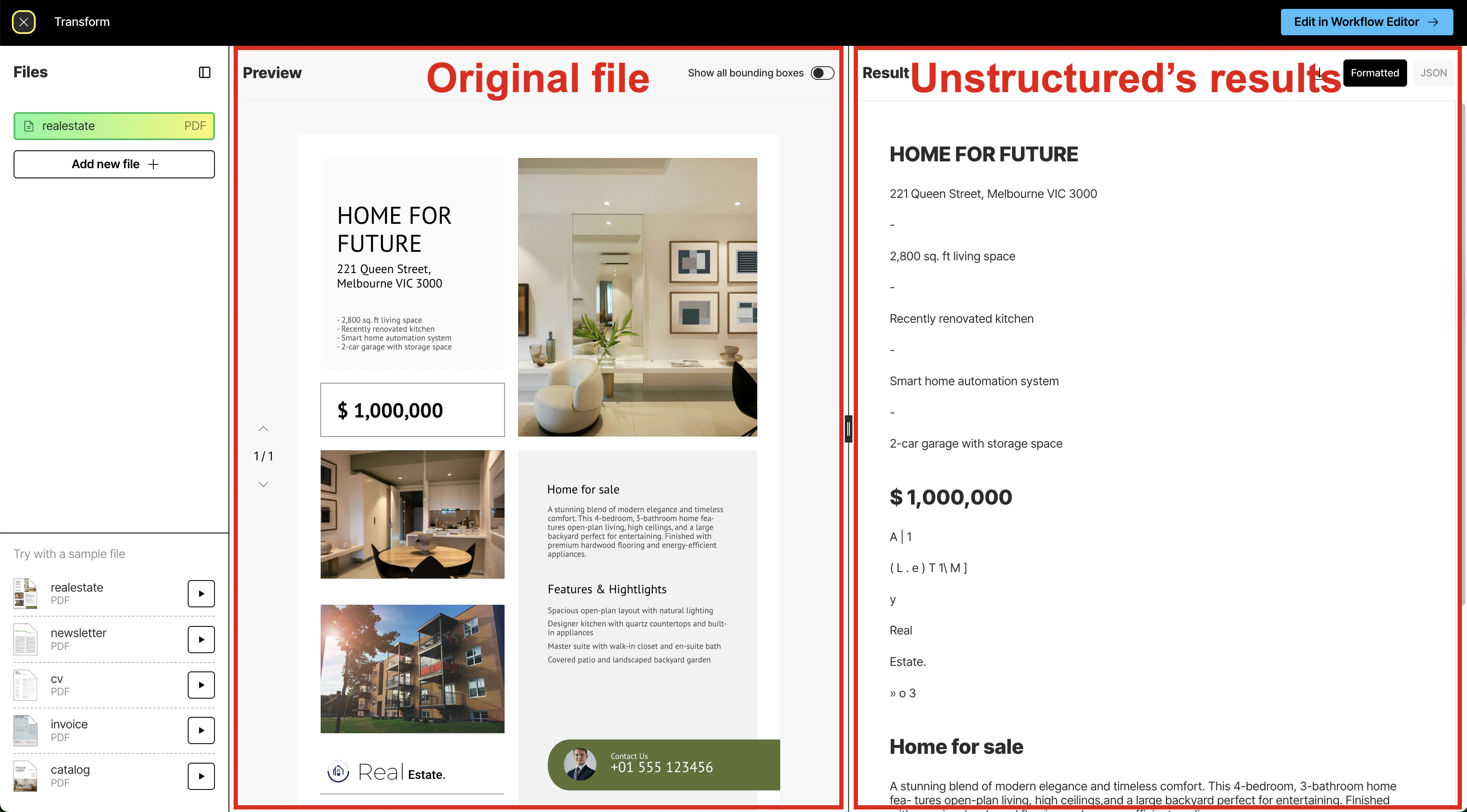
3. After Unstructured has finished parsing and transforming the file (a process known as
[partitioning](/concepts/partitioning)), you will see the file's contents in the
**Preview** pane in the center and Unstructured's results in the **Result** pane on the right.
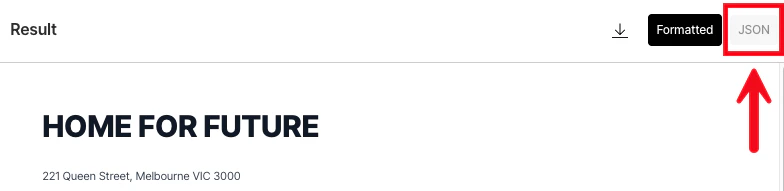
4. The **Result** pane shows a formatted view of Unstructured's results by default. This formatted view is designed for human
readability. To see the underlying JSON view of the results, which is designed for RAG and agentic AI,
click **JSON** at the top of the **Result** pane.
[Learn about what's in the JSON view](/concepts/document-elements).
5. Unstructured's initial results are based on its **High Res** [partitioning strategy](/concepts/partitioning), which
begins processing the file's contents and converting these contents into a series of Unstructured
[document elements and metadata](/concepts/document-elements). This partitioning strategy provides good results overall, depending on the complexity of the file's contents.
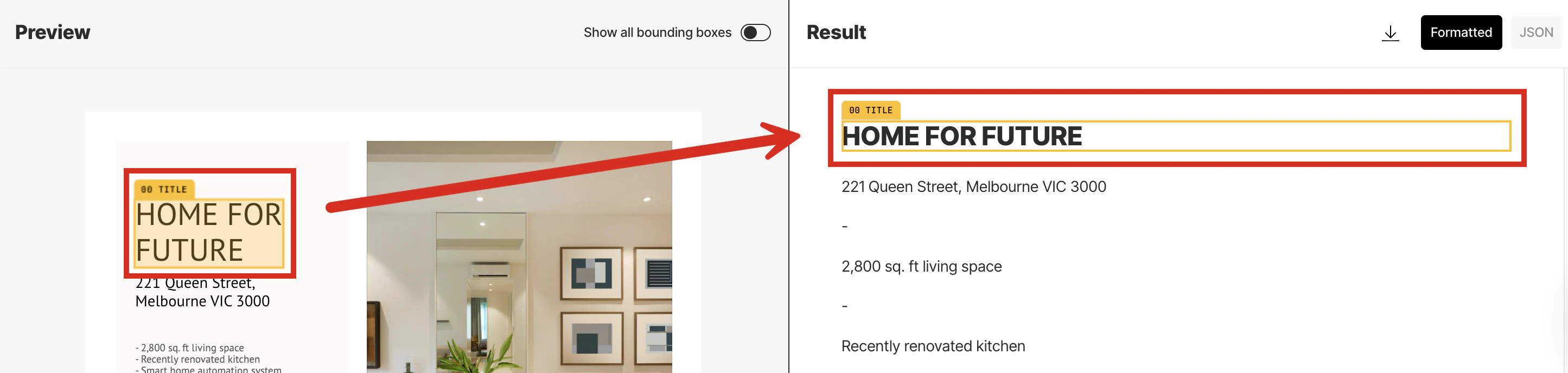
This partitioning strategy also generates a bounding box for each detected object in the file. A *bounding box* is
an imaginary rectangular box drawn around the object to show its location and extent within the file.
After the High Res partitioning results are shown, Unstructured begins improving these initial results by
using vision language models (VLMs) to apply a series of generative refinements known as *enrichments*. These
enrichments include:
* An [image description](ui/enriching/image-descriptions) enrichment, which uses a VLM to provide a text-based summary of the contents of each detected image.
* A [generative OCR](/concepts/enriching/generative-ocr) enrichment, which uses a VLM to improve the accuracy of each block of initially-processed text.
* A [table to HTML](/concepts/enriching/table-to-html) enrichment, which uses a VLM to provide an HTML-structured representation of each detected table.
While these enrichments are being applied, a banner appears at the top of the **Result** pane.
To see these enrichments applied to the initial results, click **Update results** in the banner as soon as this button appears,
which might take up to a minute or more.
Each page that Unstructured processes by using this approach is counted as two pages for usage and billing purposes.
This is because Unstructured processes each page once with its **High Res** partitioning strategy and then reprocesses each
page with a VLM to improve the quality, accuracy, and relevance of the initial partitioning results.
The final results of these two processing passes for each page count as two pages for usage and billing purposes.
This two-pass process happens regardless of whether you click **Update results** in the banner.
This two-page usage and billing behavior is a known issue and will be addressed in a future release.
6. To synchronize the scrolling of the **Preview** pane's selected contents with the **Result** pane's **Formatted** results,
rest your mouse pointer anywhere inside the contents of the **Preview** pane until a bounding box appears.
Then click the bounding box. Unstructured automatically scrolls the **Result** pane's **Formatted**
results to match the selected bounding box. (You cannot synchronize the scrolling of the **JSON** results.)
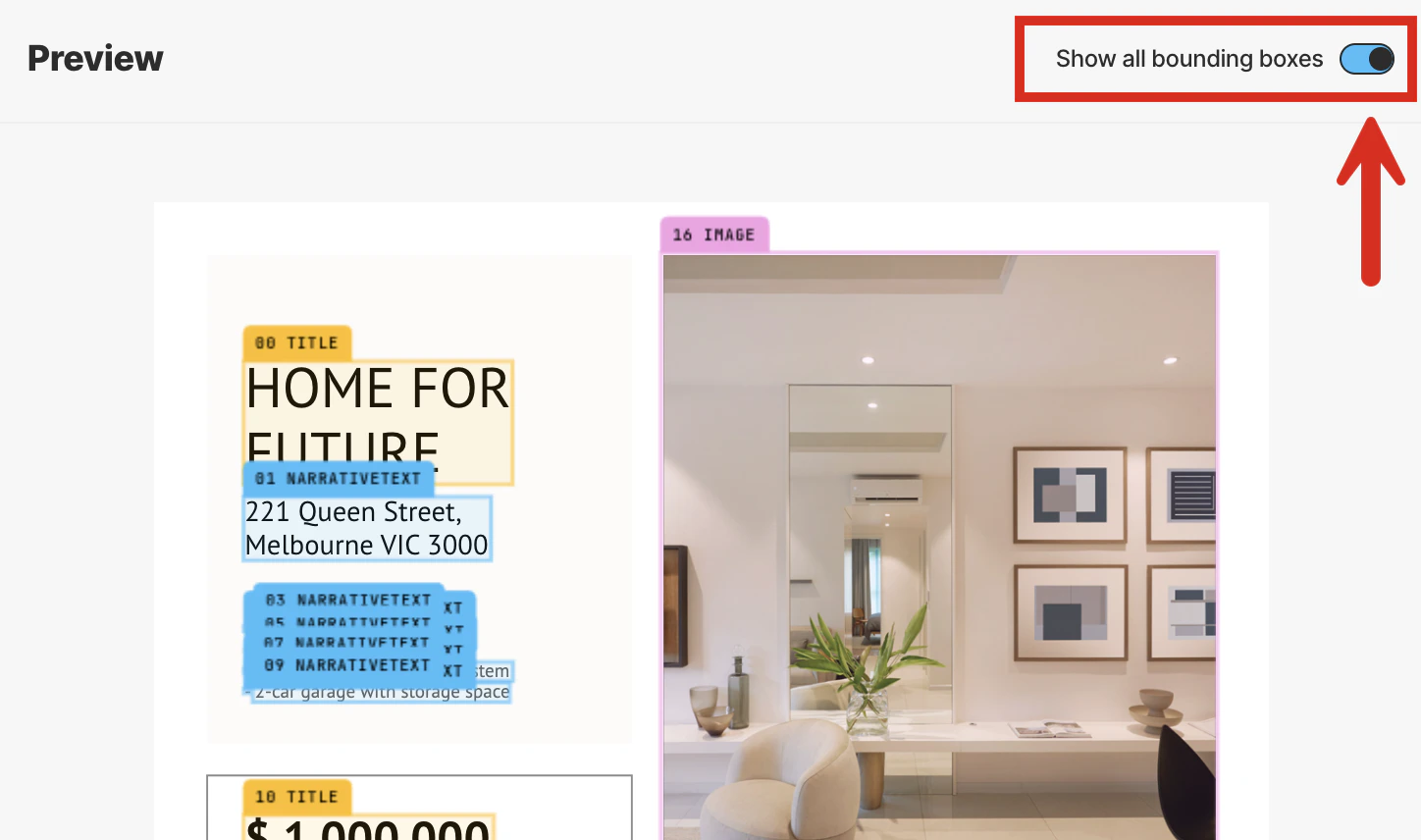
To show all of the bounding boxes in the **Preview** pane at once, turn on the **Show all bounding boxes** toggle at the top of the **Preview** pane.
You can now click any of the bounding boxes without first needing to rest your mouse pointer on them to show them.
You can also do the following:
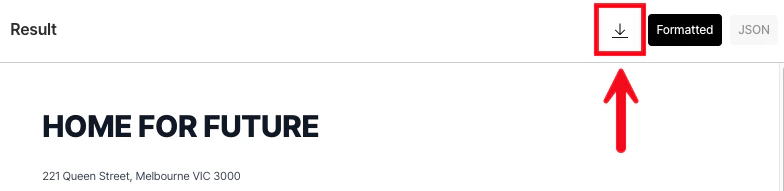
* To download the JSON view of the results as a local JSON file, click the download icon to the left of the **Formatted** and **JSON** buttons in the **Result** pane.
(You cannot download the formatted view of the results.)
* To have Unstructured partition a different file, click **Add new file** in the **Files** pane on the left, and then browse to and select the target file.
* To view the results for a file that was previously partitioned during this session, click the file's name in the **Recent files** list in the **Files** pane.
* To return to the **Start** page, click the **X** (close) button at the left on the title bar, next to **Transform**.
* To have Unstructured do more—such as
[chunking](/concepts/chunking), [embedding](/concepts/embedding),
applying additional kinds of [enrichments](/concepts/enriching/overview), and
processing larger files and semi-structured data in batches at scale—click
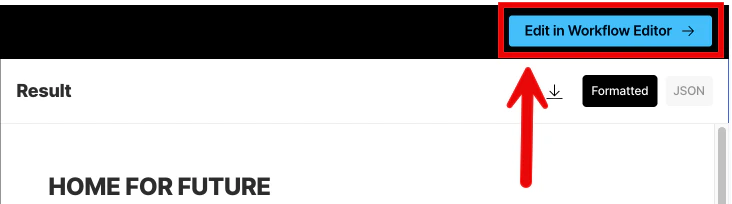
**Edit in Workflow Editor** at the right on the title bar, and then [skip over to the walkthrough](/pipelines/walkthrough-2).
What's next?
* [Learn how to extract structured data in a custom format from your local file](/concepts/structured-data-extractor/using-the-structured-data-extractor#use-the-structured-data-extractor-from-the-start-page).
* [Learn how to add chunking, embeddings, custom structured data extraction, and additional enrichments to your local file results](/pipelines/walkthrough-2).
* [Learn how to do large-scale batch processing of multiple files and semi-structured data that are stored in remote locations instead](/pipelines/quickstart#remote-quickstart).
* [Learn more about Unstructured Pipelines](/pipelines/overview).
***
## Remote quickstart
The following quickstart shows you how to use Unstructured Pipelines to process remote files (or data).
The requirements are as follows.
* A compatible source (input) location that contains your data for Unstructured to process. [See the list of supported source types](/pipelines/connectors#sources).
If your source (input) location is not in this list, or if you do not yet have any source locations for Unstructured to process, **stop here** and
skip over to the [Dropbox source connector quickstart](/pipelines/sources/dropbox-source-quickstart) instead. This quickstart
guides you through the process of creating a free Dropbox account, uploading your files to Dropbox,
and creating a source connector to connect Unstructured to those files.
* For document-based source locations, compatible files in that location. [See the list of supported file types](/pipelines/supported-file-types). If you do not have any files available, you can download some from the [example-docs](https://github.com/Unstructured-IO/unstructured-ingest/tree/main/example-docs) folder in the Unstructured repo on GitHub.
* A compatible destination (output) location for Unstructured to put the processed data. [See the list of supported destination types](/pipelines/connectors#destinations).
If your destination (output) location is not in this list, or if you do not yet have any destination locations for Unstructured to send its processed data, **stop here** and
skip over to the [Pinecone destination connector quickstart](/pipelines/destinations/pinecone-destination-quickstart) instead. This quickstart
guides you through the process of creating a free Pinecone account
and creating a destination connector to connect Unstructured to a Pinecone dense serverless index within your Pinecone account.
1. If you do not already have an Unstructured account, [sign up for free](https://unstructured.io/?modal=try-for-free).
After you sign up, you are automatically signed in to your new Unstructured **Let's Go** account, at [https://platform.unstructured.io](https://platform.unstructured.io).
To sign up for a **Business** account instead, [contact Unstructured Sales](https://unstructured.io/?modal=contact-sales), or [learn more](/pipelines/overview#how-am-i-billed%3F).
2. If you have an Unstructured **Let's Go**, **Pay-As-You-Go**, or **Business SaaS** account and are not already signed in, sign in to your account at [https://platform.unstructured.io](https://platform.unstructured.io).
For other types of **Business** accounts, see your Unstructured account administrator for sign-in instructions,
or email Unstructured Support at [support@unstructured.io](mailto:support@unstructured.io).
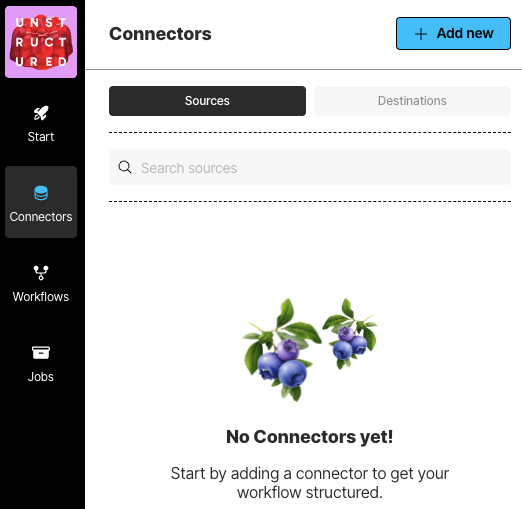
1. From your Unstructured dashboard, in the sidebar, click **Connectors**.
2. Click **Sources**.
3. Click **New** or **Create Connector**.
4. For **Name**, enter some unique name for this connector.
5. In the **Provider** area, click the source location type that matches yours.
6. Click **Continue**.
7. Fill in the fields with the appropriate settings. [Learn more](/pipelines/sources/overview).
8. If a **Continue** button appears, click it, and fill in any additional settings fields.
9. Click **Save and Test**.
1. In the sidebar, click **Connectors**.
2. Click **Destinations**.
3. Click **New** or **Create Connector**.
4. For **Name**, enter some unique name for this connector.
5. In the **Provider** area, click the destination location type that matches yours.
6. Click **Continue**.
7. Fill in the fields with the appropriate settings. [Learn more](/pipelines/sources/overview).
8. If a **Continue** button appears, click it, and fill in any additional settings fields.
9. Click **Save and Test**.
1. In the sidebar, click **Workflows**.
2. Click **New Workflow**.
3. Next to **Build it for Me**, click **Create Workflow**.
If a radio button appears instead of **Build it for Me**, select it, and then click **Continue**.
4. For **Workflow Name**, enter some unique name for this workflow.
5. In the **Sources** dropdown list, select your source location from Step 3.
6. In the **Destinations** dropdown list, select your destination location from Step 4.
You can select multiple source and destination locations. Files will be ingested from all of the selected source locations, and the processed data will be delivered to all of the selected destination locations.
7. Click **Continue**.
8. The **Reprocess All** box applies only to blob storage connectors such as the Amazon S3, Azure Blob Storage, and Google Cloud Storage connectors:
* Checking this box reprocesses all documents in the source location on every workflow run.
* Unchecking this box causes only new documents that are added to the source location, or existing documents that are updated in the source location (as determined by checking whether the file's version has changed), since the last workflow run to be processed on future runs. Previously processed documents are not processed again. However:
* Even if this box is unchecked, a renamed file is always treated as a new file, regardless of whether the file's original contents have changed.
* Even if this box is unchecked, a file that is removed but is added back later with the same file name is processed on future runs only if the file's contents have changed since the file was originally processed.
9. Click **Continue**.
10. If you want this workflow to run on a schedule, in the **Repeat Run** dropdown list, select one of the scheduling options, and fill in the scheduling settings. Otherwise, select **Don't repeat**.
11. Click **Complete**.
1. If you did not choose to run this workflow on a schedule in Step 5, you can run the workflow now: on the sidebar, click **Workflows**.
2. Next to your workflow from Step 5, click **Run**.
1. In the sidebar, click **Jobs**.
2. In the list of jobs, wait for the job's **Status** to change to **Finished**.
3. Click the row for the job.
4. After **Overview** displays **Finished**, go to the next Step.
Go to your destination location to view the processed data.
Learn more about Unstructured [source connectors](/pipelines/sources/overview),
[destination connectors](/pipelines/destinations/overview),
[workflows](/pipelines/workflows),
[jobs](/pipelines/jobs), and
[managing your account](/pipelines/account/overview).
 3. After Unstructured has finished parsing and transforming the file (a process known as
[partitioning](/concepts/partitioning)), you will see the file's contents in the
**Preview** pane in the center and Unstructured's results in the **Result** pane on the right.
3. After Unstructured has finished parsing and transforming the file (a process known as
[partitioning](/concepts/partitioning)), you will see the file's contents in the
**Preview** pane in the center and Unstructured's results in the **Result** pane on the right.
 4. The **Result** pane shows a formatted view of Unstructured's results by default. This formatted view is designed for human
readability. To see the underlying JSON view of the results, which is designed for RAG and agentic AI,
click **JSON** at the top of the **Result** pane.
[Learn about what's in the JSON view](/concepts/document-elements).
4. The **Result** pane shows a formatted view of Unstructured's results by default. This formatted view is designed for human
readability. To see the underlying JSON view of the results, which is designed for RAG and agentic AI,
click **JSON** at the top of the **Result** pane.
[Learn about what's in the JSON view](/concepts/document-elements).
 5. Unstructured's initial results are based on its **High Res** [partitioning strategy](/concepts/partitioning), which
begins processing the file's contents and converting these contents into a series of Unstructured
[document elements and metadata](/concepts/document-elements). This partitioning strategy provides good results overall, depending on the complexity of the file's contents.
This partitioning strategy also generates a bounding box for each detected object in the file. A *bounding box* is
an imaginary rectangular box drawn around the object to show its location and extent within the file.
After the High Res partitioning results are shown, Unstructured begins improving these initial results by
using vision language models (VLMs) to apply a series of generative refinements known as *enrichments*. These
enrichments include:
* An [image description](ui/enriching/image-descriptions) enrichment, which uses a VLM to provide a text-based summary of the contents of each detected image.
* A [generative OCR](/concepts/enriching/generative-ocr) enrichment, which uses a VLM to improve the accuracy of each block of initially-processed text.
* A [table to HTML](/concepts/enriching/table-to-html) enrichment, which uses a VLM to provide an HTML-structured representation of each detected table.
While these enrichments are being applied, a banner appears at the top of the **Result** pane.
5. Unstructured's initial results are based on its **High Res** [partitioning strategy](/concepts/partitioning), which
begins processing the file's contents and converting these contents into a series of Unstructured
[document elements and metadata](/concepts/document-elements). This partitioning strategy provides good results overall, depending on the complexity of the file's contents.
This partitioning strategy also generates a bounding box for each detected object in the file. A *bounding box* is
an imaginary rectangular box drawn around the object to show its location and extent within the file.
After the High Res partitioning results are shown, Unstructured begins improving these initial results by
using vision language models (VLMs) to apply a series of generative refinements known as *enrichments*. These
enrichments include:
* An [image description](ui/enriching/image-descriptions) enrichment, which uses a VLM to provide a text-based summary of the contents of each detected image.
* A [generative OCR](/concepts/enriching/generative-ocr) enrichment, which uses a VLM to improve the accuracy of each block of initially-processed text.
* A [table to HTML](/concepts/enriching/table-to-html) enrichment, which uses a VLM to provide an HTML-structured representation of each detected table.
While these enrichments are being applied, a banner appears at the top of the **Result** pane.
 To see these enrichments applied to the initial results, click **Update results** in the banner as soon as this button appears,
which might take up to a minute or more.
To see these enrichments applied to the initial results, click **Update results** in the banner as soon as this button appears,
which might take up to a minute or more.

 To show all of the bounding boxes in the **Preview** pane at once, turn on the **Show all bounding boxes** toggle at the top of the **Preview** pane.
You can now click any of the bounding boxes without first needing to rest your mouse pointer on them to show them.
To show all of the bounding boxes in the **Preview** pane at once, turn on the **Show all bounding boxes** toggle at the top of the **Preview** pane.
You can now click any of the bounding boxes without first needing to rest your mouse pointer on them to show them.
 You can also do the following:
* To download the JSON view of the results as a local JSON file, click the download icon to the left of the **Formatted** and **JSON** buttons in the **Result** pane.
(You cannot download the formatted view of the results.)
You can also do the following:
* To download the JSON view of the results as a local JSON file, click the download icon to the left of the **Formatted** and **JSON** buttons in the **Result** pane.
(You cannot download the formatted view of the results.)
 * To have Unstructured partition a different file, click **Add new file** in the **Files** pane on the left, and then browse to and select the target file.
* To view the results for a file that was previously partitioned during this session, click the file's name in the **Recent files** list in the **Files** pane.
* To return to the **Start** page, click the **X** (close) button at the left on the title bar, next to **Transform**.
* To have Unstructured do more—such as
[chunking](/concepts/chunking), [embedding](/concepts/embedding),
applying additional kinds of [enrichments](/concepts/enriching/overview), and
processing larger files and semi-structured data in batches at scale—click
**Edit in Workflow Editor** at the right on the title bar, and then [skip over to the walkthrough](/pipelines/walkthrough-2).
* To have Unstructured partition a different file, click **Add new file** in the **Files** pane on the left, and then browse to and select the target file.
* To view the results for a file that was previously partitioned during this session, click the file's name in the **Recent files** list in the **Files** pane.
* To return to the **Start** page, click the **X** (close) button at the left on the title bar, next to **Transform**.
* To have Unstructured do more—such as
[chunking](/concepts/chunking), [embedding](/concepts/embedding),
applying additional kinds of [enrichments](/concepts/enriching/overview), and
processing larger files and semi-structured data in batches at scale—click
**Edit in Workflow Editor** at the right on the title bar, and then [skip over to the walkthrough](/pipelines/walkthrough-2).
 What's next?
*
What's next?
*  1. From your Unstructured dashboard, in the sidebar, click **Connectors**.
2. Click **Sources**.
3. Click **New** or **Create Connector**.
4. For **Name**, enter some unique name for this connector.
5. In the **Provider** area, click the source location type that matches yours.
6. Click **Continue**.
7. Fill in the fields with the appropriate settings. [Learn more](/pipelines/sources/overview).
8. If a **Continue** button appears, click it, and fill in any additional settings fields.
9. Click **Save and Test**.
1. From your Unstructured dashboard, in the sidebar, click **Connectors**.
2. Click **Sources**.
3. Click **New** or **Create Connector**.
4. For **Name**, enter some unique name for this connector.
5. In the **Provider** area, click the source location type that matches yours.
6. Click **Continue**.
7. Fill in the fields with the appropriate settings. [Learn more](/pipelines/sources/overview).
8. If a **Continue** button appears, click it, and fill in any additional settings fields.
9. Click **Save and Test**.
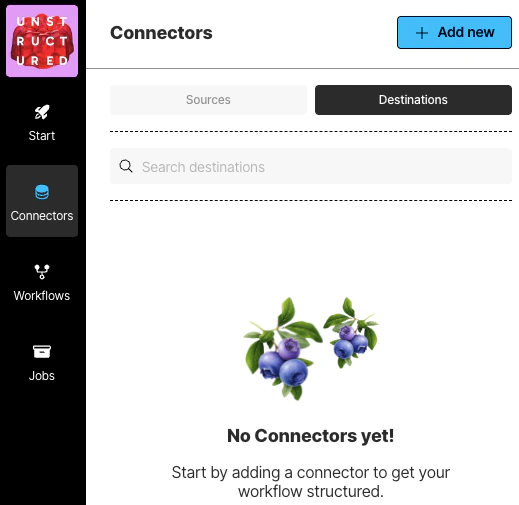 1. In the sidebar, click **Connectors**.
2. Click **Destinations**.
3. Click **New** or **Create Connector**.
4. For **Name**, enter some unique name for this connector.
5. In the **Provider** area, click the destination location type that matches yours.
6. Click **Continue**.
7. Fill in the fields with the appropriate settings. [Learn more](/pipelines/sources/overview).
8. If a **Continue** button appears, click it, and fill in any additional settings fields.
9. Click **Save and Test**.
1. In the sidebar, click **Connectors**.
2. Click **Destinations**.
3. Click **New** or **Create Connector**.
4. For **Name**, enter some unique name for this connector.
5. In the **Provider** area, click the destination location type that matches yours.
6. Click **Continue**.
7. Fill in the fields with the appropriate settings. [Learn more](/pipelines/sources/overview).
8. If a **Continue** button appears, click it, and fill in any additional settings fields.
9. Click **Save and Test**.
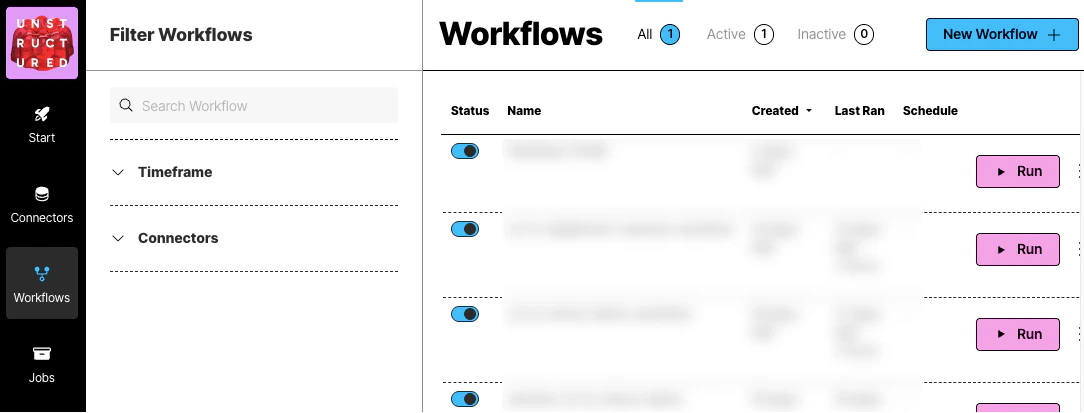 1. In the sidebar, click **Workflows**.
2. Click **New Workflow**.
3. Next to **Build it for Me**, click **Create Workflow**.
1. In the sidebar, click **Workflows**.
2. Click **New Workflow**.
3. Next to **Build it for Me**, click **Create Workflow**.
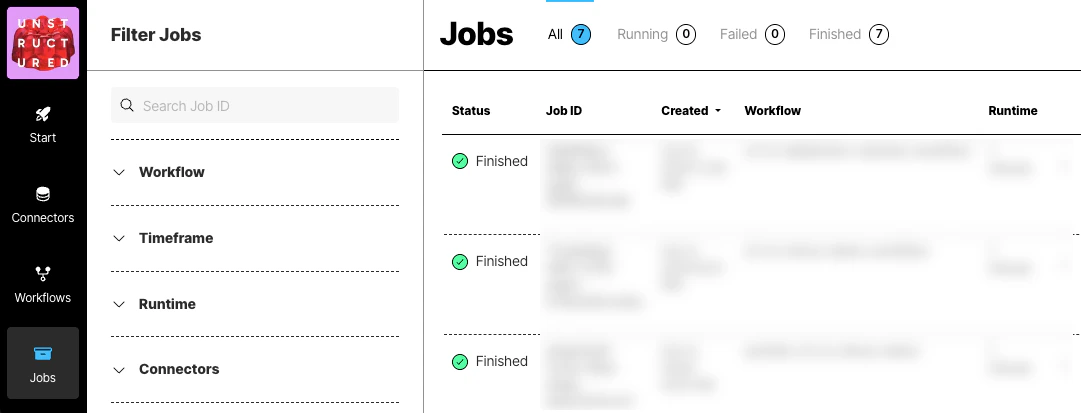
 1. In the sidebar, click **Jobs**.
2. In the list of jobs, wait for the job's **Status** to change to **Finished**.
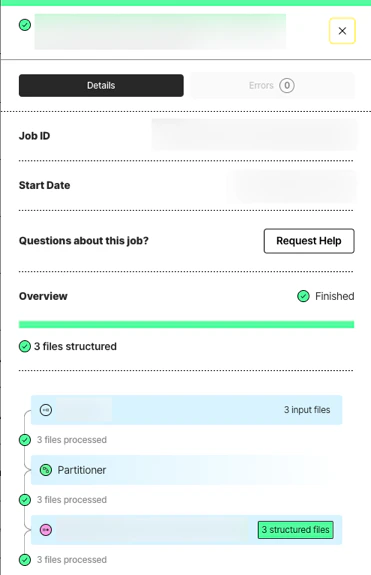
3. Click the row for the job.
4. After **Overview** displays **Finished**, go to the next Step.
1. In the sidebar, click **Jobs**.
2. In the list of jobs, wait for the job's **Status** to change to **Finished**.
3. Click the row for the job.
4. After **Overview** displays **Finished**, go to the next Step.