> ## Documentation Index
> Fetch the complete documentation index at: https://docs.unstructured.io/llms.txt
> Use this file to discover all available pages before exploring further.
# Overview
If you do not have a source location to store your documents for Unstructured to process, skip over to the
[Dropbox source connector quickstart](/pipelines/sources/dropbox-source-quickstart). This quickstart
guides you through the process of creating a free Dropbox account, uploading your files to Dropbox,
and creating a source connector to connect Unstructured to those files.
First time creating a connector? [Read this first](/pipelines/connector-first-time-reqs).
Source connectors are essential components in data integration systems that establish a link between your files and the data ingestion process. They facilitate the batch processing of files, allowing for the systematic retrieval and ingestion of data stored in various file formats.
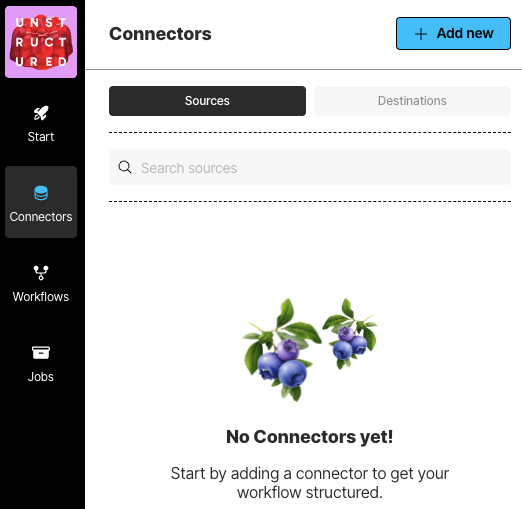 To see your existing source connectors, on the sidebar, click **Connectors**, and then click **Sources**.
To create a source connector:
1. In the sidebar, click **Connectors**.
2. Click **Sources**.
3. Click **New** or **Create Connector**.
4. For **Name**, enter some unique name for this connector.
5. In the **Provider** area, click the source location type that matches yours.
6. Click **Continue**.
7. Fill in the fields according to your connector type. To learn how, click your connector type in the following list:
* [Azure Blob Storage](/pipelines/sources/azure-blob-storage)
* [Box](/pipelines/sources/box)
* [Confluence](/pipelines/sources/confluence)
* [Couchbase](/pipelines/sources/couchbase)
* [Databricks Volumes](/pipelines/sources/databricks-volumes)
* [Dropbox](/pipelines/sources/dropbox)
* [Elasticsearch](/pipelines/sources/elasticsearch)
* [Google Cloud Storage](/pipelines/sources/google-cloud)
* [Google Drive](/pipelines/sources/google-drive)
* [IBM FileNet](/pipelines/sources/filenet)
* [Jira](/pipelines/sources/jira)
* [Kafka](/pipelines/sources/kafka)
* [MongoDB](/pipelines/sources/mongodb)
* [OneDrive](/pipelines/sources/onedrive)
* [OpenSearch](/pipelines/sources/opensearch)
* [Outlook](/pipelines/sources/outlook)
* [PostgreSQL](/pipelines/sources/postgresql)
* [S3](/pipelines/sources/s3)
* [Salesforce](/pipelines/sources/salesforce)
* [SharePoint](/pipelines/sources/sharepoint)
* [Slack](/pipelines/sources/slack)
* [Snowflake](/pipelines/sources/snowflake)
* [Teradata](/pipelines/sources/teradata-sql)
* [Zendesk](/pipelines/sources/zendesk)
8. If a **Continue** button appears, click it, and fill in any additional settings fields.
9. Click **Save and Test**.
To see your existing source connectors, on the sidebar, click **Connectors**, and then click **Sources**.
To create a source connector:
1. In the sidebar, click **Connectors**.
2. Click **Sources**.
3. Click **New** or **Create Connector**.
4. For **Name**, enter some unique name for this connector.
5. In the **Provider** area, click the source location type that matches yours.
6. Click **Continue**.
7. Fill in the fields according to your connector type. To learn how, click your connector type in the following list:
* [Azure Blob Storage](/pipelines/sources/azure-blob-storage)
* [Box](/pipelines/sources/box)
* [Confluence](/pipelines/sources/confluence)
* [Couchbase](/pipelines/sources/couchbase)
* [Databricks Volumes](/pipelines/sources/databricks-volumes)
* [Dropbox](/pipelines/sources/dropbox)
* [Elasticsearch](/pipelines/sources/elasticsearch)
* [Google Cloud Storage](/pipelines/sources/google-cloud)
* [Google Drive](/pipelines/sources/google-drive)
* [IBM FileNet](/pipelines/sources/filenet)
* [Jira](/pipelines/sources/jira)
* [Kafka](/pipelines/sources/kafka)
* [MongoDB](/pipelines/sources/mongodb)
* [OneDrive](/pipelines/sources/onedrive)
* [OpenSearch](/pipelines/sources/opensearch)
* [Outlook](/pipelines/sources/outlook)
* [PostgreSQL](/pipelines/sources/postgresql)
* [S3](/pipelines/sources/s3)
* [Salesforce](/pipelines/sources/salesforce)
* [SharePoint](/pipelines/sources/sharepoint)
* [Slack](/pipelines/sources/slack)
* [Snowflake](/pipelines/sources/snowflake)
* [Teradata](/pipelines/sources/teradata-sql)
* [Zendesk](/pipelines/sources/zendesk)
8. If a **Continue** button appears, click it, and fill in any additional settings fields.
9. Click **Save and Test**.