> ## Documentation Index
> Fetch the complete documentation index at: https://docs.unstructured.io/llms.txt
> Use this file to discover all available pages before exploring further.
# Workflows
## Workflows dashboard
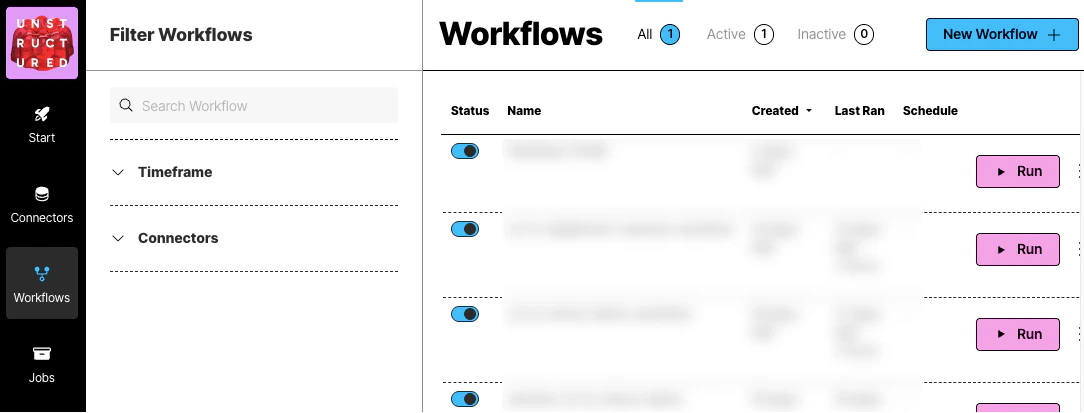 To view the workflows dashboard, on the sidebar, click **Workflows**.
A workflow in Unstructured is a defined sequence of processes that automate the data handling from source to destination. It allows users to configure how and when data should be ingested, processed, and stored.
Workflows are crucial for establishing a systematic approach to managing data flows within the platform, ensuring consistency, efficiency, and adherence to specific data processing requirements.
## Create a workflow
Unstructured provides two types of workflow builders:
* [Automatic](#create-an-automatic-workflow) or **Build it For Me** workflows, which use sensible default workflow settings to enable you to get good-quality results faster.
* [Custom](#create-a-custom-workflow) or **Build it Myself** workflows, which enable you to fine-tune the workflow settings behind the scenes to get very specific results.
### Create an automatic workflow
You must first have an existing source connector and destination connector to add to the workflow.
You cannot create an automatic workflow that uses a local file as a source.
If you do not have an existing remote connector for either your target source (input) or destination (output) location, [create the source connector](/pipelines/sources/overview), [create the destination connector](/pipelines/destinations/overview), and then return here.
To see your existing connectors, on the sidebar, click **Connectors**, and then click **Sources** or **Destinations**.
To create an automatic workflow:
1. On the sidebar, click **Workflows**.
2. Click **New Workflow**.
3. Next to **Build it for Me**, click **Create Workflow**.
If a radio button appears instead of **Build it for Me**, select it, and then click **Continue**.
4. For **Workflow Name**, enter some unique name for this workflow.
5. In the **Sources** dropdown list, select your source location.
6. In the **Destinations** dropdown list, select your destination location.
You can select multiple source and destination locations. Files will be ingested from all of the selected source locations, and the processed data will be delivered to all of the selected destination locations.
7. Click **Continue**.
8. Check or uncheck the **Reprocess All** box:
* Checking this box reprocesses all documents in the source location on every workflow run.
* Unchecking this box excludes from future processing any files Unstructured determines are unchanged since the last time the workflow ran.
Unstructured determines if a document has changed based on the document version. For each workflow, Unstructured maintains a record of documents (and their versions, if present) processed by that workflow. Each document record consists of:
* A record ID derived from the document name and path.
* A record version derived from either the document Etag (if the source provider generates one) or the source provider's native version identifier.
When you uncheck **Reprocess All** for a source connector that supports this option, Unstructured uses this list of records to determine whether or not to process each document:
* If the record ID does not exist in the workflow records, Unstructured processes the document.
* If the record ID exists, but the record version has changed, or there is no record version, Unstructured processes the document.
The following table lists out the possible record ID and record version combinations, and the action Unstructured takes in each case:
| Record ID | Record Version | Action |
| --------- | ---------------- | ------------------- |
| Exists | Unchanged | Do not process file |
| Exists | Changed | Process file |
| Exists | (none) | Process file |
| New | (Does not apply) | Process file |
Renaming a document results in a new record ID; Unstructured will then reprocess the renamed document when the workflow runs.
The following table lists the source connectors that support the **Reprocess All** setting. The **Record version base** column specifies the versioning information Unstructured uses to generated the corresponding record version for each processed document.
Source connectors that do not support **Reprocess All** reprocess every document in the source location each time the workflow runs.
| Connector | Record version base |
| ------------------------------------------------------------------------ | ------------------- |
| [Amazon S3](/api-reference/workflow/sources/s3) | ETag |
| [Azure Blob Storage](/api-reference/workflow/sources/azure-blob-storage) | ETag |
| [Box](/api-reference/workflow/sources/box) | Provider version ID |
| [Dropbox](/api-reference/workflow/sources/dropbox) | Provider version ID |
| [Elastisearch](/api-reference/workflow/sources/elasticsearch) | Provider version ID |
| [Google Cloud Storage](/api-reference/workflow/sources/google-cloud) | ETag |
| [Google Drive](/api-reference/workflow/sources/google-drive) | Provider version ID |
| [Microsoft OneDrive](/api-reference/workflow/sources/onedrive) | Provider version ID |
| [Microsoft SharePoint](/api-reference/workflow/sources/sharepoint) | Provider version ID |
Additional considerations to take into account when unchecking **Reprocess All**:
* Unstructured only adds document records for documents that it successfully processes. Documents that failed to process will be reprocessed the next time the workflow is run.
* Because S3 ETags are content-based, changing the metadata on an S3 object will not result in it being reprocessed.
* For source providers that support the S3 protocol, be aware that deleting an object and then reuploading it to the source location will maintain the same record ID, but may result in a different record version being generated. This is especially true of multipart uploads. This results in Unstructured reprocessing the document.
* For source providers that offer Key Management Services (KMS), be aware that server-side encryption can change document ETags. This results in the the record version of a document changing, and Unstructured reprocessing the document.
* If you clone or recreate a source connector, the resulting connector does not include the document processing history of the previous connector.
* Changing a workflow's configuration does not automatically result in Unstructured reprocessing all documents. For example, changing chunker, embedder, enrichment, or partitioner settings may not result in reprocessing all document. To reprocess all documents using new workflow settings, check **Reprocess All** for at least the next workflow run.
9. Click **Continue**.
10. If you want this workflow to run on a schedule, in the **Repeat Run** dropdown list, select one of the scheduling options, and fill in the scheduling settings. Otherwise, select **Don't repeat**.
11. Click **Complete**.
By default, this workflow partitions, chunks, and generates embeddings as follows:
* **Partitioner**: **Auto** strategy
Unstructured automatically analyzes and processes files on a page-by-page basis (for PDF files) and on a document-by-document basis for everything else:
* If the page or document has no images and likely does not have tables, **Fast** partitioning is used, and the page or document is billed at the **Fast** rate for processing.
* If the page or document has only a few tables or images with standard layouts and languages, **High Res** partitioning is used, and the page or document is billed at the **High Res** rate for processing.
* If the page or document has more than a few tables or images, **VLM** partitioning is used, and the page or document is billed at the **VLM** rate for processing.
[Learn about partitioning strategies](/concepts/partitioning).
* **Chunker**: **Chunk by Title** strategy
* **Contextual Chunking**: No (unchecked)
* **Combine Text Under N Characters**: 3000
* **Include Original Elements**: Yes (checked)
* **Max Characters**: 5500
* **Multipage Sections**: Yes (checked)
* **New After N Characters**: 3500
* **Overlap**: 350
* **Overlap All**: Yes (checked)
[Learn about chunking strategies](/concepts/chunking).
* **Embedder**:
* **Provider**: Azure OpenAI
* **Model**: text-embedding-3-large, with 3072 dimensions
[Learn about embedding providers and models](/concepts/embedding).
* Enrichments:
This workflow contains no enrichments, other than a **Chunker** node.
[Learn about available enrichments](/concepts/enriching/overview).
After this workflow is created, you can change any or all of its settings if you want to. This includes the workflow's
source connector, destination connector, partitioning, chunking, and embedding settings. You can also add enrichments
to the workflow if you want to.
Unstructured can potentially generate image summary descriptions, table summary descriptions, table-to-HTML output, and generative OCR optimizations, only for workflows that are configured as follows:
* With a **Partitioner** node set to use the **Auto** or **High Res** partitioning strategy, and an image summary description node, table summary description node, table-to-HTML output node, or generative OCR optimization node is added.
* With a **Partitioner** node set to use the **VLM** partitioning strategy. No image summary description node, table summary description node, table-to-HTML output node, or generative OCR optimization node is needed (or allowed).
Even with these configurations, Unstructured actually generates image summary descriptions, table summary descriptions, and table-to-HTML output only for files that contain images or tables and are also eligible
for processing with the following partitioning strategies:
* **High Res**, when the workflow's **Partitioner** node is set to use **Auto** or **High Res**.
* **VLM** or **High Res**, when the workflow's **Partitioner** node is set to use **VLM**.
Unstructured never generates image summary descriptions, table summary descriptions, or table-to-HTML output for workflows that are configured as follows:
* With a **Partitioner** node set to use the **Fast** partitioning strategy.
* With a **Partitioner** node set to use the **Auto**, **High Res**, or **VLM** partitioning strategy, for all files that Unstructured encounters that do not contain images or tables.
Unstructured never produces generative OCR optimizations for workflows with a **Partitioner** node set to use the **Fast** partitioning strategy.
To change the workflow's default settings or to add enrichments:
1. On the sidebar, click **Workflows**.
2. In the list of available workflows, click the workflow that was just created. This opens a visual designer that shows
your workflow as a directed acyclic graph (DAG). This DAG contains a node representing each step in the workflow.
There is one node for the partitioning step, another node for the chunking step, and so on.
3. To learn how to change a node's settings or to add enrichment nodes, click the **FAQ** button in the flyout pane in
the workflow DAG designer.
If you did not previously set the workflow to run on a schedule, you can [run the workflow](#edit-delete-or-run-a-workflow) now.
### Create a custom workflow
If you already have an existing workflow that you want to change, do the following:
1. On the sidebar, click **Workflows**.
2. Click the name of the workflow that you want to change.
3. Skip ahead to Step 11 in the following procedure.
You can create and save a custom workflow that uses a local file as a source or does not have a source or destination connector added. However, you cannot activate the workflow or run the workflow
either manually or on a schedule until a source and destination connector are added to the workflow.
If you do not have an existing connector for either your target source or destination location, [create the source connector](/pipelines/sources/overview), [create the destination connector](/pipelines/destinations/overview), and then return here.
To see your existing connectors, on the sidebar, click **Connectors**, and then click **Sources** or **Destinations**.
1. On the sidebar, click **Workflows**.
2. Click **New Workflow**.
3. Click the **Build it Myself** option, and then click **Continue**.
4. In the **This workflow** pane, click the **Details** button.
To view the workflows dashboard, on the sidebar, click **Workflows**.
A workflow in Unstructured is a defined sequence of processes that automate the data handling from source to destination. It allows users to configure how and when data should be ingested, processed, and stored.
Workflows are crucial for establishing a systematic approach to managing data flows within the platform, ensuring consistency, efficiency, and adherence to specific data processing requirements.
## Create a workflow
Unstructured provides two types of workflow builders:
* [Automatic](#create-an-automatic-workflow) or **Build it For Me** workflows, which use sensible default workflow settings to enable you to get good-quality results faster.
* [Custom](#create-a-custom-workflow) or **Build it Myself** workflows, which enable you to fine-tune the workflow settings behind the scenes to get very specific results.
### Create an automatic workflow
You must first have an existing source connector and destination connector to add to the workflow.
You cannot create an automatic workflow that uses a local file as a source.
If you do not have an existing remote connector for either your target source (input) or destination (output) location, [create the source connector](/pipelines/sources/overview), [create the destination connector](/pipelines/destinations/overview), and then return here.
To see your existing connectors, on the sidebar, click **Connectors**, and then click **Sources** or **Destinations**.
To create an automatic workflow:
1. On the sidebar, click **Workflows**.
2. Click **New Workflow**.
3. Next to **Build it for Me**, click **Create Workflow**.
If a radio button appears instead of **Build it for Me**, select it, and then click **Continue**.
4. For **Workflow Name**, enter some unique name for this workflow.
5. In the **Sources** dropdown list, select your source location.
6. In the **Destinations** dropdown list, select your destination location.
You can select multiple source and destination locations. Files will be ingested from all of the selected source locations, and the processed data will be delivered to all of the selected destination locations.
7. Click **Continue**.
8. Check or uncheck the **Reprocess All** box:
* Checking this box reprocesses all documents in the source location on every workflow run.
* Unchecking this box excludes from future processing any files Unstructured determines are unchanged since the last time the workflow ran.
Unstructured determines if a document has changed based on the document version. For each workflow, Unstructured maintains a record of documents (and their versions, if present) processed by that workflow. Each document record consists of:
* A record ID derived from the document name and path.
* A record version derived from either the document Etag (if the source provider generates one) or the source provider's native version identifier.
When you uncheck **Reprocess All** for a source connector that supports this option, Unstructured uses this list of records to determine whether or not to process each document:
* If the record ID does not exist in the workflow records, Unstructured processes the document.
* If the record ID exists, but the record version has changed, or there is no record version, Unstructured processes the document.
The following table lists out the possible record ID and record version combinations, and the action Unstructured takes in each case:
| Record ID | Record Version | Action |
| --------- | ---------------- | ------------------- |
| Exists | Unchanged | Do not process file |
| Exists | Changed | Process file |
| Exists | (none) | Process file |
| New | (Does not apply) | Process file |
Renaming a document results in a new record ID; Unstructured will then reprocess the renamed document when the workflow runs.
The following table lists the source connectors that support the **Reprocess All** setting. The **Record version base** column specifies the versioning information Unstructured uses to generated the corresponding record version for each processed document.
Source connectors that do not support **Reprocess All** reprocess every document in the source location each time the workflow runs.
| Connector | Record version base |
| ------------------------------------------------------------------------ | ------------------- |
| [Amazon S3](/api-reference/workflow/sources/s3) | ETag |
| [Azure Blob Storage](/api-reference/workflow/sources/azure-blob-storage) | ETag |
| [Box](/api-reference/workflow/sources/box) | Provider version ID |
| [Dropbox](/api-reference/workflow/sources/dropbox) | Provider version ID |
| [Elastisearch](/api-reference/workflow/sources/elasticsearch) | Provider version ID |
| [Google Cloud Storage](/api-reference/workflow/sources/google-cloud) | ETag |
| [Google Drive](/api-reference/workflow/sources/google-drive) | Provider version ID |
| [Microsoft OneDrive](/api-reference/workflow/sources/onedrive) | Provider version ID |
| [Microsoft SharePoint](/api-reference/workflow/sources/sharepoint) | Provider version ID |
Additional considerations to take into account when unchecking **Reprocess All**:
* Unstructured only adds document records for documents that it successfully processes. Documents that failed to process will be reprocessed the next time the workflow is run.
* Because S3 ETags are content-based, changing the metadata on an S3 object will not result in it being reprocessed.
* For source providers that support the S3 protocol, be aware that deleting an object and then reuploading it to the source location will maintain the same record ID, but may result in a different record version being generated. This is especially true of multipart uploads. This results in Unstructured reprocessing the document.
* For source providers that offer Key Management Services (KMS), be aware that server-side encryption can change document ETags. This results in the the record version of a document changing, and Unstructured reprocessing the document.
* If you clone or recreate a source connector, the resulting connector does not include the document processing history of the previous connector.
* Changing a workflow's configuration does not automatically result in Unstructured reprocessing all documents. For example, changing chunker, embedder, enrichment, or partitioner settings may not result in reprocessing all document. To reprocess all documents using new workflow settings, check **Reprocess All** for at least the next workflow run.
9. Click **Continue**.
10. If you want this workflow to run on a schedule, in the **Repeat Run** dropdown list, select one of the scheduling options, and fill in the scheduling settings. Otherwise, select **Don't repeat**.
11. Click **Complete**.
By default, this workflow partitions, chunks, and generates embeddings as follows:
* **Partitioner**: **Auto** strategy
Unstructured automatically analyzes and processes files on a page-by-page basis (for PDF files) and on a document-by-document basis for everything else:
* If the page or document has no images and likely does not have tables, **Fast** partitioning is used, and the page or document is billed at the **Fast** rate for processing.
* If the page or document has only a few tables or images with standard layouts and languages, **High Res** partitioning is used, and the page or document is billed at the **High Res** rate for processing.
* If the page or document has more than a few tables or images, **VLM** partitioning is used, and the page or document is billed at the **VLM** rate for processing.
[Learn about partitioning strategies](/concepts/partitioning).
* **Chunker**: **Chunk by Title** strategy
* **Contextual Chunking**: No (unchecked)
* **Combine Text Under N Characters**: 3000
* **Include Original Elements**: Yes (checked)
* **Max Characters**: 5500
* **Multipage Sections**: Yes (checked)
* **New After N Characters**: 3500
* **Overlap**: 350
* **Overlap All**: Yes (checked)
[Learn about chunking strategies](/concepts/chunking).
* **Embedder**:
* **Provider**: Azure OpenAI
* **Model**: text-embedding-3-large, with 3072 dimensions
[Learn about embedding providers and models](/concepts/embedding).
* Enrichments:
This workflow contains no enrichments, other than a **Chunker** node.
[Learn about available enrichments](/concepts/enriching/overview).
After this workflow is created, you can change any or all of its settings if you want to. This includes the workflow's
source connector, destination connector, partitioning, chunking, and embedding settings. You can also add enrichments
to the workflow if you want to.
Unstructured can potentially generate image summary descriptions, table summary descriptions, table-to-HTML output, and generative OCR optimizations, only for workflows that are configured as follows:
* With a **Partitioner** node set to use the **Auto** or **High Res** partitioning strategy, and an image summary description node, table summary description node, table-to-HTML output node, or generative OCR optimization node is added.
* With a **Partitioner** node set to use the **VLM** partitioning strategy. No image summary description node, table summary description node, table-to-HTML output node, or generative OCR optimization node is needed (or allowed).
Even with these configurations, Unstructured actually generates image summary descriptions, table summary descriptions, and table-to-HTML output only for files that contain images or tables and are also eligible
for processing with the following partitioning strategies:
* **High Res**, when the workflow's **Partitioner** node is set to use **Auto** or **High Res**.
* **VLM** or **High Res**, when the workflow's **Partitioner** node is set to use **VLM**.
Unstructured never generates image summary descriptions, table summary descriptions, or table-to-HTML output for workflows that are configured as follows:
* With a **Partitioner** node set to use the **Fast** partitioning strategy.
* With a **Partitioner** node set to use the **Auto**, **High Res**, or **VLM** partitioning strategy, for all files that Unstructured encounters that do not contain images or tables.
Unstructured never produces generative OCR optimizations for workflows with a **Partitioner** node set to use the **Fast** partitioning strategy.
To change the workflow's default settings or to add enrichments:
1. On the sidebar, click **Workflows**.
2. In the list of available workflows, click the workflow that was just created. This opens a visual designer that shows
your workflow as a directed acyclic graph (DAG). This DAG contains a node representing each step in the workflow.
There is one node for the partitioning step, another node for the chunking step, and so on.
3. To learn how to change a node's settings or to add enrichment nodes, click the **FAQ** button in the flyout pane in
the workflow DAG designer.
If you did not previously set the workflow to run on a schedule, you can [run the workflow](#edit-delete-or-run-a-workflow) now.
### Create a custom workflow
If you already have an existing workflow that you want to change, do the following:
1. On the sidebar, click **Workflows**.
2. Click the name of the workflow that you want to change.
3. Skip ahead to Step 11 in the following procedure.
You can create and save a custom workflow that uses a local file as a source or does not have a source or destination connector added. However, you cannot activate the workflow or run the workflow
either manually or on a schedule until a source and destination connector are added to the workflow.
If you do not have an existing connector for either your target source or destination location, [create the source connector](/pipelines/sources/overview), [create the destination connector](/pipelines/destinations/overview), and then return here.
To see your existing connectors, on the sidebar, click **Connectors**, and then click **Sources** or **Destinations**.
1. On the sidebar, click **Workflows**.
2. Click **New Workflow**.
3. Click the **Build it Myself** option, and then click **Continue**.
4. In the **This workflow** pane, click the **Details** button.
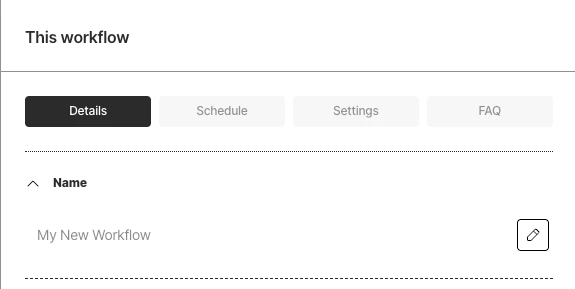 5. Next to **Name**, click the pencil icon, enter some unique name for this workflow, and then click the check mark icon.
6. If you want this workflow to run on a schedule, click the **Schedule** button. In the **Repeat Run** dropdown list, select one of the scheduling options, and fill in the scheduling settings.
7. To overwrite any previously processed files, or to retry any documents that fail to process, click the **Settings** button, and check either or both of the boxes.
Check or uncheck the **Reprocess All** box:
* Checking this box reprocesses all documents in the source location on every workflow run.
* Unchecking this box excludes from future processing any files Unstructured determines are unchanged since the last time the workflow ran.
Unstructured determines if a document has changed based on the document version. For each workflow, Unstructured maintains a record of documents (and their versions, if present) processed by that workflow. Each document record consists of:
* A record ID derived from the document name and path.
* A record version derived from either the document Etag (if the source provider generates one) or the source provider's native version identifier.
When you uncheck **Reprocess All** for a source connector that supports this option, Unstructured uses this list of records to determine whether or not to process each document:
* If the record ID does not exist in the workflow records, Unstructured processes the document.
* If the record ID exists, but the record version has changed, or there is no record version, Unstructured processes the document.
The following table lists out the possible record ID and record version combinations, and the action Unstructured takes in each case:
| Record ID | Record Version | Action |
| --------- | ---------------- | ------------------- |
| Exists | Unchanged | Do not process file |
| Exists | Changed | Process file |
| Exists | (none) | Process file |
| New | (Does not apply) | Process file |
Renaming a document results in a new record ID; Unstructured will then reprocess the renamed document when the workflow runs.
The following table lists the source connectors that support the **Reprocess All** setting. The **Record version base** column specifies the versioning information Unstructured uses to generated the corresponding record version for each processed document.
Source connectors that do not support **Reprocess All** reprocess every document in the source location each time the workflow runs.
| Connector | Record version base |
| ------------------------------------------------------------------------ | ------------------- |
| [Amazon S3](/api-reference/workflow/sources/s3) | ETag |
| [Azure Blob Storage](/api-reference/workflow/sources/azure-blob-storage) | ETag |
| [Box](/api-reference/workflow/sources/box) | Provider version ID |
| [Dropbox](/api-reference/workflow/sources/dropbox) | Provider version ID |
| [Elastisearch](/api-reference/workflow/sources/elasticsearch) | Provider version ID |
| [Google Cloud Storage](/api-reference/workflow/sources/google-cloud) | ETag |
| [Google Drive](/api-reference/workflow/sources/google-drive) | Provider version ID |
| [Microsoft OneDrive](/api-reference/workflow/sources/onedrive) | Provider version ID |
| [Microsoft SharePoint](/api-reference/workflow/sources/sharepoint) | Provider version ID |
Additional considerations to take into account when unchecking **Reprocess All**:
* Unstructured only adds document records for documents that it successfully processes. Documents that failed to process will be reprocessed the next time the workflow is run.
* Because S3 ETags are content-based, changing the metadata on an S3 object will not result in it being reprocessed.
* For source providers that support the S3 protocol, be aware that deleting an object and then reuploading it to the source location will maintain the same record ID, but may result in a different record version being generated. This is especially true of multipart uploads. This results in Unstructured reprocessing the document.
* For source providers that offer Key Management Services (KMS), be aware that server-side encryption can change document ETags. This results in the the record version of a document changing, and Unstructured reprocessing the document.
* If you clone or recreate a source connector, the resulting connector does not include the document processing history of the previous connector.
* Changing a workflow's configuration does not automatically result in Unstructured reprocessing all documents. For example, changing chunker, embedder, enrichment, or partitioner settings may not result in reprocessing all document. To reprocess all documents using new workflow settings, check **Reprocess All** for at least the next workflow run.
8. The workflow begins with the following layout:
```mermaid theme={null}
flowchart LR
Source-->Partitioner-->Destination
```
The following workflow layouts are also valid:
```mermaid theme={null}
flowchart LR
Source-->Partitioner-->Chunker-->Destination
```
```mermaid theme={null}
flowchart LR
Source-->Partitioner-->Chunker-->Embedder-->Destination
```
```mermaid theme={null}
flowchart LR
Source-->Partitioner-->Enrichment-->Chunker-->Destination
```
```mermaid theme={null}
flowchart LR
Source-->Partitioner-->Enrichment-->Chunker-->Embedder-->Destination
```
```mermaid theme={null}
flowchart LR
Source-->Partitioner-->Extract-->Destination
```
```mermaid theme={null}
flowchart LR
Source-->Partitioner-->Chunker-->Extract-->Destination
```
```mermaid theme={null}
flowchart LR
Source-->Partitioner-->Chunker-->Embedder-->Extract-->Destination
```
```mermaid theme={null}
flowchart LR
Source-->Partitioner-->Enrichment-->Chunker-->Extract-->Destination
```
```mermaid theme={null}
flowchart LR
Source-->Partitioner-->Enrichment-->Chunker-->Embedder-->Extract-->Destination
```
For workflows that use **Chunker** and enrichment nodes together, the **Chunker** node should be placed after all enrichment nodes. Placing the
**Chunker** node before any enrichment nodes could cause incomplete or no enrichment results to be generated.
You can create and save a workflow that does not use a valid workflow layout. However, you cannot activate the workflow or run the workflow
either manually or on a schedule until the workflow is changed to use a valid workflow layout.
9. In the pipeline designer, click the **Source** node. In the **Source** pane, select the source location. Then click **Save**.
5. Next to **Name**, click the pencil icon, enter some unique name for this workflow, and then click the check mark icon.
6. If you want this workflow to run on a schedule, click the **Schedule** button. In the **Repeat Run** dropdown list, select one of the scheduling options, and fill in the scheduling settings.
7. To overwrite any previously processed files, or to retry any documents that fail to process, click the **Settings** button, and check either or both of the boxes.
Check or uncheck the **Reprocess All** box:
* Checking this box reprocesses all documents in the source location on every workflow run.
* Unchecking this box excludes from future processing any files Unstructured determines are unchanged since the last time the workflow ran.
Unstructured determines if a document has changed based on the document version. For each workflow, Unstructured maintains a record of documents (and their versions, if present) processed by that workflow. Each document record consists of:
* A record ID derived from the document name and path.
* A record version derived from either the document Etag (if the source provider generates one) or the source provider's native version identifier.
When you uncheck **Reprocess All** for a source connector that supports this option, Unstructured uses this list of records to determine whether or not to process each document:
* If the record ID does not exist in the workflow records, Unstructured processes the document.
* If the record ID exists, but the record version has changed, or there is no record version, Unstructured processes the document.
The following table lists out the possible record ID and record version combinations, and the action Unstructured takes in each case:
| Record ID | Record Version | Action |
| --------- | ---------------- | ------------------- |
| Exists | Unchanged | Do not process file |
| Exists | Changed | Process file |
| Exists | (none) | Process file |
| New | (Does not apply) | Process file |
Renaming a document results in a new record ID; Unstructured will then reprocess the renamed document when the workflow runs.
The following table lists the source connectors that support the **Reprocess All** setting. The **Record version base** column specifies the versioning information Unstructured uses to generated the corresponding record version for each processed document.
Source connectors that do not support **Reprocess All** reprocess every document in the source location each time the workflow runs.
| Connector | Record version base |
| ------------------------------------------------------------------------ | ------------------- |
| [Amazon S3](/api-reference/workflow/sources/s3) | ETag |
| [Azure Blob Storage](/api-reference/workflow/sources/azure-blob-storage) | ETag |
| [Box](/api-reference/workflow/sources/box) | Provider version ID |
| [Dropbox](/api-reference/workflow/sources/dropbox) | Provider version ID |
| [Elastisearch](/api-reference/workflow/sources/elasticsearch) | Provider version ID |
| [Google Cloud Storage](/api-reference/workflow/sources/google-cloud) | ETag |
| [Google Drive](/api-reference/workflow/sources/google-drive) | Provider version ID |
| [Microsoft OneDrive](/api-reference/workflow/sources/onedrive) | Provider version ID |
| [Microsoft SharePoint](/api-reference/workflow/sources/sharepoint) | Provider version ID |
Additional considerations to take into account when unchecking **Reprocess All**:
* Unstructured only adds document records for documents that it successfully processes. Documents that failed to process will be reprocessed the next time the workflow is run.
* Because S3 ETags are content-based, changing the metadata on an S3 object will not result in it being reprocessed.
* For source providers that support the S3 protocol, be aware that deleting an object and then reuploading it to the source location will maintain the same record ID, but may result in a different record version being generated. This is especially true of multipart uploads. This results in Unstructured reprocessing the document.
* For source providers that offer Key Management Services (KMS), be aware that server-side encryption can change document ETags. This results in the the record version of a document changing, and Unstructured reprocessing the document.
* If you clone or recreate a source connector, the resulting connector does not include the document processing history of the previous connector.
* Changing a workflow's configuration does not automatically result in Unstructured reprocessing all documents. For example, changing chunker, embedder, enrichment, or partitioner settings may not result in reprocessing all document. To reprocess all documents using new workflow settings, check **Reprocess All** for at least the next workflow run.
8. The workflow begins with the following layout:
```mermaid theme={null}
flowchart LR
Source-->Partitioner-->Destination
```
The following workflow layouts are also valid:
```mermaid theme={null}
flowchart LR
Source-->Partitioner-->Chunker-->Destination
```
```mermaid theme={null}
flowchart LR
Source-->Partitioner-->Chunker-->Embedder-->Destination
```
```mermaid theme={null}
flowchart LR
Source-->Partitioner-->Enrichment-->Chunker-->Destination
```
```mermaid theme={null}
flowchart LR
Source-->Partitioner-->Enrichment-->Chunker-->Embedder-->Destination
```
```mermaid theme={null}
flowchart LR
Source-->Partitioner-->Extract-->Destination
```
```mermaid theme={null}
flowchart LR
Source-->Partitioner-->Chunker-->Extract-->Destination
```
```mermaid theme={null}
flowchart LR
Source-->Partitioner-->Chunker-->Embedder-->Extract-->Destination
```
```mermaid theme={null}
flowchart LR
Source-->Partitioner-->Enrichment-->Chunker-->Extract-->Destination
```
```mermaid theme={null}
flowchart LR
Source-->Partitioner-->Enrichment-->Chunker-->Embedder-->Extract-->Destination
```
For workflows that use **Chunker** and enrichment nodes together, the **Chunker** node should be placed after all enrichment nodes. Placing the
**Chunker** node before any enrichment nodes could cause incomplete or no enrichment results to be generated.
You can create and save a workflow that does not use a valid workflow layout. However, you cannot activate the workflow or run the workflow
either manually or on a schedule until the workflow is changed to use a valid workflow layout.
9. In the pipeline designer, click the **Source** node. In the **Source** pane, select the source location. Then click **Save**.
 To use a local source location, do not choose a source connector.
If the workflow uses a local source location, in the **Source** node, drag or click to specify a local file, and then click **Test**. The workflow's
results are displayed on-screen.
A workflow that uses a local source location has the following limitations:
* You cannot save the workflow.
* You cannot send the results to a remote destination location, even if you have attached a destination connector to
the workflow. However, you can save the results to a local JSON-formatted file.
10. Click the **Destination** node. In the **Destination** pane, select the destination location. Then click **Save**.
11. As needed, add more nodes by clicking the plus icon (recommended) or **Add Node** button:
To use a local source location, do not choose a source connector.
If the workflow uses a local source location, in the **Source** node, drag or click to specify a local file, and then click **Test**. The workflow's
results are displayed on-screen.
A workflow that uses a local source location has the following limitations:
* You cannot save the workflow.
* You cannot send the results to a remote destination location, even if you have attached a destination connector to
the workflow. However, you can save the results to a local JSON-formatted file.
10. Click the **Destination** node. In the **Destination** pane, select the destination location. Then click **Save**.
11. As needed, add more nodes by clicking the plus icon (recommended) or **Add Node** button:
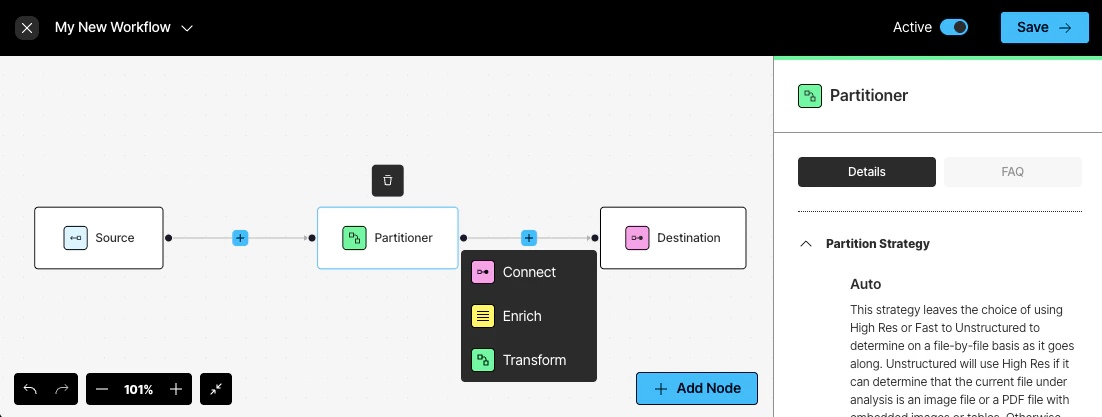 * Click **Connect** to add another **Source** or **Destination** node. You can add multiple source and destination locations. Files will be ingested from all of the source locations, and the processed data will be delivered to all of the destination locations. [Learn more](#custom-workflow-node-types).
* Click **Enrich** to add a chunker or enrichment node. [Learn more](#custom-workflow-node-types).
Unstructured can potentially generate image summary descriptions, table summary descriptions, table-to-HTML output, and generative OCR optimizations, only for workflows that are configured as follows:
* With a **Partitioner** node set to use the **Auto** or **High Res** partitioning strategy, and an image summary description node, table summary description node, table-to-HTML output node, or generative OCR optimization node is added.
* With a **Partitioner** node set to use the **VLM** partitioning strategy. No image summary description node, table summary description node, table-to-HTML output node, or generative OCR optimization node is needed (or allowed).
Even with these configurations, Unstructured actually generates image summary descriptions, table summary descriptions, and table-to-HTML output only for files that contain images or tables and are also eligible
for processing with the following partitioning strategies:
* **High Res**, when the workflow's **Partitioner** node is set to use **Auto** or **High Res**.
* **VLM** or **High Res**, when the workflow's **Partitioner** node is set to use **VLM**.
Unstructured never generates image summary descriptions, table summary descriptions, or table-to-HTML output for workflows that are configured as follows:
* With a **Partitioner** node set to use the **Fast** partitioning strategy.
* With a **Partitioner** node set to use the **Auto**, **High Res**, or **VLM** partitioning strategy, for all files that Unstructured encounters that do not contain images or tables.
Unstructured never produces generative OCR optimizations for workflows with a **Partitioner** node set to use the **Fast** partitioning strategy.
* Click **Transform** to add a **Partitioner** or **Embedder** node. [Learn more](#custom-workflow-node-types).
If you add an **Embedder** node, you must set the **Chunker** node's **Max Characters** setting to a value at or below Unstructured's recommended
maximum chunk size for your selected embedding model. [Learn more](/concepts/embedding#chunk-sizing-and-embedding-models).
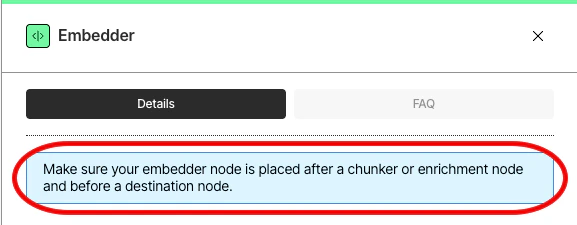
Make sure to add nodes in the correct order. If you are unsure, see the usage hints in the blue note that appears
in the node's settings pane.
* Click **Connect** to add another **Source** or **Destination** node. You can add multiple source and destination locations. Files will be ingested from all of the source locations, and the processed data will be delivered to all of the destination locations. [Learn more](#custom-workflow-node-types).
* Click **Enrich** to add a chunker or enrichment node. [Learn more](#custom-workflow-node-types).
Unstructured can potentially generate image summary descriptions, table summary descriptions, table-to-HTML output, and generative OCR optimizations, only for workflows that are configured as follows:
* With a **Partitioner** node set to use the **Auto** or **High Res** partitioning strategy, and an image summary description node, table summary description node, table-to-HTML output node, or generative OCR optimization node is added.
* With a **Partitioner** node set to use the **VLM** partitioning strategy. No image summary description node, table summary description node, table-to-HTML output node, or generative OCR optimization node is needed (or allowed).
Even with these configurations, Unstructured actually generates image summary descriptions, table summary descriptions, and table-to-HTML output only for files that contain images or tables and are also eligible
for processing with the following partitioning strategies:
* **High Res**, when the workflow's **Partitioner** node is set to use **Auto** or **High Res**.
* **VLM** or **High Res**, when the workflow's **Partitioner** node is set to use **VLM**.
Unstructured never generates image summary descriptions, table summary descriptions, or table-to-HTML output for workflows that are configured as follows:
* With a **Partitioner** node set to use the **Fast** partitioning strategy.
* With a **Partitioner** node set to use the **Auto**, **High Res**, or **VLM** partitioning strategy, for all files that Unstructured encounters that do not contain images or tables.
Unstructured never produces generative OCR optimizations for workflows with a **Partitioner** node set to use the **Fast** partitioning strategy.
* Click **Transform** to add a **Partitioner** or **Embedder** node. [Learn more](#custom-workflow-node-types).
If you add an **Embedder** node, you must set the **Chunker** node's **Max Characters** setting to a value at or below Unstructured's recommended
maximum chunk size for your selected embedding model. [Learn more](/concepts/embedding#chunk-sizing-and-embedding-models).
Make sure to add nodes in the correct order. If you are unsure, see the usage hints in the blue note that appears
in the node's settings pane.
 To edit a node, click that node, and then change its settings.
To delete a node, click that node, and then click the trash can icon above it.
12. Click **Save**.
13. If you did not set the workflow to run on a schedule, you can [run the workflow](#edit-delete-or-run-a-workflow) now.
#### Custom workflow node types
Choose from one of four available partitioning strategies.
Unstructured recommends that you choose the **Auto** partitioning strategy in most cases. With **Auto**, Unstructured does all
the heavy lifting, optimizing at runtime for the highest quality at the lowest cost page-by-page.
You should consider the following additional strategies only if you are absolutely sure that your documents are of the same
type. Each of the following strategies are best suited for specific situations. Choosing one of these
strategies other than **Auto** for sets of documents of different types could produce undesirable results,
including reduction in transformation quality.
* **VLM**: For the highest-quality transformation of these file types: `.bmp`, `.gif`, `.heic`, `.jpeg`, `.jpg`, `.pdf`, `.png`, `.tiff`, and `.webp`.
* **High Res**: For all other [supported file types](/pipelines/supported-file-types), and for the generation of bounding box coordinates.
* **Fast**: For text-only documents.
The **Auto** partitioning strategy routes each file as a complete unit to the appropriate partitioning strategy (**VLM**, **High Res**, or **Fast**)
based on the preceding file types. Additionally, for `.pdf` files, the **Auto** partitioning strategy routes these files' pages
on a page-by-page basis, as follows:
* A page is routed to **Fast** when it contains only embedded text and no images or tables are detected.
* All other kinds of pages are routed to **VLM** or **High Res**, depending on the complexity of a page's
content. Unstructured constantly optimizes its proprietary algorithm for routing to **VLM** or **High Res** in these cases.
For **VLM**, you must also choose a VLM provider and model from among the available choices that are shown. For a full list of the models available in Unstructured, see [Available models](/api-reference/workflow/models).
The following models are no longer available as of the following dates:
* Amazon Bedrock Claude Sonnet 3.5: October 22, 2025
* Anthropic Claude Sonnet 3.5: October 22, 2025
Unstructured recommends the following actions:
* For new workflows, do not use any of these models.
* For any workflow that uses any of these models, update that workflow as soon as possible to use a different model.
Workflows that attempt to use any of these models on or after its associated date will return errors.
When you use the **VLM** strategy with embeddings for PDF files of 200 or more pages, you might notice some errors when
these files are processed. These errors typically occur when these larger PDF files have lots of tables and high-resolution images.
If you choose the **Fast** strategy, you can also choose from among the following additional settings:
* **Include Page breaks**: Check this box to include distinct `PageBreak` document elements in the output, if the file type supports it.
* **Infer Table Structure**: Check this box to add, for each table in a PDF file, a metadata field named `text_as_html` to the output for that table's document element. This field will contain an HTML representation of the table.
* **Elements to Exclude**: Select the name of each available type of [document element](/concepts/document-elements) to exclude from the output.
If you choose the **High Res** strategy, you can also choose from among the following additional settings:
* **Include Page breaks**: Check this box to include distinct `PageBreak` document elements in the output, if the file type supports it.
* **Infer Table Structure**: Check this box to add, for each table in a PDF file, a metadata field named `text_as_html` to the output for that table's document element. This field will contain an HTML representation of the table.
* **Include Coordinates**: Check this box to add, for each [document element](/concepts/document-elements) in the output, a metadata field named `coordinates` to the output for that document element. This field will contain the bounding box coordinates of the document element's content on the page, as well as the bounding box's width and height in pixels.
* **Extract Image Block Types**: Select the name of each available type of document element to add a metadata field named `image_base64` to the output for that document element. This field will contain a Base64-encoded representation of the document element's content. A Base64-to-image decoding of this field's value will return an image representing the document element's original content.
* **Elements to Exclude**: Select the name of each available type of document element to exclude from the output.
[Learn more](/concepts/partitioning).
For **Chunkers**, select one of the following:
* **Chunk by title**: Preserve section boundaries and optionally page boundaries as well. A single chunk will never contain text that occurred in two different sections. When a new section starts, the existing chunk is closed and a new one is started, even if the next element would fit in the prior chunk. Also, specify the following:
* **Contextual chunking**: When switched on, prepends chunk-specific explanatory context to each chunk. [Learn more](/concepts/chunking#contextual-chunking).
* **Combine text under n chars**: Combine elements until a section reaches a length of this many characters. The default is **0**.
* **Include original elements**: Check this box to output the elements that were used to form a chunk, to appear in the `metadata` field's `orig_elements` field for that chunk. By default, this box is unchecked.
* **Max characters**: Cut off new sections after reaching a length of this many characters. This is a strict limit. The default is **2048**.
* **Multipage sections**: Check this box to allow sections to span multiple pages. By default, this box is unchecked.
* **New after n chars**: Cut off new sections after reaching a length of this many characters. This is an approximate limit. The default is **1500**.
* **Overlap**: Apply a prefix of this many trailing characters from the prior text-split chunk to second and later chunks formed from oversized elements by text-splitting. The default is **160**.
* **Overlap all**: Check this box to apply overlap to "normal" chunks formed by combining whole elements. Use with caution as this can introduce noise into otherwise clean semantic units. By default, this box is unchecked.
* **Chunk by character** (also known as *basic* chunking): Combine sequential elements to maximally fill each chunk. Also, specify the following:
* **Contextual chunking**: When switched on, prepends chunk-specific explanatory context to each chunk. [Learn more](/concepts/chunking#contextual-chunking).
* **Include original elements**: Check this box to output the elements that were used to form a chunk, to appear in the `metadata` field's `orig_elements` field for that chunk. By default, this box is unchecked.
* **Max characters**: Cut off new sections after reaching a length of this many characters. The default is **2048**.
* **New after n chars**: Cut off new sections after reaching a length of this many characters. This is an approximate limit. The default is **1500**.
* **Overlap**: Apply a prefix of this many trailing characters from the prior text-split chunk to second and later chunks formed from oversized elements by text-splitting. The default is **160**.
* **Overlap All**: Check this box to apply overlap to "normal" chunks formed by combining whole elements. Use with caution as this can introduce noise into otherwise clean semantic units. By default, this box is unchecked.
* **Chunk by page**: Preserve page boundaries. When a new page is detected, the existing chunk is closed and a new one is started, even if the next element would fit in the prior chunk. Also, specify the following:
* **Contextual chunking**: When switched on, prepends chunk-specific explanatory context to each chunk. [Learn more](/concepts/chunking#contextual-chunking).
* **Include original elements**: Check this box to output the elements that were used to form a chunk, to appear in the `metadata` field's `orig_elements` field for that chunk. By default, this box is unchecked.
* **Max characters**: Cut off new sections after reaching a length of this many characters. This is a strict limit. The default is **500**.
* **New after n chars**: Cut off new sections after reaching a length of this many characters. This is an approximate limit. The default is **50**.
* **Overlap**: Apply a prefix of this many trailing characters from the prior text-split chunk to second and later chunks formed from oversized elements by text-splitting. The default is **30**.
* **Overlap all**: Check this box to apply overlap to "normal" chunks formed by combining whole elements. Use with caution as this can introduce noise into otherwise clean semantic units. By default, this box is unchecked.
* **Chunk by similarity**: Use the [sentence-transformers/multi-qa-mpnet-base-dot-v1](https://huggingface.co/sentence-transformers/multi-qa-mpnet-base-dot-v1) embedding model to identify topically similar sequential elements and combine them into chunks. Also, specify the following:
* **Contextual chunking**: When switched on, prepends chunk-specific explanatory context to each chunk. [Learn more](/concepts/chunking#contextual-chunking).
* **Include original elements**: Check this box to output the elements that were used to form a chunk, to appear in the `metadata` field's `orig_elements` field for that chunk. By default, this box is unchecked.
* **Max characters**: Cut off new sections after reaching a length of this many characters. This is a strict limit. The default is **500**.
* **Similarity threshold**: Specify a threshold between 0 and 1 exclusive (0.01 to 0.99 inclusive), where 0 indicates completely dissimilar vectors and 1 indicates identical vectors, taking into consideration the trade-offs between precision (a higher threshold) and recall (a lower threshold). The default is **0.5**. [Learn more](https://towardsdatascience.com/introduction-to-embedding-clustering-and-similarity-11dd80b00061).
Learn more:
* [Chunking overview](/concepts/chunking)
* [Chunking for RAG: best practices](https://unstructured.io/blog/chunking-for-rag-best-practices)
Each enrichment node type has its own unique settings:
The following models are no longer available as of the following dates:
* Amazon Bedrock Claude Sonnet 3.5: October 22, 2025
* Anthropic Claude Sonnet 3.5: October 22, 2025
Unstructured recommends the following actions:
* For new workflows, do not use any of these models.
* For any workflow that uses any of these models, update that workflow as soon as possible to use a different model.
Workflows that attempt to use any of these models on or after its associated date will return errors.
For a full list of the models available in Unstructured, see [Available models](/api-reference/workflow/models).
Unstructured can potentially generate image summary descriptions, table summary descriptions, table-to-HTML output, and generative OCR optimizations, only for workflows that are configured as follows:
* With a **Partitioner** node set to use the **Auto** or **High Res** partitioning strategy, and an image summary description node, table summary description node, table-to-HTML output node, or generative OCR optimization node is added.
* With a **Partitioner** node set to use the **VLM** partitioning strategy. No image summary description node, table summary description node, table-to-HTML output node, or generative OCR optimization node is needed (or allowed).
Even with these configurations, Unstructured actually generates image summary descriptions, table summary descriptions, and table-to-HTML output only for files that contain images or tables and are also eligible
for processing with the following partitioning strategies:
* **High Res**, when the workflow's **Partitioner** node is set to use **Auto** or **High Res**.
* **VLM** or **High Res**, when the workflow's **Partitioner** node is set to use **VLM**.
Unstructured never generates image summary descriptions, table summary descriptions, or table-to-HTML output for workflows that are configured as follows:
* With a **Partitioner** node set to use the **Fast** partitioning strategy.
* With a **Partitioner** node set to use the **Auto**, **High Res**, or **VLM** partitioning strategy, for all files that Unstructured encounters that do not contain images or tables.
Unstructured never produces generative OCR optimizations for workflows with a **Partitioner** node set to use the **Fast** partitioning strategy.
* The **Image Description** node summarizes images. You must select one of the available provider (and model) combinations that are shown.
For workflows that use [chunking](/concepts/chunking), the **Chunker** node should be placed after all enrichment nodes. Placing the
**Chunker** node before an image description enrichment node could cause incomplete or no image descriptions to be generated.
[Learn more](/concepts/enriching/image-descriptions).
* The **Table Description** node summarizes tables. You must select one of the available provider (and model) combinations that are shown.
For workflows that use [chunking](/concepts/chunking), the **Chunker** node should be placed after all enrichment nodes. Placing the
**Chunker** node before a table description enrichment node could cause incomplete or no table descriptions to be generated.
[Learn more](/concepts/enriching/table-descriptions).
* The **Table to HTML** node generates HTML representations for tables. Also select the following:
* To use agentic AI to increase HTML accuracy for complex tables, select **Agentic** for **Mode**.
* To use a VLM for standard tables, select **Standard** for **Mode**. Then select one of the available **Provider** and **Model** combinations that are shown.
For workflows that use [chunking](/concepts/chunking), the **Chunker** node should be placed after all enrichment nodes. Placing the
**Chunker** node before a table-to-HTML output enrichment node could cause incomplete or no table-to-HTML output to be generated.
[Learn more](/concepts/enriching/table-to-html).
* The **NER** node generates a list of recognized entities and their relationships by using a technique called *named entity recognition* (NER).
You must select one of the available provider (and model) combinations that are shown.
You can also customize the prompt used to add or remove entities and relationships. In the **Details** tab, under **Prompt**, click **Edit**. Click **Run Prompt** in the
**Edit & Test Prompt** section to test the prompt.
1. The selected model will follow a default set of instructions (called a *prompt*) to perform NER using a set of predefined entity types and relationships. To experiment
with running the default prompt against some sample data, click **Edit**, and then click **Run Prompt**. The selected **Model** uses the
**Prompt** to run NER on the **Input sample** and shows the results in the **Output**. Look specifically at the `response_json` field for the
entities that were recognized and their relationships.
2. To customize the prompt, change the contents of **Prompt**.
For best results, Unstructured strongly recommends that you limit your changes only to certain portions of the default prompt, specifically:
* Adding, renaming, or deleting items in the list of predefined types (such as `PERSON`, `ORGANIZATION`, `LOCATION`, and so on).
* Adding, renaming, or deleting items in the list of predefined relationships (such as `works_for`, `based_in`, `has_role`, and so on).
* As needed, adding any clarifying instructions only between these two lines:
```text theme={null}
...
Provide the entities and their corresponding types as a structured JSON response.
(Add any clarifying instructions here only.)
[START OF TEXT]
...
```
* Changing any other portions of the default prompt could produce unexpected results.
3. To experiment with different data, change the contents of **Input sample**. For best results, Unstructured strongly recommends that the JSON structure in **Input sample** be preserved.
4. When you are satisfied with the **Model** and **Prompt** that you want to use, click **Save**.
[Learn more](/concepts/enriching/ner).
* The **Generative OCR** node optimizes the fidelity of text blocks that Unstructured initially processed during its partitioning phase.
You must select one of the available provider (and model) combinations that are shown.
Generative OCR does not process any text blocks by default. You must also explicitly specify which document element
types containing text that you want generative OCR to process. To do this, in the workflow editor for your workflow:
1. Click the **Partitioner** node.
2. In the node's settings pane, scroll down to and then click a blank area inside of the **Extract Image Block Types** list.
3. Select each [document element type](/concepts/document-elements#element-type) that you want generative OCR to process. For this
walkthrough, select only **NarrativeText**.
Generative OCR does not process the text of any `Image` or `Table` elements if they have already been processed by
[image description](/api-reference/workflow/nodes/enrichment/enrichment-image-description) or [table description](/api-reference/workflow/nodes/enrichment/enrichment-table-description) enrichments, respectively. Do
not remove the **Image** or **Table** document elements types from this **Extract Image Block Types** list, or else
the image description and table description enrichments in your workflow might produce unexpected results or might not work at all.
For workflows that use [chunking](/concepts/chunking), the **Chunker** node should be placed after all enrichment nodes. Placing the **Chunker** node before an image descriptions enrichment node could cause incomplete or no image descriptions to be generated.
[Learn more](/concepts/enriching/generative-ocr).
For **Select Embedding Model**, select one of the available models that are shown. For a full list of the models available in Unstructured, see [Available models](/api-reference/workflow/models).
If you add an **Embedder** node, you must set the **Chunker** node's **Max Characters** setting to a value at or below Unstructured's recommended
maximum chunk size for your selected embedding model. [Learn more](/concepts/embedding#chunk-sizing-and-embedding-models).
Learn more:
* [Embedding overview](/concepts/embedding)
* [Understanding embedding models: make an informed choice for your RAG](https://unstructured.io/blog/understanding-embedding-models-make-an-informed-choice-for-your-rag).
Do one of the following to define the custom schema for the structured data that you want to extract:
* To use a custom schema that conforms to the [OpenAI Structured Outputs](https://platform.openai.com/docs/guides/structured-outputs#supported-schemas) guidelines,
click **Upload JSON**; enter your own custom schema or upload a JSON file that contains your custom schema; and then click **Use this Schema**.
[Learn about the OpenAI Structured Outputs format](https://platform.openai.com/docs/guides/structured-outputs#supported-schemas).
* To use a visual editor to define the schema, enter your own custom schema objects and their properties. To clear the current schema and start over,
click the ellipses (three dots) icon, and then click **Reset form**.
[Learn about OpenAI Structured Outputs data types](https://platform.openai.com/docs/guides/structured-outputs#supported-schemas).
[Learn more](/concepts/structured-data-extractor/data-extractor).
## Edit, delete, or run a workflow
To run a workflow once, manually:
1. On the sidebar, click **Workflows**.
2. In the list of workflows, click **Run** in the row for the workflow that you want to run.
For each of the workflows on the **Workflows** list page, the following actions are available by clicking the ellipses (the three dots) in the row for the respective workflow:
* **Edit via Form**: Changes the existing configuration of your workflow.
* **Delete**: Removes the workflow from the platform. Use this action cautiously, as it will permanently delete the workflow and its configurations.
* **Open**: Opens the workflow's settings page.
## Pause a scheduled workflow
To stop running a workflow that is set to run on a repeating schedule:
1. On the sidebar, click **Workflows**.
2. In the list of workflows, turn off the **Status** toggle in the row for the workflow that you want to stop running on a repeated schedule.
Turning off the **Status** toggle also disables the workflow's **Run** button, which prevents that workflow from being run manually as well.
To resume running the workflow on its original repeating schedule, as well as enable the workflow to be run manually as needed, turn on the workflow's **Status** toggle.
## Duplicate a workflow
To duplicate (copy or clone) a workflow:
1. On the sidebar, click **Workflows**.
2. In the list of workflows, click the ellipses (the three dots) in the row for the workflow that you want to duplicate.
3. Click **Duplicate**.
A duplicate of the workflow is created with the same configuration as the original workflow. The duplicate workflow has the same display name as the original
workflow but with **(Copy)** at the end.
To edit a node, click that node, and then change its settings.
To delete a node, click that node, and then click the trash can icon above it.
12. Click **Save**.
13. If you did not set the workflow to run on a schedule, you can [run the workflow](#edit-delete-or-run-a-workflow) now.
#### Custom workflow node types
Choose from one of four available partitioning strategies.
Unstructured recommends that you choose the **Auto** partitioning strategy in most cases. With **Auto**, Unstructured does all
the heavy lifting, optimizing at runtime for the highest quality at the lowest cost page-by-page.
You should consider the following additional strategies only if you are absolutely sure that your documents are of the same
type. Each of the following strategies are best suited for specific situations. Choosing one of these
strategies other than **Auto** for sets of documents of different types could produce undesirable results,
including reduction in transformation quality.
* **VLM**: For the highest-quality transformation of these file types: `.bmp`, `.gif`, `.heic`, `.jpeg`, `.jpg`, `.pdf`, `.png`, `.tiff`, and `.webp`.
* **High Res**: For all other [supported file types](/pipelines/supported-file-types), and for the generation of bounding box coordinates.
* **Fast**: For text-only documents.
The **Auto** partitioning strategy routes each file as a complete unit to the appropriate partitioning strategy (**VLM**, **High Res**, or **Fast**)
based on the preceding file types. Additionally, for `.pdf` files, the **Auto** partitioning strategy routes these files' pages
on a page-by-page basis, as follows:
* A page is routed to **Fast** when it contains only embedded text and no images or tables are detected.
* All other kinds of pages are routed to **VLM** or **High Res**, depending on the complexity of a page's
content. Unstructured constantly optimizes its proprietary algorithm for routing to **VLM** or **High Res** in these cases.
For **VLM**, you must also choose a VLM provider and model from among the available choices that are shown. For a full list of the models available in Unstructured, see [Available models](/api-reference/workflow/models).
The following models are no longer available as of the following dates:
* Amazon Bedrock Claude Sonnet 3.5: October 22, 2025
* Anthropic Claude Sonnet 3.5: October 22, 2025
Unstructured recommends the following actions:
* For new workflows, do not use any of these models.
* For any workflow that uses any of these models, update that workflow as soon as possible to use a different model.
Workflows that attempt to use any of these models on or after its associated date will return errors.
When you use the **VLM** strategy with embeddings for PDF files of 200 or more pages, you might notice some errors when
these files are processed. These errors typically occur when these larger PDF files have lots of tables and high-resolution images.
If you choose the **Fast** strategy, you can also choose from among the following additional settings:
* **Include Page breaks**: Check this box to include distinct `PageBreak` document elements in the output, if the file type supports it.
* **Infer Table Structure**: Check this box to add, for each table in a PDF file, a metadata field named `text_as_html` to the output for that table's document element. This field will contain an HTML representation of the table.
* **Elements to Exclude**: Select the name of each available type of [document element](/concepts/document-elements) to exclude from the output.
If you choose the **High Res** strategy, you can also choose from among the following additional settings:
* **Include Page breaks**: Check this box to include distinct `PageBreak` document elements in the output, if the file type supports it.
* **Infer Table Structure**: Check this box to add, for each table in a PDF file, a metadata field named `text_as_html` to the output for that table's document element. This field will contain an HTML representation of the table.
* **Include Coordinates**: Check this box to add, for each [document element](/concepts/document-elements) in the output, a metadata field named `coordinates` to the output for that document element. This field will contain the bounding box coordinates of the document element's content on the page, as well as the bounding box's width and height in pixels.
* **Extract Image Block Types**: Select the name of each available type of document element to add a metadata field named `image_base64` to the output for that document element. This field will contain a Base64-encoded representation of the document element's content. A Base64-to-image decoding of this field's value will return an image representing the document element's original content.
* **Elements to Exclude**: Select the name of each available type of document element to exclude from the output.
[Learn more](/concepts/partitioning).
For **Chunkers**, select one of the following:
* **Chunk by title**: Preserve section boundaries and optionally page boundaries as well. A single chunk will never contain text that occurred in two different sections. When a new section starts, the existing chunk is closed and a new one is started, even if the next element would fit in the prior chunk. Also, specify the following:
* **Contextual chunking**: When switched on, prepends chunk-specific explanatory context to each chunk. [Learn more](/concepts/chunking#contextual-chunking).
* **Combine text under n chars**: Combine elements until a section reaches a length of this many characters. The default is **0**.
* **Include original elements**: Check this box to output the elements that were used to form a chunk, to appear in the `metadata` field's `orig_elements` field for that chunk. By default, this box is unchecked.
* **Max characters**: Cut off new sections after reaching a length of this many characters. This is a strict limit. The default is **2048**.
* **Multipage sections**: Check this box to allow sections to span multiple pages. By default, this box is unchecked.
* **New after n chars**: Cut off new sections after reaching a length of this many characters. This is an approximate limit. The default is **1500**.
* **Overlap**: Apply a prefix of this many trailing characters from the prior text-split chunk to second and later chunks formed from oversized elements by text-splitting. The default is **160**.
* **Overlap all**: Check this box to apply overlap to "normal" chunks formed by combining whole elements. Use with caution as this can introduce noise into otherwise clean semantic units. By default, this box is unchecked.
* **Chunk by character** (also known as *basic* chunking): Combine sequential elements to maximally fill each chunk. Also, specify the following:
* **Contextual chunking**: When switched on, prepends chunk-specific explanatory context to each chunk. [Learn more](/concepts/chunking#contextual-chunking).
* **Include original elements**: Check this box to output the elements that were used to form a chunk, to appear in the `metadata` field's `orig_elements` field for that chunk. By default, this box is unchecked.
* **Max characters**: Cut off new sections after reaching a length of this many characters. The default is **2048**.
* **New after n chars**: Cut off new sections after reaching a length of this many characters. This is an approximate limit. The default is **1500**.
* **Overlap**: Apply a prefix of this many trailing characters from the prior text-split chunk to second and later chunks formed from oversized elements by text-splitting. The default is **160**.
* **Overlap All**: Check this box to apply overlap to "normal" chunks formed by combining whole elements. Use with caution as this can introduce noise into otherwise clean semantic units. By default, this box is unchecked.
* **Chunk by page**: Preserve page boundaries. When a new page is detected, the existing chunk is closed and a new one is started, even if the next element would fit in the prior chunk. Also, specify the following:
* **Contextual chunking**: When switched on, prepends chunk-specific explanatory context to each chunk. [Learn more](/concepts/chunking#contextual-chunking).
* **Include original elements**: Check this box to output the elements that were used to form a chunk, to appear in the `metadata` field's `orig_elements` field for that chunk. By default, this box is unchecked.
* **Max characters**: Cut off new sections after reaching a length of this many characters. This is a strict limit. The default is **500**.
* **New after n chars**: Cut off new sections after reaching a length of this many characters. This is an approximate limit. The default is **50**.
* **Overlap**: Apply a prefix of this many trailing characters from the prior text-split chunk to second and later chunks formed from oversized elements by text-splitting. The default is **30**.
* **Overlap all**: Check this box to apply overlap to "normal" chunks formed by combining whole elements. Use with caution as this can introduce noise into otherwise clean semantic units. By default, this box is unchecked.
* **Chunk by similarity**: Use the [sentence-transformers/multi-qa-mpnet-base-dot-v1](https://huggingface.co/sentence-transformers/multi-qa-mpnet-base-dot-v1) embedding model to identify topically similar sequential elements and combine them into chunks. Also, specify the following:
* **Contextual chunking**: When switched on, prepends chunk-specific explanatory context to each chunk. [Learn more](/concepts/chunking#contextual-chunking).
* **Include original elements**: Check this box to output the elements that were used to form a chunk, to appear in the `metadata` field's `orig_elements` field for that chunk. By default, this box is unchecked.
* **Max characters**: Cut off new sections after reaching a length of this many characters. This is a strict limit. The default is **500**.
* **Similarity threshold**: Specify a threshold between 0 and 1 exclusive (0.01 to 0.99 inclusive), where 0 indicates completely dissimilar vectors and 1 indicates identical vectors, taking into consideration the trade-offs between precision (a higher threshold) and recall (a lower threshold). The default is **0.5**. [Learn more](https://towardsdatascience.com/introduction-to-embedding-clustering-and-similarity-11dd80b00061).
Learn more:
* [Chunking overview](/concepts/chunking)
* [Chunking for RAG: best practices](https://unstructured.io/blog/chunking-for-rag-best-practices)
Each enrichment node type has its own unique settings:
The following models are no longer available as of the following dates:
* Amazon Bedrock Claude Sonnet 3.5: October 22, 2025
* Anthropic Claude Sonnet 3.5: October 22, 2025
Unstructured recommends the following actions:
* For new workflows, do not use any of these models.
* For any workflow that uses any of these models, update that workflow as soon as possible to use a different model.
Workflows that attempt to use any of these models on or after its associated date will return errors.
For a full list of the models available in Unstructured, see [Available models](/api-reference/workflow/models).
Unstructured can potentially generate image summary descriptions, table summary descriptions, table-to-HTML output, and generative OCR optimizations, only for workflows that are configured as follows:
* With a **Partitioner** node set to use the **Auto** or **High Res** partitioning strategy, and an image summary description node, table summary description node, table-to-HTML output node, or generative OCR optimization node is added.
* With a **Partitioner** node set to use the **VLM** partitioning strategy. No image summary description node, table summary description node, table-to-HTML output node, or generative OCR optimization node is needed (or allowed).
Even with these configurations, Unstructured actually generates image summary descriptions, table summary descriptions, and table-to-HTML output only for files that contain images or tables and are also eligible
for processing with the following partitioning strategies:
* **High Res**, when the workflow's **Partitioner** node is set to use **Auto** or **High Res**.
* **VLM** or **High Res**, when the workflow's **Partitioner** node is set to use **VLM**.
Unstructured never generates image summary descriptions, table summary descriptions, or table-to-HTML output for workflows that are configured as follows:
* With a **Partitioner** node set to use the **Fast** partitioning strategy.
* With a **Partitioner** node set to use the **Auto**, **High Res**, or **VLM** partitioning strategy, for all files that Unstructured encounters that do not contain images or tables.
Unstructured never produces generative OCR optimizations for workflows with a **Partitioner** node set to use the **Fast** partitioning strategy.
* The **Image Description** node summarizes images. You must select one of the available provider (and model) combinations that are shown.
For workflows that use [chunking](/concepts/chunking), the **Chunker** node should be placed after all enrichment nodes. Placing the
**Chunker** node before an image description enrichment node could cause incomplete or no image descriptions to be generated.
[Learn more](/concepts/enriching/image-descriptions).
* The **Table Description** node summarizes tables. You must select one of the available provider (and model) combinations that are shown.
For workflows that use [chunking](/concepts/chunking), the **Chunker** node should be placed after all enrichment nodes. Placing the
**Chunker** node before a table description enrichment node could cause incomplete or no table descriptions to be generated.
[Learn more](/concepts/enriching/table-descriptions).
* The **Table to HTML** node generates HTML representations for tables. Also select the following:
* To use agentic AI to increase HTML accuracy for complex tables, select **Agentic** for **Mode**.
* To use a VLM for standard tables, select **Standard** for **Mode**. Then select one of the available **Provider** and **Model** combinations that are shown.
For workflows that use [chunking](/concepts/chunking), the **Chunker** node should be placed after all enrichment nodes. Placing the
**Chunker** node before a table-to-HTML output enrichment node could cause incomplete or no table-to-HTML output to be generated.
[Learn more](/concepts/enriching/table-to-html).
* The **NER** node generates a list of recognized entities and their relationships by using a technique called *named entity recognition* (NER).
You must select one of the available provider (and model) combinations that are shown.
You can also customize the prompt used to add or remove entities and relationships. In the **Details** tab, under **Prompt**, click **Edit**. Click **Run Prompt** in the
**Edit & Test Prompt** section to test the prompt.
1. The selected model will follow a default set of instructions (called a *prompt*) to perform NER using a set of predefined entity types and relationships. To experiment
with running the default prompt against some sample data, click **Edit**, and then click **Run Prompt**. The selected **Model** uses the
**Prompt** to run NER on the **Input sample** and shows the results in the **Output**. Look specifically at the `response_json` field for the
entities that were recognized and their relationships.
2. To customize the prompt, change the contents of **Prompt**.
For best results, Unstructured strongly recommends that you limit your changes only to certain portions of the default prompt, specifically:
* Adding, renaming, or deleting items in the list of predefined types (such as `PERSON`, `ORGANIZATION`, `LOCATION`, and so on).
* Adding, renaming, or deleting items in the list of predefined relationships (such as `works_for`, `based_in`, `has_role`, and so on).
* As needed, adding any clarifying instructions only between these two lines:
```text theme={null}
...
Provide the entities and their corresponding types as a structured JSON response.
(Add any clarifying instructions here only.)
[START OF TEXT]
...
```
* Changing any other portions of the default prompt could produce unexpected results.
3. To experiment with different data, change the contents of **Input sample**. For best results, Unstructured strongly recommends that the JSON structure in **Input sample** be preserved.
4. When you are satisfied with the **Model** and **Prompt** that you want to use, click **Save**.
[Learn more](/concepts/enriching/ner).
* The **Generative OCR** node optimizes the fidelity of text blocks that Unstructured initially processed during its partitioning phase.
You must select one of the available provider (and model) combinations that are shown.
Generative OCR does not process any text blocks by default. You must also explicitly specify which document element
types containing text that you want generative OCR to process. To do this, in the workflow editor for your workflow:
1. Click the **Partitioner** node.
2. In the node's settings pane, scroll down to and then click a blank area inside of the **Extract Image Block Types** list.
3. Select each [document element type](/concepts/document-elements#element-type) that you want generative OCR to process. For this
walkthrough, select only **NarrativeText**.
Generative OCR does not process the text of any `Image` or `Table` elements if they have already been processed by
[image description](/api-reference/workflow/nodes/enrichment/enrichment-image-description) or [table description](/api-reference/workflow/nodes/enrichment/enrichment-table-description) enrichments, respectively. Do
not remove the **Image** or **Table** document elements types from this **Extract Image Block Types** list, or else
the image description and table description enrichments in your workflow might produce unexpected results or might not work at all.
For workflows that use [chunking](/concepts/chunking), the **Chunker** node should be placed after all enrichment nodes. Placing the **Chunker** node before an image descriptions enrichment node could cause incomplete or no image descriptions to be generated.
[Learn more](/concepts/enriching/generative-ocr).
For **Select Embedding Model**, select one of the available models that are shown. For a full list of the models available in Unstructured, see [Available models](/api-reference/workflow/models).
If you add an **Embedder** node, you must set the **Chunker** node's **Max Characters** setting to a value at or below Unstructured's recommended
maximum chunk size for your selected embedding model. [Learn more](/concepts/embedding#chunk-sizing-and-embedding-models).
Learn more:
* [Embedding overview](/concepts/embedding)
* [Understanding embedding models: make an informed choice for your RAG](https://unstructured.io/blog/understanding-embedding-models-make-an-informed-choice-for-your-rag).
Do one of the following to define the custom schema for the structured data that you want to extract:
* To use a custom schema that conforms to the [OpenAI Structured Outputs](https://platform.openai.com/docs/guides/structured-outputs#supported-schemas) guidelines,
click **Upload JSON**; enter your own custom schema or upload a JSON file that contains your custom schema; and then click **Use this Schema**.
[Learn about the OpenAI Structured Outputs format](https://platform.openai.com/docs/guides/structured-outputs#supported-schemas).
* To use a visual editor to define the schema, enter your own custom schema objects and their properties. To clear the current schema and start over,
click the ellipses (three dots) icon, and then click **Reset form**.
[Learn about OpenAI Structured Outputs data types](https://platform.openai.com/docs/guides/structured-outputs#supported-schemas).
[Learn more](/concepts/structured-data-extractor/data-extractor).
## Edit, delete, or run a workflow
To run a workflow once, manually:
1. On the sidebar, click **Workflows**.
2. In the list of workflows, click **Run** in the row for the workflow that you want to run.
For each of the workflows on the **Workflows** list page, the following actions are available by clicking the ellipses (the three dots) in the row for the respective workflow:
* **Edit via Form**: Changes the existing configuration of your workflow.
* **Delete**: Removes the workflow from the platform. Use this action cautiously, as it will permanently delete the workflow and its configurations.
* **Open**: Opens the workflow's settings page.
## Pause a scheduled workflow
To stop running a workflow that is set to run on a repeating schedule:
1. On the sidebar, click **Workflows**.
2. In the list of workflows, turn off the **Status** toggle in the row for the workflow that you want to stop running on a repeated schedule.
Turning off the **Status** toggle also disables the workflow's **Run** button, which prevents that workflow from being run manually as well.
To resume running the workflow on its original repeating schedule, as well as enable the workflow to be run manually as needed, turn on the workflow's **Status** toggle.
## Duplicate a workflow
To duplicate (copy or clone) a workflow:
1. On the sidebar, click **Workflows**.
2. In the list of workflows, click the ellipses (the three dots) in the row for the workflow that you want to duplicate.
3. Click **Duplicate**.
A duplicate of the workflow is created with the same configuration as the original workflow. The duplicate workflow has the same display name as the original
workflow but with **(Copy)** at the end.