> ## Documentation Index
> Fetch the complete documentation index at: https://docs.unstructured.io/llms.txt
> Use this file to discover all available pages before exploring further.
> ## Agent Instructions
> ## Agent quick links and documentation index
> Fetch key links about the MCP server, SDK, and API at: https://docs.unstructured.io/agent-guide.md
> Then fetch the complete documentation index at: https://docs.unstructured.io/llms.txt
> Use these two files to discover all available pages before exploring further.
# Claude quickstart
> From login to structured JSON in about 5 minutes, with Unstructured and Claude.
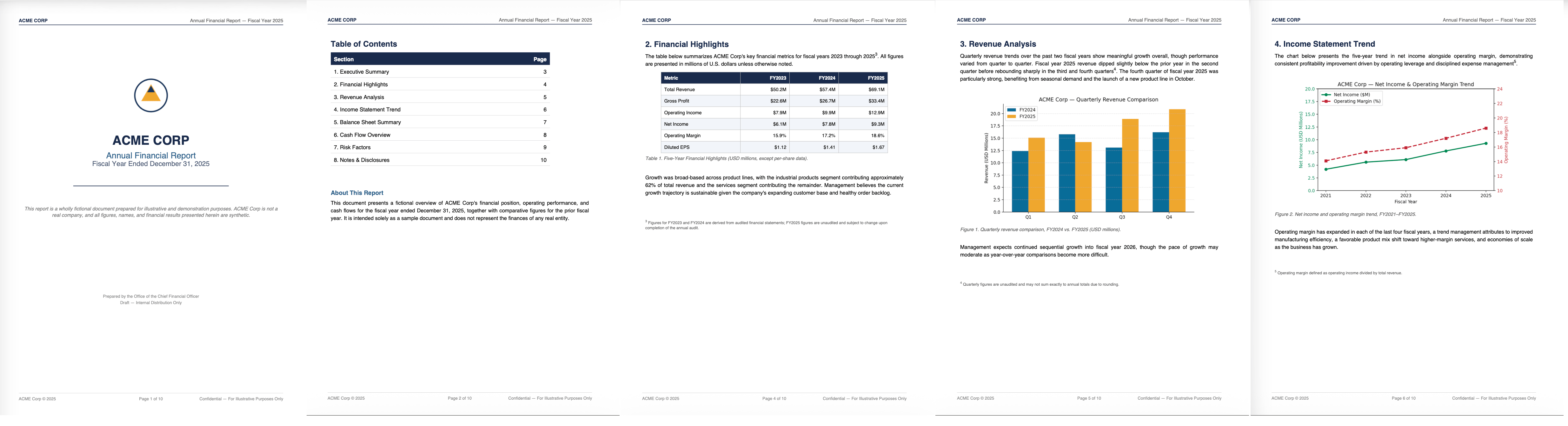
We'll use an example company annual report to demonstrate Unstructured's parsing capabilities.
The file we're going to parse contains a range of unstructured text and graphic elements, such as tables, charts, graphs, and handwriting.
 ## Parse the file
*Estimated time from login to opening the parse results file: about 5 minutes*
[Sign in to claude.ai](https://claude.ai/login).
Click here to open the [Unstructured Transform connector](https://claude.ai/directory/unstructured-transform) page, and then click **Connect**.
If you're a Team or Enterprise account user, your plan Owner needs to add Unstructured Transform to your organization before you can choose it. Have them do this:
Click here to open your [Organization settings > Connectors](https://claude.ai/admin-settings/connectors) page and then click **Browse connectors**.
Search for the **Unstructured Transform** connector, select it, and click **Add to your team**.
When the Unstructured browser window opens, click **Register** and follow the on-screen directions.
After you've finished, click here to open the [Connectors](https://claude.ai/directory#settings/customize-connectors) dialog and verify that **Unstructured Transform** appears in the list.
Close the **Connectors** dialog.
Download the [ACME Corp Annual Report](https://raw.githubusercontent.com/Unstructured-IO/docs-samples/main/pdf/ACME_Corp_Financial_Report.pdf).
Give Claude the following prompt:
```text theme={null}
Use the Unstructured Transform MCP server to parse a file,
and return the results as JSON. Use the open_file_manager tool
to enable me to select the file. Give me instructions for
how to use the interactive card. When the JSON is ready,
open the downloader card so I can grab it.
```
Follow the instructions in Claude to upload the file and have Unstructured parse it.
Download the JSON results once the job finishes.
### Review the results
Unstructured generates a JSON file that is a collection of elements it found in the file: text, tables, images, titles, headers, footers, and more. Each element has a unique ID, as well as a a field naming the file it came from.
The JSON results file is minified by default.
Most browsers contain a **pretty print** option that displays the JSON in human-readable form with proper indentation and line breaks. For example, in Google Chrome, open the file and then check **Pretty print**; in Mozilla Firefox, open the file, click **Raw Data**, and then **Pretty Print**.
Here's a partial list of the document element types you'll see in your parsed JSON results:
| Element type | Description |
| ------------------- | ------------------------------------------------------------------------------------------------------------------------------------------------ |
| `Footer` | Captures document footers. |
| `Header` | Captures document headers. |
| `Image` | A text element for capturing image metadata. |
| `ListItem` | A `NarrativeText` element that is part of a list. |
| `NarrativeText` | An element consisting of multiple, well-formulated sentences. This excludes elements such as titles, headers, footers, and captions. |
| `PageBreak` | Captures page breaks. |
| `PageNumber` | Captures page numbers. |
| `Table` | An element for capturing tables. |
| `Title` | A text element for capturing titles. |
| `UncategorizedText` | Base element for capturing free text from within files. Applies to extracted text not associated with bounding boxes if the input is a PDF file. |
Unstructured also includes *metadata* fields inside elements so that the parsed JSON represents a rich and accurate capture of your file. For example:
* The metadata for each element includes coordinates for its position on the page.
* If an element resides in another element, Unstructured includes a `parent_id` in the child element to retain this relationship.
* For `Table` elements, Unstructured includes escaped JSON that represents a complete rendering of the table in HTML. To find a table element within your file, search for the string `text_as_html`.
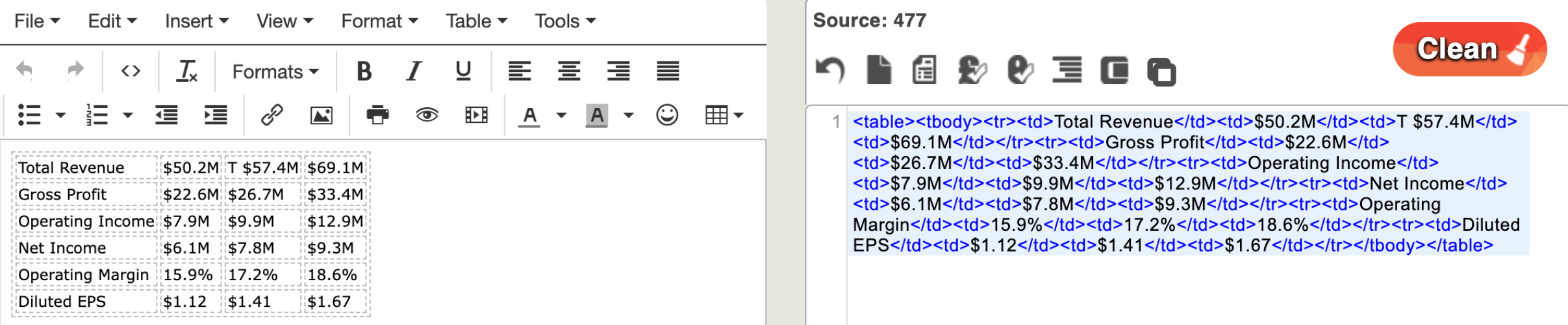
To visually render Unstructured's HTML table representations, you can render the resulting HTML (in an online tool such as [Div Table](https://divtable.com/converter/) or [HTML-Online](https://html-online.com/html-editor/)).
## Parse the file
*Estimated time from login to opening the parse results file: about 5 minutes*
[Sign in to claude.ai](https://claude.ai/login).
Click here to open the [Unstructured Transform connector](https://claude.ai/directory/unstructured-transform) page, and then click **Connect**.
If you're a Team or Enterprise account user, your plan Owner needs to add Unstructured Transform to your organization before you can choose it. Have them do this:
Click here to open your [Organization settings > Connectors](https://claude.ai/admin-settings/connectors) page and then click **Browse connectors**.
Search for the **Unstructured Transform** connector, select it, and click **Add to your team**.
When the Unstructured browser window opens, click **Register** and follow the on-screen directions.
After you've finished, click here to open the [Connectors](https://claude.ai/directory#settings/customize-connectors) dialog and verify that **Unstructured Transform** appears in the list.
Close the **Connectors** dialog.
Download the [ACME Corp Annual Report](https://raw.githubusercontent.com/Unstructured-IO/docs-samples/main/pdf/ACME_Corp_Financial_Report.pdf).
Give Claude the following prompt:
```text theme={null}
Use the Unstructured Transform MCP server to parse a file,
and return the results as JSON. Use the open_file_manager tool
to enable me to select the file. Give me instructions for
how to use the interactive card. When the JSON is ready,
open the downloader card so I can grab it.
```
Follow the instructions in Claude to upload the file and have Unstructured parse it.
Download the JSON results once the job finishes.
### Review the results
Unstructured generates a JSON file that is a collection of elements it found in the file: text, tables, images, titles, headers, footers, and more. Each element has a unique ID, as well as a a field naming the file it came from.
The JSON results file is minified by default.
Most browsers contain a **pretty print** option that displays the JSON in human-readable form with proper indentation and line breaks. For example, in Google Chrome, open the file and then check **Pretty print**; in Mozilla Firefox, open the file, click **Raw Data**, and then **Pretty Print**.
Here's a partial list of the document element types you'll see in your parsed JSON results:
| Element type | Description |
| ------------------- | ------------------------------------------------------------------------------------------------------------------------------------------------ |
| `Footer` | Captures document footers. |
| `Header` | Captures document headers. |
| `Image` | A text element for capturing image metadata. |
| `ListItem` | A `NarrativeText` element that is part of a list. |
| `NarrativeText` | An element consisting of multiple, well-formulated sentences. This excludes elements such as titles, headers, footers, and captions. |
| `PageBreak` | Captures page breaks. |
| `PageNumber` | Captures page numbers. |
| `Table` | An element for capturing tables. |
| `Title` | A text element for capturing titles. |
| `UncategorizedText` | Base element for capturing free text from within files. Applies to extracted text not associated with bounding boxes if the input is a PDF file. |
Unstructured also includes *metadata* fields inside elements so that the parsed JSON represents a rich and accurate capture of your file. For example:
* The metadata for each element includes coordinates for its position on the page.
* If an element resides in another element, Unstructured includes a `parent_id` in the child element to retain this relationship.
* For `Table` elements, Unstructured includes escaped JSON that represents a complete rendering of the table in HTML. To find a table element within your file, search for the string `text_as_html`.
To visually render Unstructured's HTML table representations, you can render the resulting HTML (in an online tool such as [Div Table](https://divtable.com/converter/) or [HTML-Online](https://html-online.com/html-editor/)).
 * For `Image` elements, Unstructured includes a Base64 representation of the image. To find this within your file, search for the string `image_base64`.
To convert the Base64 representation back to the original image, paste the contents of an `image_base64` element into an online tool such as [Base64 Guru](https://base64.guru/converter/decode/image).
* For `Image` elements, Unstructured includes a Base64 representation of the image. To find this within your file, search for the string `image_base64`.
To convert the Base64 representation back to the original image, paste the contents of an `image_base64` element into an online tool such as [Base64 Guru](https://base64.guru/converter/decode/image).
 The above links to third-party websites are provided solely as a convenience. We do not control, approve, or endorse the content, products, or services offered on these external sites. We assume no responsibility for your use of these external sites.
## Go further: Extract structured data
*Estimated time from downloading the file to opening the extracted data file: about 5 minutes*
Now let's see how Unstructured lets you control exactly what information gets extracted from your files, and the structure, or *schema*, to apply to that data. You can specify the data structure you want, or have Unstructured recommend a schema based on the information it finds in your files.
We're going to have Unstructured parse one example form and suggests a schema for the data it finds.
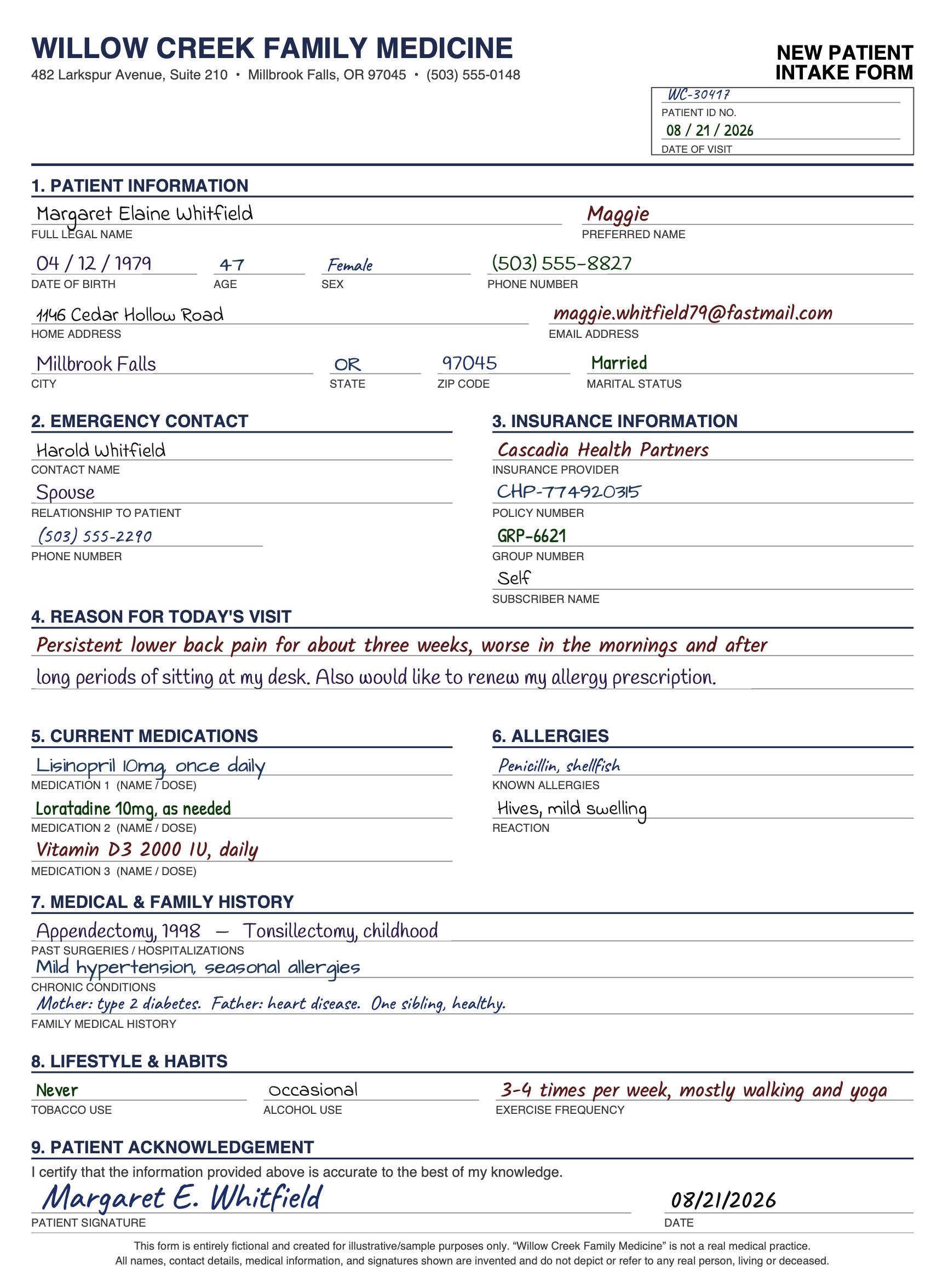
This medical questionnaire mixes tabular data, free-form text, and handwriting in several fonts and colors.
The above links to third-party websites are provided solely as a convenience. We do not control, approve, or endorse the content, products, or services offered on these external sites. We assume no responsibility for your use of these external sites.
## Go further: Extract structured data
*Estimated time from downloading the file to opening the extracted data file: about 5 minutes*
Now let's see how Unstructured lets you control exactly what information gets extracted from your files, and the structure, or *schema*, to apply to that data. You can specify the data structure you want, or have Unstructured recommend a schema based on the information it finds in your files.
We're going to have Unstructured parse one example form and suggests a schema for the data it finds.
This medical questionnaire mixes tabular data, free-form text, and handwriting in several fonts and colors.
 Download the [example medical form](https://raw.githubusercontent.com/Unstructured-IO/docs-samples/main/pdf/Medical_Intake_Form.pdf).
Give Claude the following prompt:
```text theme={null}
Use the Unstructured Transform MCP server to extract
structured data from a file. I don't have a schema,
so suggest one based on what's in the document, show it to me,
and then run the extraction with it. Use the open_file_manager tool
to enable me to select the file. Give me instructions for
how to use the interactive card. Give me the extracted data
as a JSON file I can download.
```
Follow the instructions in Claude to upload the file and have Unstructured parse it.
Accept the schema Unstructured suggests, and download the JSON results once the job finishes. (By default, Unstructured returns the extracted JSON inline, but the above prompt asks for a downloadable file to make reviewing the results easier.)
### Review the structured data
When we parsed the company report sample file, Unstructured generated elements based on how the file presents the data. That is, a title, a header, a table, and so on. With this medical form, Unstructured extracted the *meaning* of the data into a format you defined: full name, date of birth, home address, and so on.
Unstructured reads the handwritten, scanned form and returns a concise data structure. It groups and nests the fields according to your specifications, so your systems can consume the output directly.
While this was a single form, imagine if you had a stack of these patient forms in PDF format. This is the kind of job Unstructured is built to process at scale.
## Next steps
Use Unstructured with Claude Desktop, Claude Code, Cursor, Codex, Visual Studio Code, and more.
Use plain language to tweak Unstructured's output format.
Suggestions and best practices for getting Unstructured to do what you want.
Extend this quickstart to extract custom data from your files in additional ways.
Ask Unstructured for the Python or cURL script that produces this output, then add it to your development environment.
Download the [example medical form](https://raw.githubusercontent.com/Unstructured-IO/docs-samples/main/pdf/Medical_Intake_Form.pdf).
Give Claude the following prompt:
```text theme={null}
Use the Unstructured Transform MCP server to extract
structured data from a file. I don't have a schema,
so suggest one based on what's in the document, show it to me,
and then run the extraction with it. Use the open_file_manager tool
to enable me to select the file. Give me instructions for
how to use the interactive card. Give me the extracted data
as a JSON file I can download.
```
Follow the instructions in Claude to upload the file and have Unstructured parse it.
Accept the schema Unstructured suggests, and download the JSON results once the job finishes. (By default, Unstructured returns the extracted JSON inline, but the above prompt asks for a downloadable file to make reviewing the results easier.)
### Review the structured data
When we parsed the company report sample file, Unstructured generated elements based on how the file presents the data. That is, a title, a header, a table, and so on. With this medical form, Unstructured extracted the *meaning* of the data into a format you defined: full name, date of birth, home address, and so on.
Unstructured reads the handwritten, scanned form and returns a concise data structure. It groups and nests the fields according to your specifications, so your systems can consume the output directly.
While this was a single form, imagine if you had a stack of these patient forms in PDF format. This is the kind of job Unstructured is built to process at scale.
## Next steps
Use Unstructured with Claude Desktop, Claude Code, Cursor, Codex, Visual Studio Code, and more.
Use plain language to tweak Unstructured's output format.
Suggestions and best practices for getting Unstructured to do what you want.
Extend this quickstart to extract custom data from your files in additional ways.
Ask Unstructured for the Python or cURL script that produces this output, then add it to your development environment.