> ## Documentation Index
> Fetch the complete documentation index at: https://docs.unstructured.io/llms.txt
> Use this file to discover all available pages before exploring further.
# Unstructured Transform MCP structured data extraction
> Unstructured Transform includes the ability for you to designate target data from your files, and then extract and convert that data reliably into a structured format of your choosing.
For example, say you have a stack of customer order forms in PDF format, each with an identical layout but different content per order. You might want to extract common fields like customer IDs, item quantities, and order totals. Normally, that would require you to write custom logic yourself. With Transform, you can include natural language instructions for how to extract these fields--either in your initial prompt, or a follow-up prompt after you've had Transform perform the initial partitioning of your files.
For detailed information on how the structured data extractor works, see [Structured data extraction](/concepts/structured-data-extractor/data-extractor).
Transform uses the LLM capabilities of the Unstructured structured data extractor. To use regex expressions to extract structured data, use the [Pipelines API](/api-reference/workflow/nodes/enhancement/extract-regex). For more information, see [Choose an extraction method: LLM or Regex](/concepts/structured-data-extractor/choose-extraction-method).
## Selecting and structuring the data
Transform enables you be as specific as you need to be about what data gets extracted from your files, and how that data is structured (that is, its schema.)
When extracting data from files, you can use Transform to:
* Have your agent suggest a schema for your review and approval, based on the information in the files themselves.
* Have your agent draft a schema based on what information you tell it you want extracted.
* Explicitly provide a schema to use when extracting the data.
### Prompt examples
For example, let's use the *Caring for houseplants* infographic example from [Additional examples](/concepts/structured-data-extractor/additional-examples):
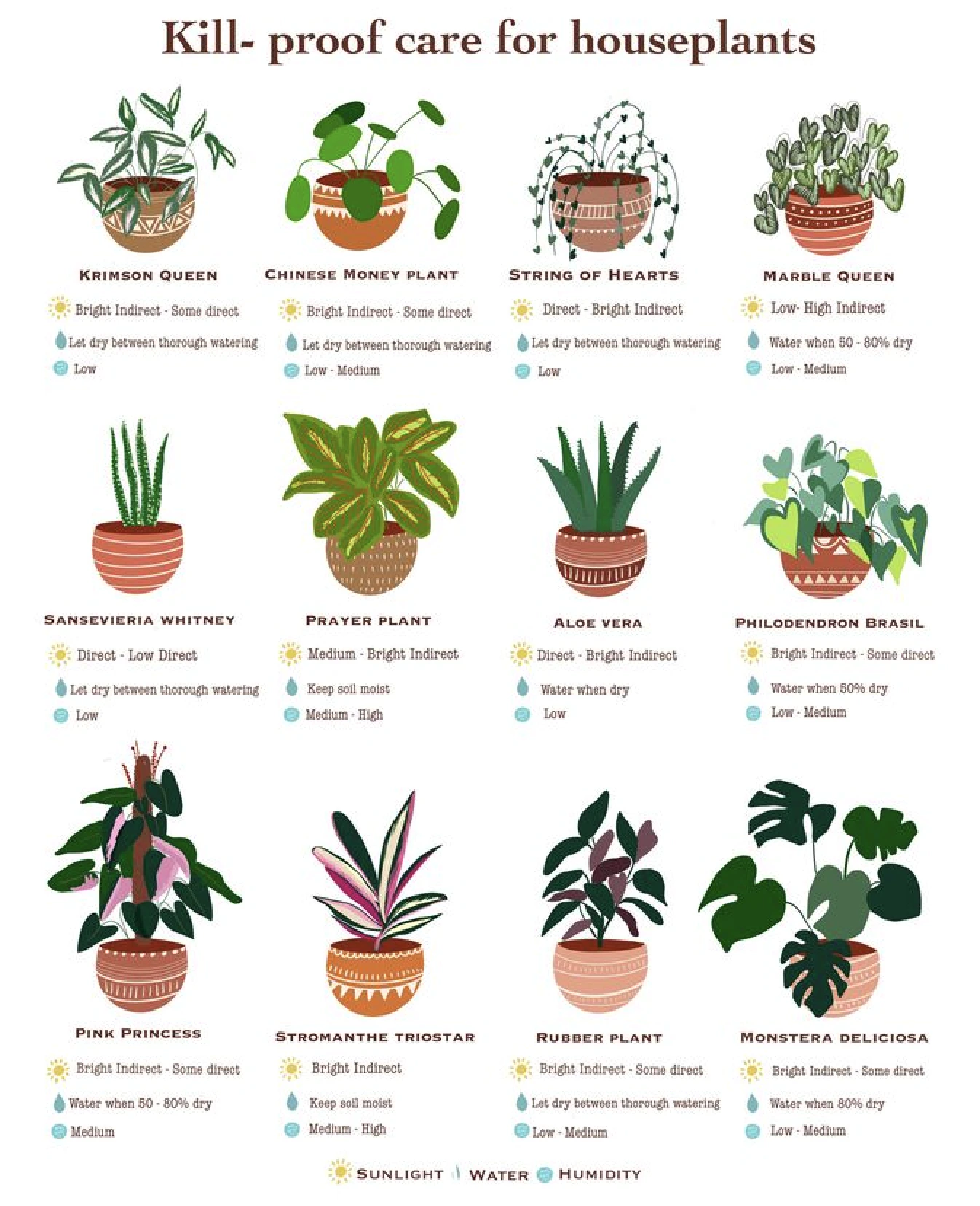 To have your agent suggest a data schema based on the file contents, use a general prompt like the following:
```text theme={null}
Extract structured data from this image: [file_path]
I don't have a schema — suggest one based on what's in the document, show it to me, and then run the extraction with it.
```
To get more specific about what types of data you want included, state which data types are important in the prompt:
```text theme={null}
Extract each plant's name, light needs, watering instructions, and humidity level from this care guide image into JSON: [path]
```
To get even more specific about the data formatting, include information such as data type and data structure in your prompt:
```text theme={null}
Extract structured data from this image: [file_path]
Build the JSON Schema yourself from these fields — don't call a schema-suggestion step:
- plant_name (string) — the plant's common name
- sunlight (string) — light requirement, e.g. Bright Indirect, Direct, Low
- water (string) — watering instructions
- humidity (string) — humidity requirement or range
These should be nested under a top-level plants array. All four fields are required on each entry.
```
And finally, to specify the actual schema to use, include it in the prompt as in the following example, or include a file location where it can be uploaded:
```text theme={null}
Extract structured data from this image: [path]. Use this exact schema — don't suggest one:
```
```json theme={null}
{
"type": "object",
"additionalProperties": false,
"properties": {
"plants": {
"type": "array",
"items": {
"type": "object",
"additionalProperties": false,
"properties": {
"plant_name": {"type": "string"},
"sunlight": {"type": "string"},
"water": {"type": "string"},
"humidity": {"type": "string"}
},
"required": ["plant_name", "sunlight", "water", "humidity"]
}
}
},
"required": ["plants"]
}
```
## Additional extraction prompt patterns
If you want to process a batch of several similar documents, ask for one consistent structure across all of them:
```text theme={null}
I have 5 real estate flyers like this one — extract the same fields from all of them into one consistent JSON structure.
```
If you just want a specific output shape without specifying schema terminology:
```text theme={null}
Turn this infographic into a table with one row per item.
```
For patterns that apply across all of Transform's capabilities see [Prompting strategies](/transform/prompts).
### Considerations
Things to consider when writing prompts for structured data extraction:
* Image, PDF, and PPT input files benefit from saying "extract" in the prompt, rather than just "read" or "summarize". This phrasing nudges the agent toward using extraction functionality rather than a standard parsing of the file(s).
* If your first extraction attempt comes back sparse, use wording similar to the prompt below to get your agent to redo the job with the [High Res partitioning strategy](/api-reference/workflow/nodes/transform/partitioner-high-res) plus relevant enrichments. This should lead to better results.
```text theme={null}
That result seems incomplete — try again with a higher-fidelity parse.
```
## Next steps
* [Control Transform file parsing output](/transform/output): Control how the Unstructured Transform MCP server instructs Transform to partition, enrich, chunk, and embed the data based on your files.
* [Control Transform generated sample code](/transform/code): Control how the Unstructured Transform MCP server generates sample curl or Python code that demonstrates how to use Transform to partition, enrich, chunk, and embed the data based on your files.
## Questions? Need help?
* For technical support, [request support](/support/request).
To have your agent suggest a data schema based on the file contents, use a general prompt like the following:
```text theme={null}
Extract structured data from this image: [file_path]
I don't have a schema — suggest one based on what's in the document, show it to me, and then run the extraction with it.
```
To get more specific about what types of data you want included, state which data types are important in the prompt:
```text theme={null}
Extract each plant's name, light needs, watering instructions, and humidity level from this care guide image into JSON: [path]
```
To get even more specific about the data formatting, include information such as data type and data structure in your prompt:
```text theme={null}
Extract structured data from this image: [file_path]
Build the JSON Schema yourself from these fields — don't call a schema-suggestion step:
- plant_name (string) — the plant's common name
- sunlight (string) — light requirement, e.g. Bright Indirect, Direct, Low
- water (string) — watering instructions
- humidity (string) — humidity requirement or range
These should be nested under a top-level plants array. All four fields are required on each entry.
```
And finally, to specify the actual schema to use, include it in the prompt as in the following example, or include a file location where it can be uploaded:
```text theme={null}
Extract structured data from this image: [path]. Use this exact schema — don't suggest one:
```
```json theme={null}
{
"type": "object",
"additionalProperties": false,
"properties": {
"plants": {
"type": "array",
"items": {
"type": "object",
"additionalProperties": false,
"properties": {
"plant_name": {"type": "string"},
"sunlight": {"type": "string"},
"water": {"type": "string"},
"humidity": {"type": "string"}
},
"required": ["plant_name", "sunlight", "water", "humidity"]
}
}
},
"required": ["plants"]
}
```
## Additional extraction prompt patterns
If you want to process a batch of several similar documents, ask for one consistent structure across all of them:
```text theme={null}
I have 5 real estate flyers like this one — extract the same fields from all of them into one consistent JSON structure.
```
If you just want a specific output shape without specifying schema terminology:
```text theme={null}
Turn this infographic into a table with one row per item.
```
For patterns that apply across all of Transform's capabilities see [Prompting strategies](/transform/prompts).
### Considerations
Things to consider when writing prompts for structured data extraction:
* Image, PDF, and PPT input files benefit from saying "extract" in the prompt, rather than just "read" or "summarize". This phrasing nudges the agent toward using extraction functionality rather than a standard parsing of the file(s).
* If your first extraction attempt comes back sparse, use wording similar to the prompt below to get your agent to redo the job with the [High Res partitioning strategy](/api-reference/workflow/nodes/transform/partitioner-high-res) plus relevant enrichments. This should lead to better results.
```text theme={null}
That result seems incomplete — try again with a higher-fidelity parse.
```
## Next steps
* [Control Transform file parsing output](/transform/output): Control how the Unstructured Transform MCP server instructs Transform to partition, enrich, chunk, and embed the data based on your files.
* [Control Transform generated sample code](/transform/code): Control how the Unstructured Transform MCP server generates sample curl or Python code that demonstrates how to use Transform to partition, enrich, chunk, and embed the data based on your files.
## Questions? Need help?
* For technical support, [request support](/support/request).