

What's in the example file?
What's in the example file?
This file contains a range of unstructured text and graphic elements, such as tables, charts, graphs, and handwriting.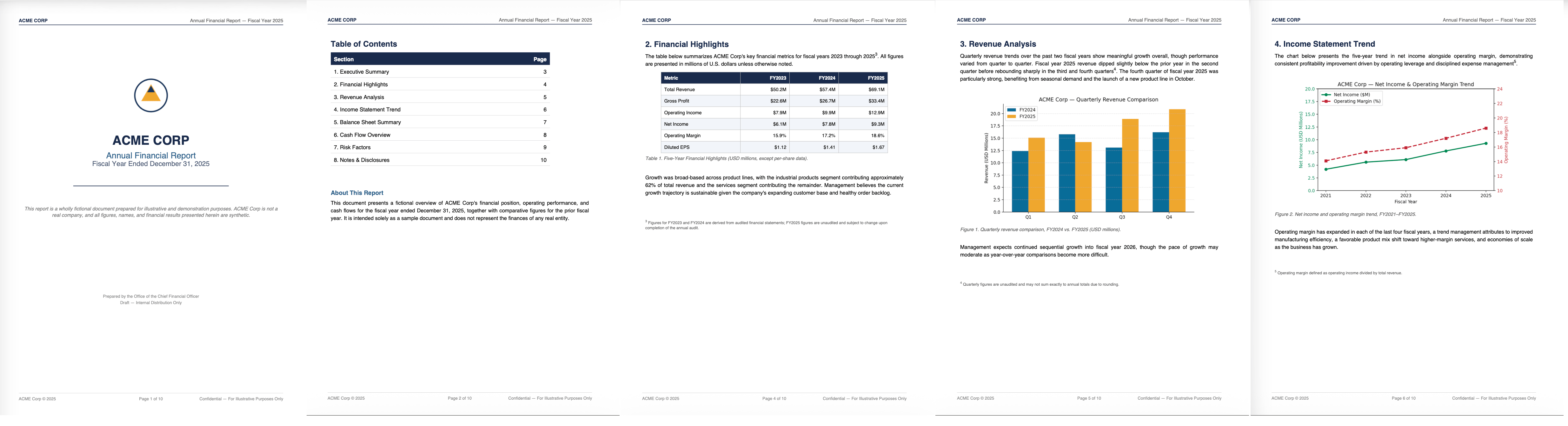
Partition the file
Estimated time from creating your account to opening the partitioned results file: about 5 minutes Follow these steps to run the script and see the partitioned results.What does this script do?
What does this script do?
This script uses the job endpoints to create the job, poll its status, and download the results. The
create job endpoint uses only a Partitioner node to partition the file into Unstructured’s standard document elements.These Partitioner settings activate the Auto strategy. Auto evaluates each page and routes it to Fast, High Res, or VLM partitioning, balancing quality, speed, and cost.Finally, the download job output endpoint downloads the partitioned output to OUTPUT_DIR where you can view it as a JSON file.1
Create your account and get your API key
- Go to Unstructured’s sign-up page and click Register. Follow the on-screen instructions to sign up, then sign in.
- In the sidebar, click API Keys, then click the copy icon next to API Key.
2
Install the Unstructured Python SDK
This requires Python 3.11 or later. Check your version:Install the SDK with pip:
3
Download the file to partition
Download the ACME Corp Annual Report.
4
Download or copy the sample Python script
Download the sample script
partition-quickstart.py, or save the following script into a file.Before you run the script, set API_KEY, INPUT_DIR, and OUTPUT_DIR near the top. The script already sets API_URL.- Point
INPUT_DIRat a folder that contains only the file you want to process. The script processes every file it finds there. - Use a different folder for
OUTPUT_DIR. Otherwise, on a second run, the script also tries to process the JSON files it already saved there.
Python
Python
5
Run the script to partition the file
Run the script.The script prints its progress, then saves the standard AI-ready JSON to
OUTPUT_DIR once the job completes.Review the results
Open the JSON file inOUTPUT_DIR. Unstructured generates a JSON file that is a collection of elements it found in the file: text, tables, images, titles, headers, footers, and more. Each element has a unique ID, as well as a field naming the file it came from.
Some common document element types
Some common document element types
Here’s a partial list of the document element types you’ll see in your partitioned JSON results:
- The metadata for each element includes coordinates for its position on the page.
-
If an element resides in another element, Unstructured includes a
parent_idin the child element to retain this relationship. -
For
Tableelements, Unstructured includes escaped JSON that represents a complete rendering of the table in HTML. To find a table element within your file, search for the stringtext_as_html. To visually render Unstructured’s HTML table representations, you can render the resulting HTML (in an online tool such as Div Table or HTML-Online).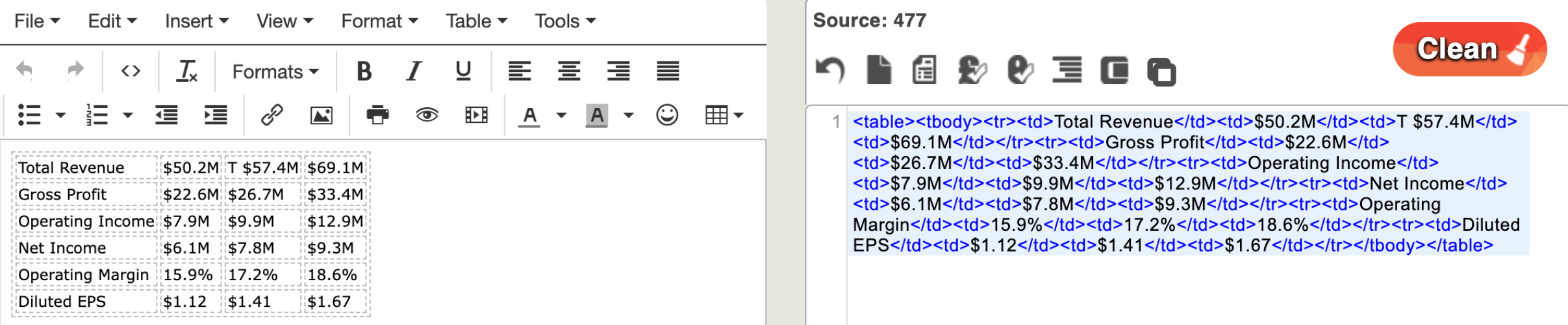
-
For
Imageelements, Unstructured includes a Base64 representation of the image. To find this within your file, search for the stringimage_base64. To convert the Base64 representation back to the original image, paste the contents of animage_base64element into an online tool such as Base64 Guru. The above links to third-party websites are provided solely as a convenience. We do not control, approve, or endorse the content, products, or services offered on these external sites. We assume no responsibility for your use of these external sites.
Go further: Extract structured data
Estimated time from downloading the file to opening the extracted data file: about 5 minutes Now let’s see how Unstructured lets you control exactly what information gets extracted from a file, using a JSON schema and plain-language extraction guidance, rather than returning Unstructured’s standard document elements.What's in the example file?
What's in the example file?
This sample is a typical medical intake form that contains a variety of tabular data, free-form text data, and handwriting in different fonts and colors.
What does this script do?
What does this script do?
This script uses the job endpoints to create the job, poll its status, and download the results. The
create job endpoint uses a Partitioner node to partition the file into Unstructured’s standard document elements. It then uses an Extractor node to pull the fields defined in the script’s JSON schema into a single JSON object.Two Extractor node settings shape that output:output_mode- set toextracted_data_onlyso the output contains only the schema-defined fields. See Custom-defined output for what that excludes.extraction_guidance- plain-language text in theEXTRACTION_PROMPTvariable. Your schema defines which fields to extract; this guidance tells the LLM how to format and normalize the values.
download job output endpoint downloads the extracted output to OUTPUT_DIR where you can view it as a JSON file.1
Download the file to partition
Download the example medical intake form.
2
Download or copy the sample Python script
Download the sample script
extract-quickstart.py, or save the following script into a file.Before you run the script, set API_KEY, INPUT_DIR, and OUTPUT_DIR near the top. The script already sets API_URL and EXTRACTION_PROMPT for this sample form.- Point
INPUT_DIRat a folder that contains only the file you want to process. The script processes every file it finds there. - Use a different folder for
OUTPUT_DIR. Otherwise, on a second run, the script also tries to process the JSON files it already saved there.
Python
Python
3
Run the script to extract the data
OUTPUT_DIR once the job completes.Review the structured data
When you partitioned the financial report, Unstructured generated elements based on how the file presents the data: a title, a table, and so on. With this medical form, theExtractor node instead pulls the meaning of the data into the structure your schema defines: patient name, date of birth, and so on.
The Extractor node uses an LLM to populate the fields your schema defines. It returns a single JSON object holding only the data your use case needs. Structured data extraction like this works especially well for files with the same repeated fields, such as recurring forms or intake documents.
The sample script also uses the Extractor node’s extraction guidance feature. The script sets EXTRACTION_PROMPT to format and normalize values the schema alone can’t fully describe:
Dates are in MM/DD/YYYY format on the form. Represent them as YYYY-MM-DD. Combine the home address, city, state, and ZIP code fields into a single address string.
Full JSON results
Full JSON results
Troubleshooting
pip install fails with a Python version error
pip install fails with a Python version error
Symptom: Cause: Fix: Install Python 3.11 or later, for example from python.org or your platform’s package manager, then run the pip install command again in that Python 3.11 (or later) environment.
pip install "unstructured-client>=0.46.2" fails, for example:unstructured-client requires Python 3.11 or later. Check your version:Job creation fails with a 404 error
Job creation fails with a 404 error
Symptom: The script exits with a Cause: You have an outdated
404 error from the SDK, for example:unstructured-client version installed that doesn’t correctly resolve API_URL for Transform Platform requests.Fix: Upgrade to the latest version, then run the script again:Job status comes back as FAILED or STOPPED
Job status comes back as FAILED or STOPPED
Symptom: The script exits with
RuntimeError: Job did not complete successfully: FAILED (or STOPPED).Cause: The job didn’t finish successfully on the Unstructured platform, for example due to a problem with the input file.Fix: Use the job ID printed by the script to look up the job details and failed files. Resolve the issue, then run the script again.Next steps
Extend this quickstart's code
Build upon this quickstart by exploring additional programmatic options within Unstructured Transform, such as tweaking your output result formats.
Use the API to automate build pipelines
Use the API to work with Unstructured Pipelines, sold separately. Pipelines transforms your remotely hosted unstructured data at scale for RAG and agentic AI.
Get API samples and reference
Get complete code samples and the full reference for all of Unstructured’s programmatic operations.