

The following 8-minute video shows how to use the Unstructured user interface to do structured data extraction.
Overview
When Unstructured partitions your source documents, the default result is a list of Unstructured document elements. These document elements are expressed in Unstructured’s format, which includes elements such asTitle, NarrativeText, UncategorizedText, Table, Image, List, and so on. For example, you could have
Unstructured ingest a stack of customer order forms in PDF format, where the PDF files’ layout is identical, but the
content differs per individual PDF by customer order number. For each PDF, Unstructured might output elements such as
a List element that contains details about the customer who placed the order, a Table element
that contains the customer’s order details, NarrativeText or UncategorizedText elements that contains special
instructions for the order, and so on. You might then use custom logic that you write yourself to parse those elements further in an attempt to
extract information that you’re particularly interested in, such as customer IDs, item quantities, order totals, and so on.
Unstructured’s structured data extractor simplifies this kind of scenario by allowing Unstructured to automatically extract the data from your source documents
into a format that you define up front. For example, you could have Unstructured ingest that same stack of customer order form PDFs and
then output a series of customer records, one record per order form. Each record could include data, with associated field labels, such as the customer’s ID; a series of order line items with descriptions, quantities, and prices;
the order’s total amount; and any other available details that matter to you.
This information is extracted in a consistent JSON format that is already fine-tuned for you to use in your own applications.
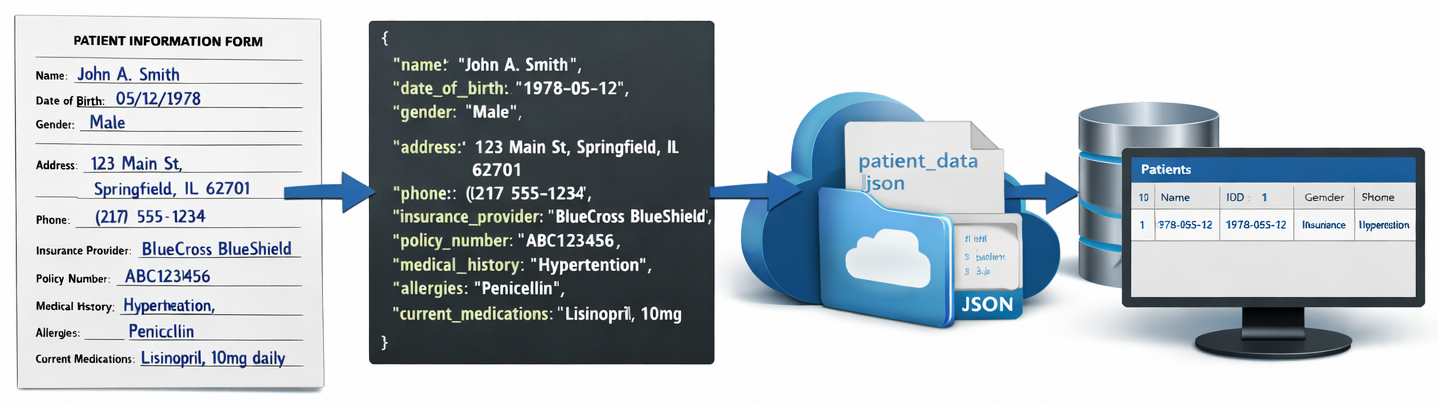
The following diagram provides a conceptual representation of structured data extraction, showing a flow of data from a patient information form into JSON output that is saved as a
JSON file in some remote cloud file storage location. From there, you could for example run your own script or similar to insert the JSON as a series of records into a database.

text fields contain information about the listing, such as the street address,
the square footage, one of the listing’s features, and so on. However,
you might want the information presented as street_address, square_footage, features, and so on.
By using the structured data extractor in your Unstructured workflows, you could have Unstructured extract the listing’s data in a custom-defined output format similar to the following (ellipses indicate omitted fields for brevity):
DocumentData, has an extracted_data field within metadata
that contains a representation of the document’s data in the custom output format that you specify. Beginning with the second document element and continuing
until the end of the document, Unstructured also outputs the document’s data as a series of Unstructured’s document elements and metadata as it normally would.
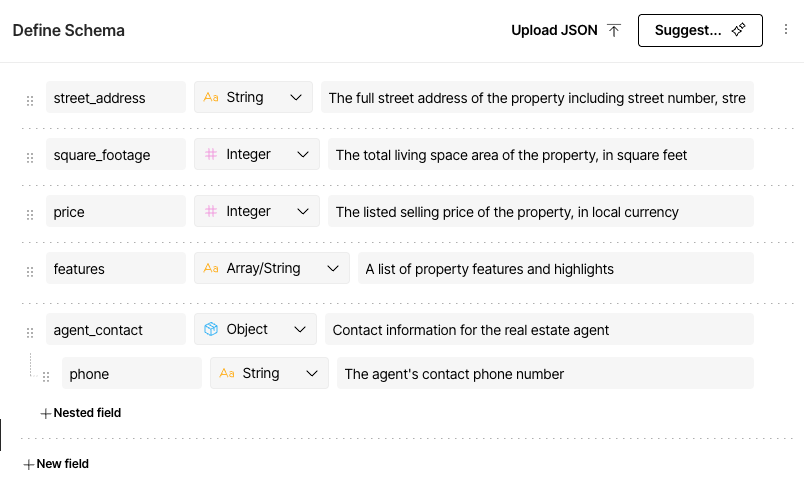
To use the structured data extractor, you can provide Unstructured with an extraction schema, which defines the structure of the data for Unstructured to extract.
Or you can specify an extraction prompt that guides Unstructured on how to extract the data from the source documents, in the format that you want.
An extraction prompt is like a prompt that you would give to a chatbot or AI agent. This prompt guides Unstructured on how to extract the data from the source documents. For this real estate listing example, the
prompt might look like the following:
Using the structured data extractor
There are two ways to use the structured data extractor in your Unstructured workflows:- From the Start page of your Unstructured account. This approach works only with a single file that is stored on your local machine. Learn how.
- From the Unstructured workflow editor. This approach works with a single file that is stored on your local machine, or with any number of files that are stored in remote locations. Learn how.
Use the structured data extractor from the Start page
To have Unstructured extract the data in a custom-defined format for a single file that is stored on your local machine, do the following from the Start page:- Sign in to your Unstructured account, if you are not already signed in.
- On the sidebar, click Start, if the Start page is not already showing.
-
In the Welcome, get started right away! tile, do one of the following:
-
To use a file on your local machine, click Browse files and then select the file, or drag and drop the file onto Drop file to test.
If you use a local file, the file must be 10 MB or less in size.
- To use a sample file provided by Unstructured, click one of the the sample files that are shown, such as realestate.pdf.
-
To use a file on your local machine, click Browse files and then select the file, or drag and drop the file onto Drop file to test.
- After Unstructured partitions the selected file into Unstructured’s document element format, click Update results to have Unstructured apply generative enrichments, such as image descriptions and generative OCR, to those document elements.
- In the title bar, next to Transform, click Extract.
-
If the Define Schema pane, do one of the following to extract the data from the selected file by using a custom-defined format:
- To use the schema based on one that Unstructured suggests after analyzing the selected file, click Run Schema.
- To use a visual editor to define the schema, click the ellipses (three dots) icon; click Reset form, enter your own custom schema objects and their properties, and then click Run Schema. Learn about OpenAI Structured Outputs data types.
- To use a plain language prompt to guide Unstructured on how to extract the data, click Suggest; enter your prompt in the dialog; click Generate schema; make any changes to the suggested schema as needed; and then click Run Schema.
-
The extracted data appears in the Extract results pane. You can do one of the following:
- To view a human-viewable representation of the extracted data, click Formatted.
- To view the JSON representation of the extracted data, click JSON.
- To download the JSON representation of the extracted data as a local JSON file, click the download icon next to Formatted and JSON.
- To change the schema and then re-run the extraction, click the back arrow next to Extract Results, and then skip back to step 6 in this procedure.
Use the structured data extractor from the workflow editor
To have Unstructured extract the data in a custom-defined format for a single file that is stored on your local machine, or with any number of files that are stored in remote locations, do the following from the workflow editor:-
If you already have an Unstructured workflow that you want to use, open it to show the workflow editor. Otherwise, create a new
workflow as follows:
a. Sign in to your Unstructured account, if you are not already signed in.
b. On the sidebar, click Workflows.
c. Click New Workflow +.
d. With Build it Myself already selected, click Continue. The workflow editor appears.
- Add an Extract node to your existing Unstructured workflow. This node must be added right before the workflow’s Destination node. To add this node, in the workflow designer, click the + (add node) button immediately before the Destination node, and then click Enrich > Extract.
- Click the newly added Extract node to select it.
- In the node’s settings pane, on the Details tab, under Provider, select the provider for the model that you want Unstructured to use to do the extraction. Then, under Model, select the model.
- Specify the custom schema for Unstructured to use to do the extraction, by entering your own custom schema objects and their properties.
- Continue building your workflow as desired.
-
To see the results of the structured data extractor, do one of the following:
- If you have already selected a local file as input to your workflow, click Test immediately above the Source node. The results will be displayed on-screen in the Test output pane.
- If you are using source and destination connectors for your workflow, run the workflow as a job, monitor the job, and then examine the job’s results in your destination location.
Limitations
The structured data extractor is not guaranteed to work with the Pinecone destination connector. This is because Pinecone has strict limits on the amount of metadata that it can manage. These limits are below the threshold of what the structured data extractor typically needs for the amount of metadata that it manages.Saving the extracted data separately
Unstructured does not recommend that you saveDocumentData elements as rows or entries within a traditional SQL-style destination database or vector store, for the following reasons:
- Saving a mixture of
DocumentDataelements and default Unstructured elements such asTitle,NarrativeText, andTableelements and so on in the same table, collection, or index might cause unexpected performance issues or might return less useful search and query results. - The
DocumentDataelements’extracted_datacontents can get quite large and complex, exceeding the column or field limits of some SQL-style databases or vector stores.
DocumentData elements that Unstructured outputs into a blob storage,
file storage, or No-SQL database destination location. You could then use the following approach to extract and save the
extracted_data contents from the JSON into a SQL-style destination database or vector store from there.
To save the contents of the extracted_data field separately from the rest of Unstructured’s JSON output, you
could for example use a Python script such as the following. This script works with one or more Unstructured JSON output files that you already have stored
on the same machine as this script. Before you run this script, do the following:
-
To process all Unstructured JSON files within a directory, change
Noneforinput_dirto a string that contains the path to the directory. This can be a relative or absolute path. -
To process specific Unstructured JSON files within a directory or across multiple directories, change
Noneforinput_fileto a string that contains a comma-separated list of filepaths on your local machine, for example"./input/2507.13305v1.pdf.json,./input2/table-multi-row-column-cells.pdf.json". These filepaths can be relative or absolute.Ifinput_dirandinput_fileare both set to something other thanNone, then theinput_dirsetting takes precedence, and theinput_filesetting is ignored. -
For the
output_dirparameter, specify a string that contains the path to the directory on your local machine that you want to send theextracted_dataJSON. If the specified directory does not exist at that location, the code will create the missing directory for you. This path can be relative or absolute.
Additional examples
In addition to the preceding real estate listing example, here are some more examples that you can adapt for your own use.Caring for houseplants
Using the following image file (download this file):
Providing an extraction guidance prompt is available only from the Start page.
The workflow editor does not offer an extraction guidance prompt—you must provide an
extraction schema instead.
Medical invoicing
Using the following PDF file (download this file):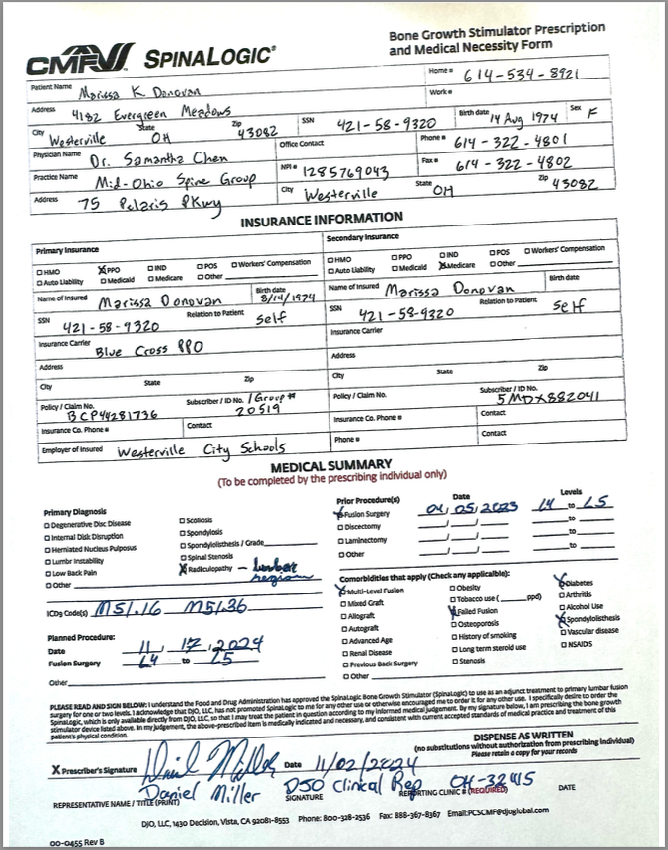
Providing an extraction guidance prompt is available only from the Start page.
The workflow editor does not offer an extraction guidance prompt—you must provide an
extraction schema instead.