

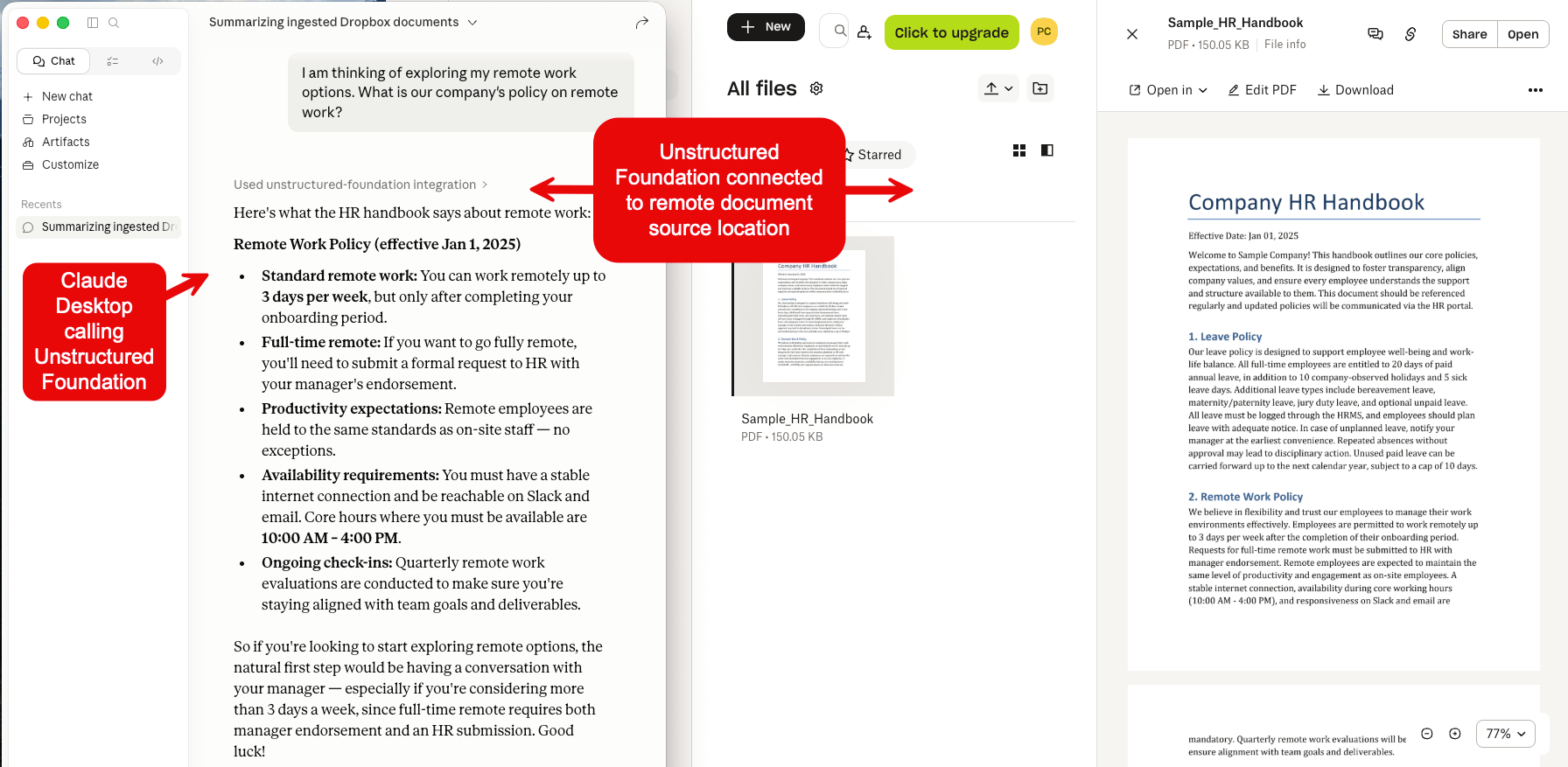
Unstructured Foundation is an Early Access product. Unstructured must accept you into the Early Access program
before you can begin using Foundation.
Add your name to the Early Access interest list.Unstructured is currently accepting a limited number of participants into the Early Access program at its discretion.The following information is being provided to give you an advance preview of possible future functionality. Unstructured
makes no express claims as to what extent this information will reflect the future state of the product.
- AI code editors and IDEs such as Visual Studio Code, Cursor, Windsurf, and JetBrains IDEs.
- AI chat interfaces and desktop assistants such as Codex.
Requirements
Before you can begin this quickstart, you must have the following:- Acceptance by Unstructured into its Early Access program for Foundation. Add your name to the Early Access interest list. Do not begin this quickstart until you have received your Early Access acceptance email from Unstructured.
- A Claude plan. Sign up for Claude.
- Claude Code installed on your local development machine. Install Claude Code from your terminal.
Set up Foundation
-
From your terminal, within a Claude Code session, add the Foundation MCP server plugin marketplace:
-
Use the marketplace you just added to install the Foundation MCP server:
Claude Code prompts you to choose an install scope. The install scope determines which Claude Code sessions can use Foundation. Select User scope, which makes Foundation available in every session.
-
Reload and then begin connecting to the Foundation MCP server from within a Claude session:
Find and select the
plugin:foundation:foundationentry, and then selectAuthenticate. - A web browser tab appears, prompting you to authenticate with Foundation. Enter your email address, and Unstructured emails you an access code. This code arrives in its own email, separate from your Early Access acceptance email. Enter the access code, and then accept the terms of service to finish authenticating.
Connect to and index your source
-
Within a Claude Code session in your terminal, enter the following prompt:
- Click the link that appears in the response. If the link does not appear, go to the following link in your web browser instead: https://foundation.unstructured.io/connect
- If prompted, log in to Foundation.
-
The Connect sources to use Foundation page appears.
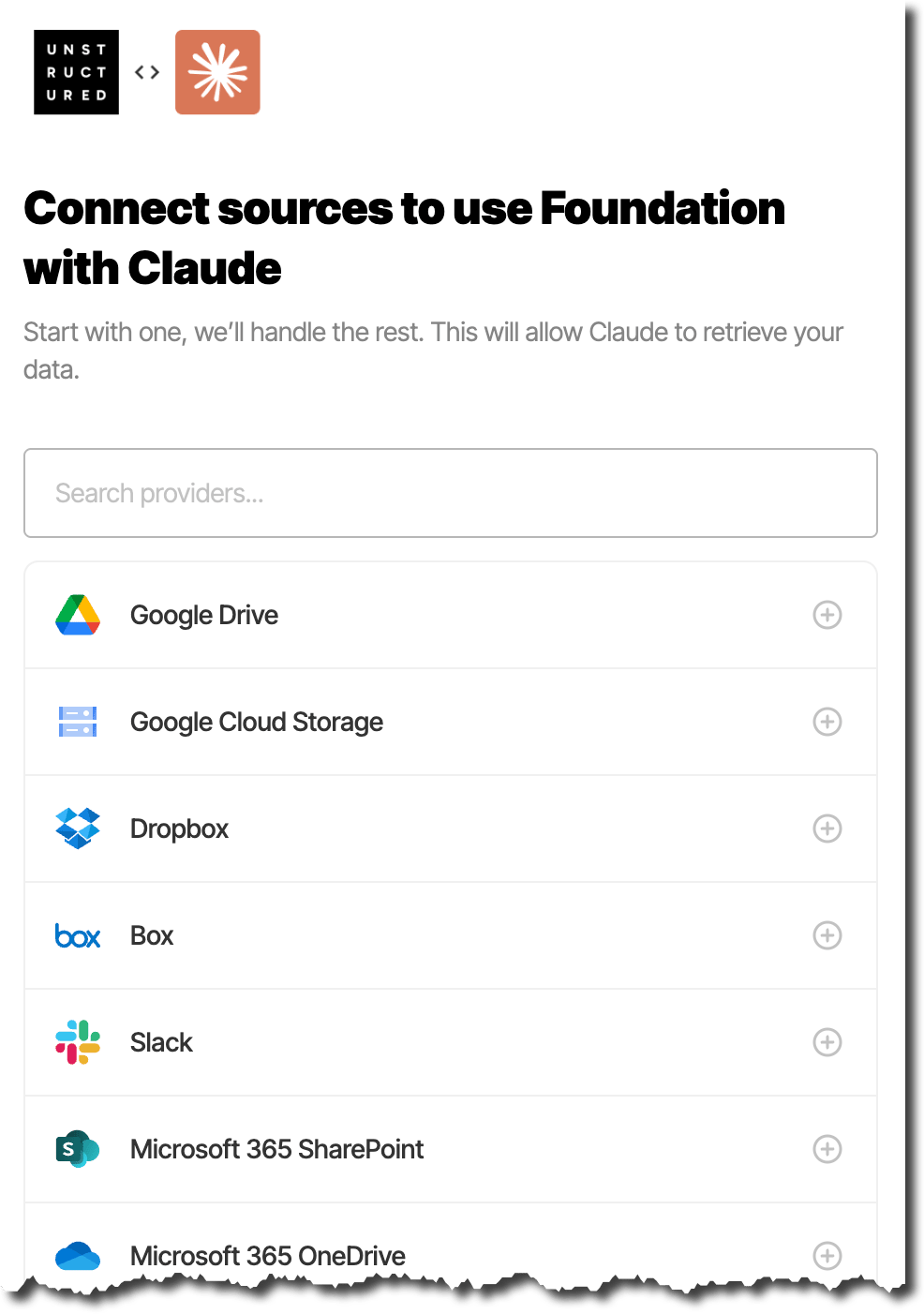
- Click one of the available sources, and then click Connect.
- Follow the on-screen directions to finish connecting to your source.
- View the source files’ ingestion and indexing job’s progress. To do this, on the sidebar, click Summary.
- Wait until the source’s tile displays Fully indexed.
-
You can now start using Claude Code to work with the generated index. For example, you can ask Claude Code questions such as the following:
Approve Foundation tool calls once
Claude Code asks you to approve each Foundation tool the first time it calls that tool. Approving the tools up front means you are not interrupted as you work. When an approval prompt appears, select Yes, don’t ask again to approve that tool permanently. To approve every Foundation tool before you start querying, add the Foundation MCP server to thepermissions.allow list in your Claude Code settings.json file. The default location is:
- For macOS and Linux:
~/.claude/settings.json - For Windows:
%USERPROFILE%\.claude\settings.json
/permissions.
(Optional) Clean up
After you connect Foundation to your source files, Foundation periodically runs an automatic process to check whether any of your source files’ contents have changed. Foundation will then re-ingest and re-index each source file that it determines has changed since its last check. This process, if left running, can result in additional time and costs. To have Foundation pause or resume periodically running this automatic process, then follow the instructions to pause or resume the source. To stop Foundation from periodically running this automatic process, and to also have Foundation delete all of its ingested and indexed information about your source files, follow the instructions to remove the source.Next steps
-
To learn more about how to use Unstructured Foundation, enter the following prompt in Claude Code:
/foundation:help - Manage your Foundation sources: Add, change, and remove sources from Foundation.
- Foundation storage: Understand what artifacts that Foundation generates, indexes, and stores about your sources.
- Troubleshoot Foundation: Solutions for common issues.
Questions? Need help?
- For general questions about Unstructured products and pricing, email Unstructured Sales at sales@unstructured.io.
- For technical support, see request support.