Documentation Index
Fetch the complete documentation index at: https://docs.unstructured.io/llms.txt
Use this file to discover all available pages before exploring further.
When the extraction method is LLM, a model reads meaning from your documents and populates schema-defined fields with inferred values. This page covers those options — schema definition, model selection, schema prompt, and extraction guidance. To compare LLM and Regex before choosing, see Choose an extraction method.
Define your schema
You can build your extraction schema directly in the visual schema builder, or generate a starting point from a plain-language prompt. Once generated, you can refine the schema in the builder and export it as JSON. Be aware that generating a new schema from the plain-language prompt will overwrite any existing builder content.
If you already have a schema in the visual schema builder and want to try generating one from a plain-language prompt, export your current schema to a JSON file first. You can upload it again later if you prefer the original.
Visual schema builder and JSON upload/export
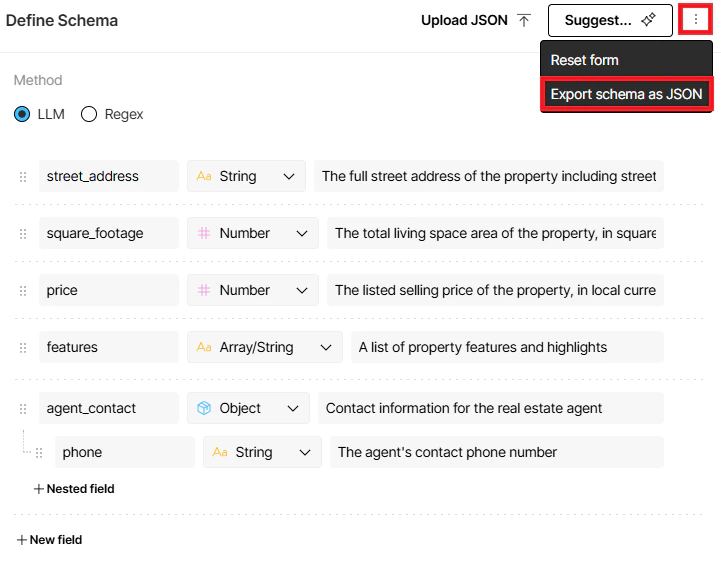
On the Start page or in the workflow editor, you can access the visual schema builder in the Define Schema view. From there you can:
- Upload a JSON file to the editor.
- Edit the fields in the schema directly in the editor.
- Export the schema you have defined to a JSON file for reuse.
An extraction schema is a JSON-formatted schema that defines the structure of the data that Unstructured extracts. If you already have an extraction schema defined in a JSON file, you can click Upload JSON to upload the file to Unstructured.
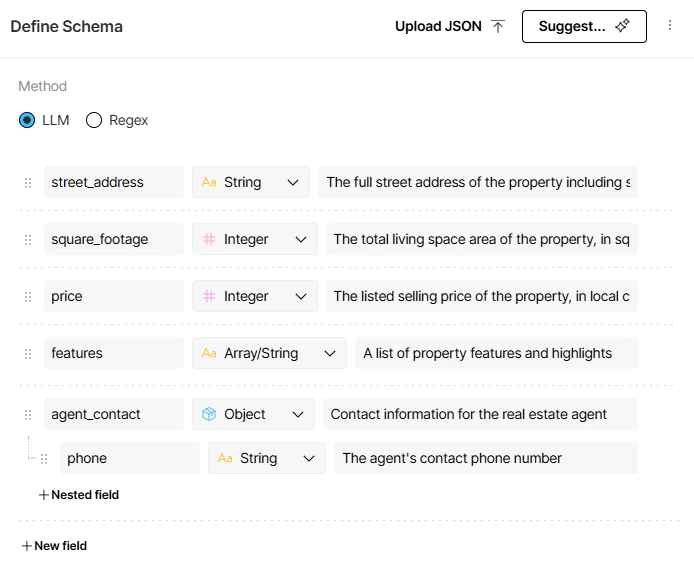
The following shows the extraction schema for the sample real estate listing — first in the visual schema builder, then as a JSON schema file.
The LLM visual schema builder:
 JSON schema file:
{
  "type": "object",
  "properties": {
    "street_address": {
      "type": "string",
      "description": "The full street address of the property including street number, street name, city, state, and postal code"
    },
    "square_footage": {
      "type": "number",
      "description": "The total living space area of the property, in square feet"
    },
    "price": {
      "type": "number",
      "description": "The listed selling price of the property, in local currency"
    },
    "features": {
      "type": "array",
      "items": {
        "type": "string"
      },
      "description": "A list of property features and highlights"
    },
    "agent_contact": {
      "type": "object",
      "properties": {
        "phone": {
          "type": "string",
          "description": "The agent's contact phone number"
        }
      },
      "required": [
        "phone"
      ],
      "additionalProperties": false,
      "description": "Contact information for the real estate agent"
    }
  },
  "additionalProperties": false,
  "required": [
    "street_address",
    "square_footage",
    "price",
    "features",
    "agent_contact"
  ]
}
Plain language in a schema prompt
A schema prompt is plain-language instructions that describe what to extract from your documents, similar to a prompt you would give a chatbot or AI agent. Unstructured generates an extraction schema from those instructions: a structured definition (fields, types, and constraints) that guides extraction from the source documents.
This option is only available from the Start page.
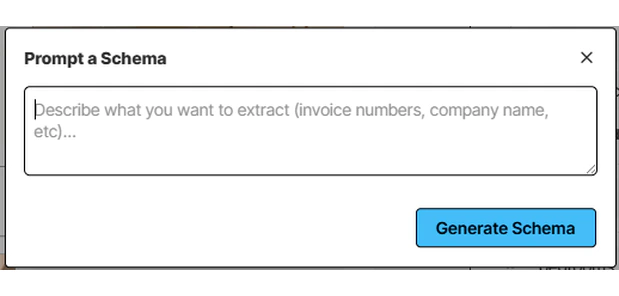
Selecting Generate schema overwrites the existing schema that’s displayed in the Define Schema pane. If you’d like to save the current schema before generating a new one, click the ellipses (three dots) icon, then click Export schema as JSON.
Extract the following information from the listing, and present it in the following format:

- street_address: The full street address of the property including street number, street name, city, state, and postal code.
- square_footage: The total living space area of the property, in square feet.
- price: The listed selling price of the property, in local currency.
- features: A list of property features and highlights.
- agent_contact: Contact information for the real estate agent.
- phone: The agent's contact phone number.
Select your LLM provider and model
You can select a provider and model for the LLM extraction method. For Model, select your provider and model from the drop-down.
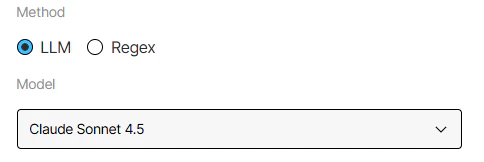
This option is only available from the workflow editor.
Schema-only output
The Schema-Only Output setting applies to both the LLM and Regex extraction methods. In the workflow editor, select the workflow’s Extract node. Under Output settings, you can set Schema-Only Output to ON or OFF whenever you edit the workflow.
-
When Schema-Only Output is ON, the Extract node returns only the JSON produced for your explicitly defined fields.
In workflow JSON, that is the extracted data only layout from Custom defined output (no surrounding Unstructured element list).
-
When Schema-Only Output is OFF (the default), Unstructured also emits the usual document elements and metadata alongside those extracted values.
In workflow JSON, that is the elements with extracted data layout from the same Custom defined output section (structured fields under
DocumentData plus the rest of the element list).

This option is only available from the workflow editor.
This option is only available from the workflow editor.