

When the extraction method is Regex, the structured data extractor scans partitioned text for named patterns and returns an array of matched strings for each field you define. This page covers how to define your schema, understand validation behavior across environments, and interpret the extraction output. To compare Regex and LLM before choosing, see Choose an extraction method.Documentation Index
Fetch the complete documentation index at: https://docs.unstructured.io/llms.txt
Use this file to discover all available pages before exploring further.
Define your schema
You can build your extraction schema directly in the visual schema builder, or uploadname / pattern pairs from an existing JSON file.
On the Start page or in the workflow editor, open the regex Define Schema view (Pattern name and Regular expression rows). From there you can:
- Upload a JSON file to load
name/patternpairs into the form. - Edit
name/patternrows directly in the editor. - Export the pairs you have defined to a JSON file for reuse.
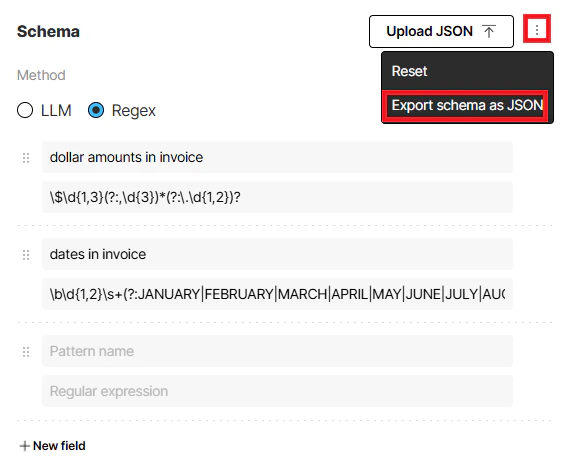
name / pattern pairs):
Escaped and raw formats
When you upload JSON, Unstructured fills each Regular expression field with the literal regex for thatpattern—the same characters you would type by hand. The UI does not show the doubled \ characters that JSON requires inside string values. If you type a pattern by hand, do not enter JSON-style escapes (such as doubled \) in that field. Use the table below to compare a raw regex with the same value inside a JSON string.
Raw regex vs JSON-escaped pattern string:
| Context | Pattern |
|---|---|
| Raw regex | \$\d{1,3}(?:,\d{3})*(?:\.\d{1,2})? |
| JSON string | \\$\\d{1,3}(?:,\\d{3})*(?:\\.\\d{1,2})? |
name / pattern pairs as JSON and applies the escapes that JSON requires inside string values. For example, a single \ in the raw pattern becomes \\ in the saved file.
If you use Upload JSON, Unstructured reads that JSON and shows each Regular expression as the raw pattern (the same characters you would type by hand), not the JSON-escaped string from the file.
The visual schema builder validates the regex you enter before running the extraction. For more information, see Regex validation.
To learn more about regex patterns and see examples, see Regex pattern examples.
Schema-only output
The Schema-Only Output setting applies to both the LLM and Regex extraction methods. In the workflow editor, select the workflow’s Extract node. Under Output settings, you can set Schema-Only Output to ON or OFF whenever you edit the workflow.- When Schema-Only Output is ON, the Extract node returns only the JSON produced for your explicitly defined fields. In workflow JSON, that is the extracted data only layout from Custom defined output (no surrounding Unstructured element list).
-
When Schema-Only Output is OFF (the default), Unstructured also emits the usual document elements and metadata alongside those extracted values.
In workflow JSON, that is the elements with extracted data layout from the same Custom defined output section (structured fields under
DocumentDataplus the rest of the element list).

This option is only available from the workflow editor.
Regex output
Each of thename / pattern pairs in regex_patterns is extracted as an array of the matched values. The name field value is the name of the array in the extracted output.
See Example settings and Example extracted output below.
Example settings:
output_mode field appears in the example settings above so the settings object is shown in full. It does not affect the extracted values illustrated in this example of the Price in dollars matches.
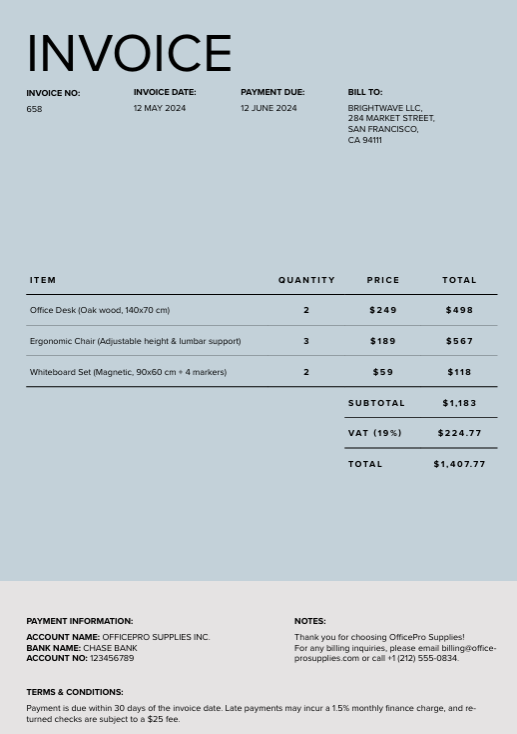
The extracted output includes the array Price in dollars.
The resulting array contains the values in the input document that match the regex pattern.
Example extracted output (partial):
| Context | Pattern |
|---|---|
| Raw regex | \$\d{1,3}(?:,\d{3})*(?:\.\d{1,2})? |
| JSON string | \\$\\d{1,3}(?:,\\d{3})*(?:\\.\\d{1,2})? |
Additional guidance for regex
Regex validation
Regex validation is not the same in the browser UI as at runtime: the Start page and workflow editor validate patterns with JavaScript (ECMA-262) before extraction runs. At runtime, including for API-defined workflows, Unstructured matches partitioned text with Pythonre. The subsections below describe each path.
Runtime
At runtime, Unstructured matches patterns by using Pythonre. For supported constructs, see the Python regular expression documentation.
Start page and workflow editor
On the Start page and in the workflow editor, the form validates patterns using JavaScript (ECMA-262) rules so you get immediate feedback before extraction runs. If you enter an invalid pattern, the UI prompts you to fix it and does not run extraction until the pattern is valid. Some constructs that are valid in Python may be rejected in the UI, including certain conditional patterns, named groups, and named backreferences. Most common patterns are valid in both Pythonre and ECMA-262. If the UI rejects a pattern you need, either submit it via the API’s Extract node, or simplify it to ECMA-262-compatible syntax. For details, see ECMA-262 RegExp or the MDN Regular expressions guide.
API-defined workflows
Patterns that you send through workflow API operations are not subject to the browser-based validation step. Runtime matching still uses Pythonre.
Regex pattern examples
The following are raw regex examples, shown without JSON escaping (as you would type them in a regex tester, not inside a JSON string value).- Dollar amounts:
\$\d{1,3}(?:,\d{3})*(?:\.\d{1,2})?- This pattern matches dollar amounts with a dollar sign immediately followed by digits (no space after
$), comma-separated thousands, and an optional decimal part. - Examples that match:
$2,345.99,$1,000,000 - Examples that don’t match:
$ 2,345.99(space follows the$),1,000,000(no$)
- This pattern matches dollar amounts with a dollar sign immediately followed by digits (no space after
- Another string format:
^[A-Z]{2}-\d{2}-\d{4}$- This pattern matches a string with two capital letters followed by two digits and a four-digit number, separated by dashes (example:XY-12-1234).- The
^and$characters in this pattern are anchors. Use them to require that the entire string matches the pattern. - Do not use anchors if you need to extract values inline in text (like
Invoice id XY-12-1234,Patient record AB-34-5678,ID: AA-00-0000) - Use anchors when the whole string must match the pattern exactly, with no extra text before or after (for example,
XY-12-1234alone). - Examples that match:
XY-12-1234,AA-00-0000 - Examples that don’t match:
Invoice XY-12-1234,XY-12-1234(trailing space),xy-12-1234
- The