Unstructured Foundation is an Early Access product. Unstructured must accept you into the Early Access program
before you can begin using Foundation.
Add your name to the Early Access interest list.Unstructured is currently accepting a limited number of participants into the Early Access program at its discretion.The following information is being provided to give you an advance preview of possible future functionality. Unstructured
makes no express claims as to what extent this information will reflect the future state of the product.
Requirements
Before you begin, you must have the following:- Acceptance by Unstructured into its Early Access program for Foundation. Add your name to the Early Access interest list. Do not begin this installation until you have received your Early Access acceptance email from Unstructured.
- A Cursor plan. Sign up for Cursor.
- The Cursor IDE installed on your local development machine. Install the Cursor IDE.
- Node.js installed on your local development machine. To see if it is, in your terminal, run
node -vornode --version. Install Node.js.
Set up Foundation
-
Open the Cursor IDE’s
mcp.jsonsettings file in a text editor. The default location is:- For macOS and Linux:
~/.cursor/mcp.json - For Windows:
%APPDATA%\Cursor\mcp.json
- For macOS and Linux:
-
Add the following entry to the
mcpServersobject: -
Save and close the
mcp.jsonfile. -
From your terminal, authenticate with the Foundation MCP server:
A web browser tab appears, prompting you to authenticate with Foundation. Enter your email address, and Unstructured emails you an access code. This code arrives in its own email, separate from your Early Access acceptance email. Enter the access code, and then accept the terms of service to finish authenticating.
-
After you authenticate, back in your terminal, press
Ctrl + Cto exit and return to your terminal prompt.
Connect to and index your source
-
In the New Agent tab, enter the following prompt:
Generate a link to connect Unstructured Foundation to a new source.To display the New Agent tab, do the following: a. On the main menu, click View > Command Palette.
b. In the Command Palette, begin typing>Open New(don’t forget to start with>).
c. In the list of matching commands, click Open New Agent Chat.
- Click the link that appears in the response. If the link does not appear, go to the following link in your web browser instead: https://foundation.unstructured.io/connect
- If prompted, sign in to Foundation.
-
The Connect sources to use Foundation page appears.
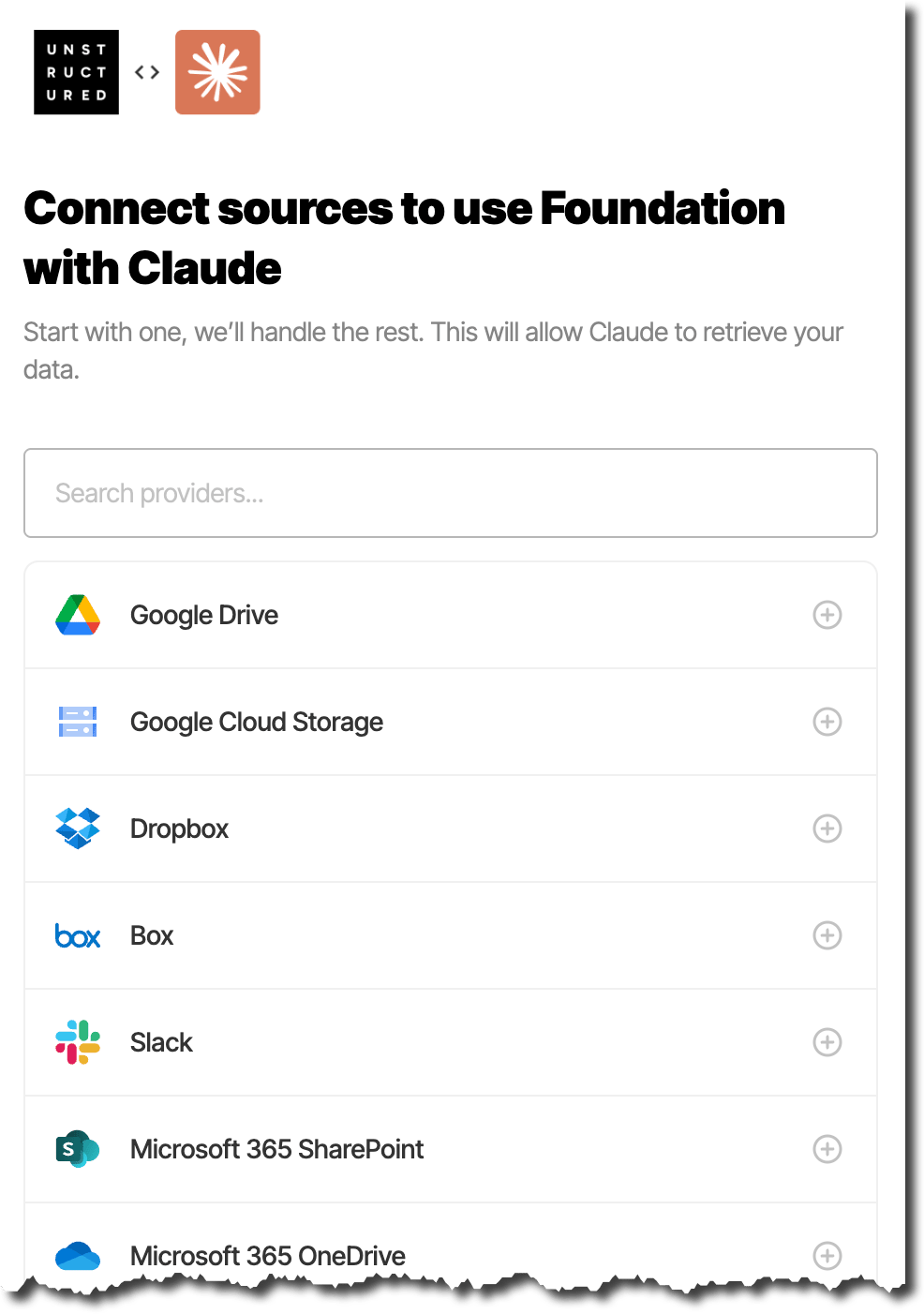
- Click one of the available sources, and then click Connect.
- Follow the on-screen directions to finish connecting to your source.
- View the source files’ ingestion and indexing job’s progress. To do this, on the sidebar, click Summary.
- Wait until the source’s tile displays Fully indexed.
-
You can now start using the Cursor IDE to work with the generated index. For example, you can ask the Cursor IDE questions such as the following:
Next steps
-
To learn more about how to use Unstructured Foundation, enter the following prompt in the Cursor IDE:
Teach me how to use Unstructured Foundation. - Manage your Foundation sources: Add, change, and remove sources from Foundation.
- Foundation storage: Understand what artifacts that Foundation generates, indexes, and stores about your sources.
- Troubleshoot Foundation: Solutions for common issues.
Questions? Need help?
- For general questions about Unstructured products and pricing, email Unstructured Sales at sales@unstructured.io.
- For technical support, request support.